Additional steps for Mac users
If you're using a Mac, you may need to take additional steps to install and run Proctortrack.
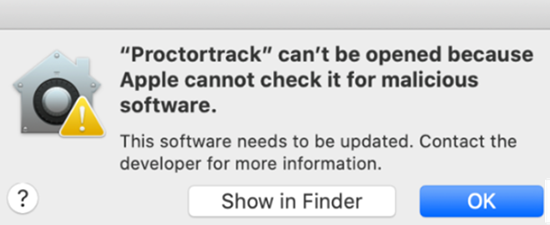
If a 'malicious software' notification displays
-
Select OK on the notification.
-
Then use one of the following methods to open Proctortrack.
Option 1 — Move to /Applications
- Go to your Downloads folder, locate the Proctortrack application, and drag it to
/Applicationsto complete the installation. - Right-click the Proctortrack application and select Open.
Option 2 — Open file anyway from Downloads
- Locate the Proctortrack application in the Downloads folder.
- Right-click the Proctortrack application and select Open.
- A malicious software notification displays with an option to open the file anyway. Select that option to launch Proctortrack.
Option 3 — Open file anyway in System Preferences
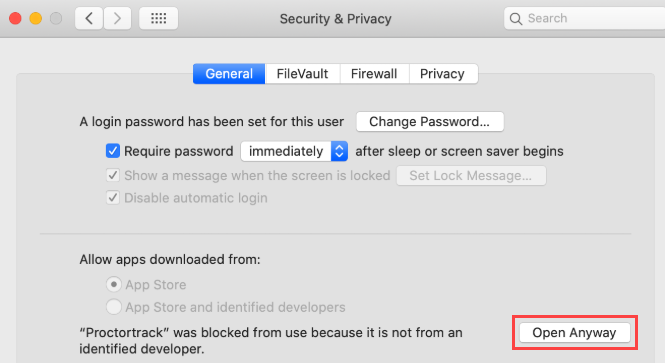
- Go to System Preferences > Security & Privacy.
-
On the General tab, select Open Anyway.
Enable privacy permissions
When you open Proctortrack, it may prompt you to enable settings on your Mac to allow Proctortrack to monitor and record your test session.
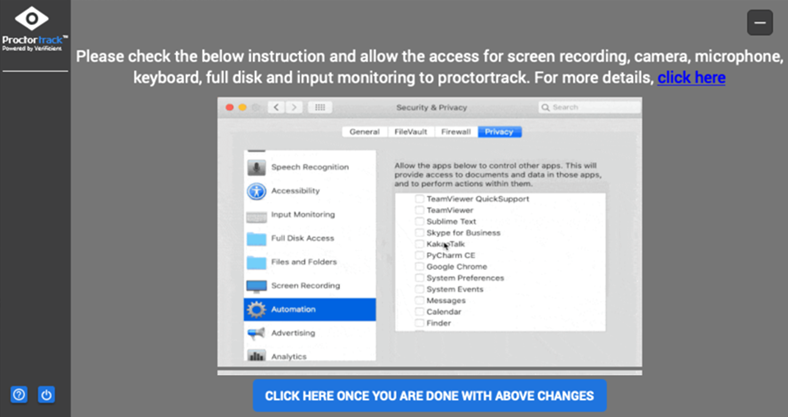
To enable the settings:
- Go to System Preferences > Security & Privacy.
- Select the Privacy tab.
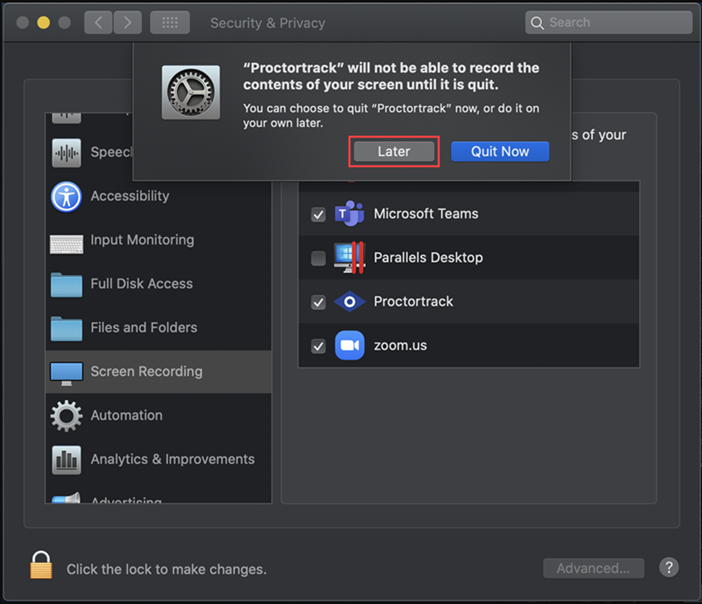
- Select the Proctortrack checkbox for each setting Proctortrack requests: Screen Recording, Camera, Microphone, Keyboard, Full Disk Access, and Input Monitoring.
-
If a setting requires a restart of Proctortrack before it takes effect, a popup displays. Select Later.
-
Continue adjusting all the required settings, then close and reopen Proctortrack.