Test player
You take your test in the Janison test player, which launches in the Google Chrome browser. The player launches automatically in your Chrome browser once you start proctoring.
The features in the test player are intuitive, but we've highlighted them below so you know what to expect.
Important
The features you see in your test depend on what's been used by the test author. You may not see all features covered below.
Review your progress
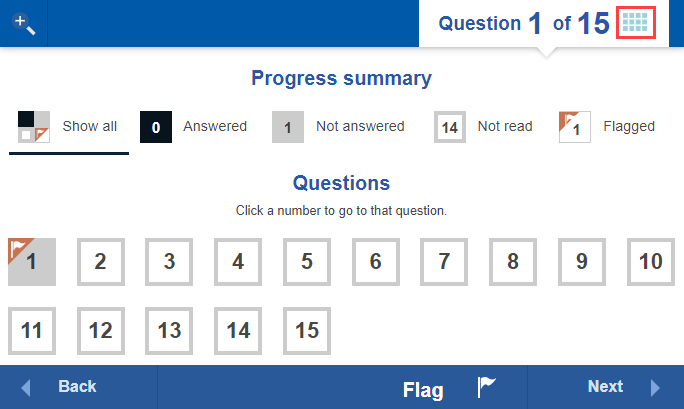
At any time during the test, visit the Progress summary screen to review a summary of your questions. On this screen you can filter by:
- Answered
- Not answered
- Not read (questions you haven't yet visited)
- Flagged
Select the progress icon  at the top of a question screen to go to the Progress summary screen.
You can select any option to filter the questions. For example, Not answered shows only the questions you haven't responded to.
Flag questions
If you'd like to come back to a question later, flag it so it's easy to find.
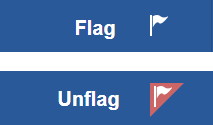
Select Flag at the bottom of the question screen. The button changes to Unflag so you can remove the flag.
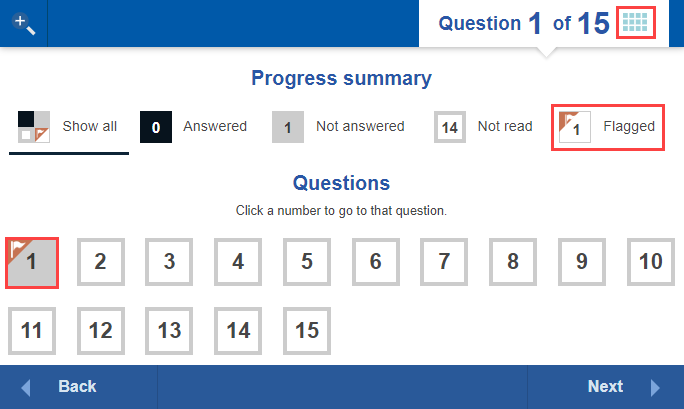
Flagged questions appear on the Progress summary screen. Select a flagged question to jump straight to it.
Helper tools
You may have helper tools available if your test author added them. When available, they display at the top right of the test player.

Select an icon to open the tool, and select it again to close it.
Calculator
Use your mouse to operate the buttons.
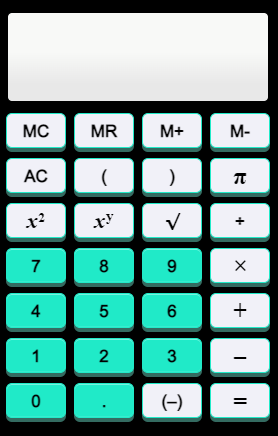
Your calculations are private and not shown to the test marker.
Protractor
A protractor may be available for questions requiring you to measure angles.
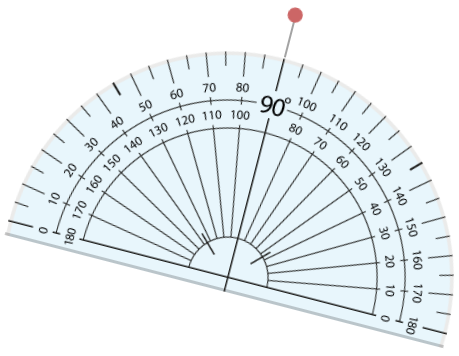
- To move the protractor, click and hold the left mouse button on the protractor and drag.
- To rotate it, click and hold the left mouse button on the red dot above the protractor and drag.
Ruler
A ruler may be available for questions requiring you to measure length.
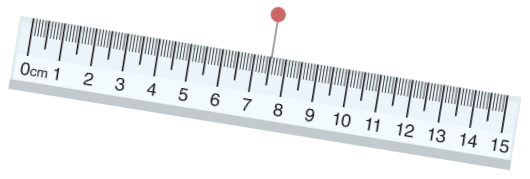
- To move the ruler, click and hold the left mouse button on the ruler and drag.
- To rotate it, click and hold the left mouse button on the red dot above the ruler and drag.
Notepad
A notepad may be included to let you take personal notes during the test.
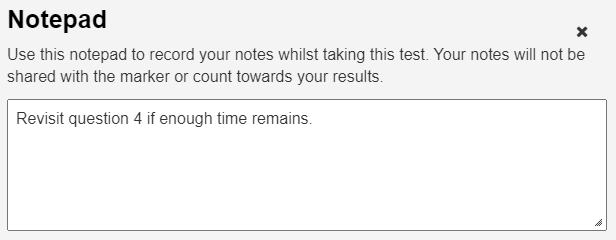
Your notes are saved and available until your test is submitted. They're for your use only — they're kept private and not shown to the test marker.
Reference material
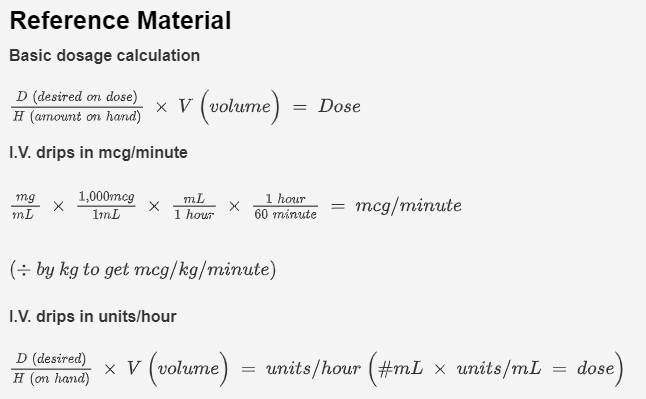
A book icon  displays if reference material is available for you to use when answering questions.