Frequently asked questions
If you're experiencing an issue with Janison Remote, you may find the answer below. If you can't find what you need or the issue is still happening, see Getting help for support contacts.
I haven't received an email with my login details — what should I do?
Check the Junk, Spam, and Promotions folders in your email.
If your email address has changed since registration, or if you still can't find an email, contact your institution's helpdesk.
Why aren't my Proctortrack username and password working?
Accessing the Proctortrack site
Use only the links provided in emails from your institution to access the Proctortrack site. These links connect you to the right site that recognises your login details.
Logging in for the first time
When you log in to Proctortrack for the first time:
- Make sure to enter the correct email address in the email field.
- Copy and paste the password from your institution's email into the password field — make sure not to copy any extra spaces before or after the password.
After you log in for the first time, you'll need to change your password.
Resetting your password
If you're still unable to log in, reset your password:
-
Select the Forgot password link on the Proctortrack login screen.

-
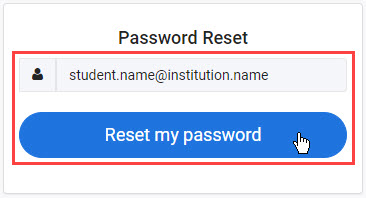
Enter your email and select Reset my password.
-
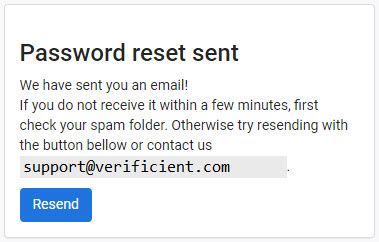
A password reset email is sent to your email address. Follow the instructions to reset your password.
I don't have a device or internet access that meets the minimum system requirements — can I still sit the test?
No, you can't sit the test using video supervision if your device doesn't meet the minimum system requirements. Contact your institution's helpdesk as soon as possible to discuss alternative arrangements.
I'm having problems installing the Proctortrack software — what should I do?
Contact the Proctortrack support team:
- Using the chat option at the bottom of the screen on the Proctortrack website.
- Via the Proctortrack support page.
What forms of identification are valid?
Your identification must contain your full name and a photo of yourself. Contact your institution's helpdesk for a full list of valid forms of ID.
My identification is expiring soon — is that an issue?
Your identification must be valid on the day you submit your baseline identity profile scans for verification.
How long does it take for my identity to be verified?
It can take up to 24 hours for your face and identification scans to be verified after you submit them.
Do I need to verify my identity before every video-supervised test?
Before your first proctored test, you'll be instructed to submit scans of your face and your photo identification.
Once these scans are processed and verified, an encrypted baseline identity profile is created and stored for up to 365 days.
At the start of each proctored test, you'll need to submit a face scan to be checked against your encrypted profile.
I missed the due date to verify my identity — what should I do?
Contact your institution's helpdesk as soon as possible and state:
- The name and date of the test you're enrolled in.
- The reason you missed the deadline.
How do I know if my identity has been successfully verified?
Log into the Proctortrack dashboard to check the progress of your baseline identity profile verification at any time. It shows whether your profile is still being processed, has failed, or has passed.
If your identity verification:
- Fails — you'll be notified by email. Retake the onboarding test and resubmit your scans as soon as possible.
- Passes — you'll be emailed test details at least 24 hours before your scheduled main event test.
My face scan or identification scan have been rejected — what should I do?
If your baseline identity verification fails, you'll receive an email notifying you that your onboarding scans have been rejected. The email includes the reason.
Retake your onboarding test as soon as possible, taking the rejection reasons into consideration.
Helpful tips:
- Follow the guidelines presented in the Proctortrack app to take a perfect scan each time.
- Clean your camera lens with a soft cloth.
- Make sure the room is well lit.
- Keep the background as plain as possible.
- For your face scan, keep your head approximately 30–45 centimetres away and centred to the computer screen.
- Take your time to review and confirm that your face scan and identification scan:
- Are clear and the text on your identification can be read.
- Can be used to verify that you're the same person in both.
I missed my test — what should I do?
Contact your institution's helpdesk as soon as possible and state:
- The name and date of the test you were enrolled in.
- The reason you missed the test.
What does it mean when the home button in the test player has a yellow number on it?

This means your device went offline during the test, and was still offline when you submitted your test.
While offline, your test attempt saves to your local device but needs to be sent to the online server to be marked. If you see the yellow icon, contact your institution's helpdesk — they'll talk you through the steps to send your test attempt to the online server.
Wishing you all the best for your exam! 🍀