Add and remove instructors
Tip
Adding someone as an instructor allows them to do the following for the test they're added to:
- Change test guideline settings
- View a list of candidates and their account details
- Review candidate videos and scans
- Reconcile offline tests
- Add other instructors
- Run reports
You need to add an instructor for each test. Viewing the list of instructors for a test and adding a new instructor are done on the same screen.
View and add instructors
-
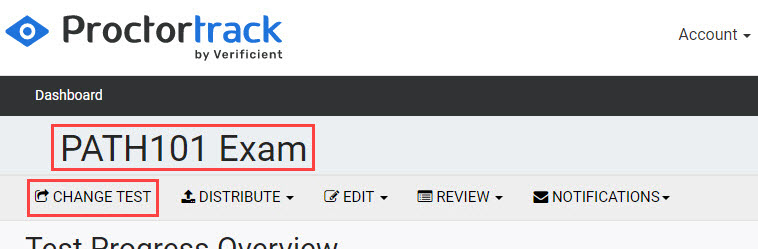
Check that the correct test is active. As instructors are viewed and added per test, the required test needs to be active.
The name of the active test is shown at the top of the dashboard. If it's not the test you want, select CHANGE TEST and choose the correct one. See Changing the active test for details.
-
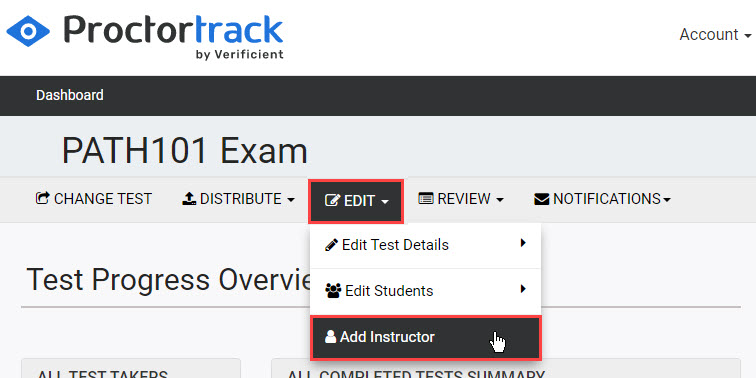
On the instructor dashboard, select EDIT, then select Add Instructor.
-
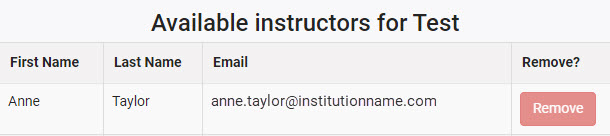
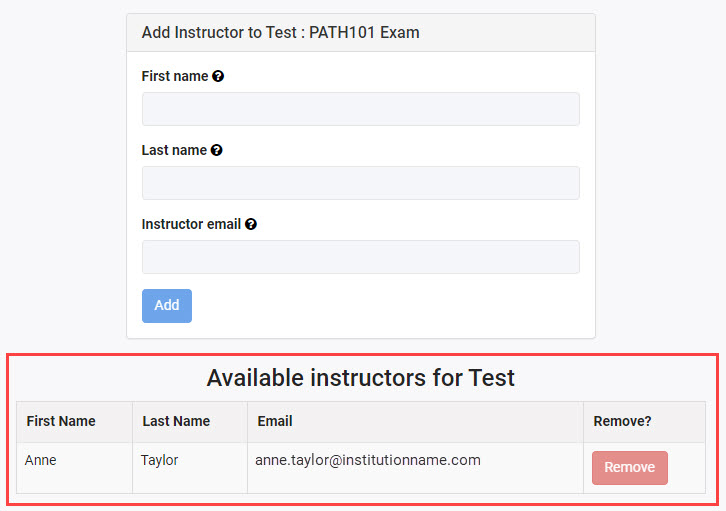
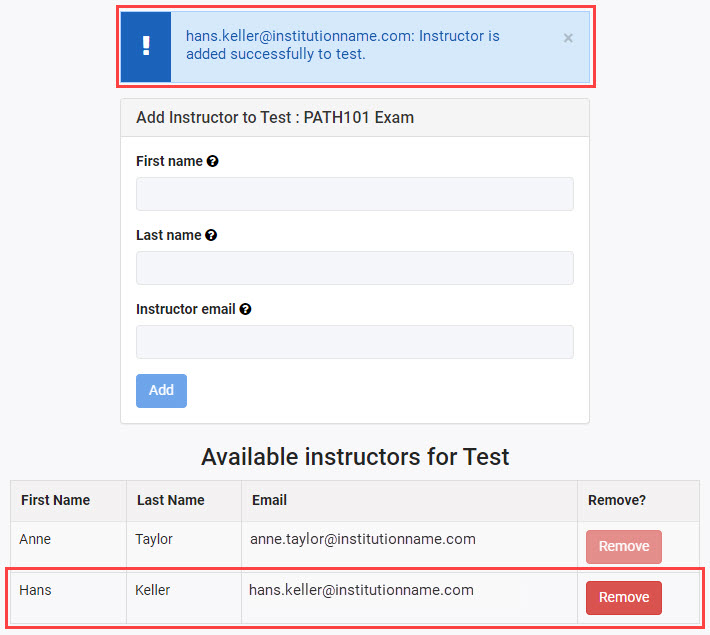
The Add Instructor to Test screen displays. Instructors for the active test are shown in the Available instructors for Test list at the bottom of the screen.
Add a new instructor
-
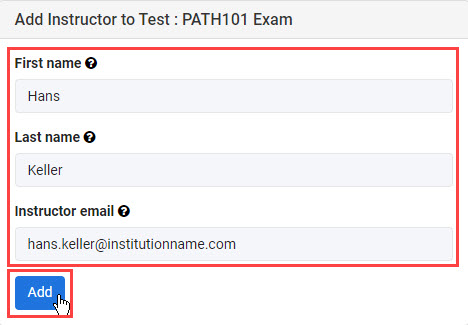
Enter the instructor's details in First name, Last name, and Instructor email.
Tip
The email you enter is set as the instructor's username. Proctortrack checks this username against existing instructors. If the instructor already exists, Proctortrack uses the name from the existing record (not what you enter here).
-
Select Add.
-
A confirmation message appears at the top of the screen and the instructor is added to the Available instructors for Test list.
- If the instructor didn't already exist in Proctortrack, they receive an email with their account details.
- The instructor will have access to the test the next time they log in.
Remove an instructor
-
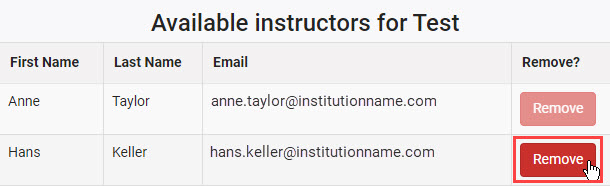
Select Remove next to the required instructor in the Available instructors for Test list.
-
A popup confirms the instructor has been removed. Select OK.

-
The instructor is no longer shown in the list for this test.