View a list of candidates
The EDIT dropdown on the instructor dashboard lets you view a list of candidates, including each candidate's username and initial password.
Tip
While it's also possible to add or edit candidates via the EDIT dropdown, these tasks are generally handled by Janison.
View the list
-
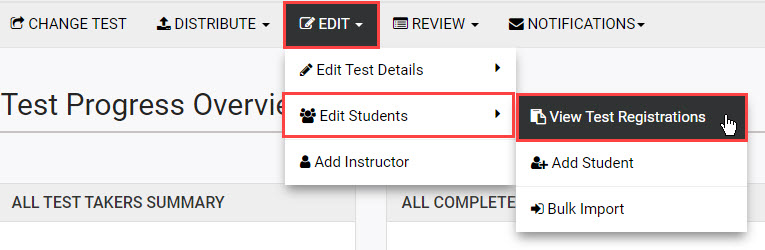
On the instructor dashboard, select EDIT, hover over Edit Students in the dropdown, and select View Test Registrations.
-
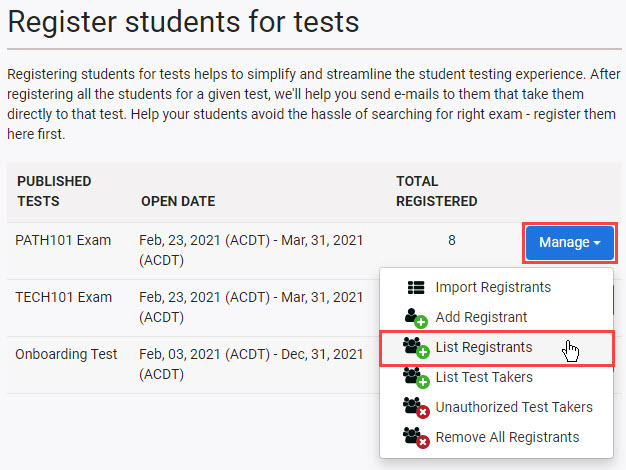
On the Register students for tests screen, select Manage next to the required test and choose List Test Takers.
-
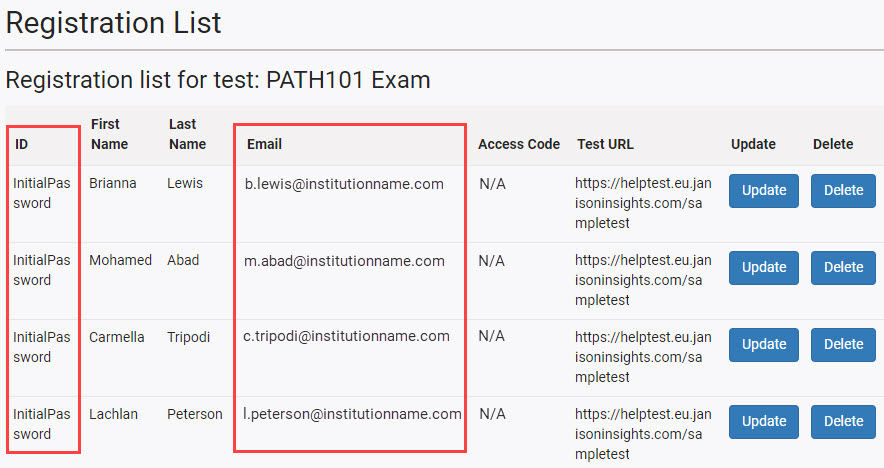
The Registration List screen displays a list of candidates enrolled in the selected test.
-
The Email column is the candidate's Proctortrack username.
- The ID column is the initial Proctortrack password set for the candidate.
Tip
The password in the ID column is the candidate's initial password. If a candidate changes their password, the new value won't display here.
Candidates are prompted to reset their password the first time they log in. If a candidate forgets their new password, they need to reset it using the Forgot password link on the Proctortrack login screen.
