Reconcile offline tests in Janison Insights
When candidates submit their test attempt in the Janison Replay test player, the test is sent to the online Janison Insights system for marking.
Important
If a candidate's device goes offline and then comes back online before they submit, the test attempt is sent to the system automatically.
However, if a candidate's device loses network connectivity before they submit and is still offline when they submit, their attempt is saved to their local device. You'll need to give them instructions to upload their attempt to the system — this process is called reconciling the device.
Step 1 — Check the dashboard for attempts that need reconciling
After a remote test event concludes, check the Test Sessions Administration Dashboard in Janison Insights for any unsaved attempts.
- Open the Test Sessions Administration Dashboard.
-
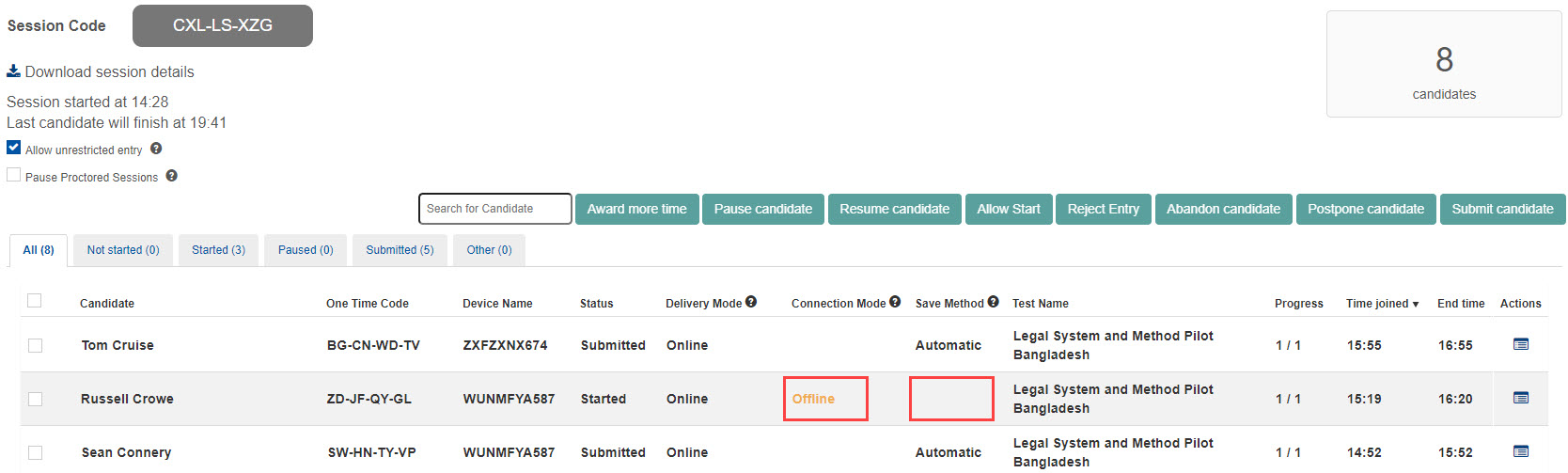
Check the Connection Mode column for any attempts listed as Offline. If the Save Method field is also blank, you'll need to contact the candidate and guide them through reconciling the device.
Tip
Select the Connection Mode column header to sort — this brings all offline candidates to the top.
Step 2 — Reconcile the device and upload the test attempt
Use these steps to guide a candidate through reconciling their device.
Important
Before you start, ensure you have the PIN the candidate needs to unlock the Janison Replay test player. Janison supplies PINs to instructors. See Contact support if you need to contact Janison about PINs.
-
If the candidate has closed the browser, they need to reopen it and enter the URL to access Janison Replay. The URL is
https://xxx.janisoninsights.com/testplayer2/testplayer/homewherexxxis the institution-specific Janison Insights site. -
If the candidate's device needs to be reconciled, a yellow icon displays on the home button. The candidate can only reconcile when their device is connected to the internet again — when online, the cloud dot is green.

If the candidate's device is online, instruct them to reconcile:
-
Select the lock button at the top of the Janison Replay test player.

-
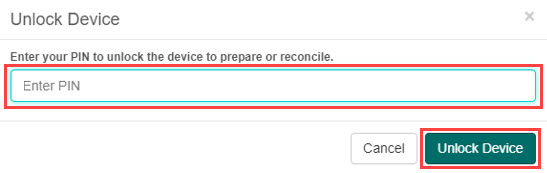
On the Unlock Device popup, enter the PIN (supply the candidate with the Janison-provided PIN) and select Unlock Device.
-
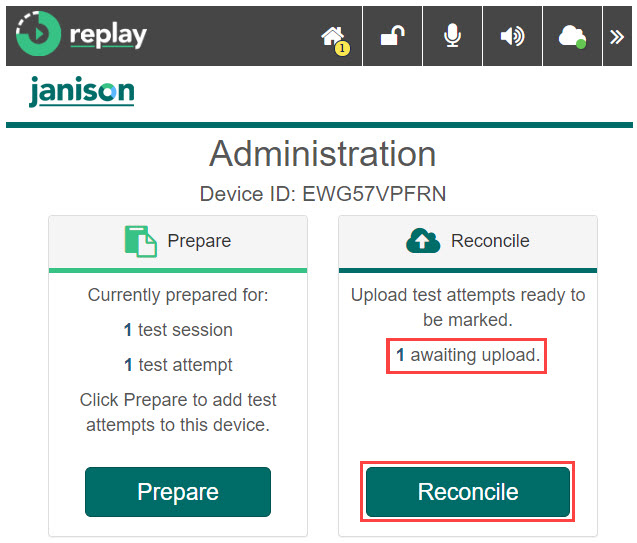
On the Administration screen, the number of attempts awaiting upload is shown on the Reconcile tile. Select Reconcile.
-
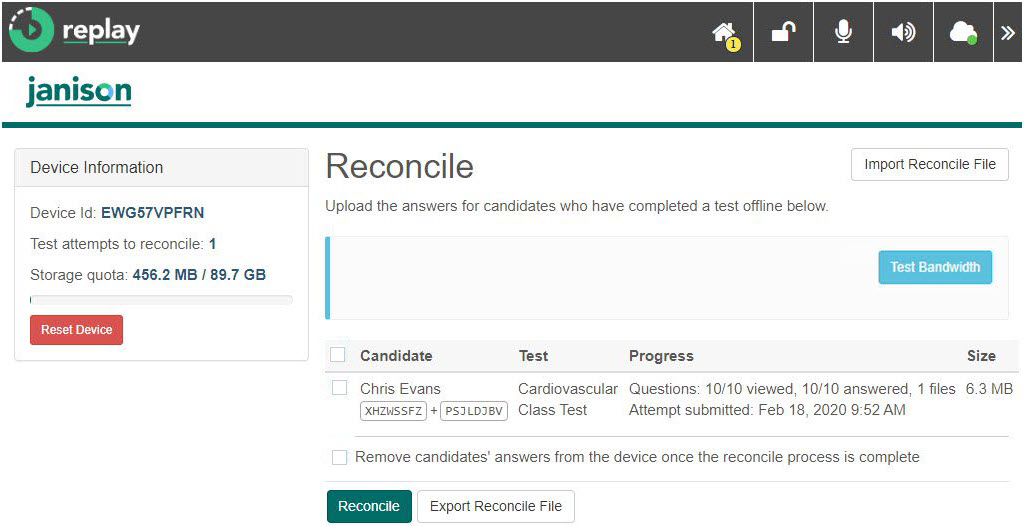
The Reconcile screen displays.
-
Optional: select Test Bandwidth to estimate how long the reconcile will take.

-
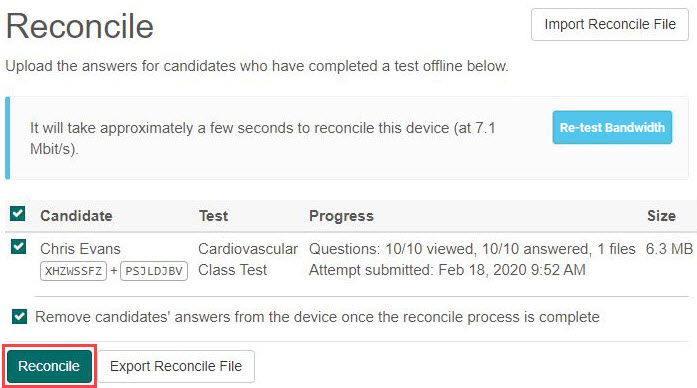
Select the checkbox next to the test attempt.

-
Optional: select Remove candidate's answers from the device once the reconciliation process is complete to free up device space.

-
Select Reconcile. The upload starts.
-
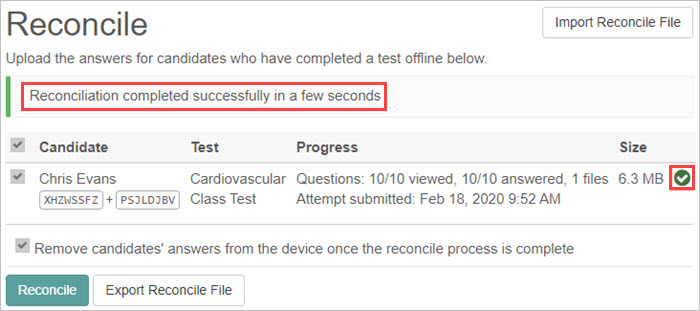
When complete, a confirmation displays.
-
Select the lock icon to lock the device again.

Step 3 — Check the test attempt uploaded successfully
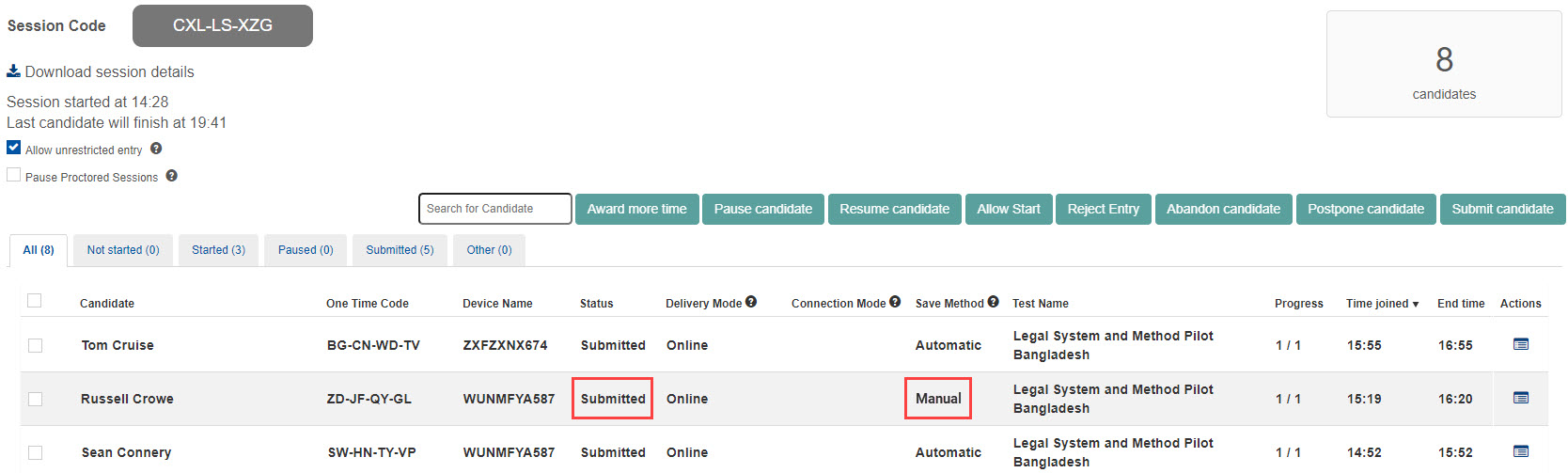
When a candidate has successfully reconciled, the Test Sessions Administration Dashboard shows:
- Submitted for the Status
- Manual for the Save Method
Step 4 — After all devices have been reconciled
Once all devices have been reconciled, the provided PIN(s) should be reset to maintain security over unlocking Janison Replay.