Proctored event FAQs
If you or a candidate is experiencing an issue with a proctored event, you may find the answer below.
Why did a candidate not receive their email?
This could happen for a few reasons:
- The email went to the candidate's spam or junk folder.
- The candidate's email address had changed since the invite was sent.
- The email address was invalid and bounced back.
Check the mailing spreadsheet issued by Janison.
- If the candidate is on the list, they almost certainly received an email. Work with them to find it. If they can't find it, locate the candidate's account details in Proctortrack — they can use those to log in. See View a list of candidates.
- If you can't find the candidate on the spreadsheet, or you can't resolve the issue, see Contact support.
How do I find a candidate's account details?
See View a list of candidates.
What is the Proctortrack URL candidates should go to?
There are different Proctortrack sites set up for different regions, so it's important candidates use the link in the email invite. This link connects them to the right site that recognises their login details.
If the candidate can't find their invite email, you can provide them with the link you use when logging in to the site that contains the test they're enrolled in.
How do I know if a candidate has completed onboarding?
A candidate can tell if they've passed onboarding by checking their Proctortrack dashboard:
- Baseline status / Onboarding status is Passed and shown green on the main tile.
- The onboarding test's status in the Test List is green Passed.
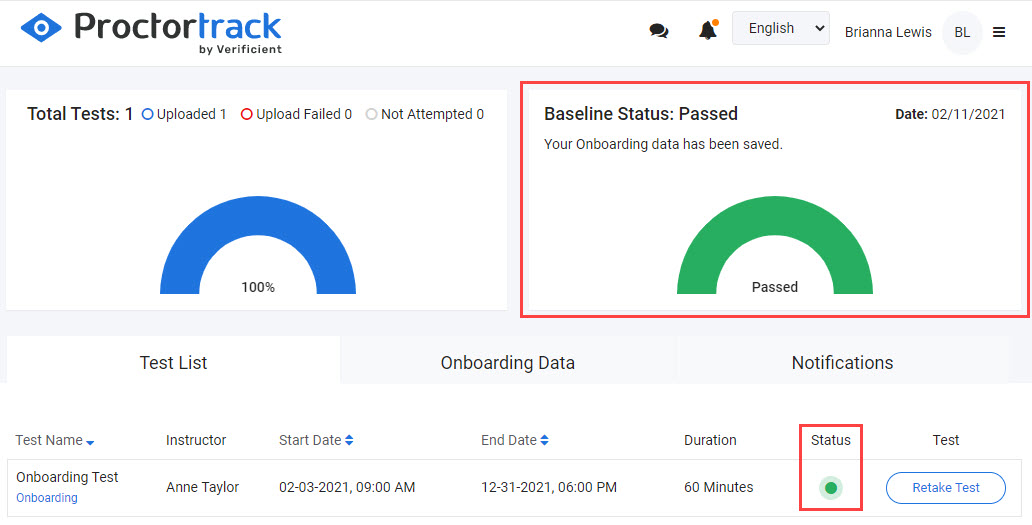
As an instructor, you can view the candidate's onboarding attempts and review their scans. See Review candidate scans and videos.
How do I know if a candidate is enrolled in a test?
A candidate can tell by checking the Test List on their Proctortrack dashboard.
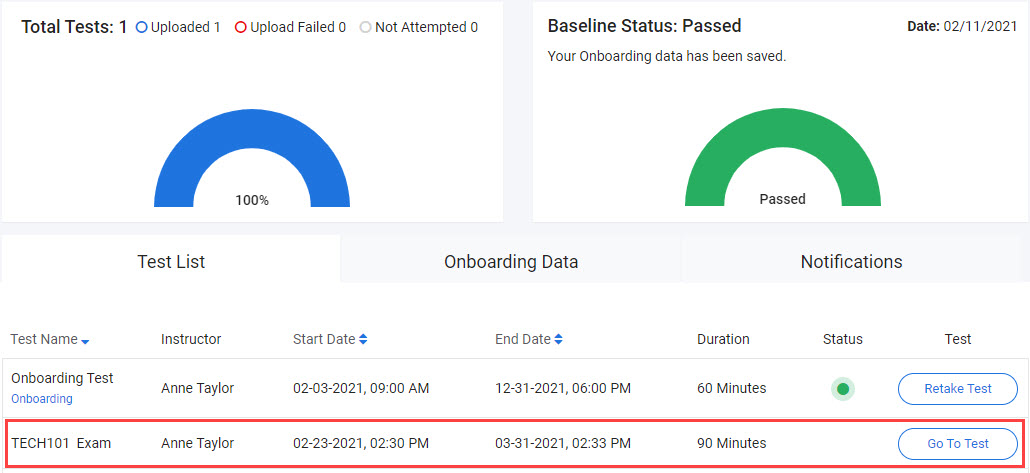
As an instructor, you can also check enrolment by listing a test's registrants. See View a list of candidates.
A candidate accidentally selected 'End' during identity verification — what should they do?
Candidates have five attempts available to complete verification and room scan steps. Advise them to go back to the Proctortrack dashboard and select the test again to start over.
If they can't restart, contact Proctortrack and ask them to reset the candidate's session. See Contact support.
What do I do if a candidate runs out of Proctortrack attempts?
If a candidate uses all five attempts without completing the scans, contact Proctortrack support to request another attempt. See Contact support.
What do I do if a candidate can't contact Proctortrack support?
You can contact Proctortrack on the candidate's behalf:
- Use the chat option at the bottom of the screen when logged in to the Proctortrack website.
- Via the Proctortrack support page.
See Contact support.
How do I get to the Test Session Administration dashboard for a test in Janison Insights?
-
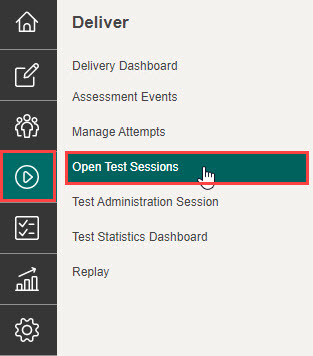
Select the Deliver icon in the Menu, then select Open Test Sessions.
-
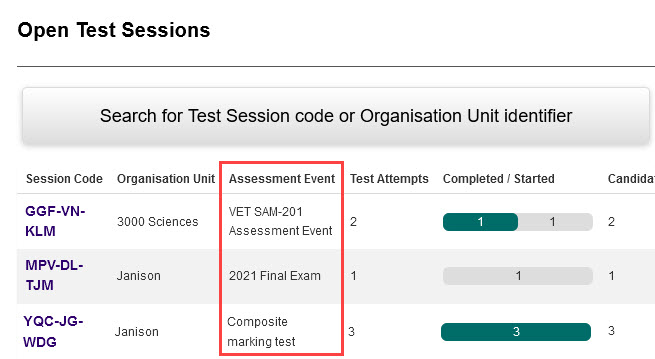
Locate the required test event by either:
- Finding the name in the Assessment Event column:
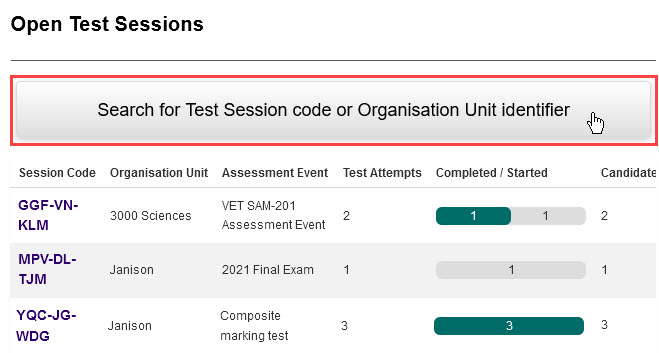
- Or using the search feature:
- Select Search for Test Session code or Organisation Unit Identifier.
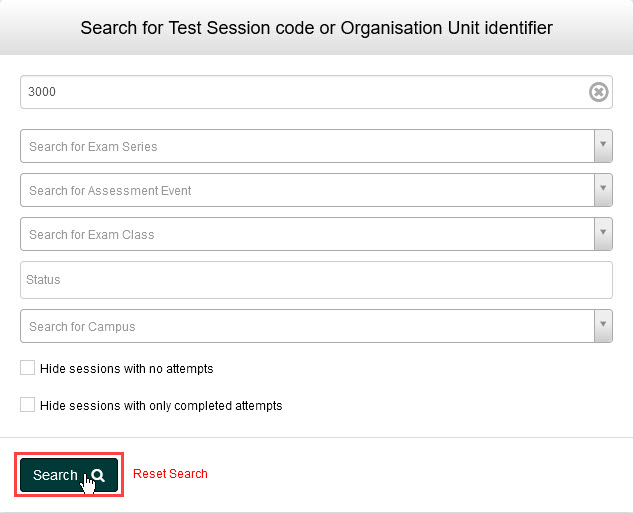
- Enter your search terms or select a dropdown option, then select Search.
-
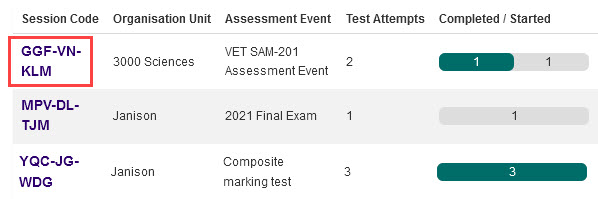
Select the Session Code for the required test.
-
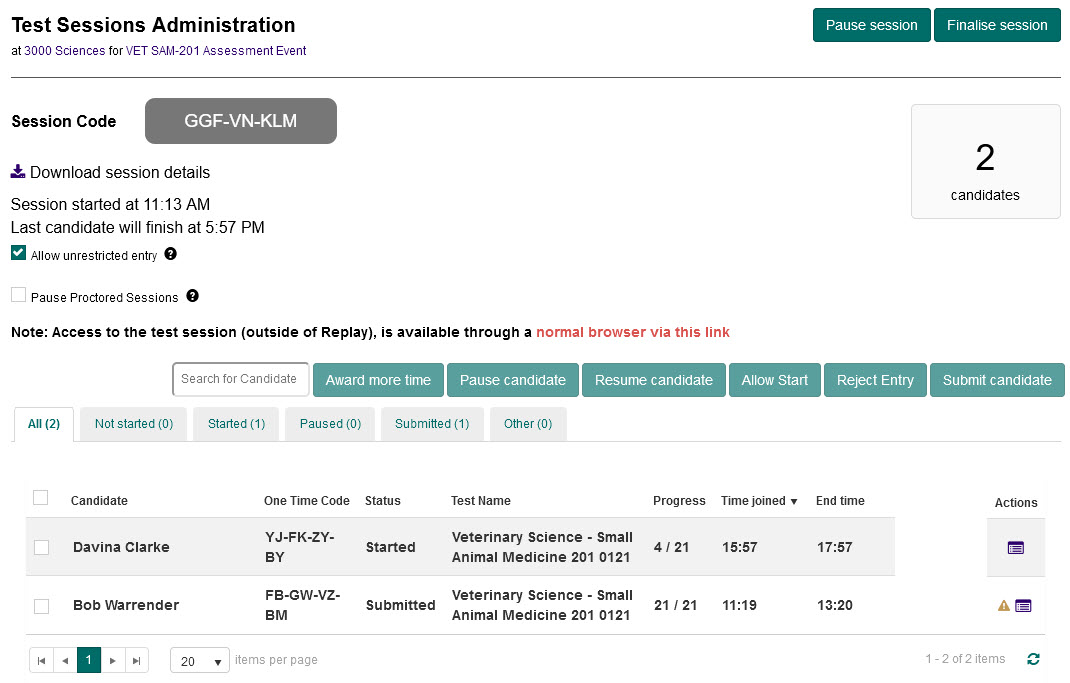
The Test Sessions Administration dashboard opens.
How do I give a candidate more time in the Janison Replay test player?
You can add extra time in Janison Insights — for example, if a candidate's network drops out.
- In Janison Insights, go to the Test Session Administration dashboard (see above).
-
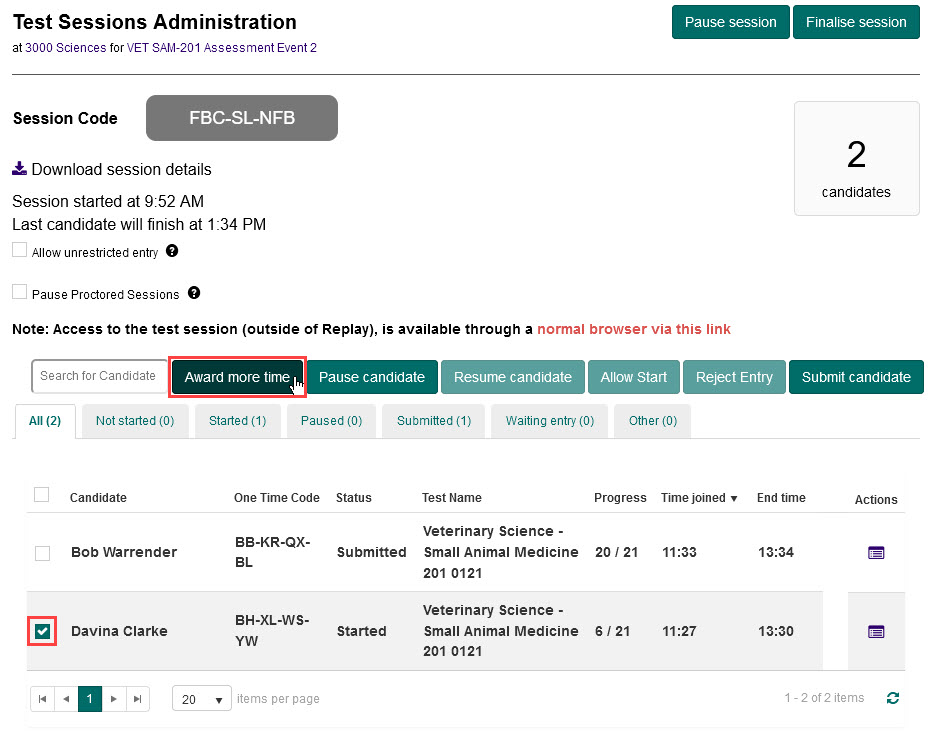
Select the checkbox next to the candidate and select Award more time.
-
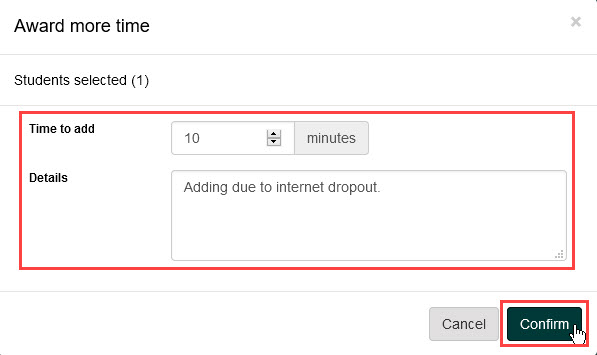
On the Award more time popup:
- Enter the number of minutes to add in Time to add.
- Enter the reason in Details.
- Select Confirm.
-
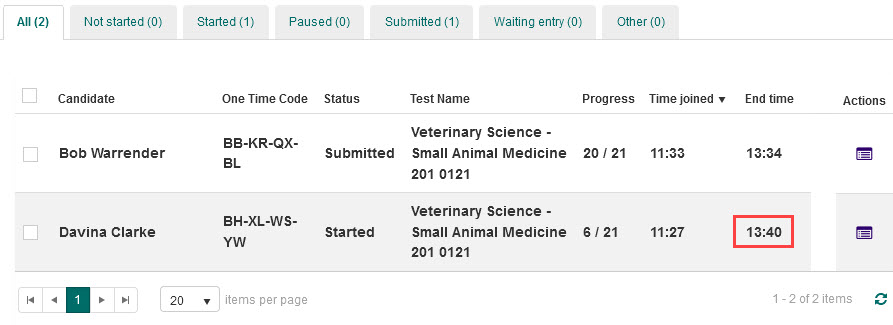
The candidate's finish time increases by the time added.
How can I tell if a candidate has submitted their test?
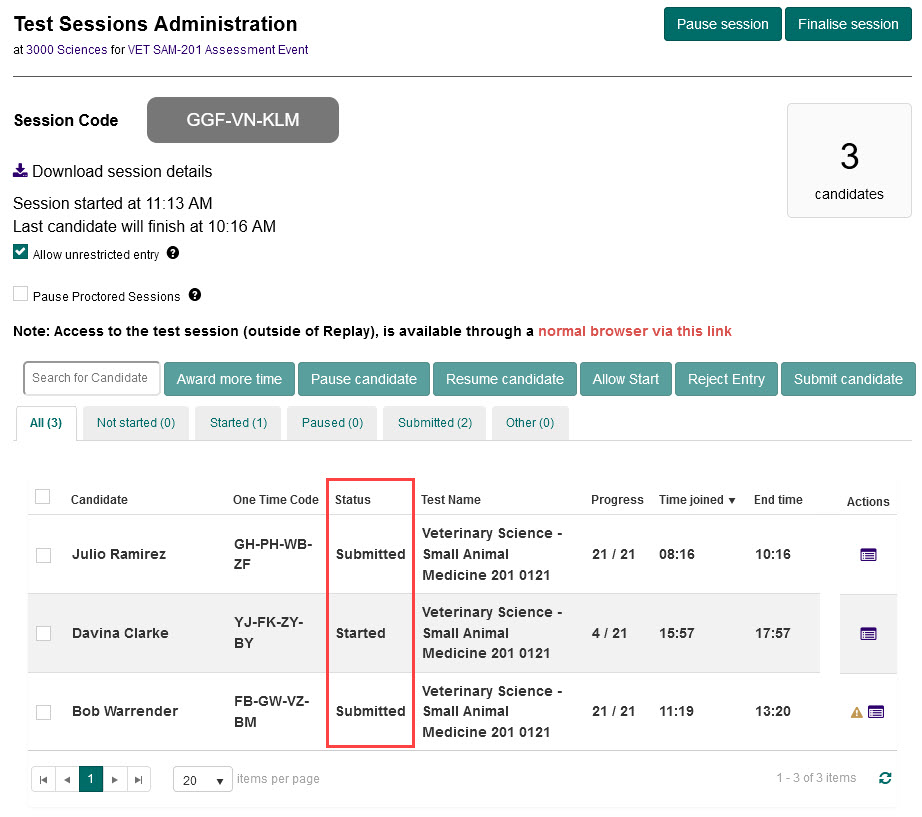
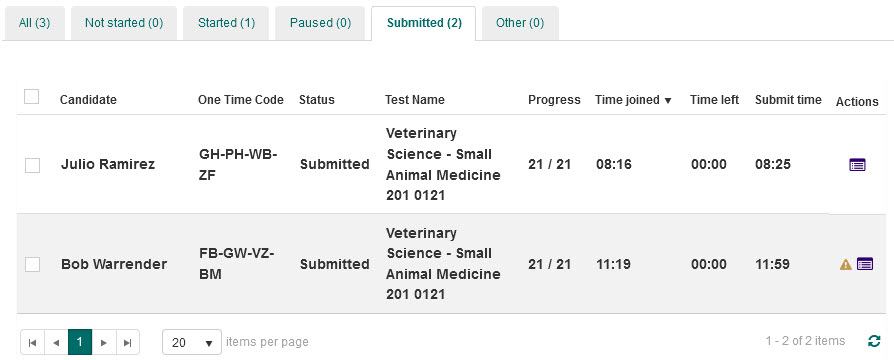
The status of each candidate's session is on the Test Session Administration dashboard in Janison Insights. Submitted in the Status column means they've submitted.
- Go to the Test Session Administration dashboard for the required test.
-
Check the value in the Status column for the candidate.
-
Or, select the Submitted tab above the candidate list to view only submitted candidates.
-
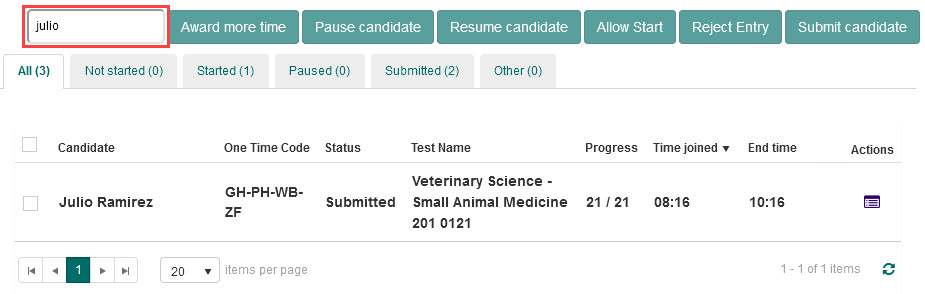
Search by candidate name in Search for Candidate to narrow down.
Where can I see how many candidates have started or completed their tests?
- Go to the Test Session Administration dashboard for the required test.
-
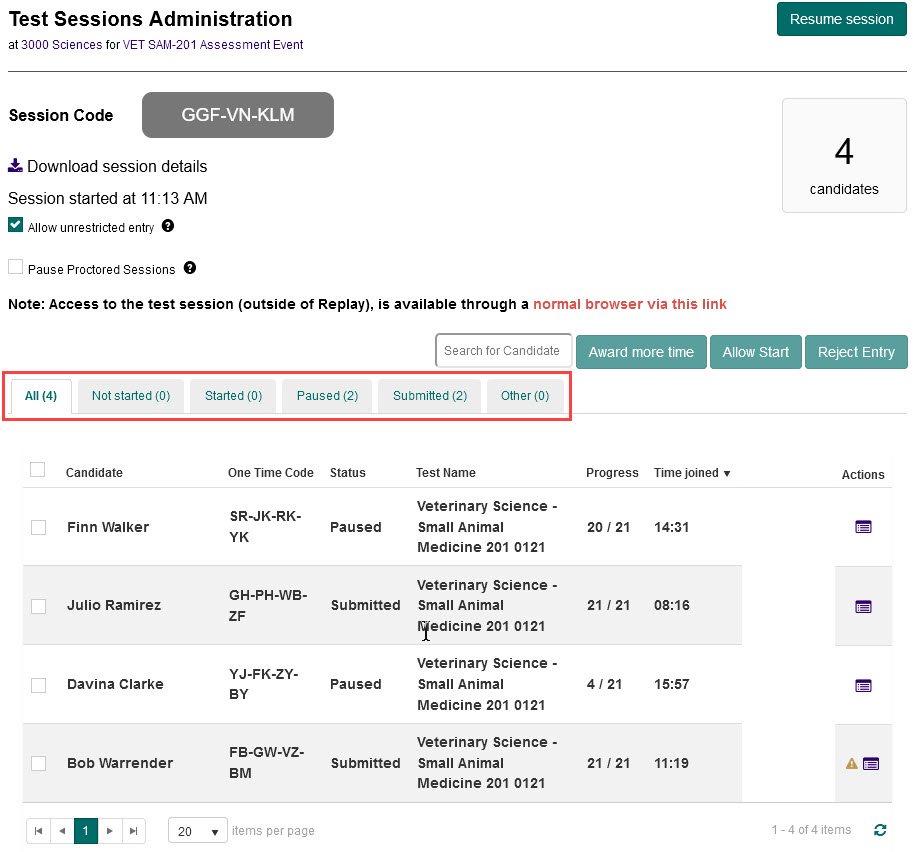
The tabs above the candidate list show each test session status. The number in brackets after the status is the count.
-
The All tab is selected by default. Select another tab to filter by status.
What do I do if the test is finished and a candidate is offline?
The candidate needs to send their test attempt when back online — this is called reconciling an offline test. Contact them and talk them through the steps. See Reconcile offline tests in Janison Insights.
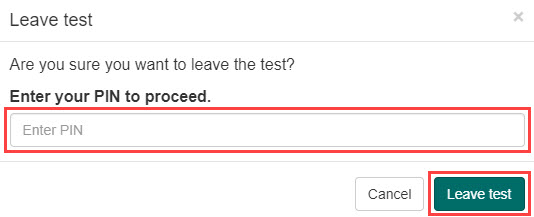
Why is a candidate seeing a 'Leave test' popup?
This popup displays if a candidate selects the home button in the Janison Replay test player during their test.
- To return to the test, instruct them to select Cancel.
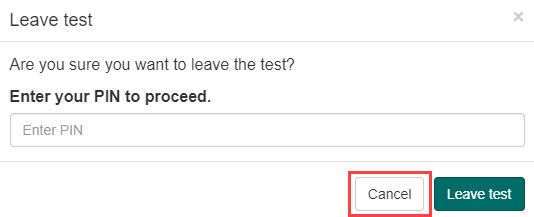
- To actually leave, they need to enter a PIN. They need to contact their institution's helpdesk to get the PIN, enter it in the Enter PIN field, and select Leave test.
Why is the error "testPlayerContext is missing" displaying?
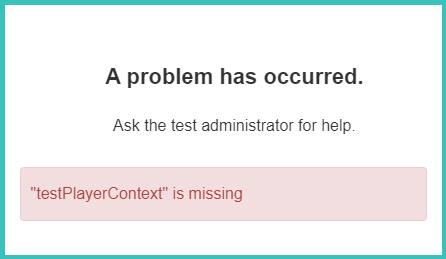
This can happen if a candidate selects the back button in their browser after submitting the test. Instruct them to close the browser and end the proctoring session.
If the error happened for another reason, instruct the candidate to return to the test:
- Go to the Proctortrack website and log in again if needed.
- On the Proctortrack dashboard, find the required test and select Go to test or Retake test.
- Proceed through the guidelines page and select the checkbox and button at the bottom.
- Proctortrack opens. The candidate will need to redo the face and ID scans and confirm the test guidelines.
- Once verification is complete, the test will load in Janison Replay and the candidate can continue.