Changing the active test
A test must be set as the active test for you to be able to perform editing or reviewing tasks on it.
Which test is currently active?
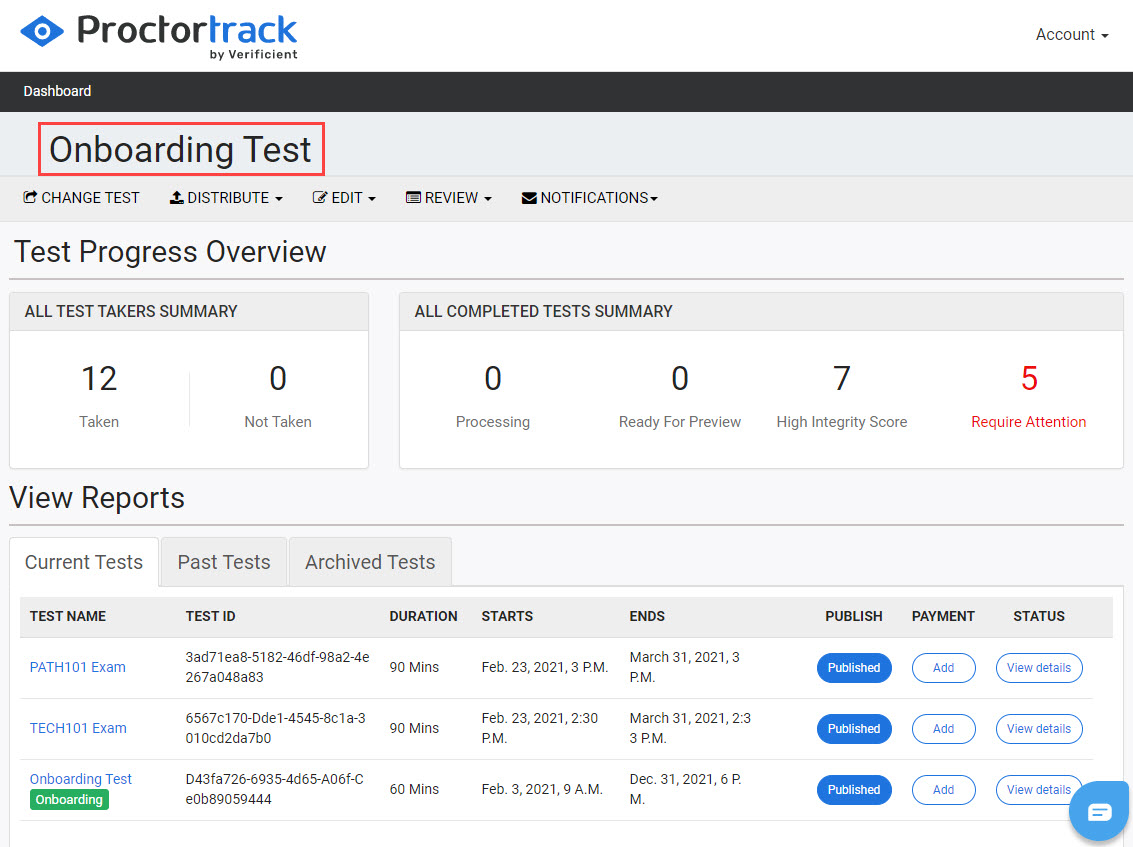
The name of the active test is shown at the top of the instructor dashboard and at the top of the edit and review screens.
Change the active test
-
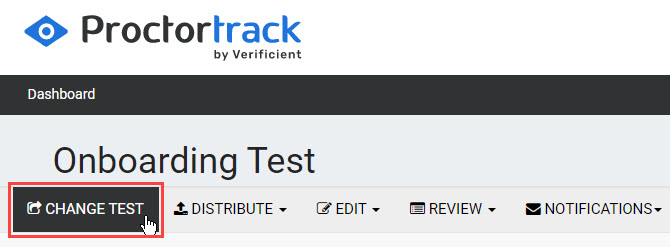
Select CHANGE TEST on the dashboard.
-
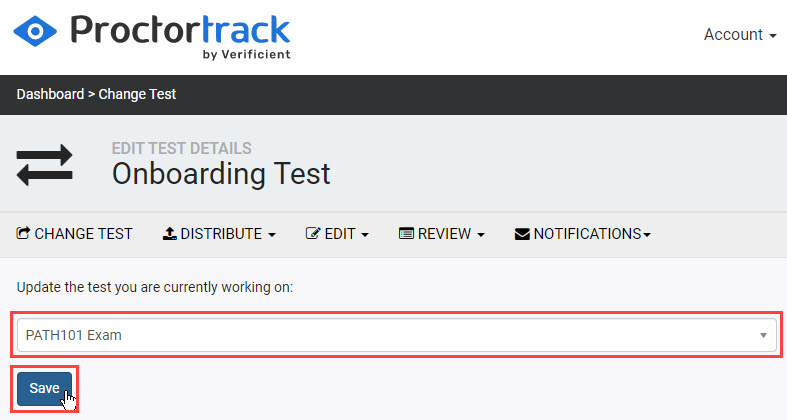
On the EDIT TEST DETAILS screen, select the test you want to switch to from the dropdown and select Save.
-
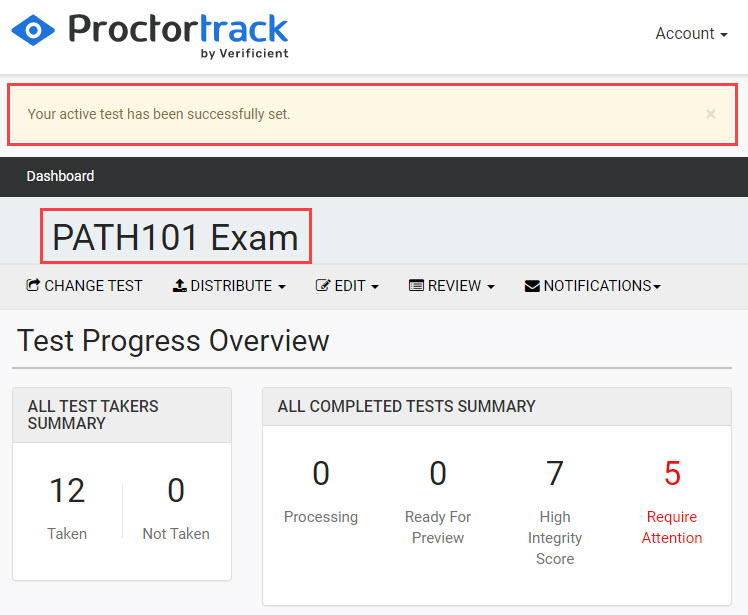
On the dashboard, a notification confirms the test has been set, and the selected test's name now appears at the top of the dashboard.