Instructor dashboard
The instructor dashboard displays when you log in to the Proctortrack website. The dashboard is used to navigate to the main sections and tasks in Proctortrack — including the important task of reviewing scans candidates have completed for identity verification and reviewing proctoring videos.
For details on the review process, see Review candidate scans and videos.
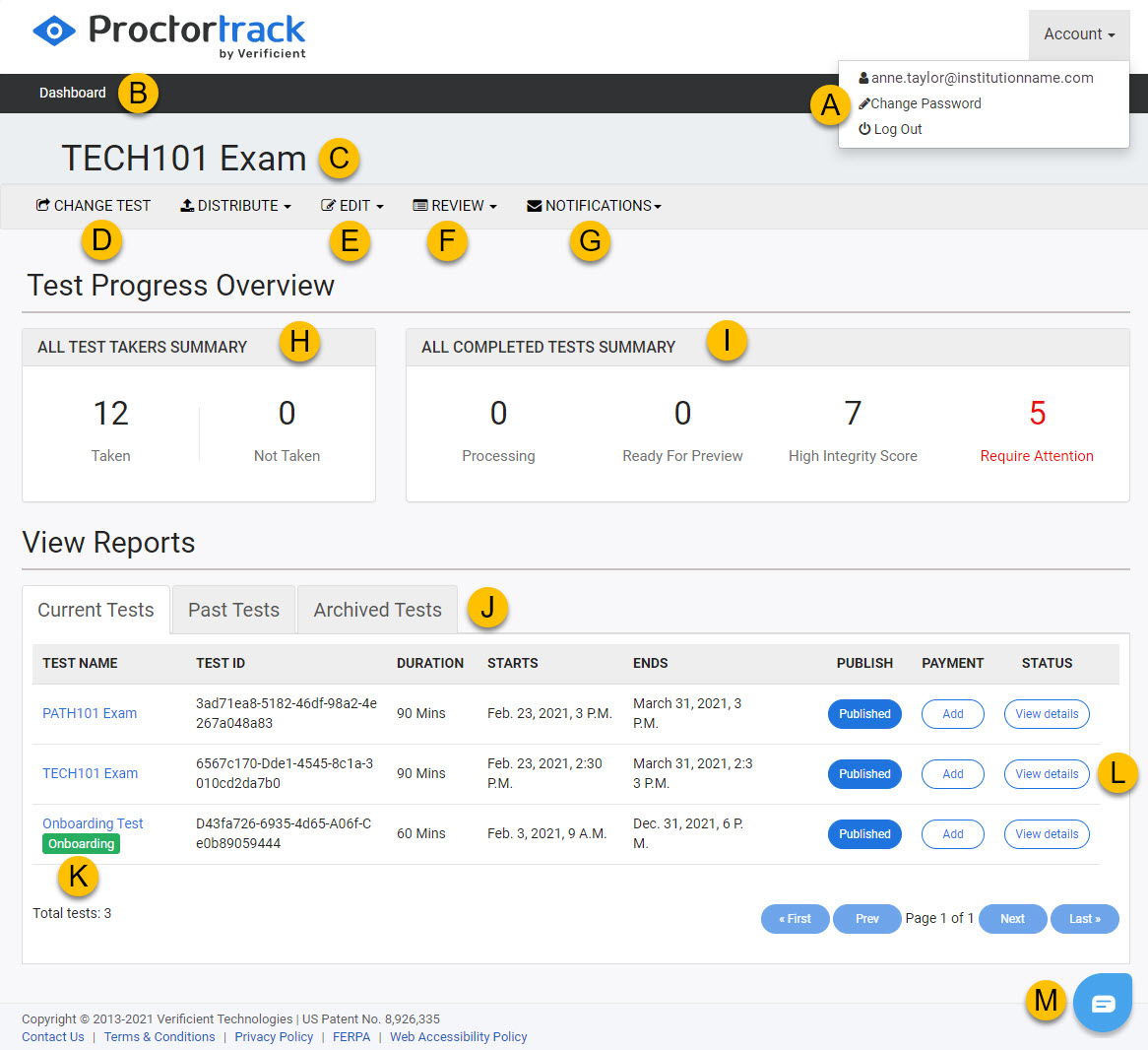
Proctortrack instructor dashboard features
| # | Item | Description |
|---|---|---|
| A | Account dropdown | Select the Account dropdown to change your password or log out. |
| B | Dashboard breadcrumb | On other Proctortrack pages, select the Dashboard breadcrumb to return here. |
| C | Active test name | The name of the active test is shown at the top of the dashboard. Editing or reviewing tasks act on the active test. See Changing the active test. |
| D | CHANGE TEST button | If you're the instructor for more than one test, CHANGE TEST takes you to the page where you can switch between tests. Changing the active test changes the context for the EDIT and REVIEW dropdowns — but Test Progress Overview and View Reports stay the same as they cover all your tests. See Changing the active test. |
| E | EDIT dropdown | Select an edit task — creating a new test, editing the active test (including the test's guidelines), or adding / viewing instructors. Janison generally manages tests and candidates. You may need to add instructors and adjust the guidelines. |
| F | REVIEW dropdown | Select a report to view. See Reports. |
| G | NOTIFICATIONS dropdown | Opens your notifications feed. See Notifications. |
| H | ALL TEST TAKERS SUMMARY | A summary of all test-takers who have and haven't taken their test. |
| I | ALL COMPLETED TESTS SUMMARY | A summary of completed tests. Also shows the number of tests that require your attention — for example, if a candidate's onboarding or verification scans have failed. |
| J | Test list tabs | Select the required tab to view a list of current, past, and archived tests. |
| K | Test name | Select a test name to go to the test's page, where you can view a summary of registered, started, and completed candidates, and review onboarding and main-event verification scans. See Review candidate scans and videos. |
| L | View details button | Shows a summary of the test's students and completions. |
| M | Proctortrack live chat button | Opens a live chat with Proctortrack support. See Contact support. |