Reports
The following reports are available from the REVIEW dropdown on the instructor dashboard menu.
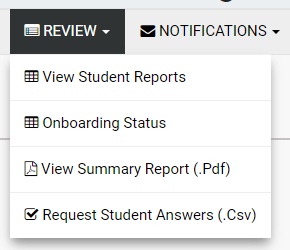
View Student Reports
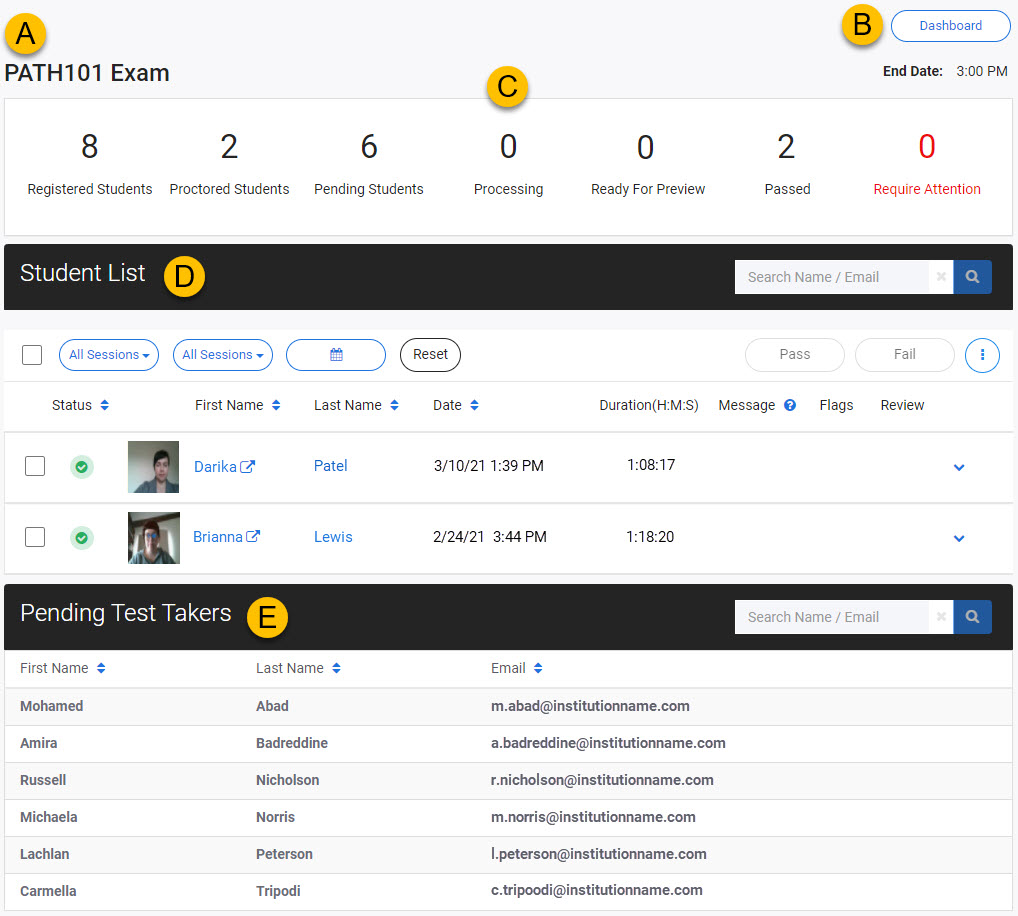
This option takes you to an overview page for the active test, with the following sections.
| # | Item | Description |
|---|---|---|
| A | Active test name | Shown at the top of the screen. The overview page reflects the active test — see Changing the active test. |
| B | Dashboard button | Returns to the instructor dashboard. |
| C | Candidate overview | A summary of the number of candidates in each stage of the test: Registered Students, Proctored Students, Pending Students, Processing, Ready For Preview, Passed, Require Attention. |
| D | Student List | Lists candidates who have completed proctoring. This is where you review and pass/fail candidates' scans and videos. See Review candidate scans and videos. |
| E | Pending Test Takers list | Candidates enrolled in the test but who haven't started proctoring yet. |
Candidate stages
- Registered Students — total enrolled in the test.
- Proctored Students — completed proctoring.
- Pending Students — registered but not yet started.
- Processing — completed proctoring, data still being processed.
- Ready For Preview — completed and ready to preview. Data is still being system-reviewed for violations, so you can only preview the video.
- Passed — completed and cleared of violations by the system.
- Require Attention — proctoring videos may include violations. These need to be reviewed and passed or failed by an instructor.
Onboarding Status
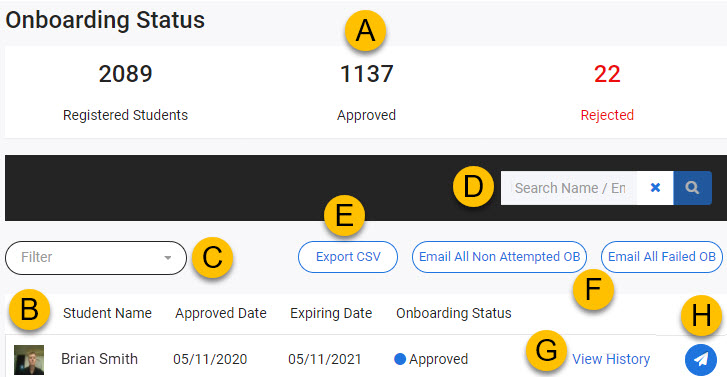
This option shows the status of candidates registered across all onboarding events.
| # | Item | Description |
|---|---|---|
| A | Onboarding status summary | Counts of Registered Students, Approved, and Rejected. |
| B | Student list | All candidates enrolled in an onboarding test. |
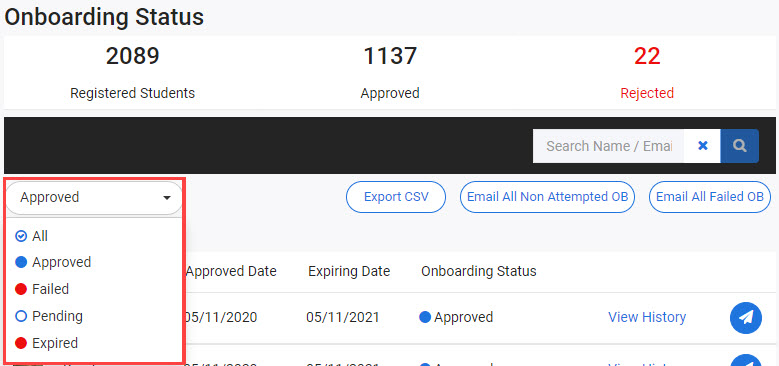
| C | Student list filter | Filter by All, Approved, Failed, Pending, or Expired (onboarding older than 365 days, no longer valid). |
| D | Search | Search for a specific candidate by name or email. |
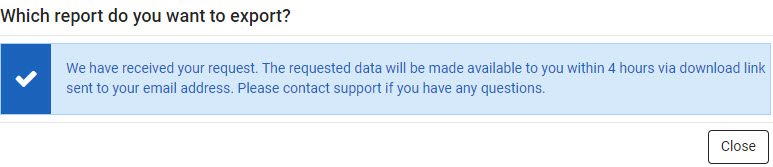
| E | Export CSV button | Export All, Pending Onboarding, or Failed Onboarding candidates. You receive an email with a download link within 4 hours. |
| F | Email All buttons | Send a reminder to candidates who haven't attempted or who failed onboarding. |
| G | View history link | View the candidate's history. Disabled for candidates with a pending status. |
| H | Email candidate button | Email the individual candidate directly. |
Status filter values
- All — no filter, all candidates shown.
- Approved — onboarding complete, scans passed.
- Failed — onboarding complete, scans failed. Must complete again.
- Pending — not yet completed.
- Expired — completed previously, but the data is over 365 days old. Must complete again.
Export CSV
- Select Export CSV.
-
Choose the required option and select Raise a Request.
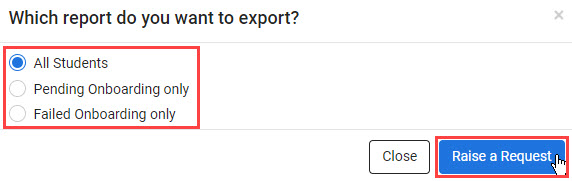
You'll receive an email with a link to download the CSV within 4 hours.
Email all candidates
To email all candidates who haven't attempted onboarding:
- Select Email All Non Attempted OB.
-
Select Send.

To email yourself a list of candidates who attempted and failed:
- Select Email All Failed OB.
-
Select Send.

View Summary Report (.pdf)
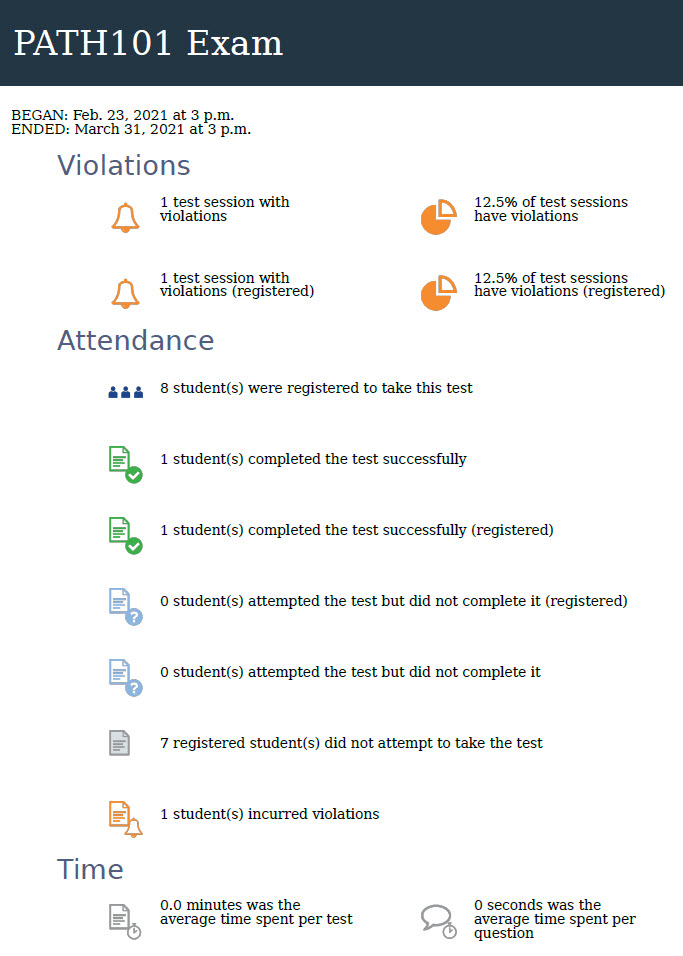
Select this option to generate a PDF summary report for the active test — a snapshot of violations and attendance at the current point.
- This uses the test that's active in Proctortrack. See Changing the active test.
- The Time section in the summary only relates to Proctortrack-run tests and doesn't include data from tests run in the Janison Replay test player.
Request Student Answers (.csv)
This report will contain no data — it only applies to Proctortrack-run tests and doesn't apply to tests run in the Janison Replay test player.