Candidate dashboard
Note
Not all organisations subscribe to the candidate dashboard. It's only available to you if your organisation has activated this feature.
If active, you can access your tests and test results through the candidate dashboard. When you log in, you'll see three sections listing your tests:
- Ready to start
- Upcoming tests
- Past tests
If a Practice test is available, that section displays too. System administrators can hide Upcoming tests, Past tests, and Practice tests — so you may not see all of them.
As you work through your tests, the sections and tiles update to reflect your progress.
How the dashboard changes as you progress
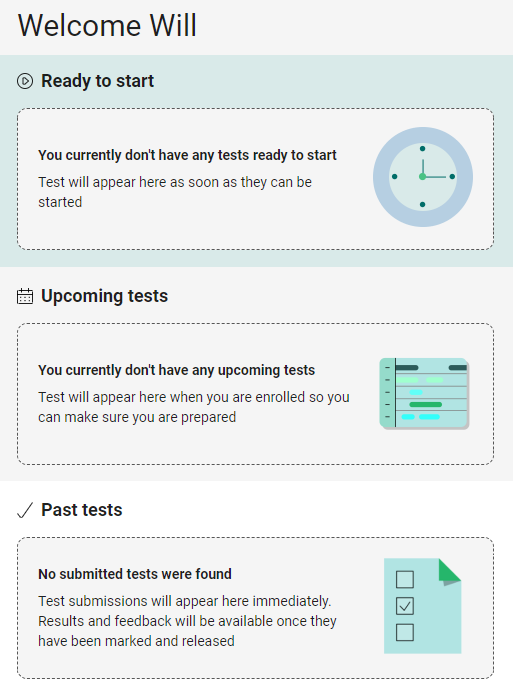
A test-taker with no scheduled tests and no past tests.
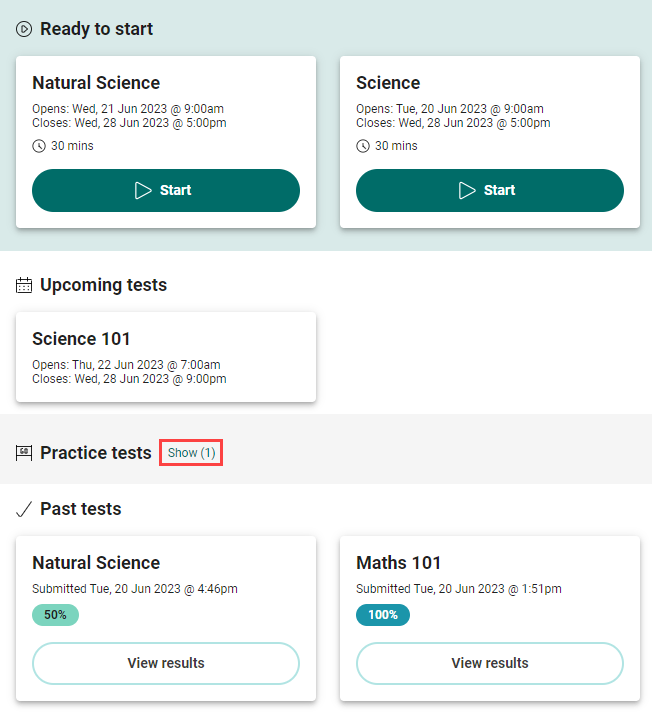
This test-taker has two tests ready to start, one scheduled for the future, and two past tests. A practice test is hidden.
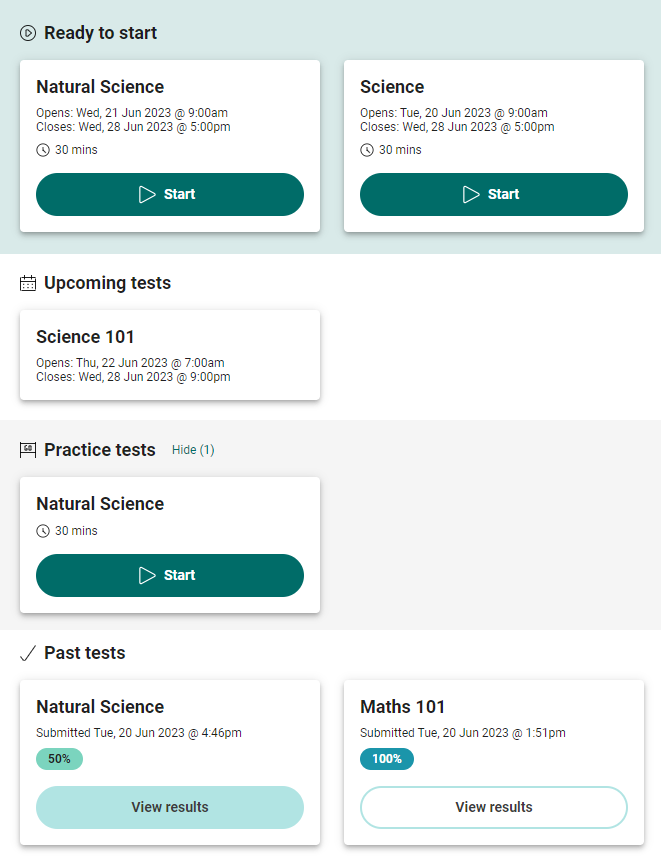
The same dashboard with the practice test displaying.
Ready to start
This section lists tests that are available for you to start, and tests you've started but not submitted.
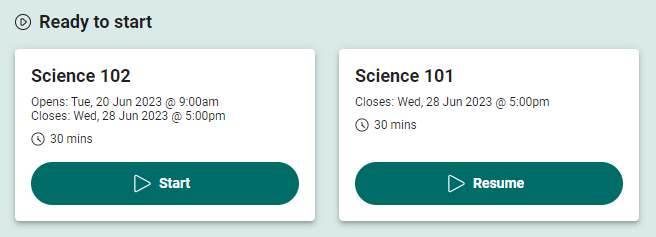
The test name appears at the top of the tile, with timing information below. The timing reflects the Timing Options set by the administrator in the assessment event. If the test has a duration set  , that value displays below the timing options. In the examples, the time limit is 30 minutes.
If you haven't started a test, the Start button shows. Once you've started, the button changes to Resume. When you complete a test, the tile moves to Past Tests.
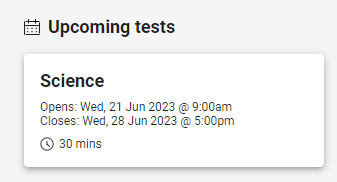
Upcoming tests
This section shows tests that are scheduled for the future. You can't start them until the open date — at which point the tile moves to Ready to start.
Past tests
This section lists tests you've submitted. The tile shows the test name and the submission date.
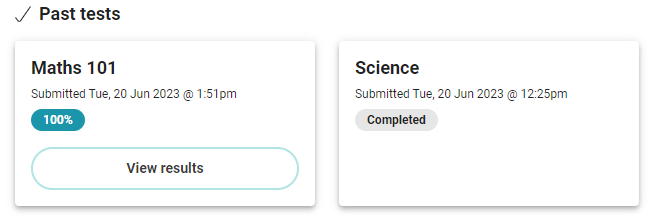
If the test hasn't been marked yet, the tile shows Completed. Once marked, the tile shows your result colour-coded:
 0–24% — red
 25–49% — amber
 50–74% — green
 75–100% — blue
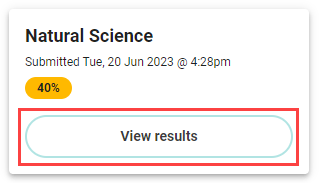
View results
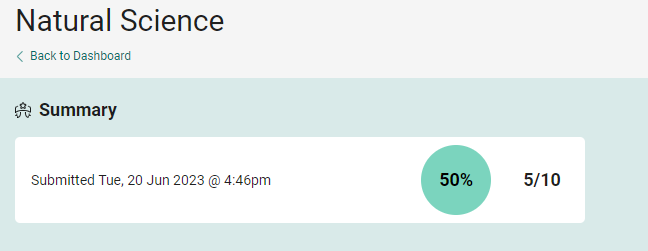
The View Results button on the tile takes you to a summary page with three sections.
- Summary — displays the test submission time, percentage, and score.
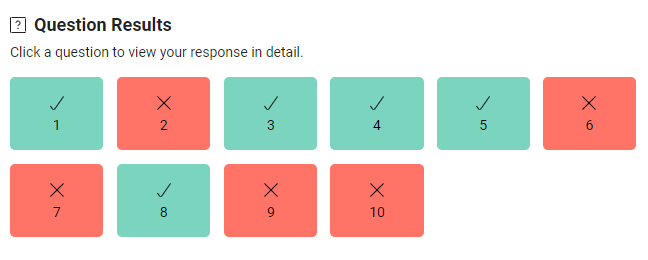
- Question Results — a visual summary of items, indicating which were answered correctly or incorrectly. Select an item to access your response.
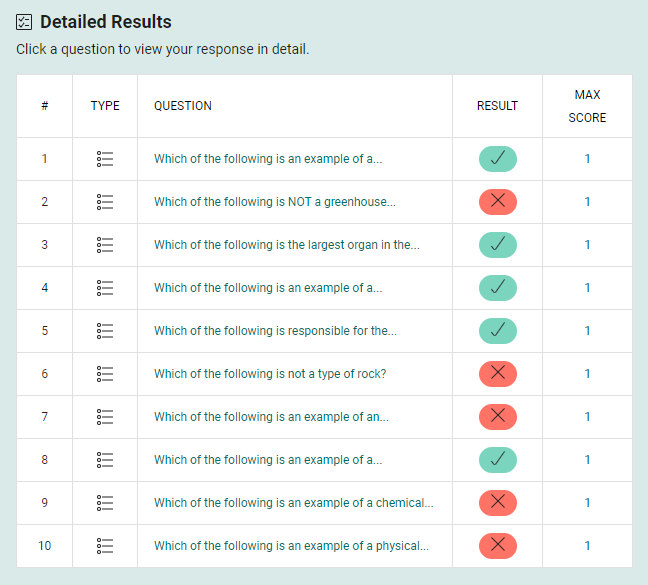
- Detailed Results — additional information about each item, including item type and max score. Select an item link to view your response.
View response in detail
When you select an item, you're taken to the test player where you can view your response. The information you can see depends on how the item author configured the feedback in the item — for example, whether correct and incorrect responses are shown.
Missing detail
The original page includes example screenshots of in-player response views that didn't come across cleanly in the migration. We'll add them back during the review pass.
What your test administrator controls
- Whether the candidate dashboard is enabled at all for your organisation.
- Whether Upcoming tests, Past tests, and Practice tests sections are visible.
- The timing options shown on each test tile.
- How and when results appear after marking.