Test player (Replay)
Janison Replay is the online test delivery app where you take your test.
If your exam is open book, it launches in your browser. If your exam is closed book, you or your organisation will install the Replay app and your exam opens in the app. The app restricts access to other utilities and system functions and prevents application switching during the assessment.
The Replay home screen
When Replay opens, you see this home screen.
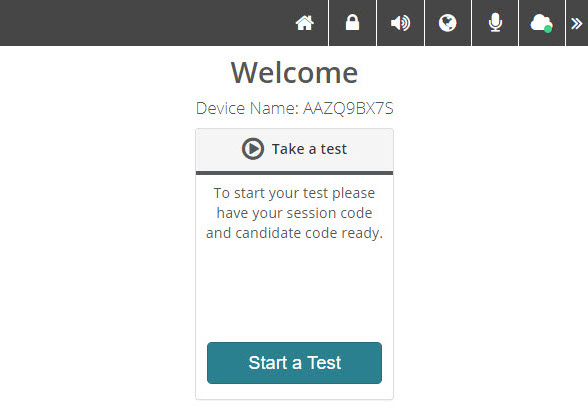
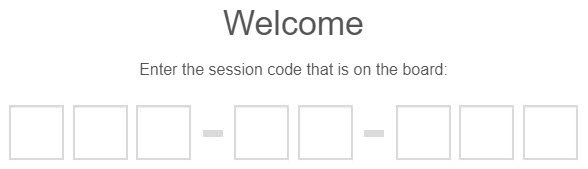
After selecting Start a Test, you enter the session code. Some launch URLs include the session code — in that case, you won't see this screen.
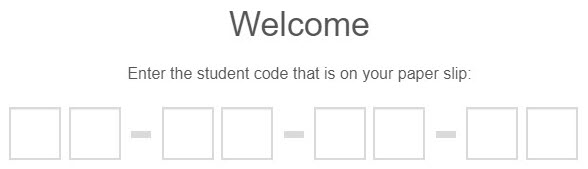
You then enter your student code, and the test launches.
Launching from the candidate dashboard
Some institutions direct you to your tests through the candidate dashboard. If you access your test that way, you won't need to enter your student code.
See Candidate dashboard for more.
Replay demo video
A short video walkthrough of taking a test in Replay is available on the WordPress version of this page. The features you see in your own test may differ depending on what your test author has configured.
Video — confirm format
The demo video embed didn't come across in the migration. We'll add it back once we confirm the embed type.
Install Replay
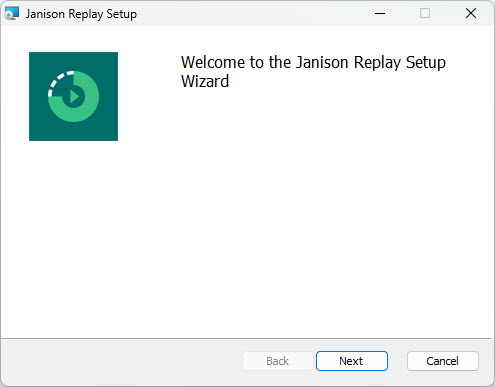
If your institution requires you to install Replay, follow the install instructions on the administrator site.
What your test administrator controls
Your administrator decides:
- Whether your exam is open book (browser) or closed book (Replay app).
- Whether you launch from the candidate dashboard or by entering a session code and student code.
- The features available inside the test player (tools, timer, audio, accessibility options).