Zoom tool
The zoom tool lets you zoom in and out of items in a test.
Note
Your test author can adjust the zoom tool — for example, they can remove the zoom-to-fit  option. What you see may differ slightly from the screenshots below.
The zoom tool displays at the top left of the test player.
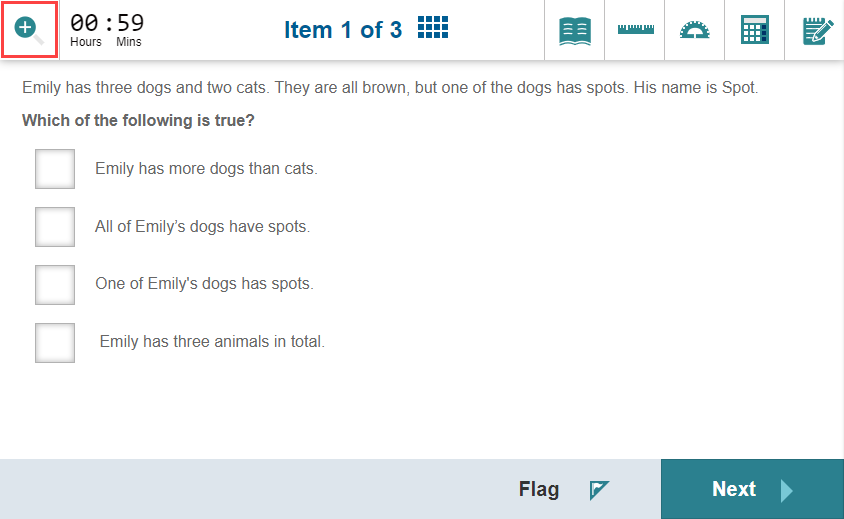
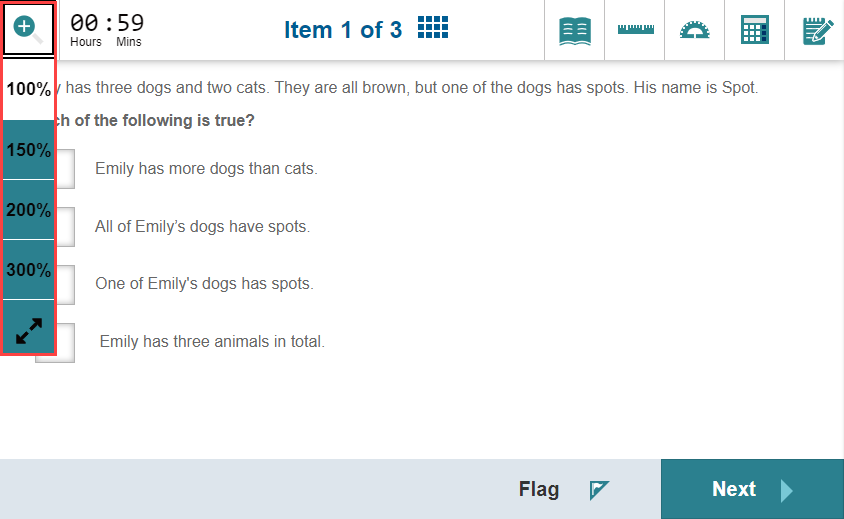
When you expand the zoom tool, options are available to zoom to various levels.
At the bottom is the zoom-to-fit option. Use this to scale the test player to the maximum width and height of your viewport without introducing scrollbars.
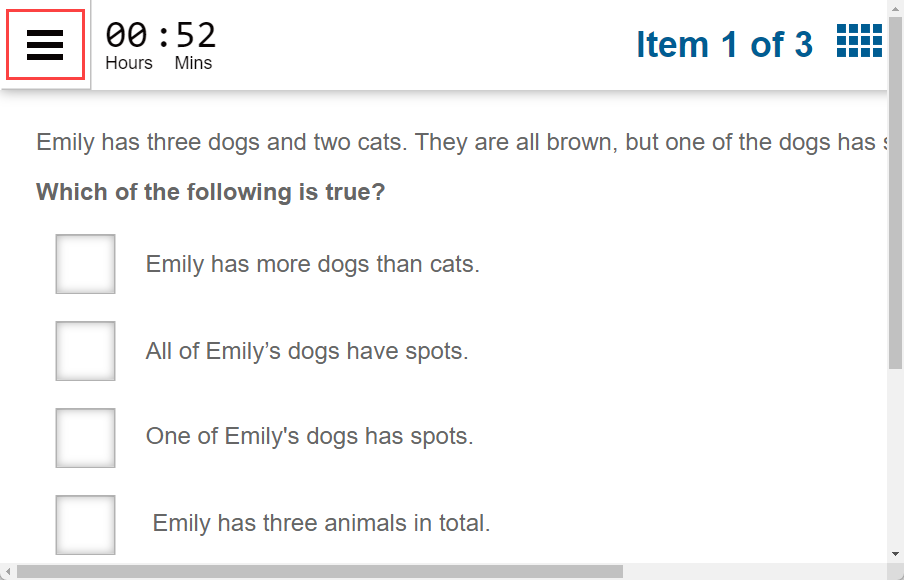
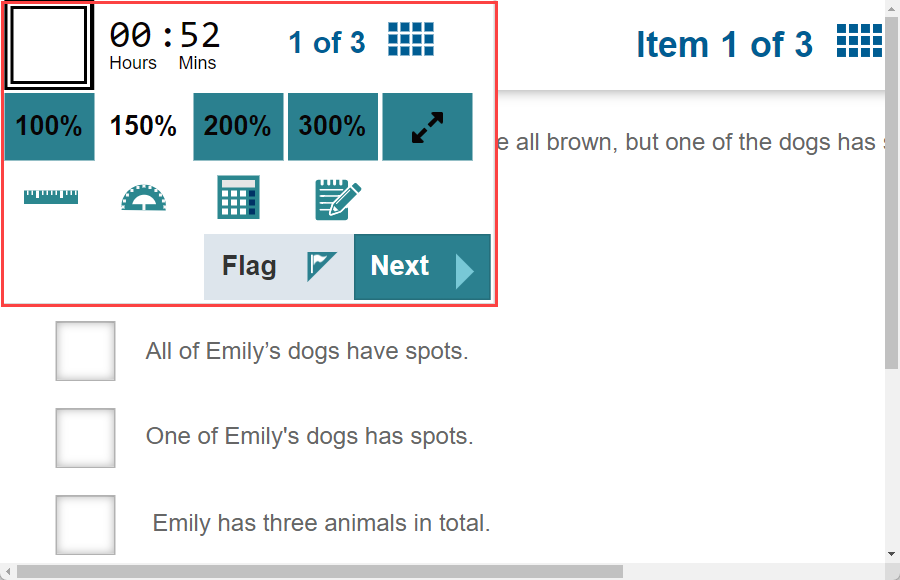
When you zoom in, a menu icon  becomes available so you can access the zoom levels and any tools hidden by the zoom level.
This is an example of what you might see when you open the menu. The content varies depending on what the test author included.
Keyboard shortcut
Press Z repeatedly to cycle through magnification levels until you reach the one you need.
What your test administrator controls
- Whether the zoom tool is available.
- Whether the zoom-to-fit option is included.