Keyboard shortcuts
Keyboard shortcuts give you an alternative way to interact with the test player without using a mouse or touchscreen. View the available shortcuts at any time by selecting Shift + ?.
Important
If keyboard shortcuts aren't working for you, your system administrator may have disabled this feature.
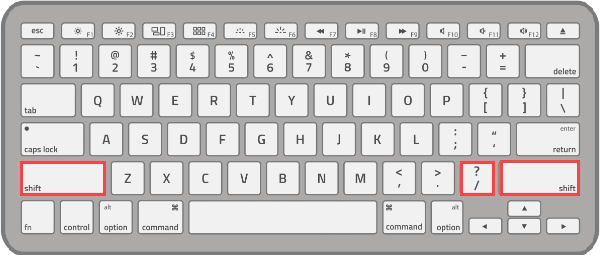
The shortcut menu is dynamic — it changes based on the screen you're on and which test-player features are enabled. For example, you won't see shortcuts related to volume if your test doesn't include sound.
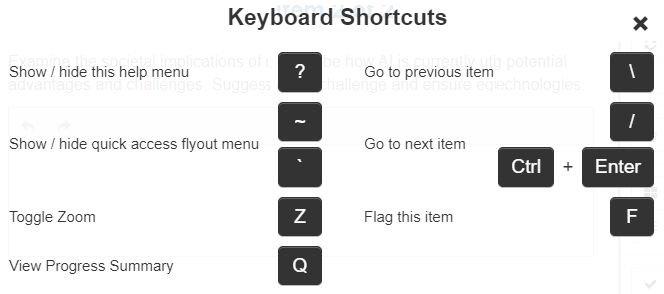
Below is an example of the shortcut menu when you open it inside an extended-text question. You may see additional shortcuts depending on the question's configuration.
General keyboard shortcuts
| Action | PC | Mac |
|---|---|---|
| Open the keyboard shortcut menu | ? | Shift+? |
| Scroll | Arrow keys | Arrow keys |
| Navigate forward through screen elements | Tab | Option+Tab |
| Navigate backward through elements | Shift+Tab | Option+Shift+Tab |
| Navigate to the next question | / | / |
| Navigate to the previous question | \ | \ |
| Zoom or unzoom | Keep pressing Z until you reach the required magnification | Keep pressing Z until you reach the required magnification |
| Flag or unflag a question | F | F |
| Show / hide audio player bar | Tab to audio icon, then Enter | Option+Tab to audio icon, then Enter |
| Play or pause audio | Tab to play/pause icon, then Enter | Option+Tab to play/pause icon, then Enter |
| Mute or unmute audio | Tab to volume icon, then Enter | Option+Tab to volume icon, then Enter |
| Adjust audio volume | Tab past volume icon, then Arrow keys | Option+Tab past volume icon, then Arrow keys |
| Skip audio forward or backward | Tab past the volume icon to audio progress bar, then Arrow keys | Option+Tab past volume icon to audio progress bar, then Arrow keys |
| Show / hide timer icon | Tab to timer icon, then Enter | Option+Tab to timer icon, then Enter |
Progress summary screen
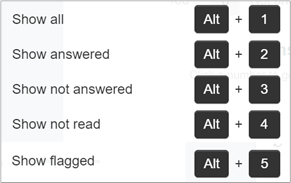
These shortcuts apply when you're on the progress summary screen.
| Action | PC | Mac |
|---|---|---|
| View the question progress summary screen | Q | Q |
| Return to last visited question | Q | Q |
| Show all questions | Alt+1 or Tab to Show all, then Enter | Option+1 or Option+Tab to Show all, then Enter |
| Show only answered questions | Alt+2 or Tab to Answered, then Enter | Option+2 or Option+Tab to Answered, then Enter |
| Show only unanswered questions | Alt+3 or Tab to Not answered, then Enter | Option+3 or Option+Tab to Not answered, then Enter |
| Show only unread items | Alt+4 or Tab to Not read, then Enter | Option+4 or Option+Tab to Not read, then Enter |
| Show flagged questions | Alt+5 or Tab to Flagged, then Enter | Option+5 or Option+Tab to Flagged, then Enter |
| Navigate to any question | Press 1 to select item 1, then Enter. Press 1 then 2 to select item 12, then Enter. Or Tab to the numbered question, then Enter | Press 1 to select item 1, then Enter. Press 1 then 2 to select item 12, then Enter. Or Option+Tab to the numbered question, then Enter |
Multiple-choice and multiple-choices questions
| Action | PC | Mac |
|---|---|---|
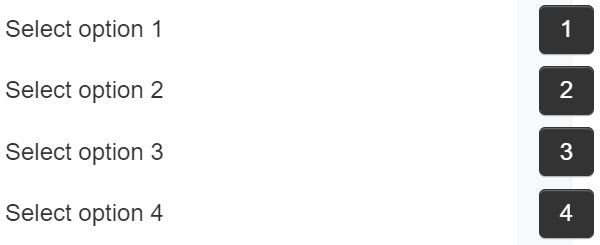
| Select or deselect answer | Select a number corresponding to the preferred response (for example, press 1 for the first response). To deselect it, press the number again. Where multiple responses are available, select all relevant numbers; to deselect, press the number again. Or Tab to selected radio button, then Enter. To deselect, Enter again. |
Same as PC, but use Option+Tab in place of Tab. |
Text entry questions
| Action | PC | Mac |
|---|---|---|
| Enter response | Tab to text box, then type in response | Option+Tab to text box, then type in answer |
| Clear response | Tab to text box, then Delete | Option+Tab to text box, then Delete |
| Edit response | Tab to text box, then use Arrow keys to position cursor | Option+Tab to text box, then use Arrow keys to position cursor |
Formatting text
Many of these shortcuts are the same as in everyday applications such as Microsoft Word.
| Action | PC | Mac |
|---|---|---|
| Select all | Ctrl+A | Command+A |
| Delete text | Backspace | Delete |
| Move the cursor | Arrow keys | Arrow keys |
| Place cursor at beginning of current line | Home | Command+left |
| Place cursor at end of current line | End | Command+right Arrow key |
| Place cursor at beginning of response box | Ctrl+Home | Command+up Arrow key |
| Place cursor at end of response box | Ctrl+End | Command+down Arrow key |
| Move the cursor by one word | Ctrl+left or right Arrow key | Option+left or right Arrow key |
| Undo | Ctrl+Z | Command+Z |
| Redo | Ctrl+Y | Command+Y |
| Cut | Ctrl+X | Command+X |
| Copy | Ctrl+C | Command+C |
| Paste | Ctrl+V | Command+V |
| Bold | Ctrl+B | Command+B |
| Italic | Ctrl+I | Command+I |
| Underline | Ctrl+U | Command+U |
Interactive questions
| Action | PC | Mac |
|---|---|---|
| Drag and drop an answer into place | Tab to required answer, Enter to select. Tab to drop zone, Enter to release | Option+Tab to required answer, Enter to select. Tab to drop zone, Enter to release |
| Move an existing answer into place | Tab to answer, Enter to select. Tab to new drop zone, Enter to release | Option+Tab to answer, Enter to select. Tab to new drop zone, Enter to release |
| Draw lines to join 2 answers | Tab to answer in left column, Enter to select. Tab to answer in right column, Enter to join | Option+Tab to answer in left column, Enter to select. Option+Tab to answer in right column, Enter to join |
| Delete a line joining answers | Tab to line, Enter to delete | Option+Tab to line, Enter to delete |
| Select or change a drop-down list answer | Tab to drop-down, Enter to expand, Arrow keys to move, Enter to select | Option+Tab to drop-down, Enter to expand, Arrow keys to move, Enter to select |
| Select or deselect a hot-spot question | Tab to hot-spot region, Enter to select or deselect | Option+Tab to hot-spot region, Enter to select or deselect |
| Show reading text only (hide item panel) | s | s |
| Alternate between multiple reading texts | Tab to reading text tab, then Enter | Option+Tab to reading text tab, then Enter |
Reference materials and stimuli
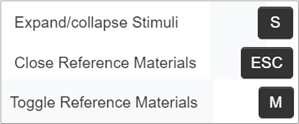
| Action | PC | Mac |
|---|---|---|
| Expand / collapse stimuli | s | s |
| Close reference materials | Esc | Esc |
| Toggle reference material | m | m |
Protractor, calculator, ruler, and notepad tools
These shortcuts only work if the test author has activated the tools.
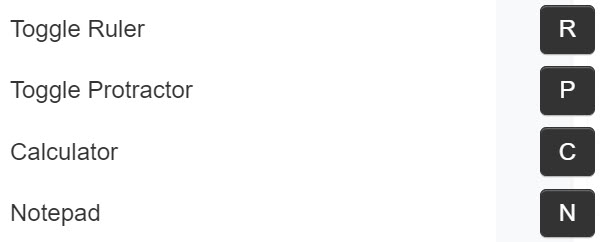
| Action | PC | Mac |
|---|---|---|
| Turn the ruler on/off | r | r |
| Turn the protractor on/off | p | p |
| Turn the notepad on/off | n | n |
| Turn the calculator on | c | c |
| Turn the calculator off | Tab out of calculator, then c | Tab out of calculator, then c |
| Rotate ruler or protractor | Type r or p, Tab to tool rotation handle, then Arrow keys | Same as PC |
| Rotate ruler or protractor quickly | Type r or p, Tab to tool rotation handle, then Shift+Arrow keys | Same as PC |
Calculator functions
| Action | PC or Mac |
|---|---|
| Add | + |
| Subtract | – |
| Multiply | * |
| Divide | / |
| Square | X² |
| Power | Xʸ |
| Square root | √ |
| Equals | = |
| Clear entry | C |
| Clear all | CC |
| Negative (-) | N |
| Numerals 0–9 | 0–9 |
| Brackets | () |
| Pi | π |
| Memory add | M+ |
| Memory subtract | M- |
| Memory recall | MR |
| Memory clear | MC |
What your test administrator controls
- Whether keyboard shortcuts are enabled at all.
- Whether tool shortcuts (ruler, protractor, calculator, notepad) work — depends on whether the test author has activated those tools.