Janison Replay
Janison Replay is the app test-takers use to sit their tests. It runs as an installed app on the device, or in a browser.
Replay's resilience means the test player keeps working through internet dropouts. Test-takers can carry on answering while the connection is down, and their responses sync when it returns. Replay can also run entirely offline, so you can deliver tests at venues with no internet at all.
Use the flowchart below to work out which combination you need, then follow the links to the detail.
flowchart TD
    A[Planning a delivery] --> B{Internet at<br/>the venue?}
    B -->|None| C[Offline<br/>app only]
    B -->|Unreliable| D[Resilient<br/>app or browser]
    B -->|Reliable| E{Lockdown<br/>required?}
    E -->|Yes| F[Online<br/>app]
    E -->|No| G[Online<br/>browser]

    C --> P[Prepare each device<br/>before test day]
    P --> K[Test-taker enters<br/>their codes]
    D --> K
    F --> K
    G --> K

    K --> T[Test-taker sits the test]

    T --> R{Was any part of the<br/>attempt offline?}
    R -->|Yes| RC[Reconcile the device]
    R -->|No| AU[Attempt uploads<br/>automatically]
    RC --> M[Marking and reporting]
    AU --> M

    classDef start fill:#41b0b4,stroke:#41b0b4,color:#ffffff,font-weight:bold
    classDef decision fill:#edf7f8,stroke:#41b0b4,color:#002c41
    classDef mode fill:#e6eaed,stroke:#002c41,color:#002c41,font-weight:bold
    classDef action fill:#e6f6f4,stroke:#00a88d,color:#002c41
    classDef external fill:#f9fafb,stroke:#9ca3af,color:#6b7280,stroke-dasharray:5 5

    class A start
    class B,E,R decision
    class C,D,F,G mode
    class P,K,T,RC,AU action
    class M external
Invigilators monitor and manage test-takers from the test session administration dashboard.
Choose your delivery option
App or browser
| Replay app | Browser | |
|---|---|---|
| Locks the device down | Yes — blocks app switching, system utilities and prohibited applications | No |
| Install required | Yes, on every device | No — test-takers open a URL |
| Resilient delivery | Supported | Supported |
| Offline delivery | Supported (prepare the device first) | Supported in approved browsers |
| Prepare and reconcile devices | Supported | Supported in approved browsers |
| Typical use | Supervised, high-stakes exams | Practice, open-book and low-stakes tests |
The app blocks other applications, system utilities and device features during a test. An administrator installs it on each test-taker's device. View supported operating systems.
The browser normally runs as an open-book style exam without the lock-down features. Test-takers open a URL provided by Janison. View supported browsers.
Safe Exam Browser
Safe Exam Browser is a lock-down browser developed outside Janison. Insights can be set up to recognise it and refuse any login that does not come from it. A browser-delivered test can then still be locked down. Configure this at Settings > Secure Delivery Settings with Use Safe Exam Browser Agent and Enable Safe Exam Browser Validation, both off by default.
Online, resilient or offline
| Mode | Internet needed | What happens | Prepare device first? | Reconcile afterwards? |
|---|---|---|---|---|
| Online | Throughout the test | Responses go to Insights as the test-taker works | No | No — automatic on submit |
| Resilient | At launch only | The test package downloads at launch, so the player stays interactive through dropouts | No | Only if the attempt is submitted while offline |
| Offline | Not at all | The test is pre-loaded onto the device before test day | Yes | Yes — always |
How test-takers reach their test
| Entry method | Test-taker enters |
|---|---|
| Session code and test-taker code | Test-taker code, then session code |
| Launch URL with the codes embedded | Nothing, or just the test-taker code |
| Sessionless delivery | Test-taker code only |
| Candidate dashboard | Signs in and picks their test |
Lockdown is decided by the Enable Replay lockdown setting and its per-event and per-test-taker overrides — not by which URL the test-taker used.
How test-takers start a test
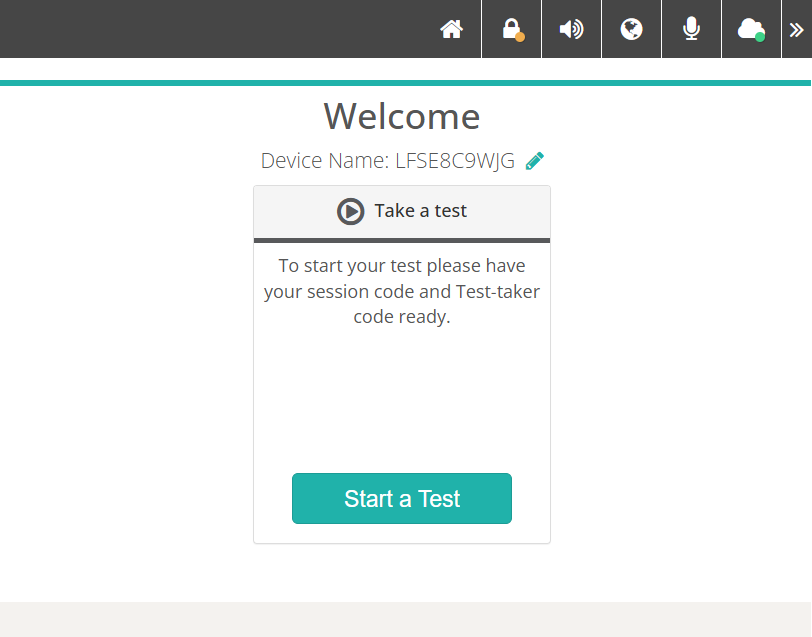
This is the Replay home screen. Every word on it is a string resource. An administrator can reword them at Settings > String Resources, and add a logo at Settings > Style & Images.
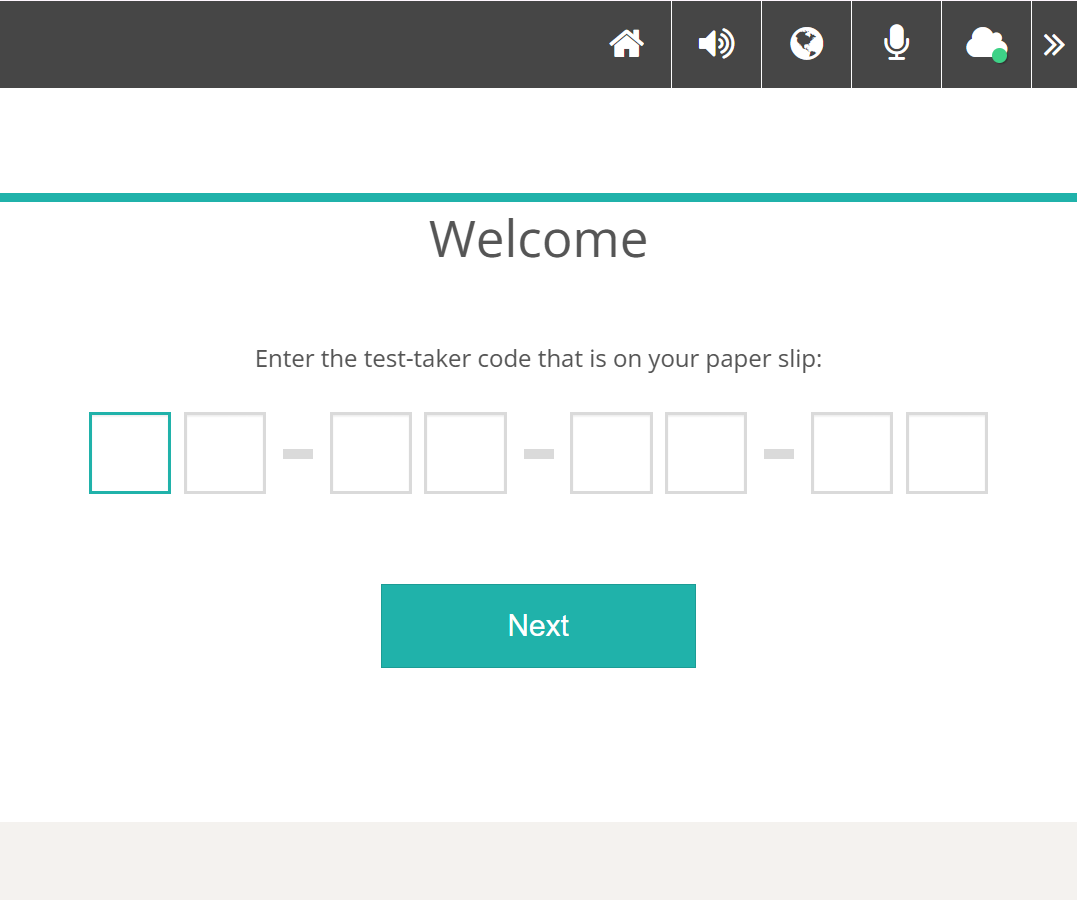
After selecting Start a Test, the test-taker is asked for their code first. The screen reads Enter the test-taker code that is on your paper slip. Codes are eight letters with no vowels or digits, shown as XX-XX-XX-XX. Replay checks the code before sending it, so a mistyped code is caught straight away.
Insights then checks the enrolment and decides whether a session code is needed. If one is, the test-taker sees a second screen reading Enter the session code that is on the board. Session codes are also eight letters, shown as XXX-XX-XXX.
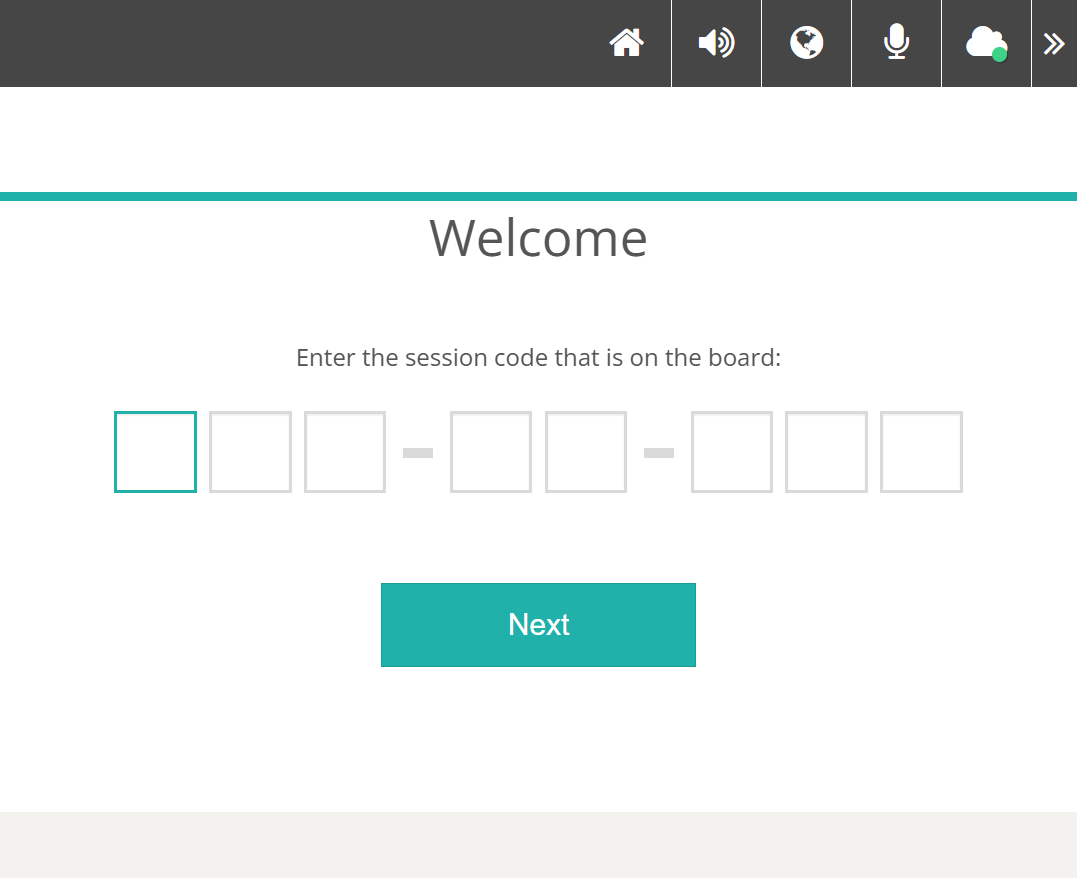
Test-takers skip the session-code screen entirely when:
- the assessment event uses sessionless delivery
- an invigilator has already scanned them into the session
- the device is registered to an org unit that has an active session code (Replay remembers it for 24 hours)
- the launch URL supplied the session code
After the codes, a confirmation screen appears before the test opens. The Test Commencement Confirmation setting decides what it shows. The options are the test-taker's name and candidate number, a simple "are you ready" prompt, or a brief wait before the test starts. If terms and conditions are switched on, the test-taker must accept them here.
For resilient and offline delivery, a Preparing... screen then downloads the test to the device before the first item appears.
Sessionless delivery
Test-takers can start their test with just their test-taker code if the assessment event is set to sessionless. Sessionless attempts follow the same lockdown rules as any other attempt. They cannot be prepared onto a device by session code — use Prepare for an Assessment Event instead. See Sessionless delivery.
Candidate dashboard
Test-takers who sign in to Insights can start their test from the candidate dashboard without typing any codes — the link carries their test-taker code. Depending on your configuration, the link opens either the browser or the locked-down Replay app. See Candidate dashboard.
Resuming an interrupted test
There is no Resume button. If a test-taker closes Replay part-way through, they select Start a Test and enter the same codes again. Their answers are kept, and Replay returns them to the item they were on.
They may see one of these messages instead:
- This attempt is already in use on this device. — the attempt is open in another tab or window
- your test is locked to another computer or device. — the attempt is bound to a different device, and an invigilator must unlock it
- your test has been paused. — an invigilator has paused them
- Wait to begin. — an invigilator has not yet admitted them; Replay re-checks every 10 seconds and continues automatically
How Replay delivers a test
The assessment event decides whether a test runs online, keeps going through dropouts, or runs with no connection at all. The device's own network mode is a separate, per-device setting — see Network connection.
Online
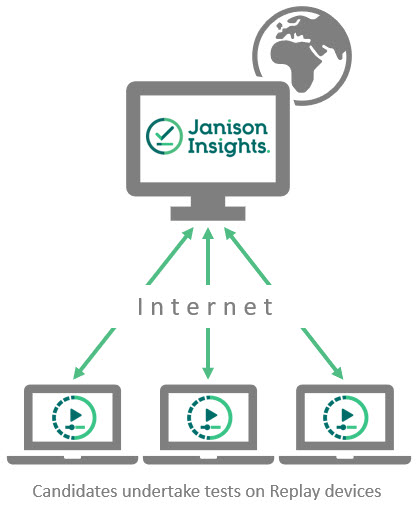
The device stays connected. As test-takers work through the test, their responses are sent to Janison Insights for marking and analysis.
Resilient
You can also run a test online where the network is unreliable. This is called resilient testing. After the test-taker enters their code, Replay securely downloads a copy of their test package. If the internet drops out, Replay serves the test from the device and queues the responses, retrying in the background. The test-taker sees no disruption.
Resilient delivery needs three things, all of which you can check yourself:
- Enable Offline Reliable Delivery switched on at Settings > Test Delivery Settings
- Allow Reliable Offline Delivery ticked on the assessment event
- a browser or app that supports service workers, IndexedDB, fetch, Promises and the URL API
Offline
You can pre-load a device with tests so test-takers can sit them with no internet connection at all. The test-taker's experience is the same as online.
An administrator prepares the devices before test day, then reconciles them afterwards to get the attempt data back to Insights. See Prepare devices and Reconcile devices.
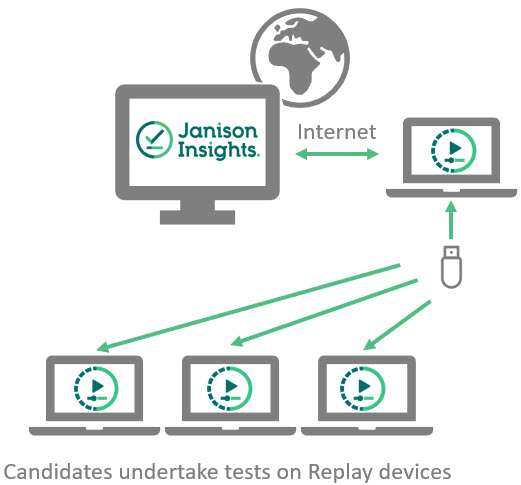
Replay toolbar
The Replay toolbar is the dark bar across the top of Replay's own screens. It carries your logo, an indicator showing whether any attempts are still waiting to upload, and up to ten tool buttons. An administrator can show or hide each tool individually — see Replay settings below.

By default the toolbar appears on Replay's own screens only — the home, code entry, prepare and reconcile screens. To keep it on screen during a test as well, an administrator switches on Enable the Replay Toolbar in the Test.
Speaker check
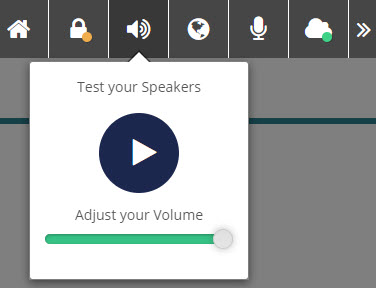
Select the speaker icon (tooltip Speaker volume) to open Test your Speakers. Select the play button to hear a sample clip. On devices that allow it you also get an Adjust your Volume slider. On iPads and most Android tablets, use the device's own volume controls instead. There is no pass or fail — you listen and judge.
Culture selector
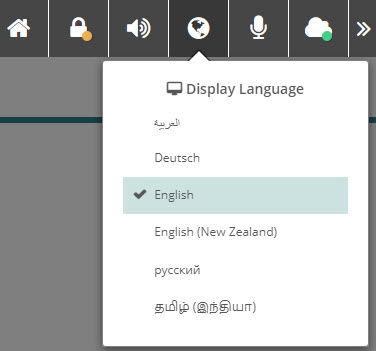
Select the globe icon (tooltip Culture selector) to open a panel with Display Language and Keyboard Language lists.
Display Language changes the platform's own wording, not the wording of items. It appears only outside a test, and only when more than one language is enabled at Settings > Languages. Choosing a language reloads the page. To deliver items in another language, use substitute items instead — see String resources and Personal needs and preferences.
Keyboard Language needs the Replay app, because keyboard layouts come from the app rather than the browser.
Microphone check
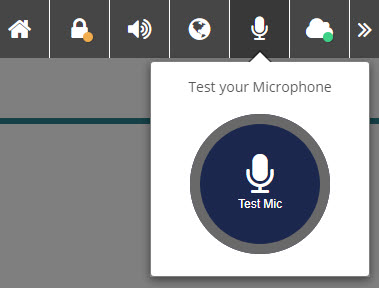
Select the microphone icon to open Test your Microphone. Select the round button to record for five seconds while it counts down, then play the recording back. Reset - Test Again runs the check again. If nothing was heard, Replay says so and asks you to adjust the microphone.
Network connection
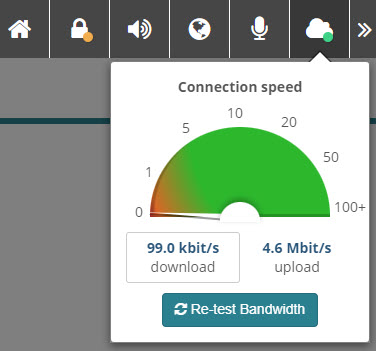
Select the cloud icon to open Connection speed. Select Test Bandwidth to measure download and upload speed. The button is unavailable while the device is offline, and during a test the cloud is a status indicator only.
You choose the network mode under Device settings. That part of the panel appears only once an administrator has unlocked the device with the invigilator PIN. There are four options:
Online — the device stays connected, as long as there is network connectivity.
Low Bandwidth — the device stays connected but minimises network traffic wherever it can, preferring cached resources. An administrator can make this the starting point for devices that have never had a mode chosen, using Enable Low-Bandwidth Mode.
Offline — the device behaves as though it is offline, even where there is connectivity.
Automatically select — Replay runs a speed test and recommends a mode, comparing the result against the Replay Minimum Download Speed and Replay Minimum Upload Speed thresholds.
The coloured dot on the cloud icon shows the current state:
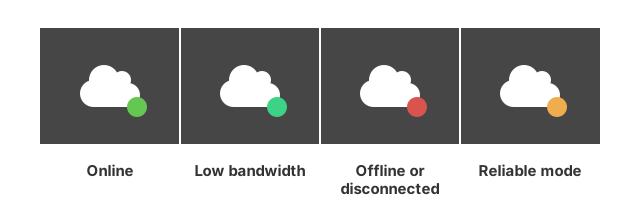
Green: online.
Mint green: low bandwidth mode — still connected, but minimising network traffic.
Red: offline or disconnected — either the mode is set to Offline, or Replay cannot reach the server.
Amber: reliable mode — the test started with network connectivity and then went offline.
The two greens are close in tone and differ mainly in hue. Hover over the cloud to confirm the mode rather than judging by colour alone.
Other toolbar tools
The toolbar can also show:
- Home — returns to the Replay home screen. During a test this asks the test-taker to confirm they want to leave, and can be set to require the invigilator PIN.
- Lock Device / Unlock Device — the padlock, used to unlock a device for preparation or reconciliation. It only appears on the Replay home, prepare device and reconcile device screens, so it disappears once a test-taker moves on to code entry. Select Home to bring it back. A badge appears on it when the device needs a preparation action.
- Keyboard selector — shows the current keyboard's language code and opens a Select a keyboard table. Needs the Replay app.
- Remote connection — replaces the cloud icon when Janison Remote is in use, and reports the pairing status.
- Unlocked browser — an eye icon shown when Replay is running without lockdown, as a visible reminder.
- Toggle toolbar — collapses the toolbar to hide the less important tools.
An Exit Janison Replay link sits in the page footer, not on the toolbar, alongside the installed version number.
Install the Replay app
An administrator installs Replay on each device. The steps differ by operating system. Your Janison account manager will provide the download details. An administrator can store them at Settings > Test Delivery Settings, in Android Test Player Url, iOS Test Player Url and Windows App Test Player Url. Once set, invigilators see download tiles on the invigilator dashboard.
Note
These steps don't apply if you're running your test in a browser. The Replay home screen is usually at https://your-insights-url/testplayer2/testplayer/home, and the code entry page is at https://your-insights-url/testplayer2/auth/onetimecode. Where Enable Replay lockdown applies and the event has not opted out, a browser is refused: "The Replay Application is required to take this test".
Windows
Download the Windows installer from the location your Janison account manager gives you, then install it as you would any other Windows app. The set-up assistant handles the rest.
Once it finishes, launch Replay from the Start menu.
Managed Chromebook
To run Janison Replay on managed Chromebooks, your organisation needs to subscribe to a Chrome service, such as Chrome Enterprise, Chrome Education, or Chrome Kiosk. Replay runs on a managed Chromebook as a kiosk web app.
Note
If you use the Replay Chrome app, or would like information about it, contact your Janison account manager.
Enrol a Chrome device
All the test-taker Chromebooks using Replay need to be enrolled into your Google Apps before the assessment. Enrolling Chromebooks lets administrators manage the devices, configure features and enforce device policies through a single admin portal. This step may already have been done to run other applications in kiosk mode — check with your IT specialist.
Enrolling a Chrome device is a one-off action, for example when a device is new in a school. Each enrolled device complies with the policies you set in the admin console until you wipe or deprovision it.
You can read more about enrolling Chrome devices in Google's documentation.
To view a list of enrolled devices in your admin console, go to Devices > Overview and select the ChromeOS devices tile.
Important
Enrol devices before anyone signs in to them. If you don't, you need to wipe the device and start enrolment again. Google documents how to wipe a Chrome device.
iOS
The Janison Replay iOS app supports iPads, excluding iPad Mini.

Install the app
Install Janison Replay from the App Store as you would any other iPad app. Two steps after that are specific to Replay.
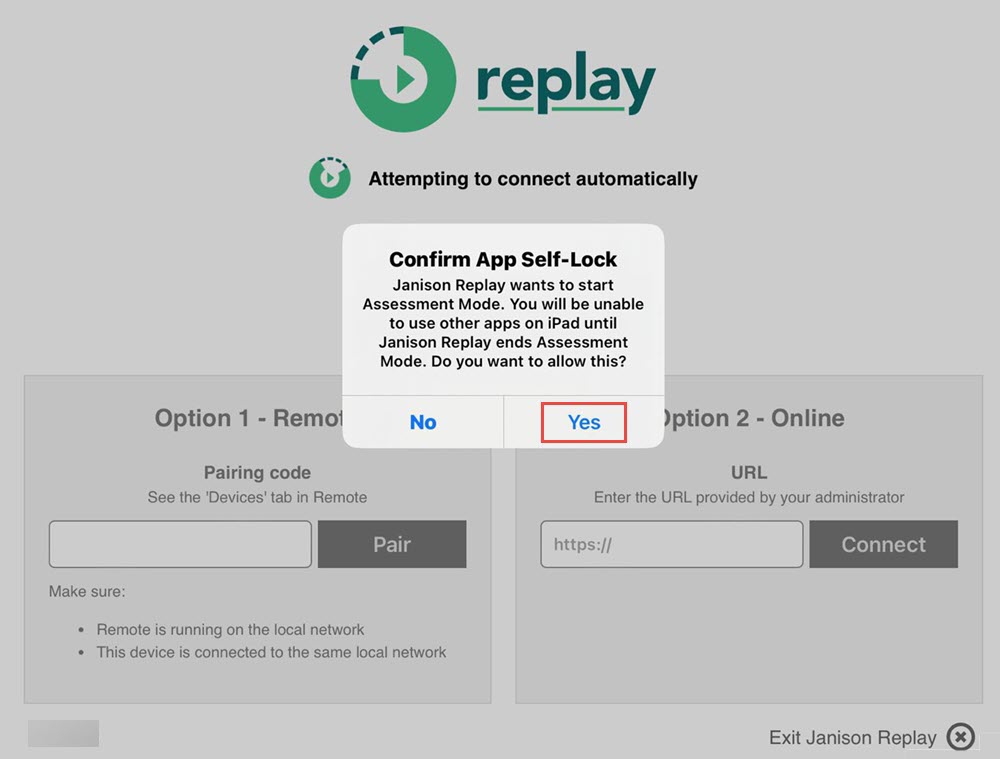
Replay asks to lock the iPad to itself. The Confirm App Self-Lock dialog explains that Replay wants to start Assessment Mode, and that no other app can be used on the iPad until Replay ends it. Select Yes.
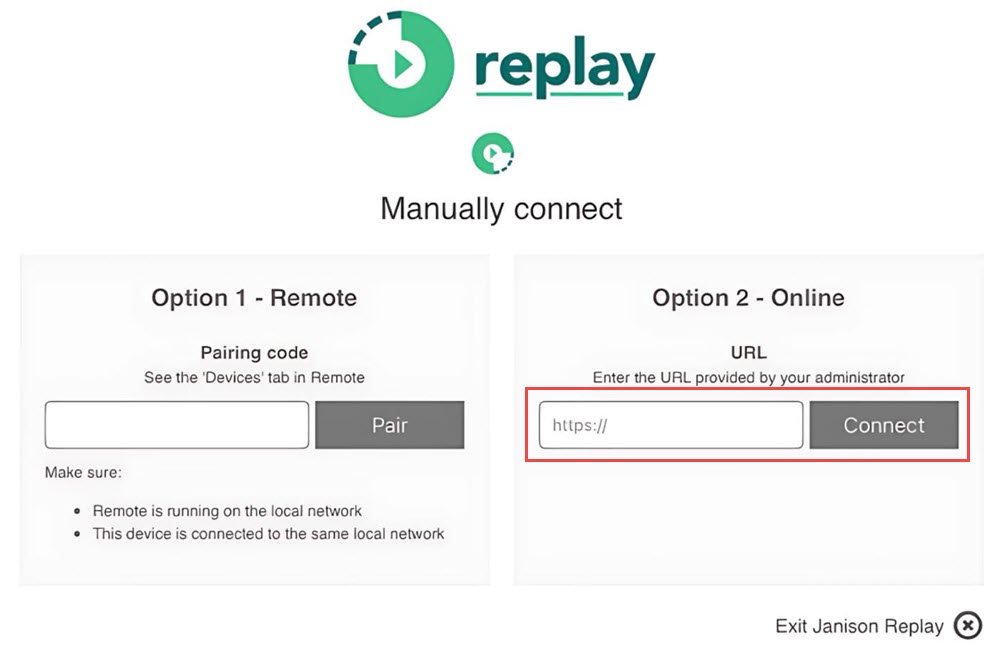
Replay then tries to connect on its own. If it cannot, the Manually connect screen offers two ways in. Under Option 2 - Online, enter the URL your Janison account manager gives you and select Connect. Option 1 - Remote pairs the iPad with Janison Remote instead, using the pairing code from the Devices tab in Remote.
Change the Insights server URL
Once you have entered the URL, that screen won't display again.
To change it, launch Janison Replay and wait for the Welcome screen. Press and hold the screen with three fingers for five seconds. Please enter admin password displays. Enter configure and select Ok. Enter the required URL and select Connect.
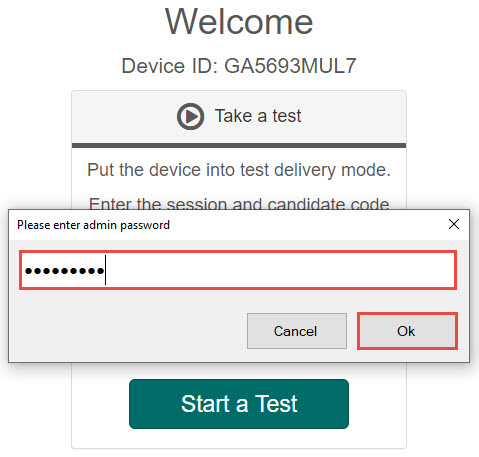
An administrator can also set the URL centrally at Settings > Replay Tenant Settings > Configuration > Startup URL, which is pushed to installed apps.
Android
Install Janison Replay from Google Play as you would any other Android app.

macOS
Download the macOS install files from the location your Janison account manager gives you, then install the package as you would any other macOS app. You will be asked to agree to the licence and to enter your device user name and password.
Once it finishes, launch Replay from the Applications folder.
Prepare devices
You only need to prepare devices if you plan to run your test offline. During the prepare process, the test and all its related data download to the device.
Before you can prepare a device you need:
- an internet connection — Replay blocks preparation while offline
- Enable Offline Reliable Delivery switched on at Settings > Test Delivery Settings
- an assessment event with Allow Reliable Offline Delivery ticked and open test attempts
- an open test session, unless the event is sessionless
- the Replay app, or a supported browser
- an invigilator PIN
Find your invigilator PIN
You need an invigilator PIN to unlock a device. Go to Deliver > Invigilator Dashboard and find the Janison Replay section. Select Show My PIN to display it, or Regenerate PIN to issue a new one. If your organisation uses org unit PINs, you can also select Show Org Unit PIN. See Test centre/Invigilator dashboard.
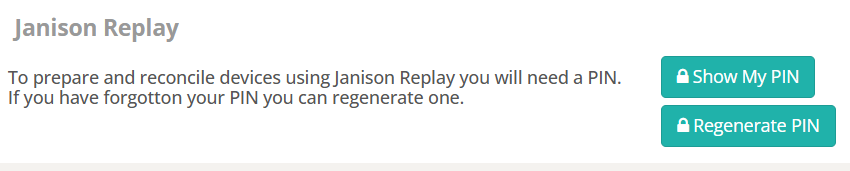
The PIN is six letters, with no vowels or digits.
Important
Replay checks the PIN against Insights the first time you use it on a device, then remembers it so the same PIN also works offline. A PIN that has never been used online on that device will not unlock it offline. Unlock every device once, while online, with the PIN you intend to use before you take the devices offline.
Unlock and prepare the device
Launch Replay on the test-taker's device and select the padlock icon.
Important
The padlock only appears on the Replay home, prepare device and reconcile device screens. If a test-taker has already started entering their code, the padlock is not on the toolbar — select the Home icon first, then the padlock.
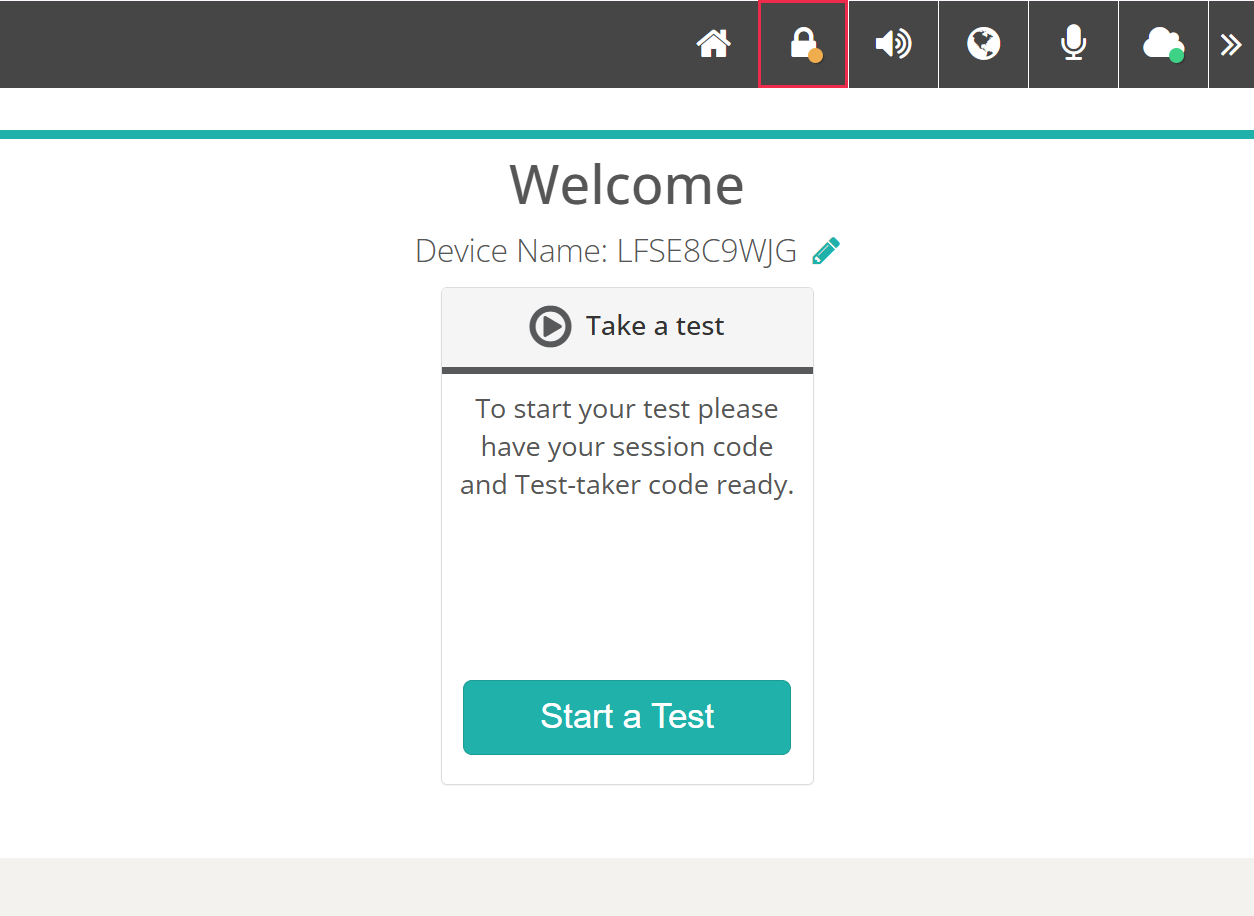
A dialog titled Unlock Device opens. Type your PIN. A PIN is always six characters, and the device unlocks as soon as you type the sixth. You will not normally need to select Unlock Device.
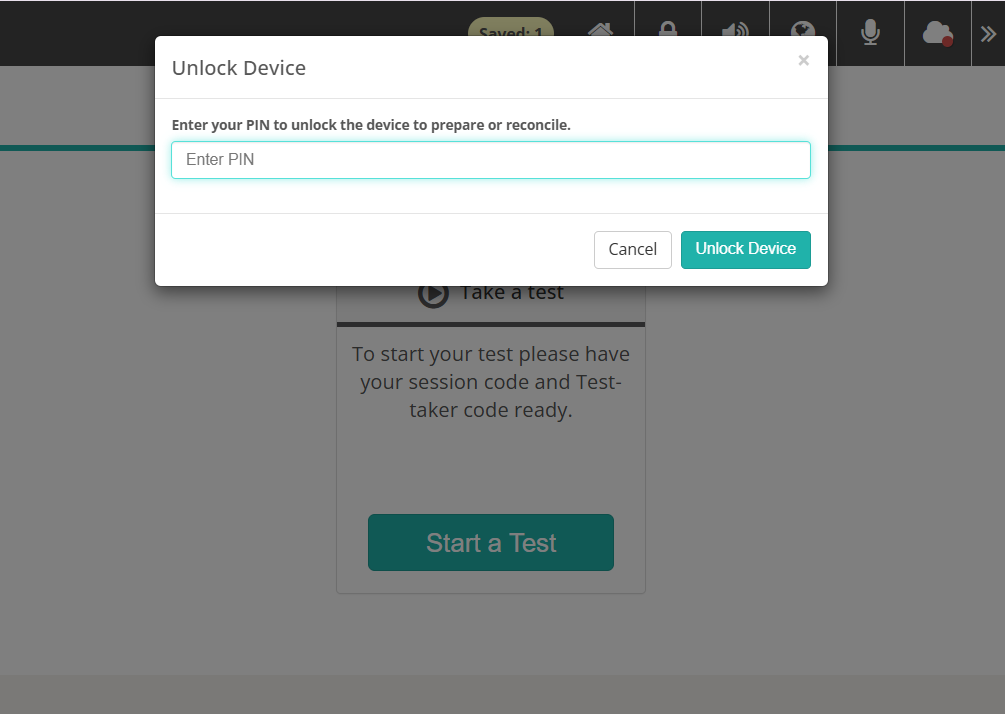
Warning
Unlocking a device signs out any test-taker who is currently logged in. Do not unlock a device mid-test unless you intend to end that test-taker's session.
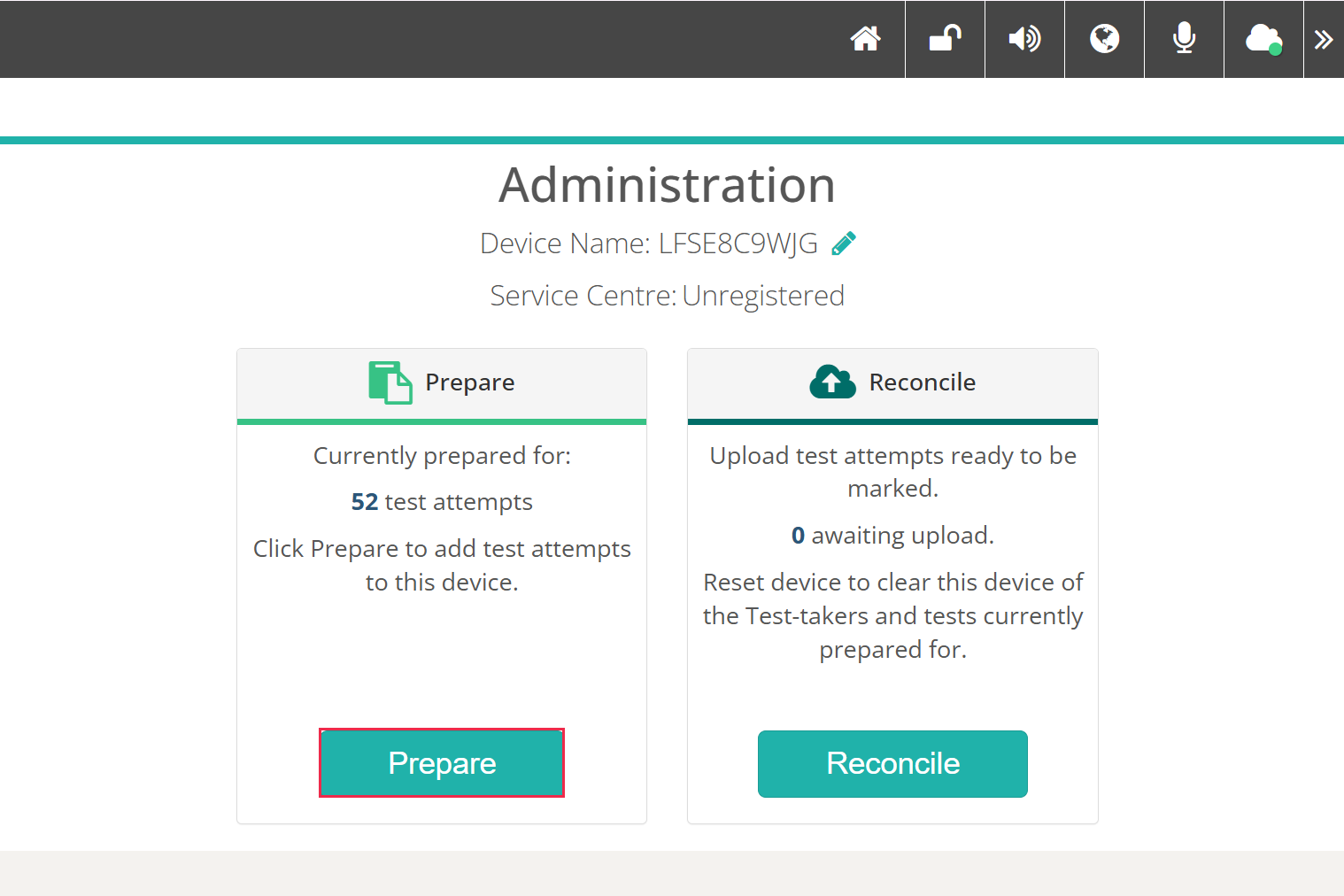
The heading changes from Welcome to Administration. Select Prepare.
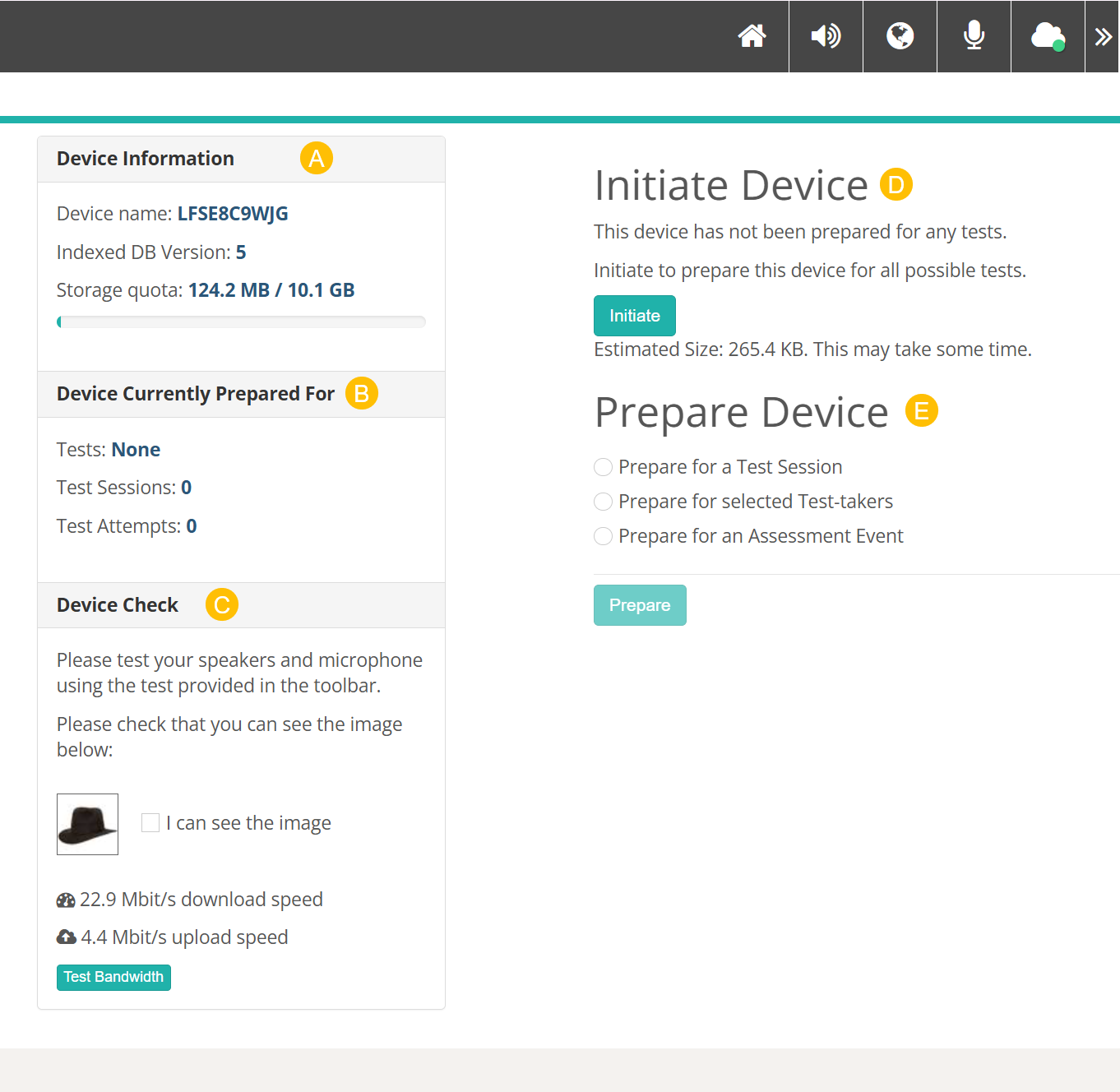
The prepare screen has five sections:
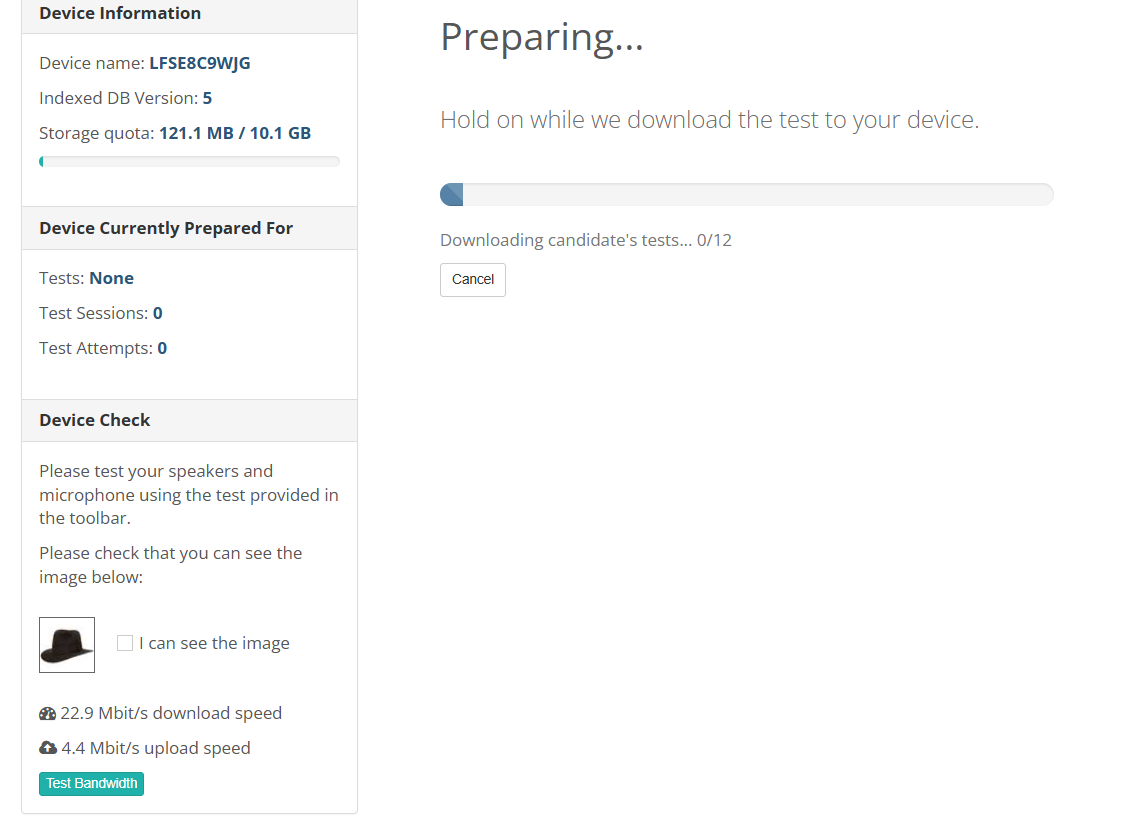
A — Device Information shows the device name, the local database version and the storage quota. A red warning appears here if the device is running low on space.
B — Device Currently Prepared For lists the tests, test sessions and test attempts already on the device. It reads Tests: None when the device is empty.
C — Device Check confirms the device can reach the content delivery network and measures connection speed. Test the speakers and microphone from the toolbar — this panel doesn't test them.
D — Initiate Device downloads the media for every test the device could be asked to deliver, ahead of time, and shows an estimated download size. It only appears where media pre-caching is switched on. Once the device has been initiated, this section changes to Update Required whenever one of those tests changes.
E — Prepare Device prepares the device for a test session, selected test-takers, or an assessment event.
Choose how to prepare
There are three ways to prepare a device.
Prepare for a Test Session prepares the device for all open test attempts in a session, grouped by assessment event. Choose the session from the Session Code dropdown — type to search open sessions — then tick the assessment events you want.
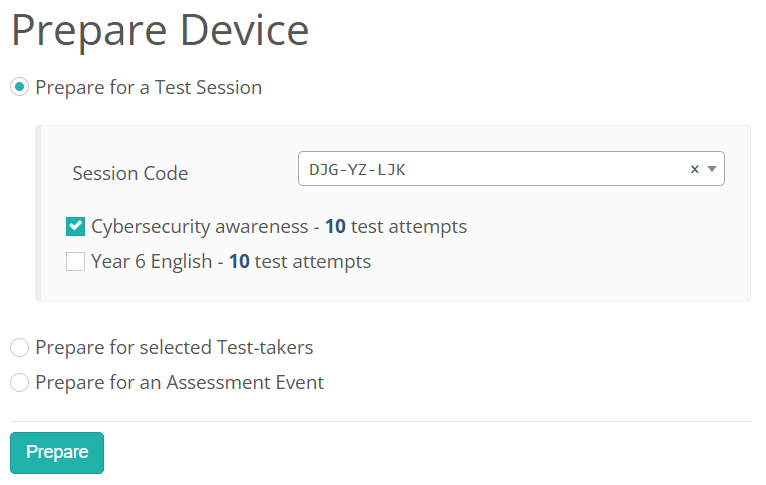
An event you cannot select shows a red badge. online only means the event is not configured for offline delivery; tick Allow Reliable Offline Delivery on the event to fix it. AE not open means the event has not opened yet.
Prepare for selected Test-takers prepares the device for the test-takers and tests you select. Type the test-taker's code into Test-taker Code in the format XX-XX-XX-XX and select Search, then tick the attempts you want and choose a Session Code. You can leave the session code blank if every attempt you ticked is sessionless.
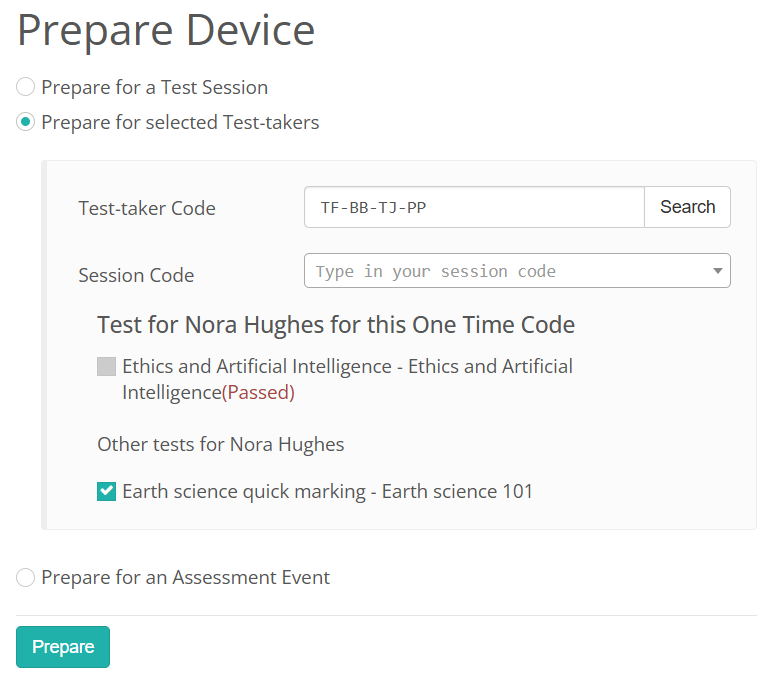
An attempt you cannot tick is one that is no longer open. Its status appears in red after the test name — (Passed), for example — and only open attempts can be prepared.
You can also reach the prepare screen from an ordinary browser rather than the Replay app. If you do, any attempt covered by Replay lockdown shows a red asterisk and cannot be prepared there; prepare those from the Replay app instead.
Prepare for an Assessment Event prepares the device for every test linked to the event, and for all test-takers enrolled in it. Only events with a status of Delivery are listed.
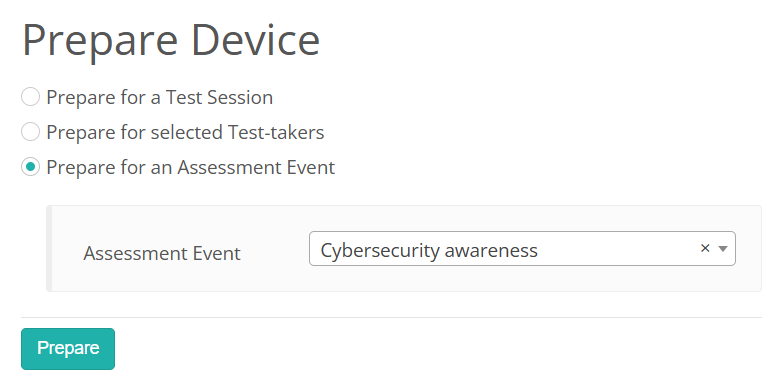
Select Prepare. A Preparing... screen shows a progress bar while the test package downloads, and you can cancel it.
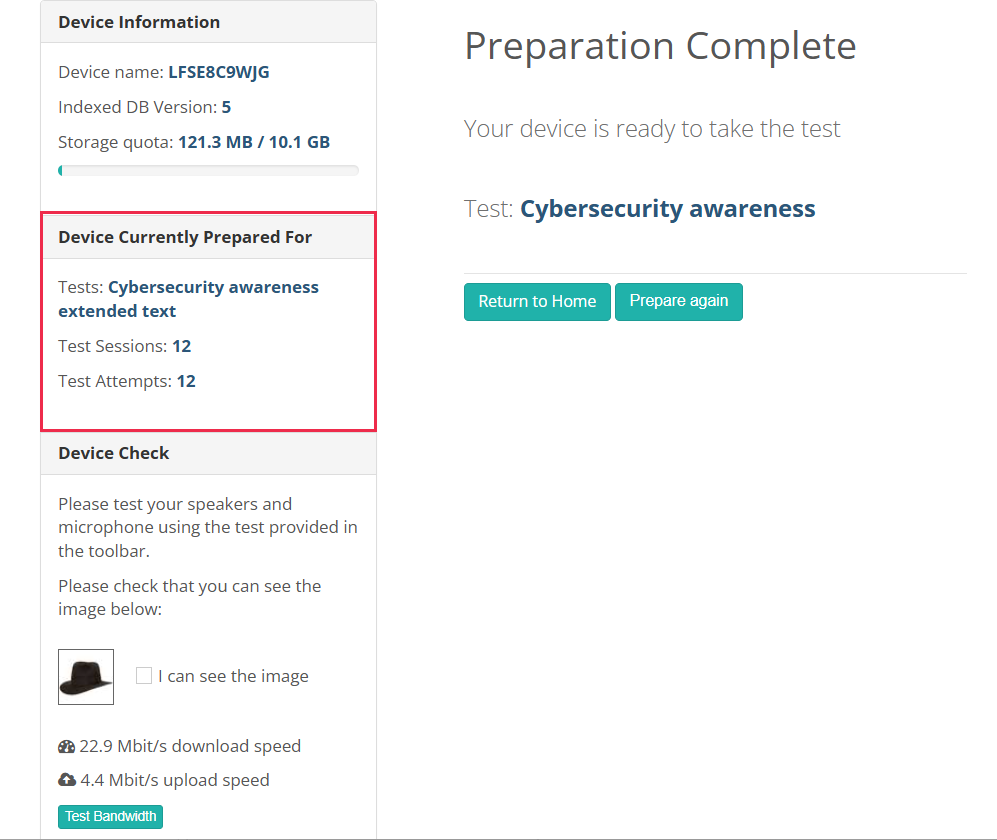
When it finishes, Device Currently Prepared For updates and you can select Return to Home, or Prepare again to add more attempts. You never need to reset a device before preparing it again.
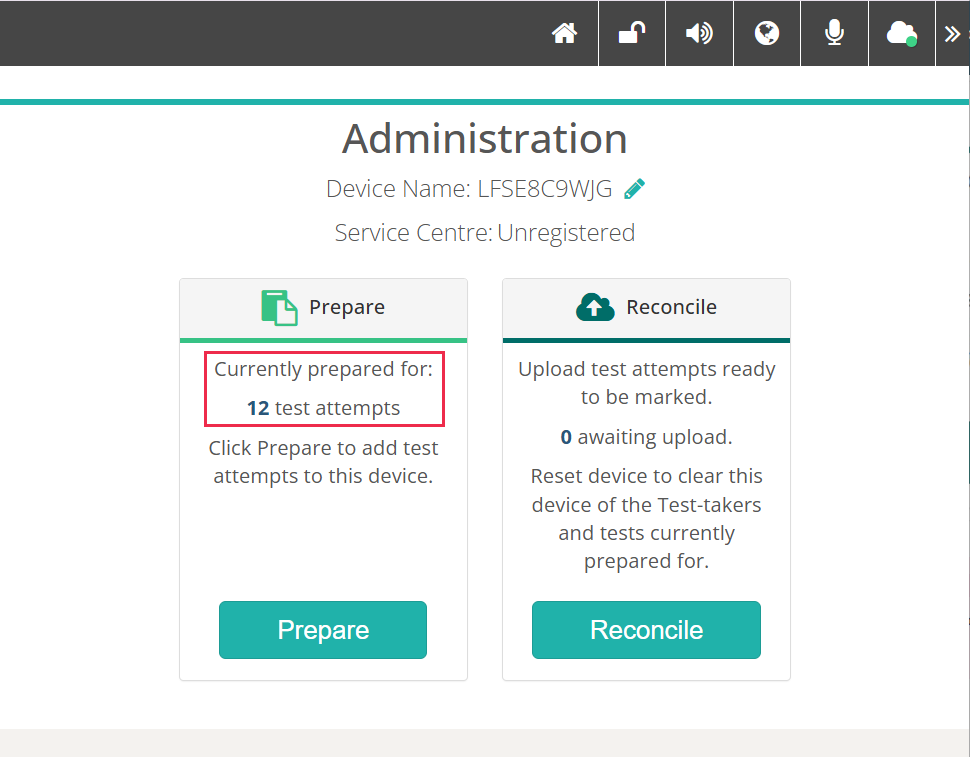
The Prepare tile shows a count of the test attempts the device is prepared for.
Lock the device again
When you have finished preparing, lock the device to remove the test-taker's access to the links and menu items you have been using.

Select the padlock icon. A dialog titled Lock Device asks you to confirm.

The padlock icon changes to a closed lock, and the device is locked.
Reconcile devices
If a test attempt was started while online, Replay reconciles it automatically when the test is submitted, sending it to Insights for marking and processing.
If a test attempt is started or submitted while offline, the device needs reconciling manually.
Replay also retries on its own. About 30 seconds after the home screen loads, it looks for attempts needing reconciliation and tries to upload them. It backs off and retries up to ten times. So after an offline session, simply leaving devices on the Replay home screen with a connection will often clear the queue.
When to reconcile
Check the test session administration dashboard. If a test started online and then went offline, the test-taker appears on the test session administration dashboard. If the dashboard doesn't reflect their status — for example they have submitted but still appear in progress — reconcile their device.
You can also check the device itself. A pill at the left of the Replay toolbar tracks the attempts stored on it, and shows one of three things:
Saved: 1 — attempts are waiting to upload, and the number is how many. Hovering it explains that they will sync automatically when the internet returns.
Syncing... — Replay is uploading them now.
Synced — Replay has finished uploading.
There is no pill at all when the device holds nothing waiting.

Reconcile online
Select the padlock icon.
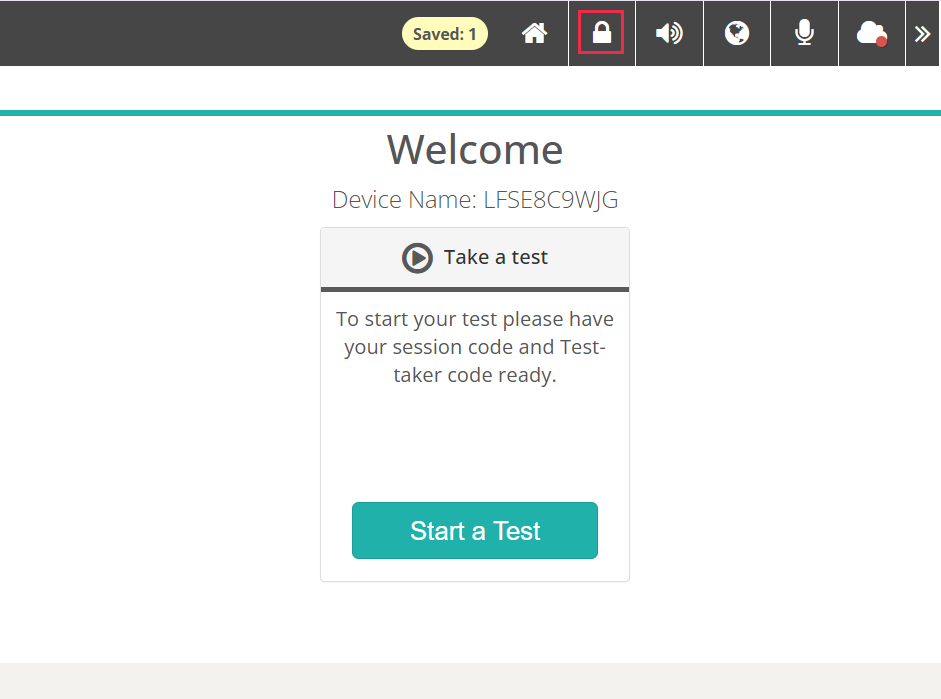
Type your PIN. The device unlocks as soon as you type the sixth character.
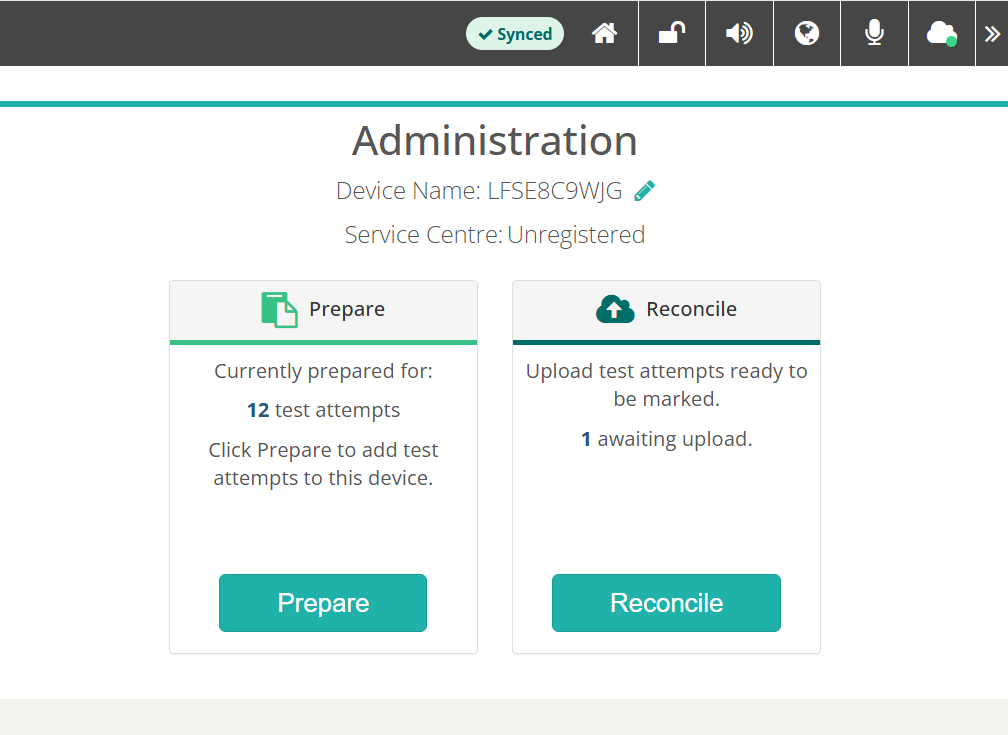
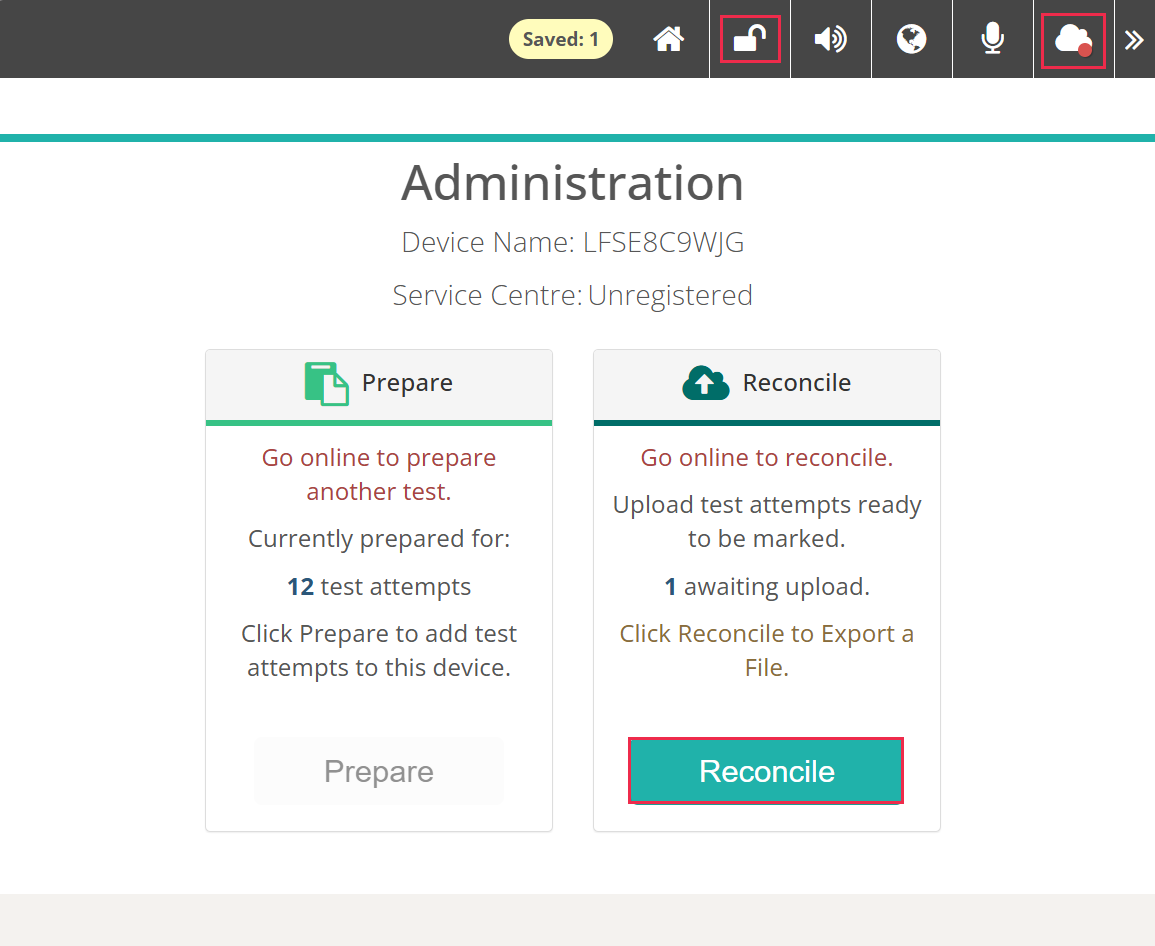
The Administration page displays. The Reconcile tile shows the number of attempts awaiting upload, and the toolbar pill reads Synced once Replay has finished syncing in the background. Select Reconcile.
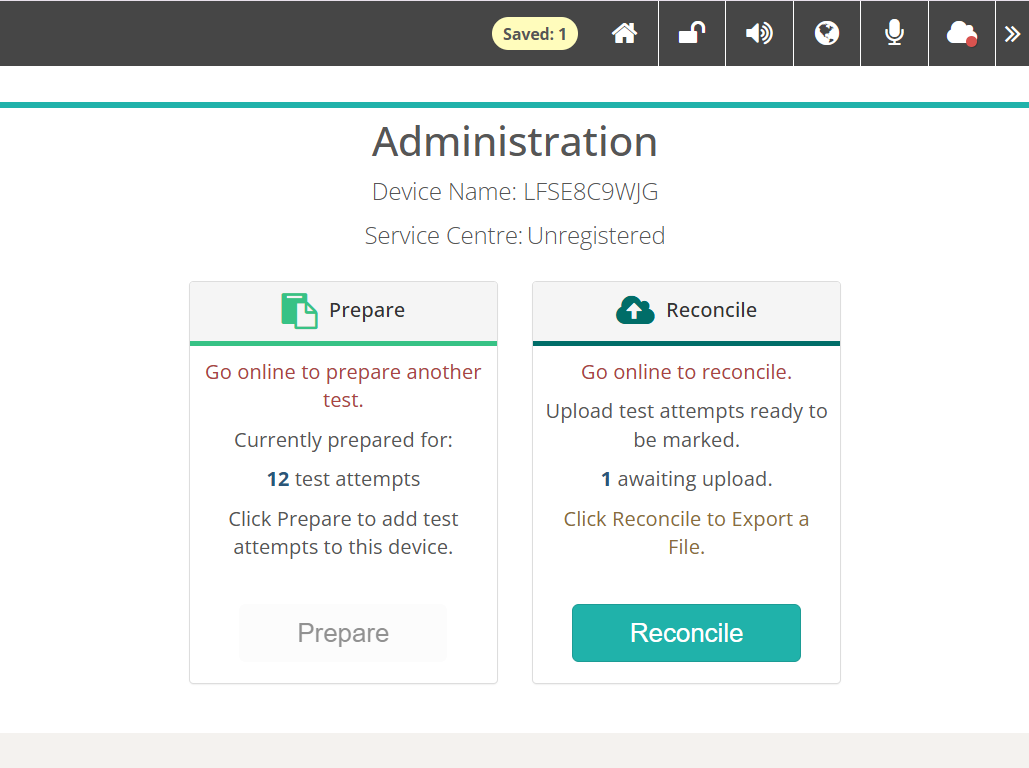
The same page looks different while the device is offline. Both tiles carry a warning — Go online to prepare another test. and Go online to reconcile. — and the Prepare button is unavailable. Where file reconciliation is switched on, the Reconcile tile adds Click Reconcile to Export a File. Exporting is the one thing you can still do offline.
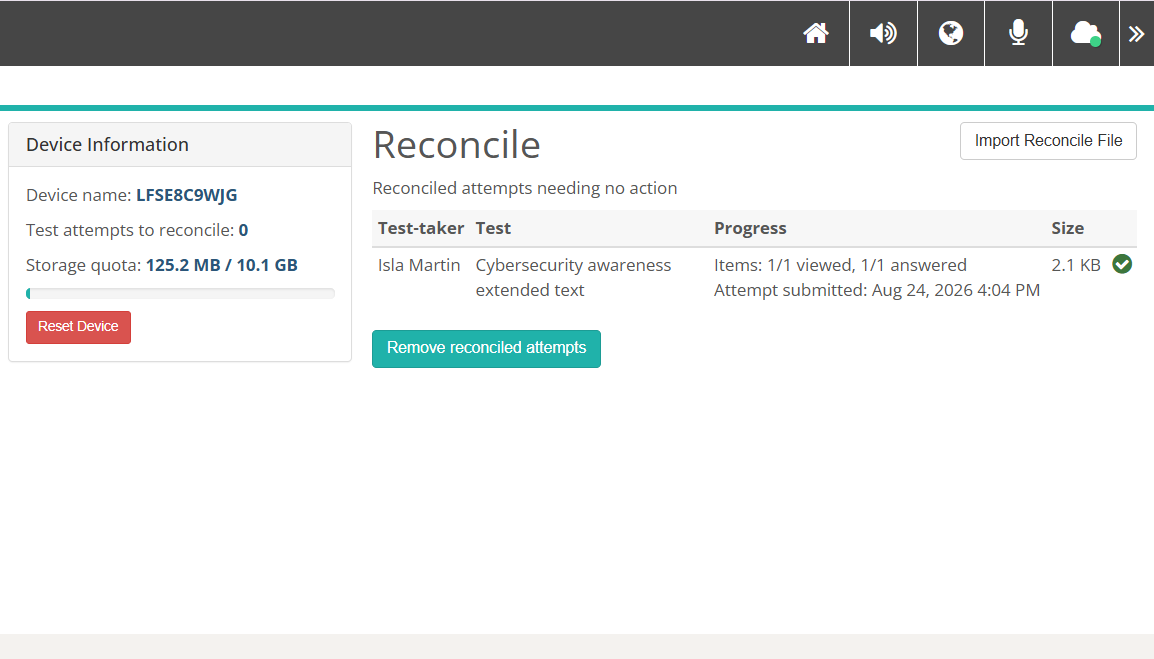
Replay also reconciles in the background while the home screen is open. Attempts have often uploaded already by the time you open the Reconcile page. Anything done that way is listed under Reconciled attempts needing no action with a green tick, and Test attempts to reconcile reads 0.
Otherwise the Reconcile page lists the attempts waiting to upload, with the test-taker, test, progress and size of each. Select Test Bandwidth for an estimate of how long the upload will take. Replay reports something like "It will take approximately a few seconds to reconcile this device (at 4.4 Mbit/s)", and the button then reads Re-test Bandwidth.
Before reconciling, you can tick Remove Test-takers' answers from the device once the reconcile process is complete. This is the usual way to clear a shared device as you go.
Select Reconcile.
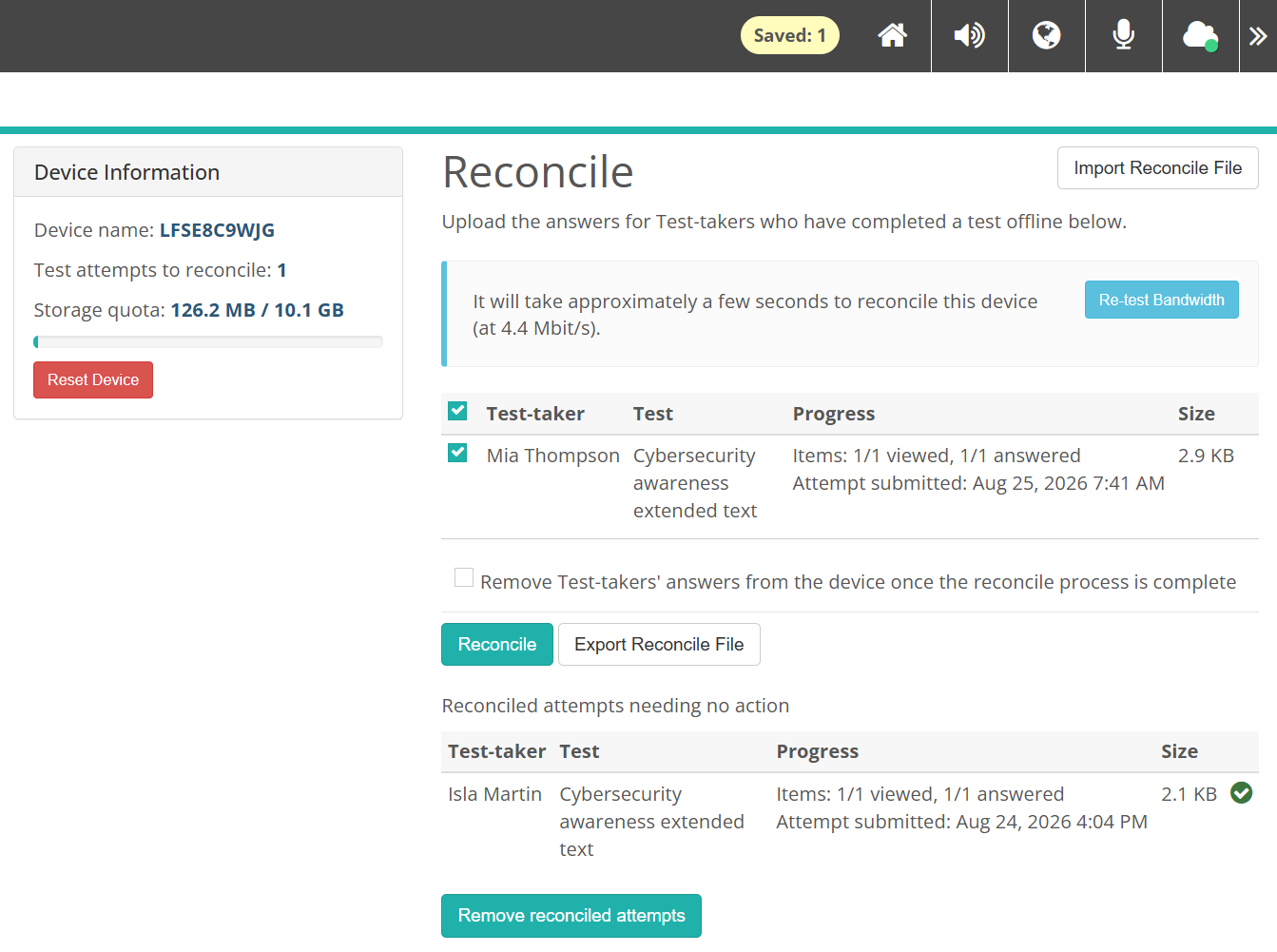
While the device is offline the Reconcile button is unavailable and the page says so. You then have a choice. Go online and select Reconcile, or select Export Reconcile File to carry the attempts to a connected device — see Reconcile offline. There is no bandwidth estimate offline, because Replay cannot measure the connection.
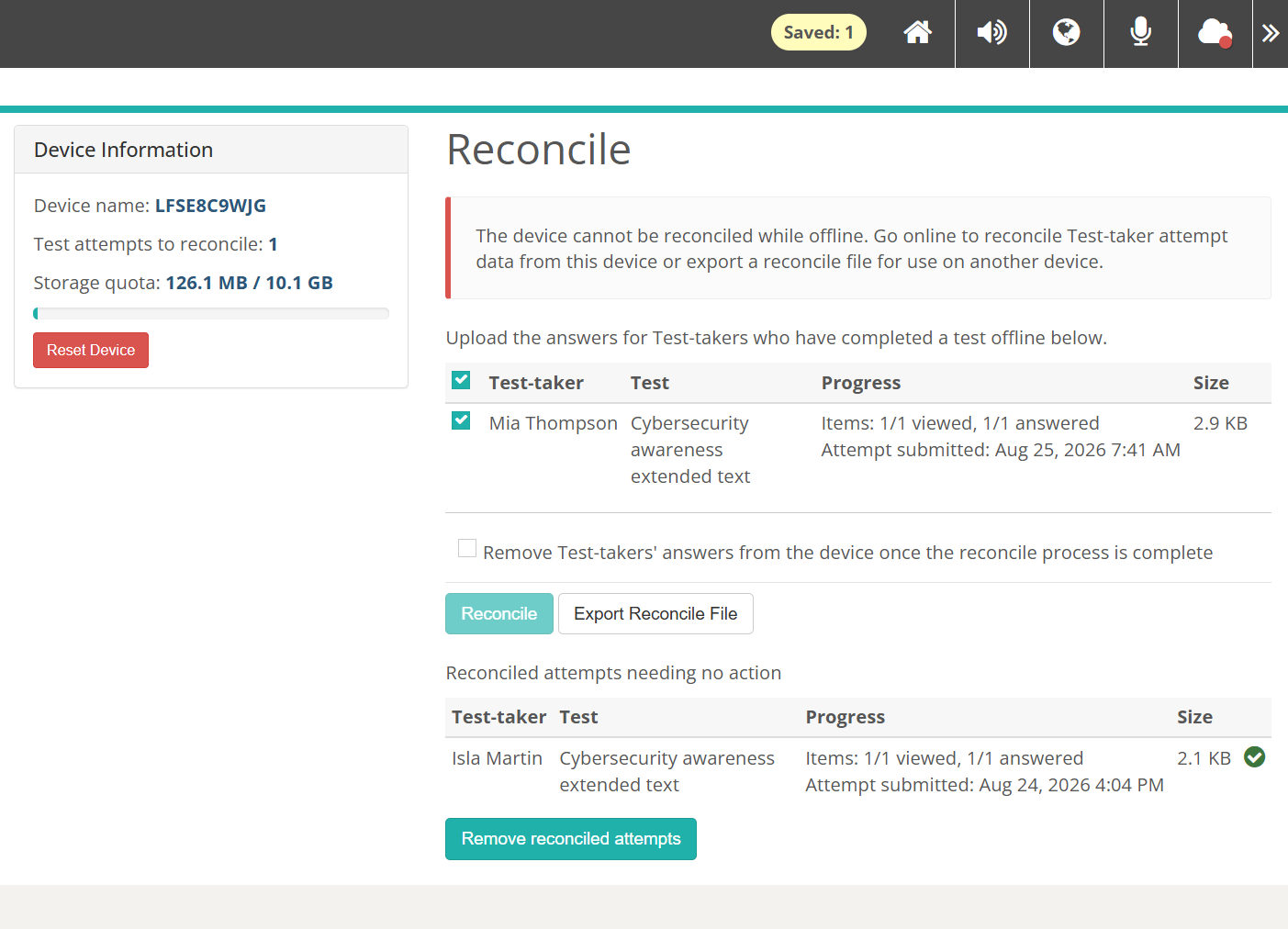
A green tick appears beside each test-taker as their attempt reconciles, and the panel on the left updates. If an attempt fails, Replay carries on with the rest and lists the failures at the top — select Reconcile again to retry just those.
If a test-taker closed Replay without submitting, their attempt shows a warning and a Resolve button. Select it to choose whether to include the attempt, synchronise the answers so the test-taker can finish on another device, or delete them.
You then have two optional actions:
Remove reconciled attempts deletes the data for attempts that have already reconciled. Attempts that have not reconciled yet stay on the device, and the device stays prepared for further test-takers.
Reset Device removes all data from the device — see Reset a device.
There are three ways to clear a device and they remove different things:
| Action | Test-takers' answers | Prepared tests | Cached test media |
|---|---|---|---|
| Remove Test-takers' answers from the device once the reconcile process is complete | Removed as each attempt reconciles | Kept | Kept |
| Remove reconciled attempts | Removed, for attempts already reconciled | Kept | Kept |
| Reset Device | All removed, reconciled or not | Removed | Only if you tick Remove test media |
The first two leave the device prepared, so the next test-taker can sit their test without you preparing it again. Reset Device clears the prepared tests as well, so the device has to be prepared from scratch.
Finally, lock the device again with the padlock icon.
Reconcile offline
If the network is too unreliable to reconcile online, export the test attempts to a file. Move that file to a device with a reliable connection and import it there.
Both options need Enable File Reconciliation switched on at Settings > Test Delivery Settings.
The file is protected. Each attempt's answers are compressed and encrypted, and the encryption key is itself encrypted with a key only your Insights tenant holds.
Important
The file still carries test-takers' names in plain text, so treat it as personal information when you move or email it.
Export a test attempt
If the device is offline, a red or amber icon displays on the cloud  .
.
Unlock the device and select Reconcile as described in Reconcile online.
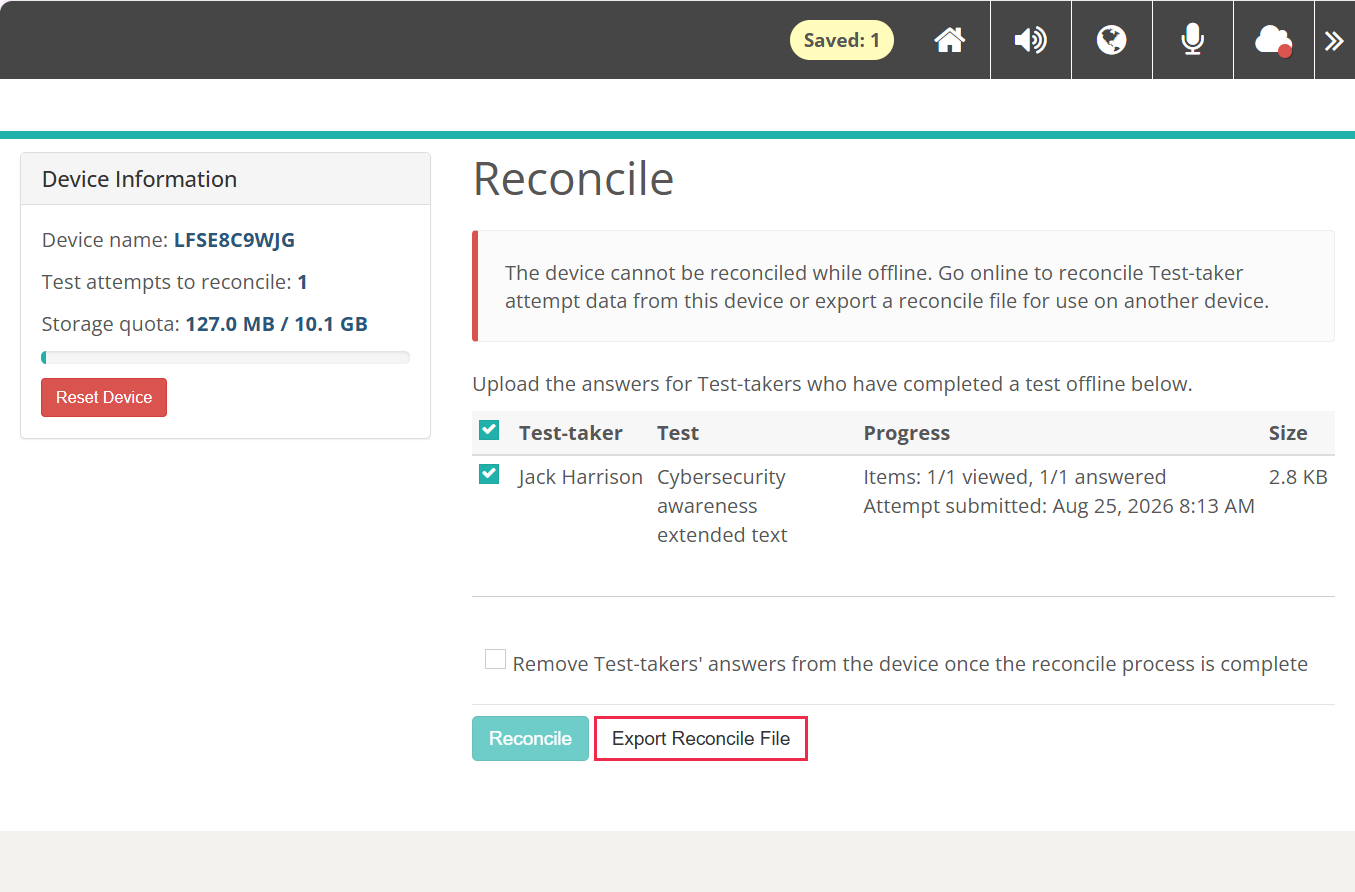
Select Export Reconcile File. Replay re-checks your PIN, then saves a .dat file to the device's downloads location. Copy this file to a USB drive and move it to a device with a reliable network connection.
Import a test attempt
Open Replay on a device connected to the internet. Unlock it with your PIN and select Reconcile as described in Reconcile online.
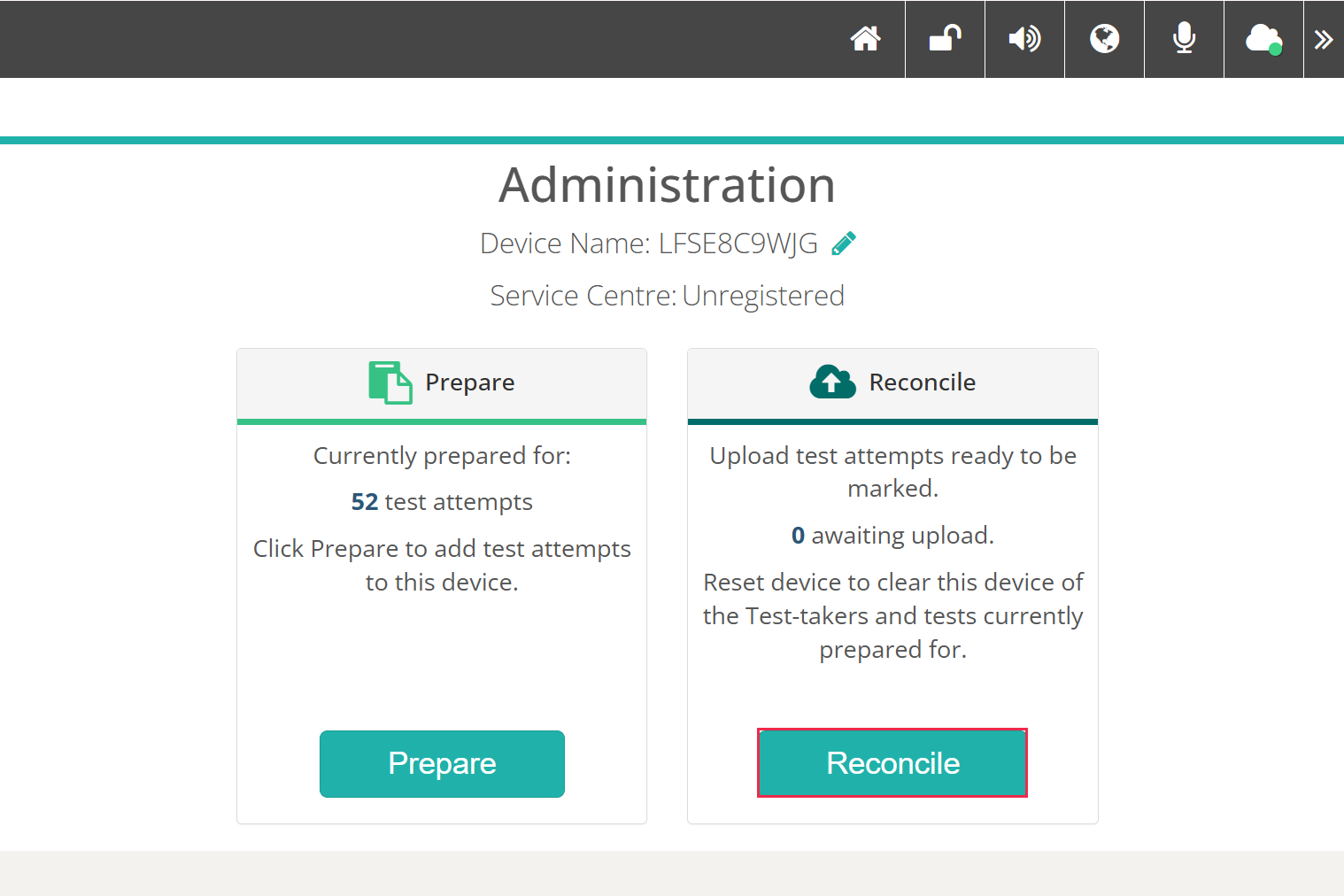
Select Import Reconcile File.
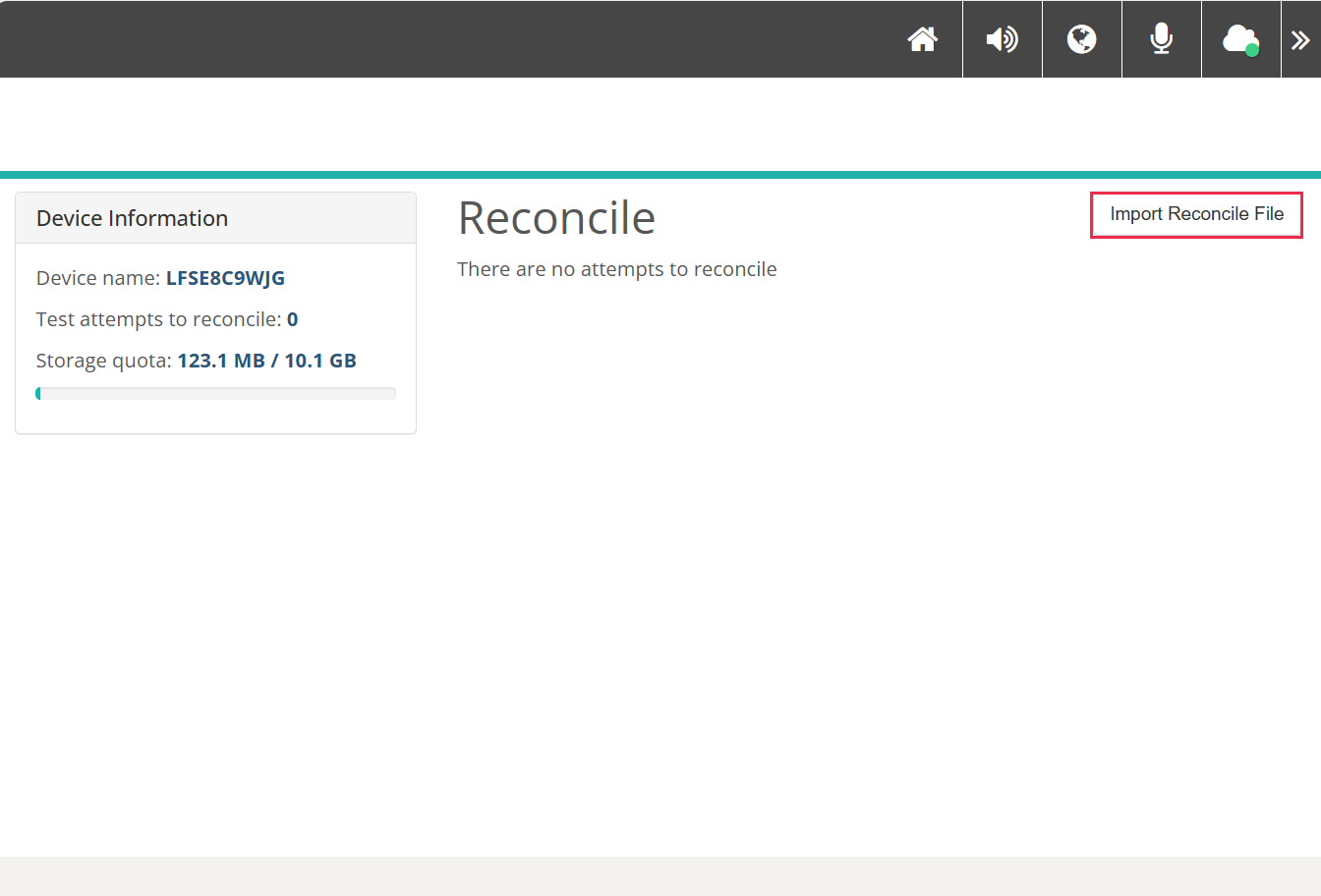
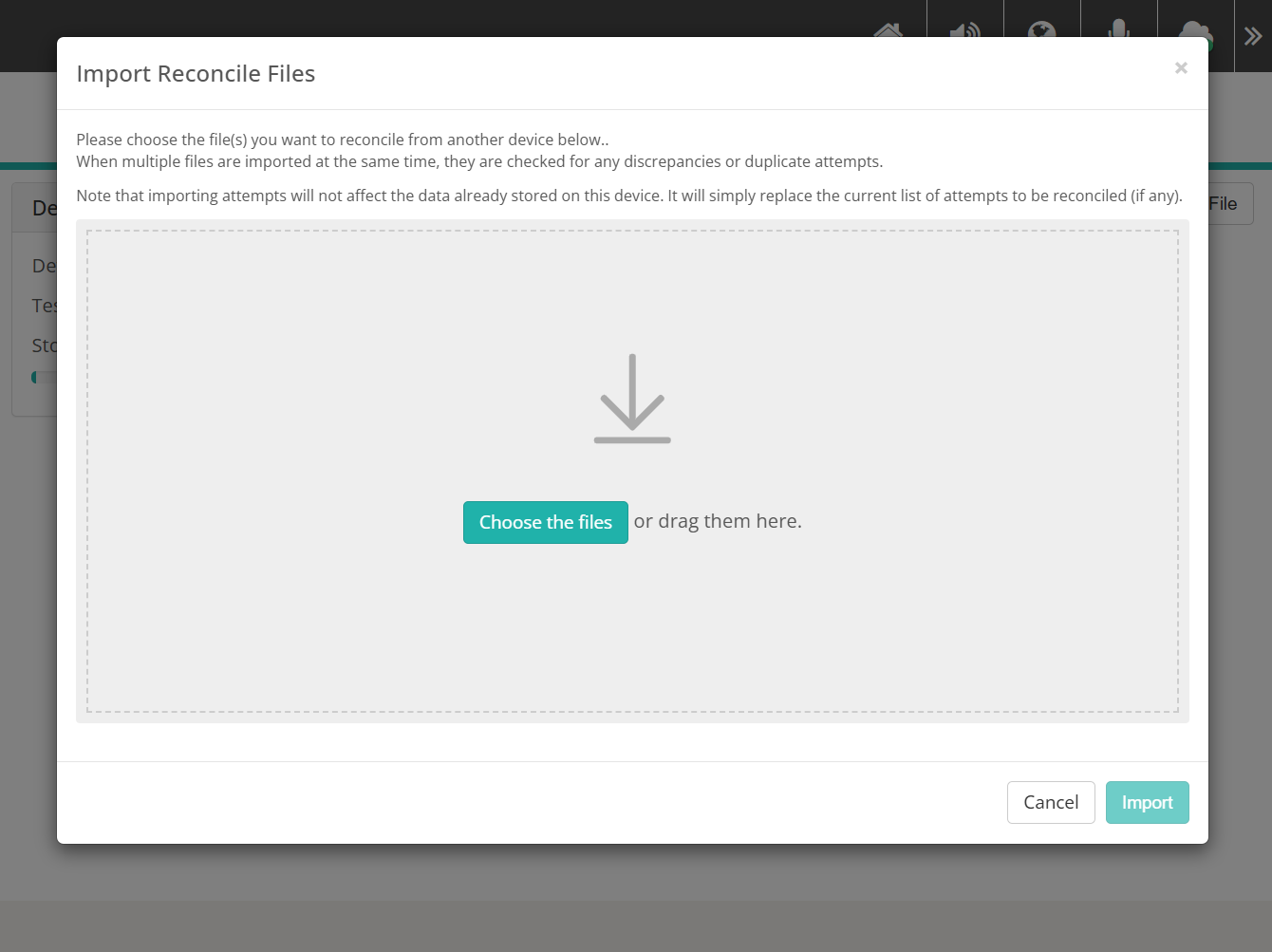
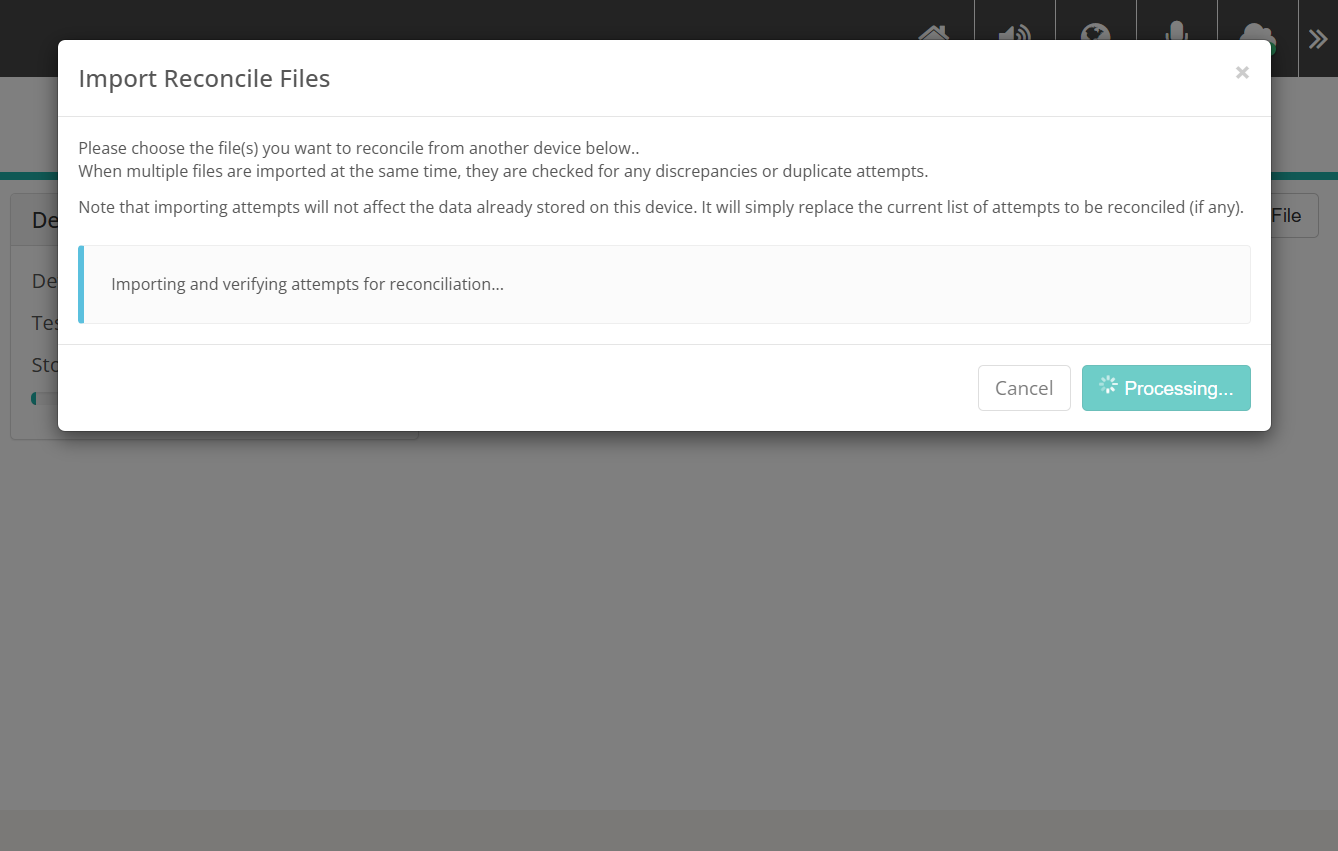
The Import Reconcile Files dialog opens. Select Choose the files or drag them onto the drop zone. You can import several files at once. Replay checks them for duplicates and for conflicting copies of the same attempt, and asks you to resolve any conflicts first. Importing doesn't touch the attempts stored on this device. It replaces what you see in the list of attempts waiting to be reconciled.
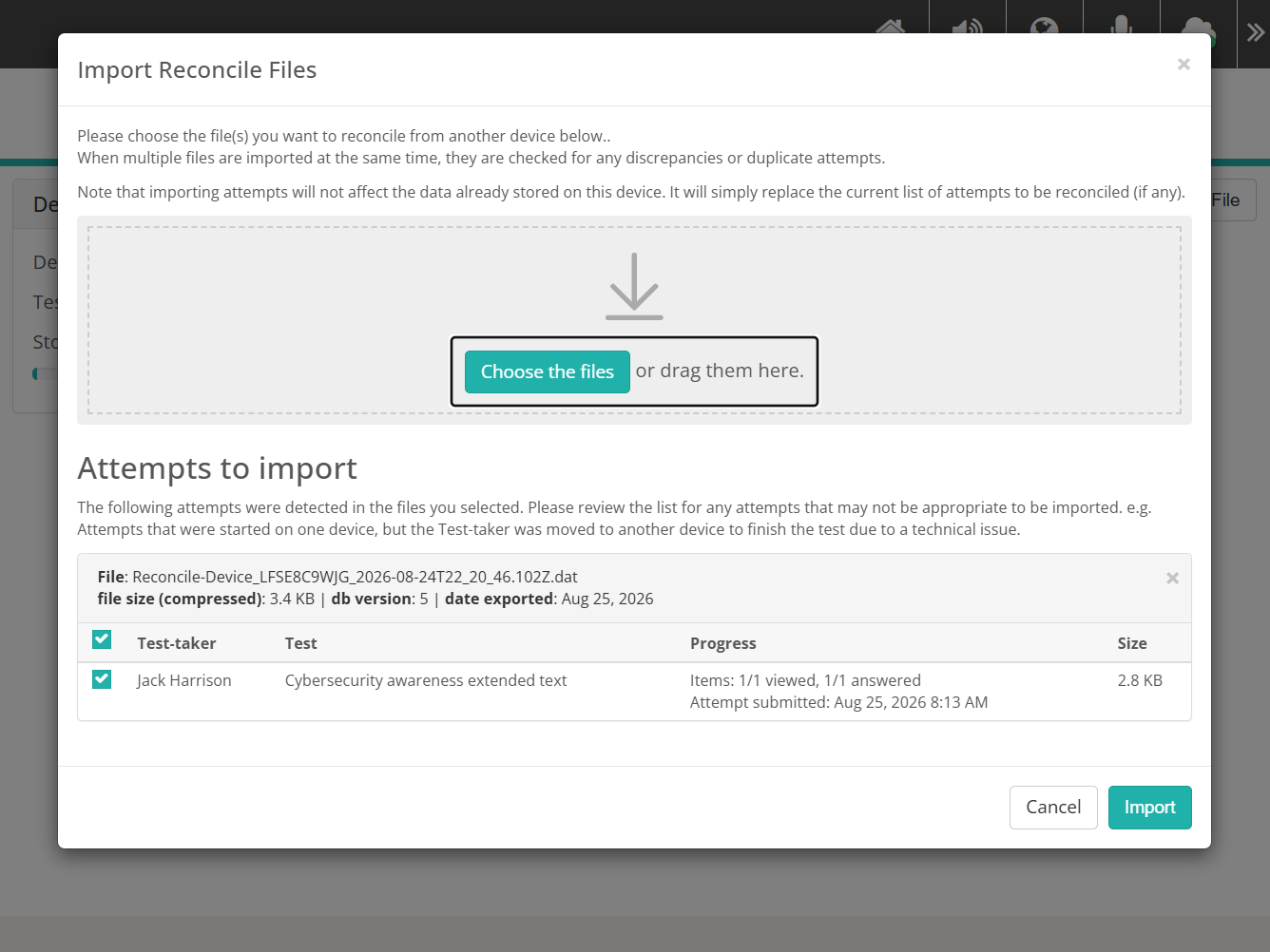
Replay reads each file and lists what it found under Attempts to import. Each entry shows the file name, its compressed size, the database version and the export date. Review the list, untick anything that should not come across, then select Import.
While it works, the dialog reads Importing and verifying attempts for reconciliation... and the button changes to Processing...
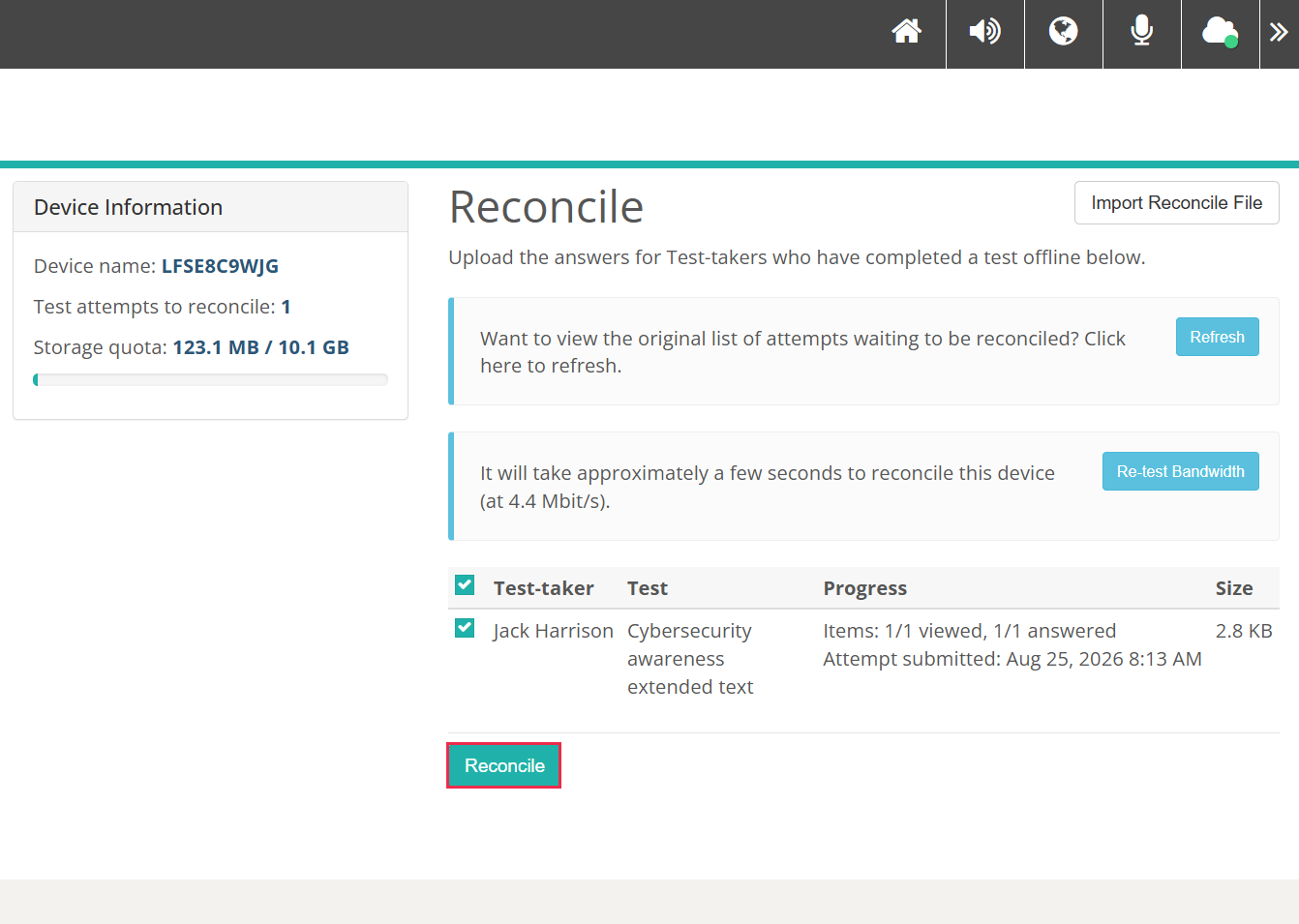
The imported attempts appear in the list. While you are looking at imported data, Replay hides Export Reconcile File and the remove-answers tickbox, because the attempts belong to another device. A callout offers Refresh to go back to this device's own list.
Select Reconcile.
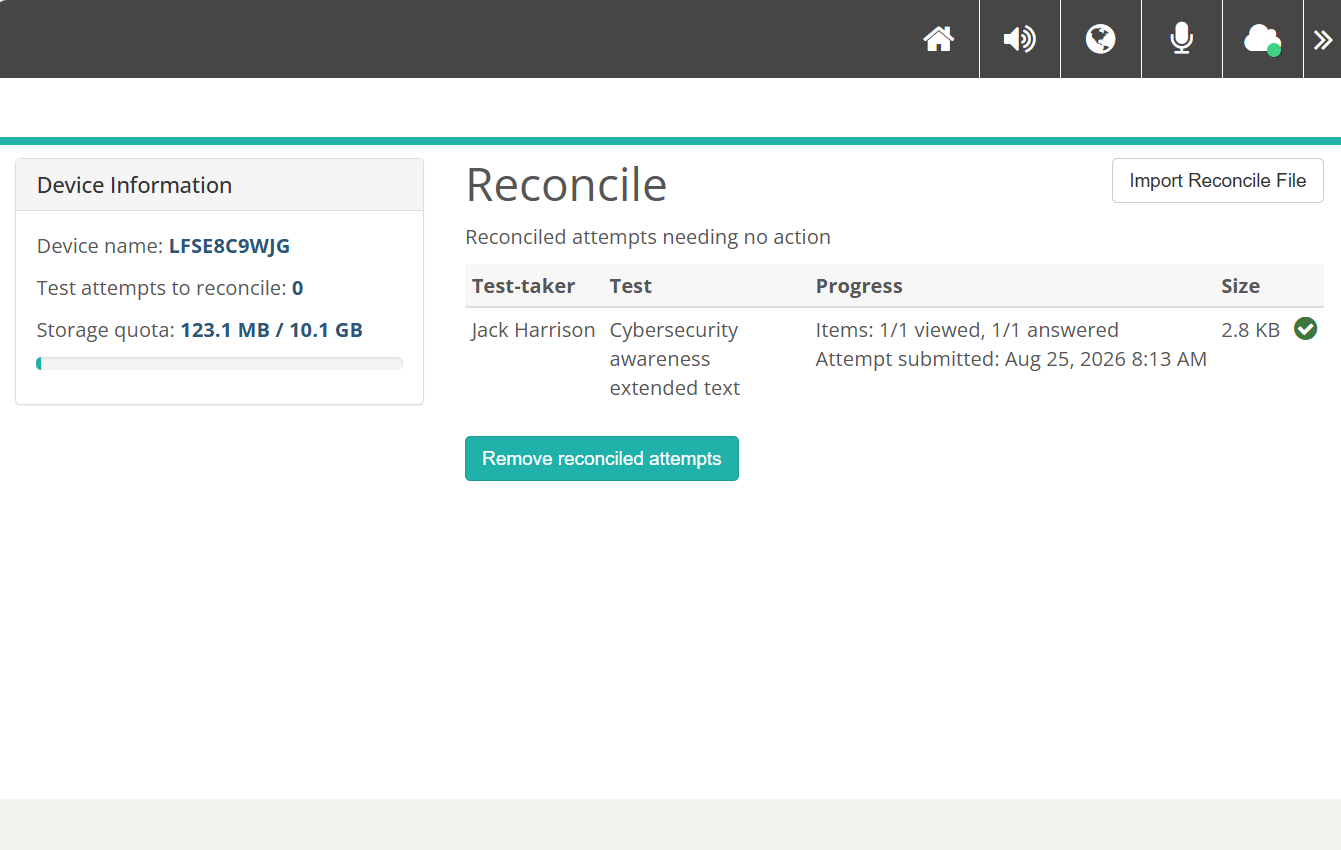
The imported attempts move to Reconciled attempts needing no action with a green tick, and Test attempts to reconcile returns to 0.
Reset a device
Resetting removes all test-taker data and prepared tests from a device, to free up space or to clear test-taker data for security reasons.
The Reset Device button is on the Reconcile page, in the Device Information panel. It only appears if the device holds attempt data or cached test media.
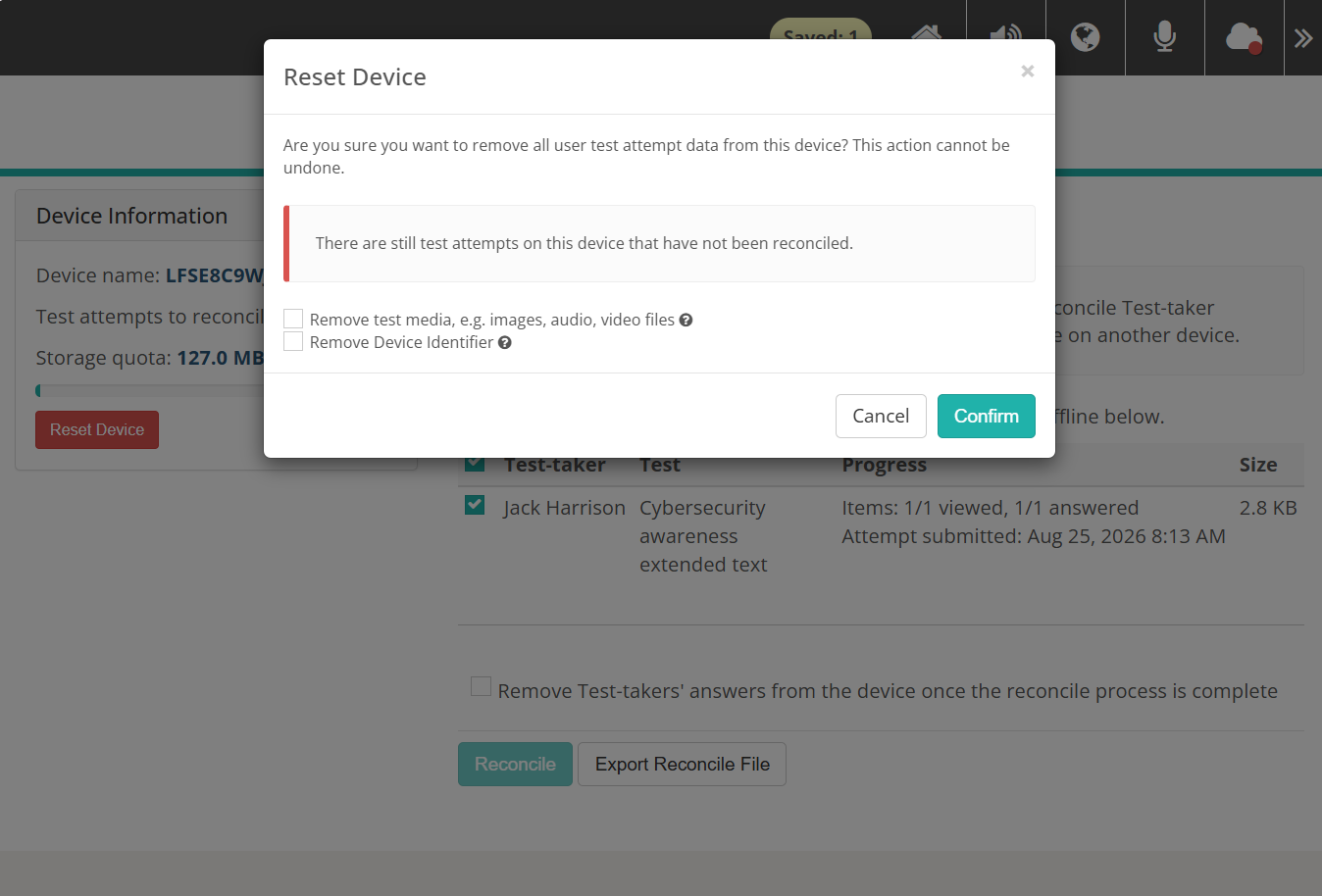
Selecting it opens a confirmation dialog asking you to confirm that you want to remove all test attempt data from the device. If any attempts have not been reconciled, a red warning says so. That warning only appears when there is unreconciled data to lose, so read it carefully when it does. You can also tick:
- Remove test media, e.g. images, audio, video files — clears the cached images, audio and video. Media is usually most of the space a device uses, so without this a reset frees much less than you'd expect.
- Reinstall Service Worker — a troubleshooting option for a device where Replay itself is broken. Only appears when Enable Replay Re-install of Service Worker is switched on.
- Remove Device Identifier — issues the device a brand new identity. Any custom device name is lost and Insights treats it as a new device. Where device registration for org units is in use, it must be registered and approved again.
Select Confirm.
Warning
Reset Device cannot be undone. Reconcile the device first, or any attempts still on it will be lost.
Tools and features
These are test player features rather than Replay features, but test authors and administrators can set them to display during a test.
Stationery tools and reference material
Stationery tools are set on each test section, and include Question Flagging, Ruler, Protractor, Calculator and Notepad. Enabling a tool on one section does not make it available on another. See Stationery tools.

Reference materials are resources attached to a test section. They suit anything needed across all the items in that section — a formula sheet or periodic table, for example. Depending on how the section is set up, reference material opens as a full page or as a movable pop-up. See Reference material.

Progress summary
The progress summary gives test-takers a count of the items in a test and shows where they are up to. Selecting the grid opens a summary screen with five filters — Show all, Answered, Not answered, Not read and Flagged — and a numbered grid. Flagged and locked items are marked, and items the test-taker cannot yet open are greyed out.

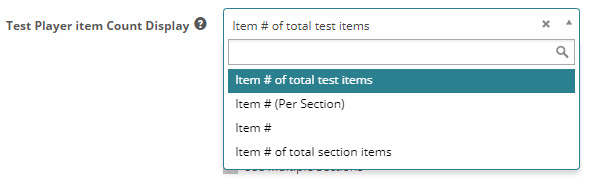
Two test-level settings control it. Test Player Question Count Display sets the format of the counter in the top bar. Summary Navigation Type sets what the summary screen allows: Current and backwards only, Any question, or No summary.
Zoom tool
The zoom tool lets test-takers magnify the test. It sits in the test player header, not on the Replay toolbar, and offers fixed levels of 100%, 150%, 200% and 300%. Pressing z cycles through them. Zoom is available on Windows PCs and Macs.
It is on for everyone by default. Turn Enable zoom tool for all candidates off to restrict it to test-takers with the matching access arrangement.
Test player themes
Test player themes let you add a logo, customise colours, and apply overriding CSS to Replay. A theme can be attached to a test, or to a disability adjustment code so an individual test-taker gets an alternative colour scheme. See Test player themes.
Keyboard shortcuts
The test player has single-key shortcuts for zoom, the calculator, the notepad, the ruler, the protractor, reference materials, the progress summary and flagging. See Replay keyboard shortcuts.
Monitoring a live session
Invigilators manage live attempts from the test session administration dashboard. For the session they can start, pause, resume, cancel, abandon and finalise it. For individual test-takers they can award more or less time, pause, resume, postpone, submit, reopen and terminate an attempt, admit or reject someone waiting to enter, and unlock an attempt that has moved to a different device.
Actions are not instant. Replay checks for them about every 20 seconds and the dashboard refreshes about every 30 seconds. Allow up to a minute for an action to show as applied. Where Enable Device Action Acknowledgements is on, an icon beside the test-taker shows whether the device confirmed it.
Replay settings
Administrators configure Replay across four settings pages. Your Janison account manager will help you configure Replay to suit your requirements.
Test delivery settings
Go to Settings > Test Delivery Settings.
Enable Offline Reliable Delivery — the master switch for resilient and offline delivery. Without it, the Replay home screen never shows the Prepare and Reconcile tiles.
Enable Offline Submit — lets a test-taker submit while the device is offline. Those attempts then need reconciling.
Enable Going Back Online for Offline Attempts — attempts forced offline retry the connection. If they reconnect, they don't need reconciling after submission.
Enable Replay lockdown — restricts test taking to the Replay app. Normal browsers are refused unless the assessment event opts out or the test-taker has an exemption.
Enable Replay Auto-Launch — makes the candidate dashboard link open the installed Replay app directly instead of the browser.
Enable File Reconciliation — adds Export Reconcile File and Import Reconcile File to the reconcile page, and lets that page open while the device is offline.
Enable Low-Bandwidth Mode — puts devices that have never had a mode chosen into low bandwidth mode automatically.
Replay Minimum Download Speed and Replay Minimum Upload Speed — the thresholds Automatically select uses to recommend a network mode.
Enable Invigilator PIN to Exit — requires the invigilator PIN before a test-taker can leave a test using the toolbar's Home icon.
Enable Device Action Acknowledgements — shows on the test session administration screen whether invigilator actions reached the device.
Enable Replay Re-install of Service Worker — adds Reinstall Service Worker to the Reset Device dialog, for troubleshooting locked-down devices.
Enable Device Registration for Org Units — requires devices to be registered against an org unit before they can be prepared.
Enable Scan check-in functionality for session invigilation — lets an invigilator scan a test-taker into a session so they don't have to type the session code.
Replay Browser Support Definition — the list of supported browsers and minimum versions for Replay, in JSON. If left blank, no browsers are blocked.
Android Test Player Url, iOS Test Player Url and Windows App Test Player Url — download locations for the app, which then appear as tiles on the invigilator dashboard.
Replay Error Distribution List — email addresses that receive a message whenever Replay logs an error.
Hide the Exit Replay option from Replay — removes the Exit Janison Replay link from the footer.
Replay toolbar settings
Go to Settings > Test Delivery Settings and expand Replay Toolbar. Each tool has its own checkbox, so you can hide any you don't need. Hide the speaker, for example, if your test has no sound.
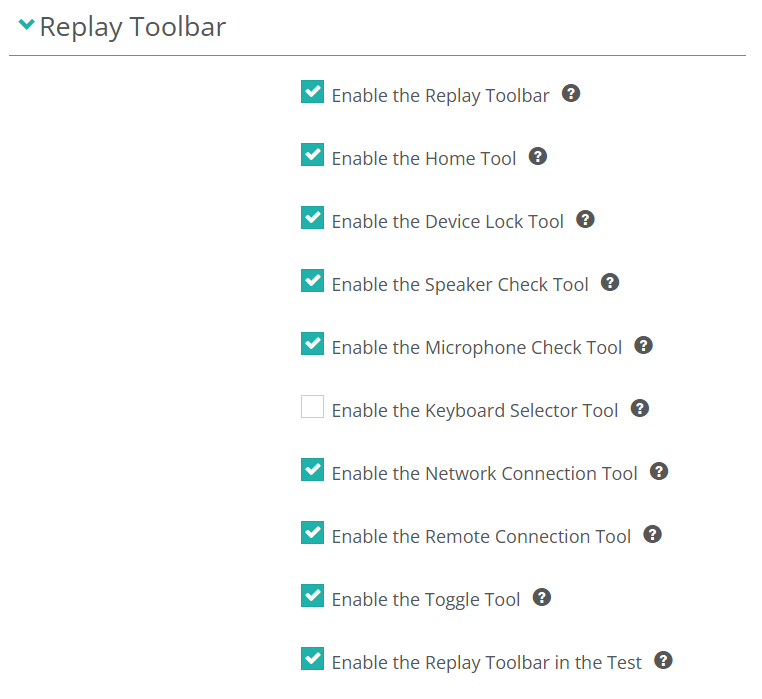
Enable the Replay Toolbar — the master switch.
Enable the Home Tool, Enable the Device Lock Tool, Enable the Speaker Check Tool, Enable the Microphone Check Tool, Enable the Keyboard Selector Tool, Enable the Network Connection Tool, Enable the Remote Connection Tool and Enable the Toggle Tool — show or hide each tool.
Enable the Replay Toolbar in the Test — keeps the toolbar on screen during a test, not just on Replay's own screens.
Two related settings sit in the main body of the same page rather than in the Replay Toolbar section: Enable the language selector in Janison Replay and Enable the Input Keyboard Selector in Janison Replay. Both need at least two languages configured at Settings > Languages.
Test player settings
Go to Settings > Test Designer Settings and expand Test Player 2 Settings.
Enable zoom tool for all candidates — makes zoom available to everyone. Turn it off to restrict zoom to test-takers with the matching access arrangement.
Enable Zoom-To-Fit Option — adds a Zoom-To-Fit choice that scales the player to the viewport without scrollbars. Enable Zoom-To-Fit Always On makes it the starting level.
Enable Remember Zoom Level — keeps the chosen zoom level as the test-taker moves between items.
Enable Zoom Optimised Features — adds a quick-access menu when a zoomed page overflows the viewport.
Hideable test timer — whether a test-taker can hide the timer: Always, Not within last a set number of minutes, or Never.
Flash timer — the points at which the timer flashes as a warning. Accepts multiple values.
Show elapsed login time for untimed tests — shows a count-up timer on tests with no duration.
Always show student particulars on-screen — keeps the test-taker's name and username visible.
Student Landing Page — a custom page shown before the code entry screen.
User must accept terms and conditions before starting test — adds a terms and conditions step to the confirmation screen.
Browser support definition — the supported browser list for browser-based delivery, in JSON. Separate from Replay Browser Support Definition above.
Replay tenant settings
Go to Settings > Replay Tenant Settings. These are pushed to installed Replay apps at runtime, so you can change them centrally rather than device by device.
Lockdowns — Block on Prohibited App Failure, Process Reaper, Windows Escape Protection, Allow Alt+Tab, Disable Power Options, Windows Recall Lockdown and Hardware Back Button Protection.
Prohibited Processes — the applications Replay closes during an exam.
macOS Assessment Mode Whitelist — the bundle IDs allowed to run alongside Replay on macOS.
Features — includes PWA Kiosk Mode, Dark Mode, Reliable Transfer and Enable Ctrl+O, which lets an administrator open the server switch page on a desktop device.
Configuration > Startup URL — the URL Replay opens on launch.
Approved Versions — Approved Windows Version, Approved macOS Version, Approved iOS Version and Approved Android Version.
Auto-Update > Enable Auto-Update — turns on automatic app updates.
Assessment event settings
Some options are set on the assessment event rather than tenant-wide:
Allow Reliable Offline Delivery — required for resilient and offline delivery on that event, and for preparing devices for it.
Force Replay Lockdown — clear it to let test-takers use a browser for that event even when Replay lockdown is on tenant-wide.
Enable Sessionless delivery — lets test-takers start with just their test-taker code.
Require Replay to Pre-cache all Media — makes devices download the test media before test day.