Assessment Modules
There are three different kinds of modules in the CLS. This document covers Assessment Modules — modules specialised for the assessment of knowledge.
You create an assessment module as a kind of parent. It has tests, questions, surveys, and media resources that belong to it, plus various settings that can be inherited (such as workflow settings and the test player's skin).
You don't link an assessment module to a catalogue item directly.
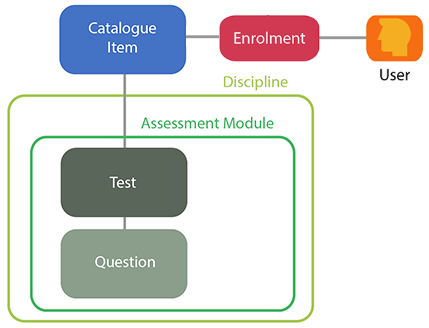
A catalogue item is linked to one or more tests that belong to assessment modules — making them assessment tests. Candidates undergo assessment when they're enrolled in such a catalogue item and they encounter the test(s) in the test player. A catalogue item can link to more than one test, and those tests don't all have to be in the same assessment module.
Each test is linked to one or more questions that belong to the same assessment module. There are many assessment question types.
Note
When you create an assessment test you specify the assessment module it belongs to. But the test must be directly linked to an enrollable catalogue item to be presented to the user in a test player — merely belonging to an assessment module isn't enough.
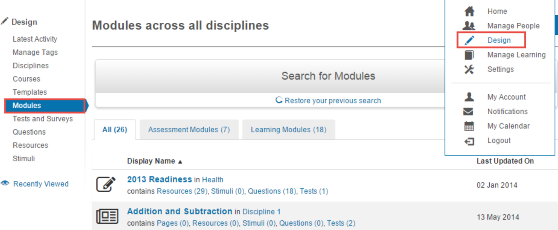
Modules are managed by selecting Design > Modules.
Manage assessment modules
Assessment modules are managed by selecting Design > Modules.
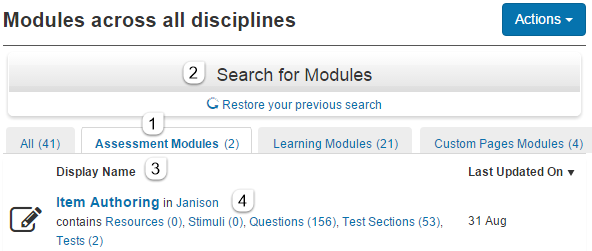
The screen shows all modules in all disciplines, divided into three categories.
- Select the Assessment Modules heading.
- Use the search bar to search within the assessment modules.
- Sort by name or last-update date by selecting the column heading.
- Each module name links to its details screen.
The list of the module's linked entities (resources, stimuli, questions, test sections, tests) also links to further details.
Note
Users who only have authoring permissions in the scope of one module can't see a list of all modules.
Inspect details
Inspecting a module's details gives access to information and connections to its linked entities (tests, etc.). To inspect, navigate to Design > Modules and select the module name.
The details screen displays:
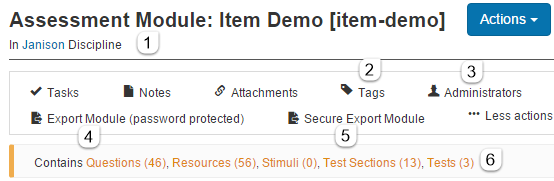
- The type and name of the module and the discipline it belongs to (a clickable link).
The widget bar is underneath. Of particular note:
- The Tags widget — modules can be tagged to categorise and locate them.
-
The Administrators widget — view and edit users with various roles over the module.
-
Select Export Module to export the module to a zip file. This activity is password-protected — make a note of the password.
- Select Secure Export Module to export the module to a token file.
-
A list of entities that belong to the module — clickable links.
-
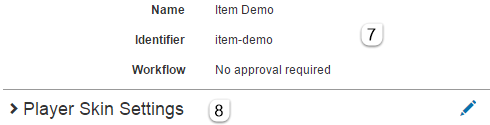
The middle section shows the Name, Identifier, and Workflow status.
- Select Player Skin Settings to inspect or change the test-player skin.
Add an assessment module
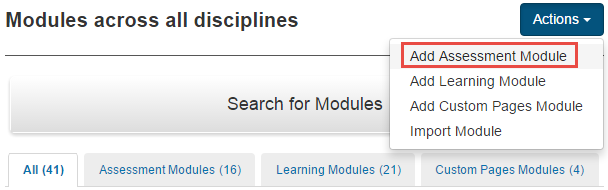
Select Design > Modules and select Add Assessment Module from the Actions dropdown.
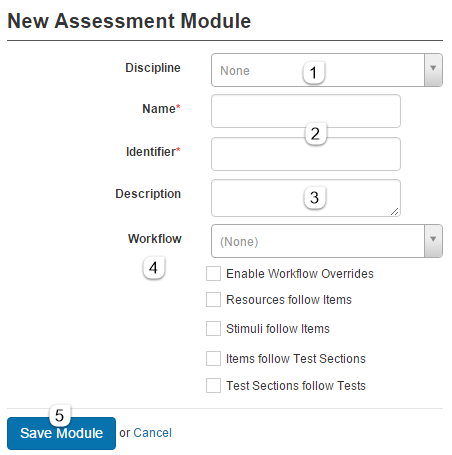
- Select the Discipline the module will belong to.
-
Enter the Name and Identifier.
-
Optionally enter a Description.
- If workflows are enabled and you want to use them, select the workflow definition and settings.
- Select Save Module.
You're taken to the details screen for the new module.
Edit a module
Navigate to Design > Modules and select the module name.
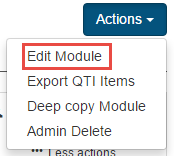
Select Edit Module.
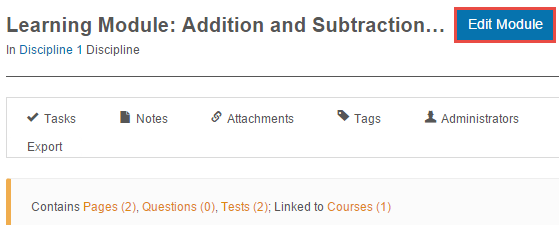
The edit screen lets you change the basic information entered when the module was created.
Export a module
Three options for exporting and copying assessment modules:
- Export to a zip file — password-protected. Note the password to import elsewhere. Exported modules are CLS-specific and not compatible with other LMSs.
- Secure Export to a token file.
- Deep Copy the module and its related entities.
The first two options are performed via the inspection screen.
Deep copy a module
To copy a module, navigate to Design > Modules and select the module name.
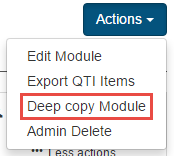
Select Deep Copy from the Actions dropdown. This copies the module along with all related items — tests, test sections, questions, and resources.
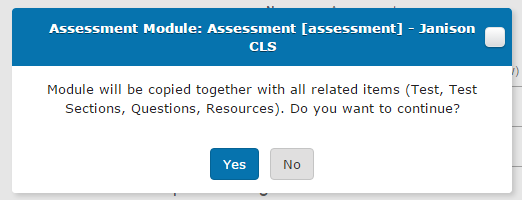
Select Yes. The copy can take time depending on complexity. The result is a new module with (Copy) appended to its name. All related items also have (Copy) appended.
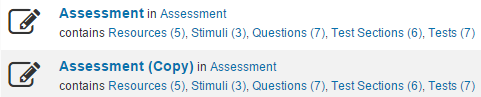
The module and entities are independent of their originals — changing copies doesn't affect originals.
Import a module
You can import a CLS module previously exported as a zip file. Navigate to Design > Modules and select Import Module from the Actions dropdown.
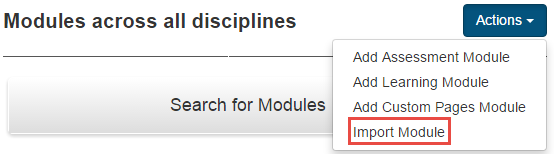
- Select Select to browse to the zip file.
- The file is checked and you're advised whether it can be imported successfully. A warning that the discipline doesn't exist can be ignored.
- Enter the password from when the module was exported.
- Select your import options. If Overwrite Module details and settings during import isn't checked, the module's questions, resources, stimuli, and tests are updated but the discipline and module details and settings aren't.
- Enter a Resource Folder where the resources will be stored.
- Select Import.
Export QTI items
Question and Test Interoperability (QTI) is a specification standard that defines a format for question content and results. All QTI-compliant questions in an assessment module can be exported directly from its details page.
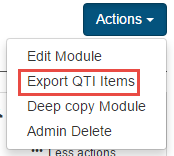
Select Export QTI Items from the Actions dropdown.
Admin Delete a module
To delete an assessment module, navigate to Design > Modules and select the module name.
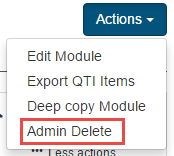
Select Admin Delete.
Warning
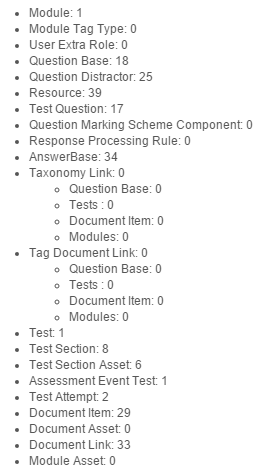
This is a serious, irreversible action. It also deletes the entities that are only part of this module.
A list shows the range of entities involved.
A second high-level admin user is required to authorise the deletion.
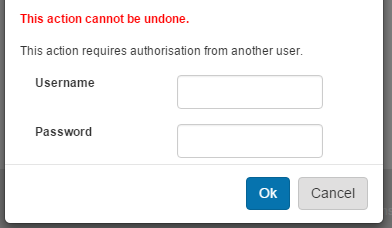
If they select OK, the module and all its entities are permanently deleted.
Settings
Several platform settings affect assessment modules.
Administrators can configure the following settings:
Test Designer Settings (Settings > Test Designer Settings) — enable workflows, control whether comments are available on questions, and other authoring features.
Workflow Definitions (Settings > Workflow Definitions) — define the workflow definitions available for modules.
Roles (Settings > Roles) — control who can author, view, and delete modules via scope-based roles.