Learning asset settings
Learning asset settings let administrators lock edits to learning assets that sit inside published catalogue items, and control shared progress expiry.
Lock edits to learning assets
This setting prevents learning assets from being edited when they're in a catalogue item with a status of Public (Available in Catalogue) or Private (Not in Catalogue).
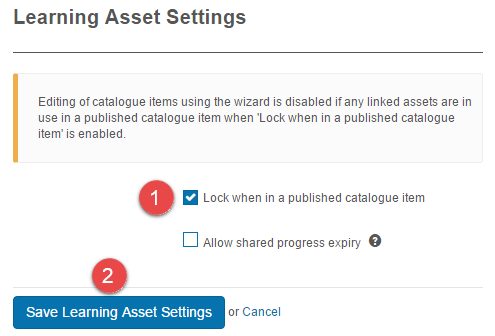
Navigate to Settings > Learning Asset Settings.
- Select Lock when in a published catalogue item.
-
Select Save Learning Asset Settings.
User experience
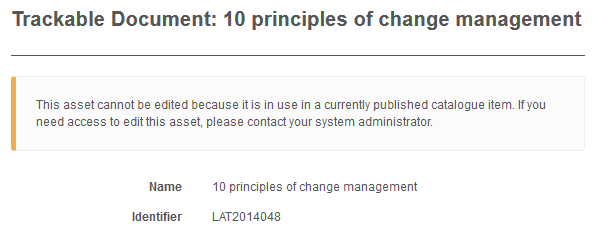
When an admin opens a learning asset linked to a catalogue item with a status of Public or Private, they don't see an edit button. The screen explains why the asset can't be edited.
Roles
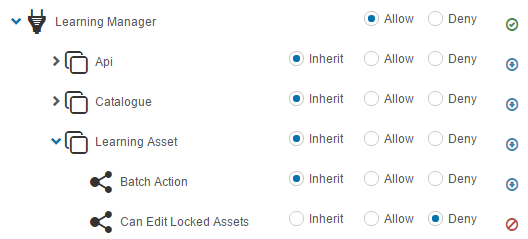
Any role can be edited to override this restriction by setting Can Edit Locked Assets to Allow. Find this option under Learning Asset in the role's securable areas, which sits under Learning Manager.
See Roles for steps.
Allow shared progress expiry
This setting makes catalogue items with shared progress expire together when an expiry date has been set on a catalogue item. See User Enrolment Rules for catalogue item expiry.
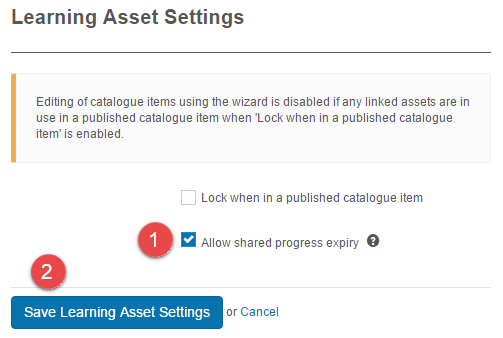
Navigate to Settings > Learning Asset Settings.
- Select Allow shared progress expiry.
-
Select Save Learning Asset Settings.
Settings
This page is itself the Settings documentation for learning assets. Both options are configured at Settings > Learning Asset Settings.
Related settings:
Roles (Settings > Roles) — the Can Edit Locked Assets permission overrides the lock for users in that role.