Assessment question types
Janison Academy supports a wide range of assessment question types. This page is a reference summary of each type, with notes on scoring and key configuration.
To create a new question, select Design > Questions and select Add Test Question from the Actions dropdown.
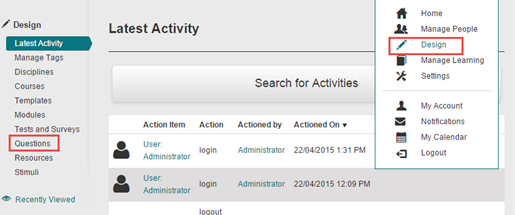
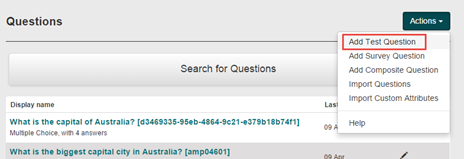
The available question types are summarised below.
Associate Interaction
Candidates create pairs of items using drag and drop. Pairings can be images, text, or a combination. More powerful than Match Interaction because an item can be paired with more than one other item — supporting more complex assessments.
Scoring: automatic — set at the time of authoring.
Key settings: Min/Max Associations (total pairs candidates can create), Match Min/Max (number of pairings any individual item can participate in), and Correct (which of the multiple pairings count as correct).
Tip
When using images, check and adjust sizes before uploading — re-setting height and width inside the question may alter the aspect ratio.
Cloze
A fill-in-the-blanks question type — candidates type missing words or phrases into gaps in a passage of text.
Scoring: automatic — each gap can have one or more accepted answers, optionally case-insensitive.
Comment
A non-assessable question type. Use for instructions, introductions, or any text that should appear in the question flow but doesn't need a response.
Scoring: not marked.
File Upload
Candidates upload one or more files as their response.
Scoring: manual — markers download the file(s), assess them, and enter marks via the marking screen.
Gap Match Interaction
Candidates drag items from a list to fill gaps in a passage of text.
Scoring: automatic.
Graphic Associate Interaction
Like Associate Interaction, but candidates create pairings by drawing connections between points on an image (hotspots).
Scoring: automatic.
Graphic Gap Match Interaction
Candidates drag items to fill gaps positioned on an image.
Scoring: automatic.
Graphic Order Interaction
Candidates order items by dragging them into positions on an image.
Scoring: automatic.
Hotspot Interaction
Candidates select one or more areas on an image. Hotspots are defined by the author as polygonal regions.
Scoring: automatic — based on which hotspot(s) the candidate selects.
Keyword
Candidates type a response that is matched against a list of keywords. Useful for short factual answers where multiple wordings are acceptable.
Scoring: automatic — based on keyword matches.
Match Interaction
Candidates pair items from two lists using drag-and-drop. Similar to Associate Interaction but starts with one item already placed in each pair.
Scoring: automatic.
Multiple Choice
Candidates select one option from a list.
Scoring: automatic. Options can be shuffled by checking Shuffle.
Multiple Choices
Candidates select multiple options from a list (multi-select).
Scoring: automatic. Options can be shuffled.
Multiple Short Answers
Candidates provide several short text answers, each in its own field.
Scoring: manual — markers assess each answer.
Order Interaction
Candidates arrange items into the correct order by dragging.
Scoring: automatic.
Position Object Interaction
Candidates position an object (image) at a specific location on a background image.
Scoring: automatic — based on whether the position is within a defined target area.
Select Point Interaction
Candidates click one or more points on an image to indicate their answer.
Scoring: automatic — based on whether selected points fall within defined target areas.
Short Answer
Candidates provide a short text response.
Scoring: manual — markers read and assess the response.
Slider Interaction
Candidates indicate a numeric value by positioning a slider.
Scoring: automatic — based on the value falling within an accepted range.
Text Spot Interaction
Candidates select word(s) or phrase(s) within a body of text.
Scoring: automatic.
Text Spot
A variant of Text Spot Interaction with simpler configuration. Candidates select text within a passage.
Scoring: automatic.
True/False
Candidates select True or False.
Scoring: automatic.
Yes/No
Candidates select Yes or No.
Scoring: automatic.
Composite Question
A question composed of multiple interactions on one screen — for example, a multiple choice followed by an extended text. Configured separately. See Assessment module questions.
Common authoring patterns
Most question types share these common configuration steps:
- Discipline and Module — set when creating the question (can't be changed later).
- Identifier — must be unique within the module.
- Question Stem — the question text shown to the candidate.
- Resources and Stimuli — link resources and stimuli as needed.
- Marking Rubric — for manually-marked types, add guidance for markers.
- Tags — categorise the question for searching and reporting.
See Assessment module questions for the general add/edit/preview workflow.
Scoring summary
| Type | Marking |
|---|---|
| Comment | Not marked |
| File Upload | Manual |
| Short Answer | Manual |
| Multiple Short Answers | Manual |
| All other interactive types | Automatic |
Manual-marked questions can be combined with automatic ones in a Mixed test — automatic parts are marked by the system and manual parts queued for markers.
Settings
Several platform settings affect question types.
Administrators can configure the following settings:
Test Designer Settings (Settings > Test Designer Settings) — enable comments, workflow, multiple graded responses (for composite questions), psychometric data, and other authoring features that determine which question types and options are visible.
Resources (Design > Resources) and Stimuli (Design > Stimuli) — manage the images and other media used in questions.