Users
A user is anyone with an account in the system. Users can belong to organisations, groups, and more. The parts of the CLS a user can access depend on their allocated role — for example, basic users can't see or access many of the forms an administrator can.
This page covers user roles. For adding, importing, archiving, password resets, and inspecting users, see Manage users.
Note
The fields and columns shown in this document may differ from your site depending on the options you've set. See the document on user settings for more.
To work with users, select Manage People > Users.
Add user roles
A role is a collection of permissions that refers to a set of actions a user can perform. See the document on roles for more.
There are two ways to assign a role to a user — via the user's primary role, or by adding extra roles.
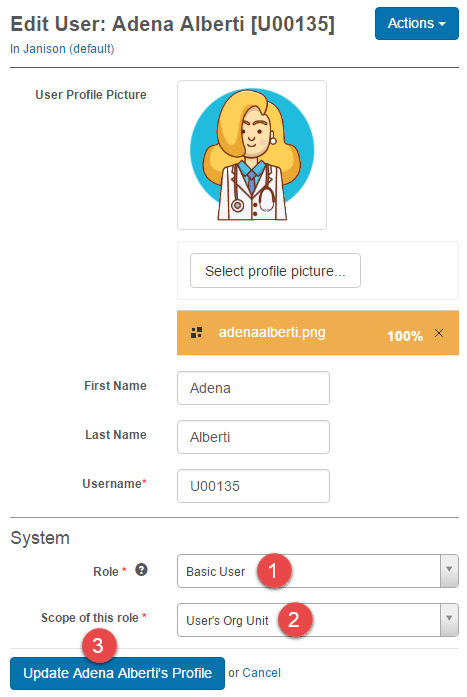
Set a user's primary role
Open the user in edit mode.
- Select the Role.
- Select the Scope of this role.
-
Select Update User's Profile.
Add extra roles
Open the user.
- Select User Extra Roles.
- Select a Role.
- Select the Scope entity.
- Select Add Role.
-
To remove a role, select the
 icon.
icon.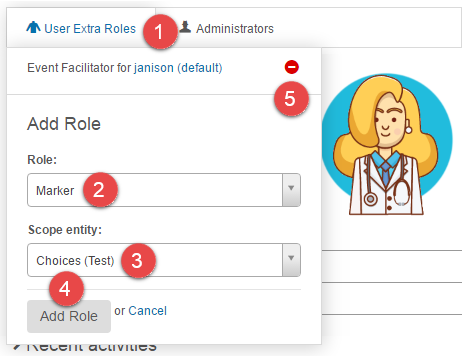
Settings
Several platform settings affect users and roles.
Administrators can configure the following settings:
Roles (Settings > Roles) — define the roles available to assign to users, and their permissions across securable areas of the application.
User Settings (Settings > User Settings) — control which fields and columns appear on the user screens.