Passwords
You can help protect your site by customising password policy settings, including:
- Requiring users to change their password regularly.
- Specifying a minimum length for passwords.
- Requiring passwords to meet complexity requirements.
Janison recommends a strong password policy — at least the default password settings established when your site was set up. You may choose to make settings stronger.
Navigate to Settings > Password Settings.
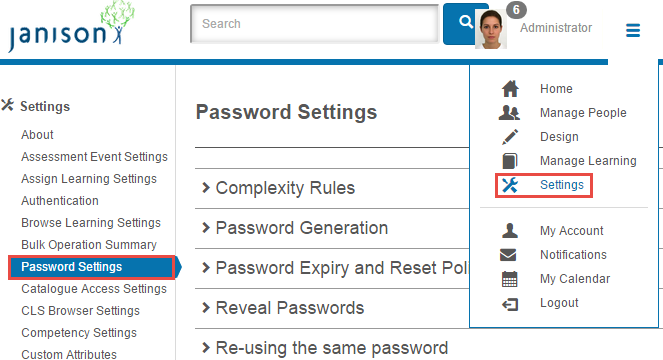
There are five separate aspects. Select the chevron next to each to view and edit the settings.
Complexity rules
If complexity rules are enabled, passwords must meet the minimum requirements when created or changed.
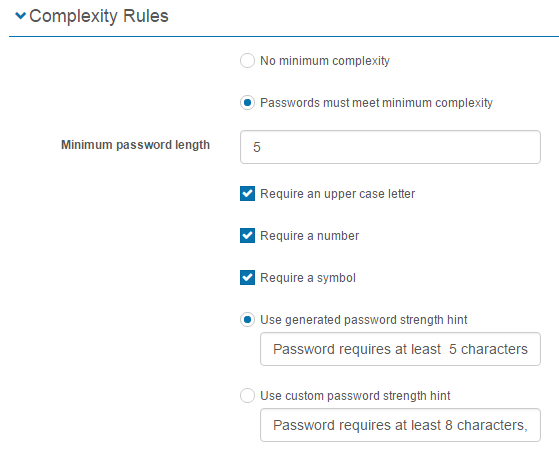
No minimum complexity
If selected, passwords aren't required to meet any complexity rules. Not recommended — it allows weak passwords vulnerable to discovery using publicly available tools.
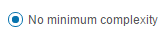
Passwords must meet minimum complexity
If enabled, passwords must meet the requirements specified below when created or changed.

Minimum password length
Enter a numerical value to enforce the minimum length.

Require an upper case letter
At least one upper-case letter (A–Z) is required.

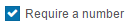
Require a number
At least one number (0–9) is required.
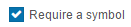
Require a symbol
At least one symbol is required (for example, ~!@#$%^&*()_+:";'<>?,./{}|[]\).
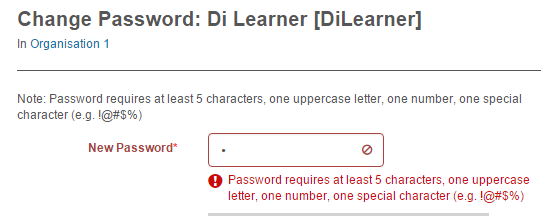
Use generated password strength hint
Select this if you've left the complexity rules as system defaults — the hint text matches the defaults. The message appears on the Change Password screen.

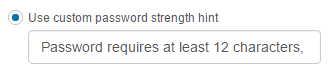
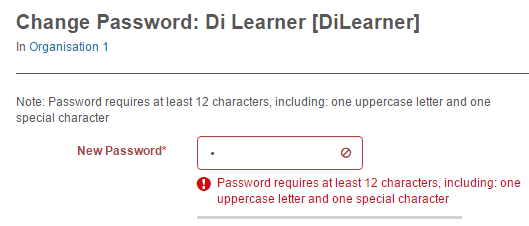
Use custom password strength hint
Select this if the complexity rules have been changed and the hint needs to match. The hint text appears on the Change Password screen.
Password generation
These settings apply to special user cases — for example, students who don't log on (they self-register for a test, take it, and submit). The function lets a teacher tell the student their auto-generated password if anything goes wrong.
Works with User Settings > Self Registration.
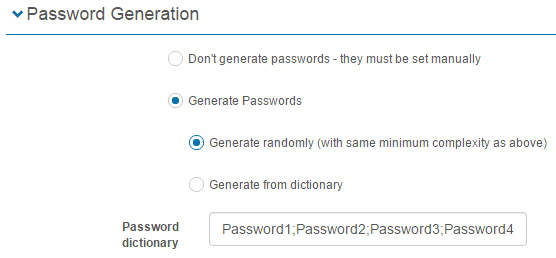
Expiry and reset policy
You can make a user's password expire after a number of days, or set it to never expire. You can also set the wait time between password changes. Password expiry can be configured differently per role.
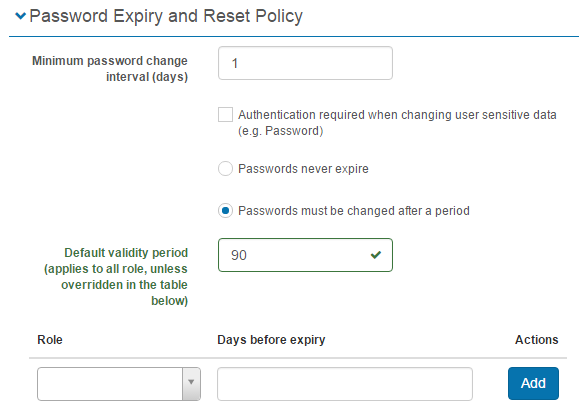
Minimum password change interval (days)
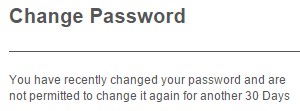
Limits how often users can change their password. For example, an interval of 1 allows 1 change per day; 2 allows 1 change every 2 days.

When the user attempts to change their password more than once during the interval, a message appears. The text can be customised in String Resources.
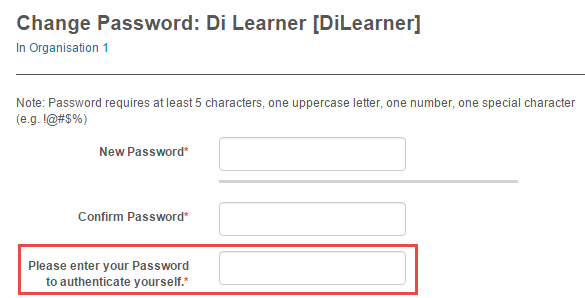
Authentication required when changing user sensitive data
If checked and your role permits, you must enter your password to change other users' passwords.

Passwords never expire
If active, users are never forced to change passwords.

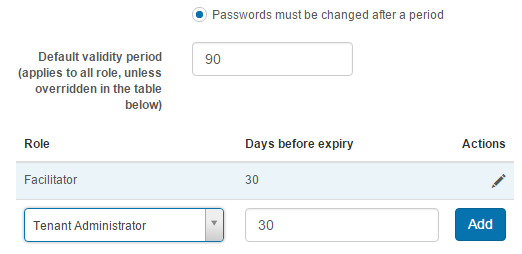
Passwords must be changed after a period
Enter a value in Default validity period to force a password reset. This can be customised per role using the Role dropdown — for example, the Facilitator role expires every 30 days while others expire every 90.
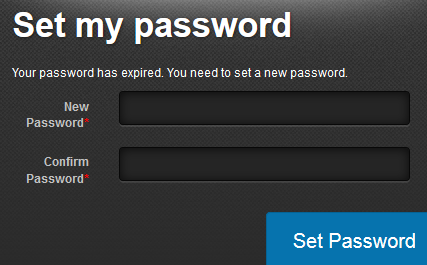
When a user's password expires, they see the password change screen. The text Your password has expired. You need to set a new password. is a string resource and can be customised.
Reveal passwords
If Reveal Passwords is activated, passwords can be displayed in the user list form.
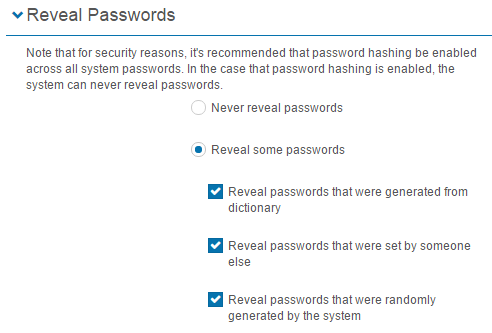
Two configurations are needed:
-
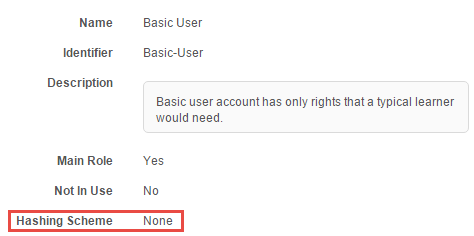
Password hashing must be turned off for the user role. Access at Settings > Roles — select the role and set Hashing Scheme to None.
-
The Password field must be set to Visible in the user list — at Settings > User Settings > List View.
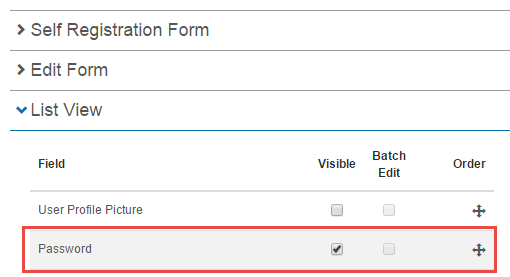
The password then appears in the user list form.

Re-using passwords
The system can control reuse of passwords during reset.
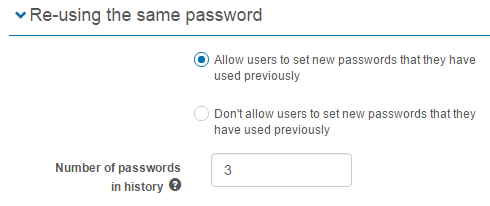
Allow users to set new passwords they have used previously
Allows password reuse.

Don't allow users to set new passwords they have used previously
Restricts password reuse. If the user attempts to reuse a password, they encounter a warning.

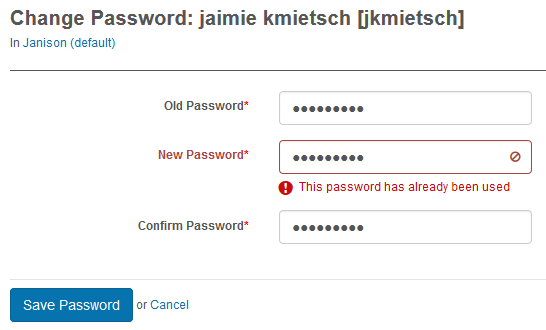
Number of passwords in history
Dictates how many previous passwords to store. If set to 3, the 4th password can be the same as the 1st.

Settings
This page is itself the Settings documentation for passwords. All options are configured at Settings > Password Settings.
Related settings:
Roles (Settings > Roles) — the Hashing Scheme per-role setting required to reveal passwords.
User Settings (Settings > User Settings) — the List View Password visibility required to reveal passwords.
String Resources (Settings > String Resources) — the messages shown when password rules are violated.