Email settings
Email settings let you control whether email notifications are sent from the system to users in various situations.
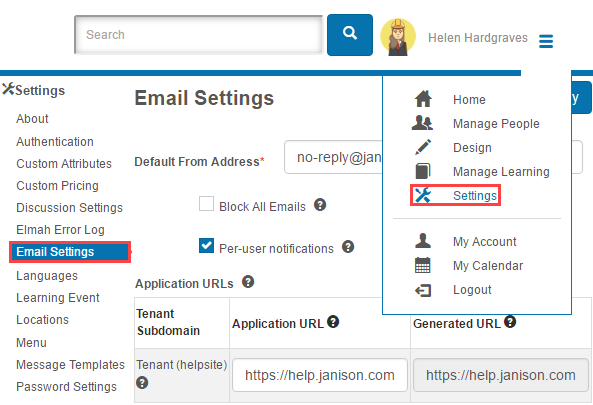
Navigate to Settings > Email Settings.
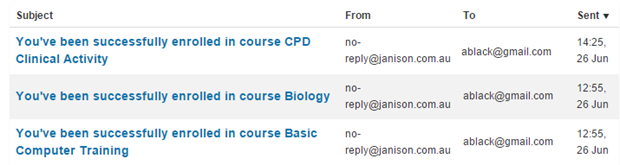
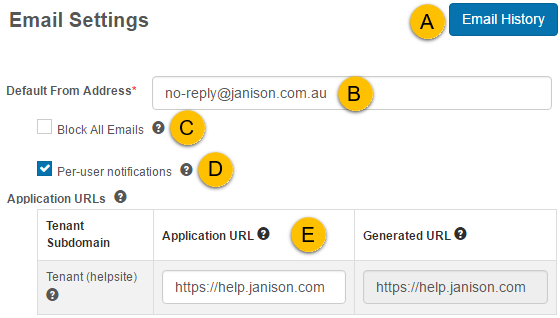
A — Email History lets system admins examine details of emails that have been sent. Not available to tenant admins. To get information on sent emails, contact the Janison Helpdesk.
B — Default From Address — set to no-reply@janison.com.au by default. Users see this address as the sender. Changes require background changes outside this system — contact the Janison Helpdesk first.
C — Block all emails — blocks all emails except user account emails (password retrieval, registration). Useful as a safeguard during testing.
D — Per-user notifications — required for many parts of the system to send emails.
E — Application URL — applies when using your own domain URL to access your Janison sites. When entered against one of your tenants or subtenants, this URL is used within message templates that contain links. For example, a marker's email link will use your Application URL instead of the underlying Janison URL.
Categories of notifications
Several categories are available. The options shown depend on the plugins active on your site.

Modify message templates
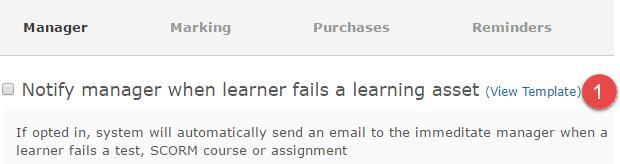
Notification emails can be personalised by selecting the message template link next to a notification. After creating a local copy, you can customise the template.
-
Select the message template link.
-
Select Create Local Message Template.

For more on customising templates, see Message Templates.
Learning event sessions
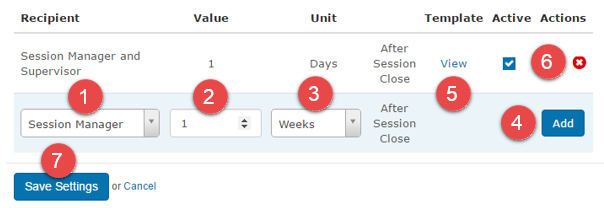
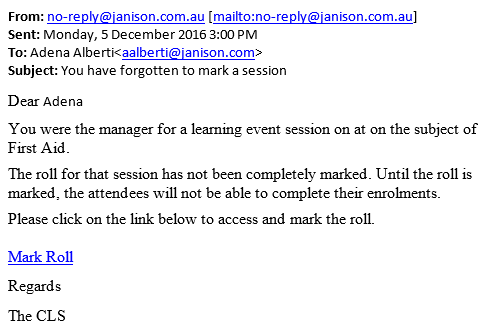
This reminder type is available for users nominated as learning event session managers. The email is sent after the session closes to remind them to mark the roll.
- Select a Recipient.
- Add a Value.
- Select a Unit (days, weeks, or months).
- Select Add.
- Optionally view the email Template.
- Optionally remove the reminder.
-
Select Save Settings.
An example email is sent to the recipient:
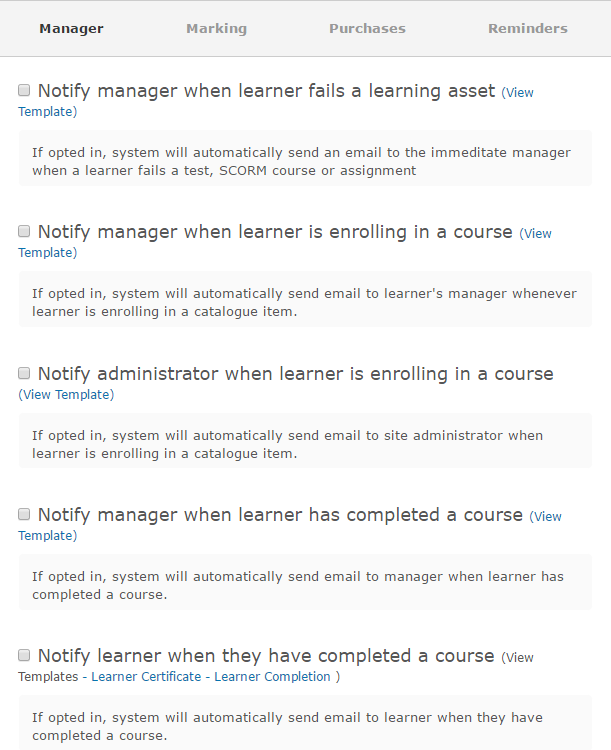
Manager notifications
Manager notifications relate to enrolments and completions. Positions must be enabled and a hierarchy established before these notifications have relevance — see Positions.
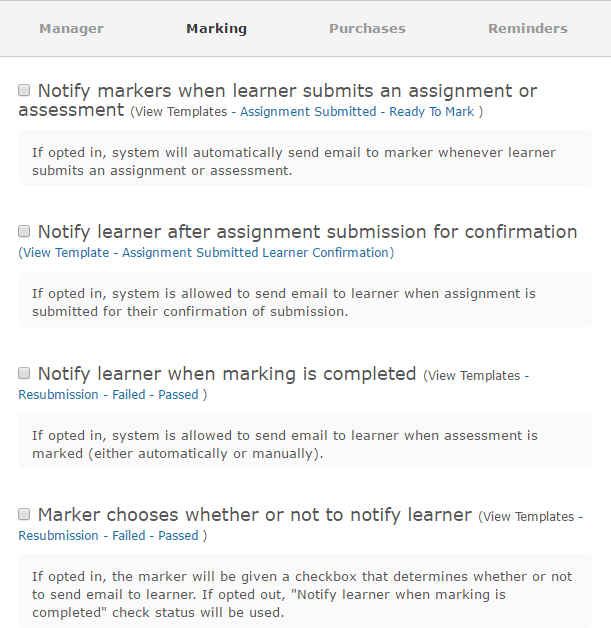
Marking notifications
Marking notifications alert markers and learners to the status changes an assignment or assessment goes through during the marking workflow.
Purchase notifications
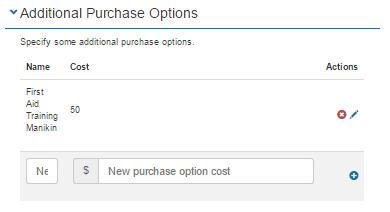
Purchases are only valid when the Self Enrolment Method in a catalogue item is set to Self-enrolment (Paid). With this configuration, the Additional Purchase Options section appears in the catalogue item.
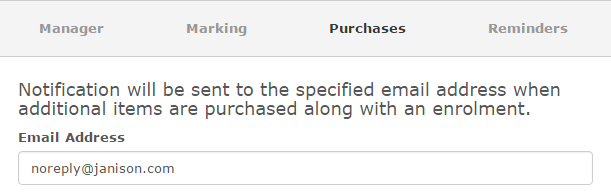
The email notifies that an additional purchase was made by the user — for example, a first-aid manikin offered to learners doing a first-aid course. The email might go to the warehouse address, who can then send the item.
Reminder notifications
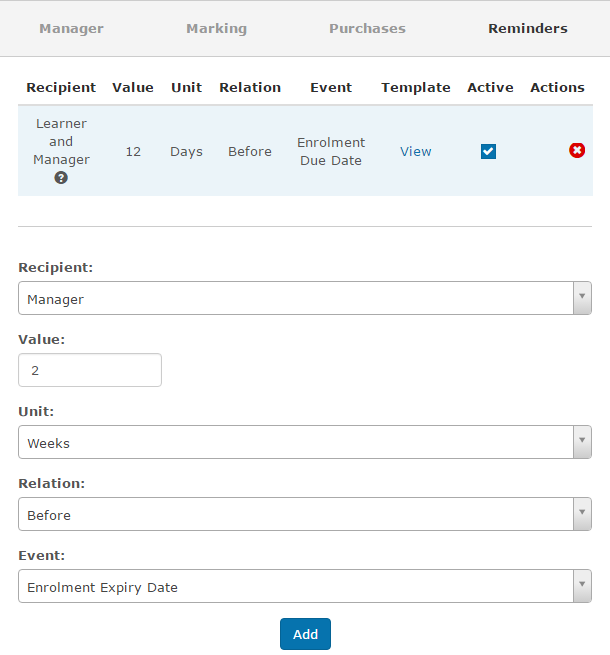
Reminder notifications can notify learners and managers of expiring and due dates. Multiple reminders can be set. Delete rules using the remove icon. Inactivate a rule by clearing the Active box.
Due date
Notifies learners or managers on, before, or after the date by which a particular enrolment must be completed.
Expiry date
Notifies learners or managers on, before, or after the date on which a previously completed enrolment will expire.
Valid to date
Notifies learners or managers on, before, or after the date on which an external qualification or certification (such as a driver's licence) is valid to. Only applies to Other Learning assets.
How the rules work
Rules execute once in a 24-hour period. Each rule only runs once per enrolment.
Example: a rule saying Send an email notification if an enrolment is 1 week overdue and Jo (a user) has an enrolment. When Jo's enrolment becomes more than 1 week overdue, a notification is sent. The next day, the enrolment is still more than 1 week overdue, but another notification won't be sent — the rule has already run once for Jo's enrolment.
Settings
This page is itself the Settings documentation for email. All options are configured at Settings > Email Settings.
Related settings:
Message Templates (Settings > Message Templates) — controls the content of the notification emails.
Positions (Settings > Positions) — required for manager notifications to function.