Add Learning
There are a number of different types of learning assets in Janison Academy. Each type needs to be linked to a catalogue item so users can enrol or be enrolled in it.
A learning asset is essentially a vessel of information — intellectual property that helps users learn or tests their understanding.
The learning assets currently available are:
- New Assignment
- New Certification
- New Challenge
- New Course
- New Discussion Forum
- New External Learning
- New Learning Event
- New Plan
- New SCORM Course
- New Survey
- New Test
- New Trackable Document
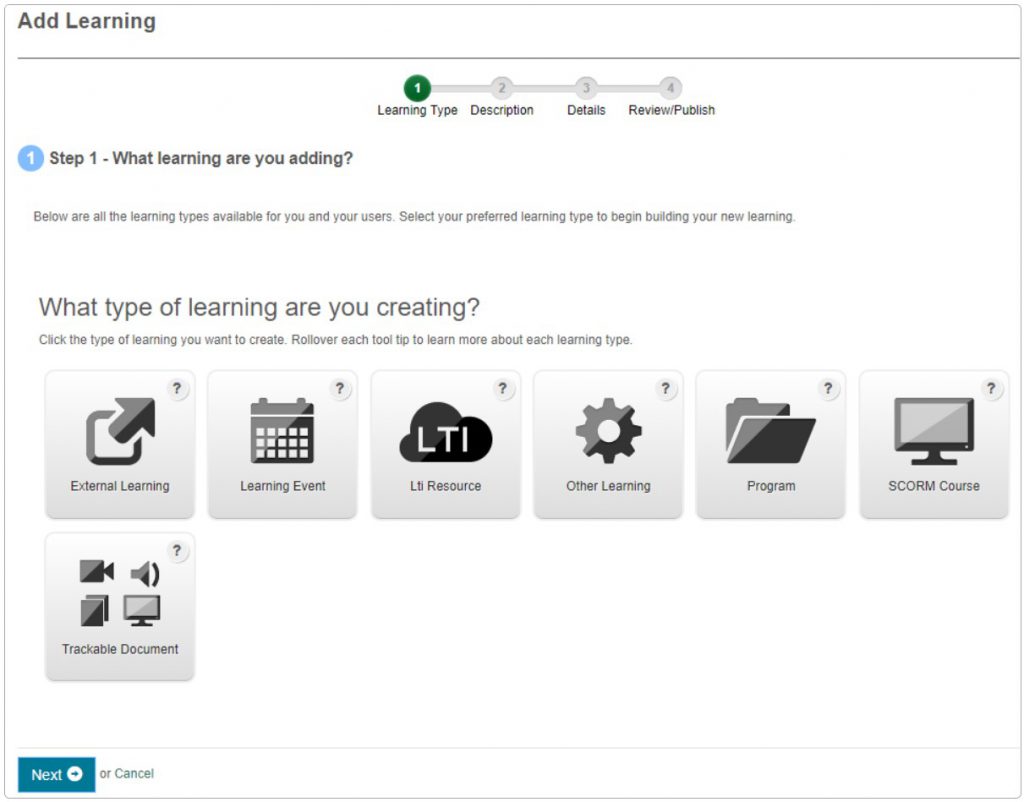
A number of these types can be added via the Add Learning wizard:
- New Certification — TBA
- New External Learning — external learning already completed by the user but acknowledged by the system
- New Learning Event — face-to-face, conference, informal session, lecture, mentoring, webinar, or workshop made up of one or more sessions a user attends
- Program — a catalogue item containing more than one learning asset
- New SCORM Course — a course created in a third-party application (Lectora, Captivate, etc.) that runs and is monitored by the Academy
- New Trackable Document — a document used to deliver learning material (PDF, audio, or video) monitored within the Academy
Depending on plugins configured by Janison, you may also see:
- Assessment Events — a test run at a specific time and place
- LTI Events — learning at a separate website that the Academy links to
A learning asset can be integrated with the Academy in several ways:
- Created within the Academy using Design (Janison courses, modules, pages, tests, questions, etc.)
- Created outside the Academy and imported (e.g. a SCORM course)
- Taking place outside the system but monitored inside it (e.g. face-to-face Learning Event sessions)
- Running outside the Academy but linked in (e.g. Other Learning)
You can add these types using several methods:
- Semi-automatic — the Manage Learning > Add Learning wizard (categories 2–4 above). The wizard creates the asset and puts it in a new catalogue item.
- Manual — Manage Learning > Manage Learning Assets > Add Learning Asset adds any type of asset.
- Manual — Design > Courses > Add Course adds a new Janison course.
- Manual — Manage Learning > Manage Sessions > Add Learning Event adds a new Learning Event.
Note
- Users can't enrol in a learning asset until it's linked to a catalogue item — see Manage Catalogue.
- When a catalogue item contains more than one learning asset, it's known as a Program, but it has the same functionality as a catalogue item.
Add Learning wizard
Add Learning is a setup wizard that offers a series of screens to create a learning asset. It creates the asset and puts it in a new catalogue item with the same name so users can enrol.
The wizard can be accessed from two locations:
- Manage Learning > Manage Catalogue > Add Learning Wizard
- Manage Learning > Add Learning
Note
If you discontinue the wizard before completing all steps, a catalogue item and Learning Event are both created. Find them via Manage Learning > Manage Catalogue where the catalogue item is listed with Draft status. You can then edit both.
Step 1 — Learning Type
Select the type of learning to create, then select Next.
Step 2 — Description
If the What are the details…? section isn't expanded, select the right arrow. The section heading changes depending on the asset.
The example here uses External Learning.
What are the details of the External Learning?
- Enter a Name and Identifier. These are mandatory. The Identifier auto-populates from the Name.
- Add a short summary in Overview.
- Select Add Learning Objectives to display a field. Add the objectives there.
-
Enter the Duration in minutes.
Tip
Duration can be specified as Xh or Xm for hours or minutes, or in hh:mm format. Days (d) can be entered but are converted to 24 hours — for example, 1d 2h 22m displays as 26h 22m.
-
If Has Certificate is selected, the Certificate Code and Certificate Template fields display. The default tenant certificate template is shown, or select a different one via Select files.
What tags would describe this External Learning?
- Tags are broad terms that describe the topic — see Tags and tag types.
- Select the right arrow to expand the section.
- Select existing tags in the Description Tags field, or enter new tags in the New Tags field.
Step 3 — Details
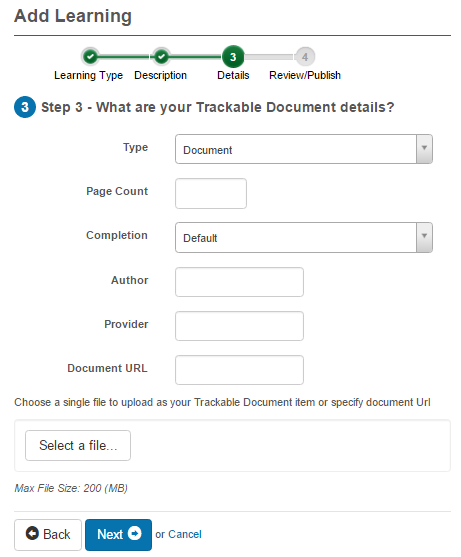
This step varies by asset type. For a Trackable Document:
Step 4 — Success
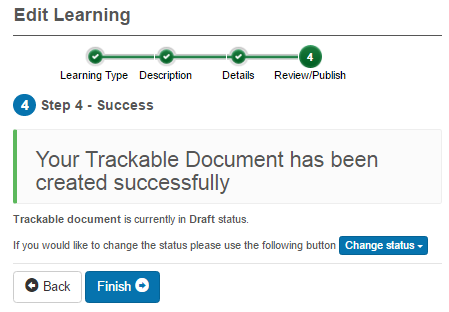
Set the catalogue item status. Selecting Finish directs you to the newly created catalogue item where any fields can be edited.
Settings
Several platform settings affect the Add Learning experience.
Administrators can configure the following settings:
Catalogue Item Settings (Settings > Catalogue Item Settings) — control which fields and options appear when creating learning via the wizard.
Plugins — Assessment Events, LTI Events, and other learning types only appear if their plugins are activated for your tenant. Contact your account manager.