Learning courses
A course refers to learning assets created using the Janison Course Designer and displayed on screen using the Course Player.
Courses are containers for learning modules and content (text, images, video) and they're created within the CLS.
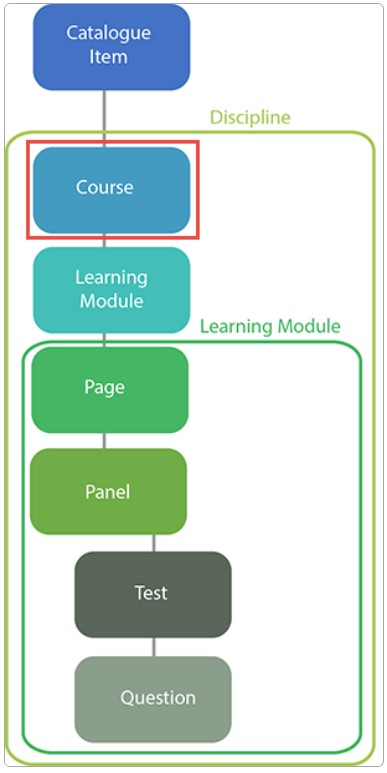
To manage courses, navigate to Design > Courses.
Add a learning course
There are two ways to access the course designer:
- Design > Courses (preferred).
- Manage Learning > Manage Learning Assets > Add Learning Asset > New Course — this is a shortcut to the same designer.
Steps
- Go to Design > Courses.
- Select Add Courses.
-
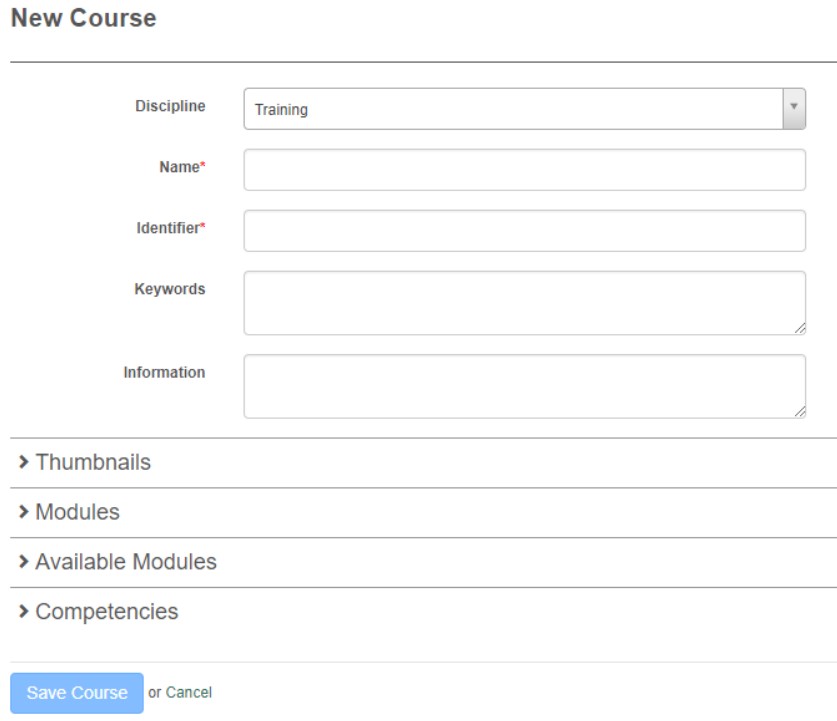
Complete the course form:
- Select a Discipline from the dropdown.
- Enter the Name.
- Identifier is auto-populated from the name.
- Enter any Keywords.
- Optionally enter Information about the course.
Thumbnail section:
-
Select thumbnails:
- Large thumbnail (292×70 px)
- Small thumbnail (47×22 px)
- Logo
Note
Image sizes for the social learning platform differ from the ones above.
Modules section: Only attached modules are listed.
Available Modules section:
- Select Add Module from the list or search. Repeat to add more.
Competencies section:
- Add competencies if required.
-
Select Save Course.
Inspect details
Navigate to Design > Courses and select the course name.
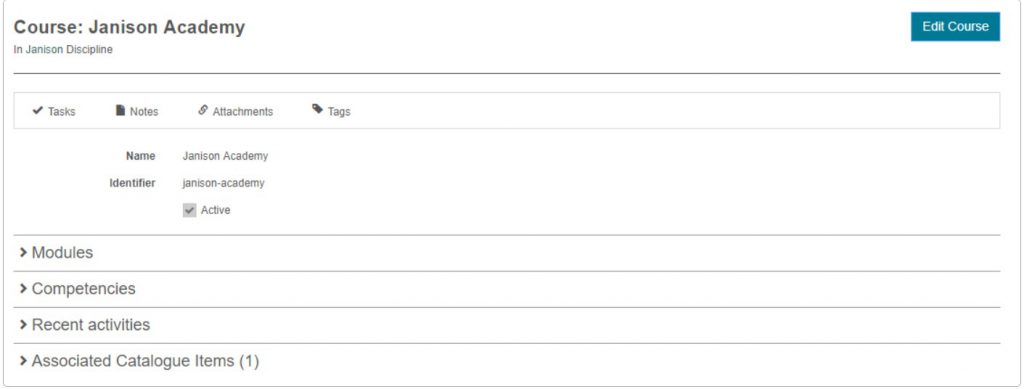
Course details screen
- The Name of the course and the Discipline (a clickable link) are at the top left.
- The Edit Course button is at the top right.
-
The widget bar is underneath:
- Tasks — administrative task tracking.
- Notes — administrative notes.
- Attachments — administrative attachments.
- Tags — categorise and locate via tags.
-
Course Name and Identifier.
- The Modules section lists linked modules.
- The Competency section lists linked competencies.
- Recent Activities lists editing activity.
- Associated Catalogue Items lists catalogue items the course is linked to.
Edit a course's details
- Go to Design > Courses.
- Search for and select the course.
- Select Edit Course.
- Change details as required.
- Select Save Course.
Important
Use caution if adding or removing modules from a course with progress records or enrolments.
You can also delete the course from edit mode.
Edit or delete
Warning
When there are enrolments or progress records, deleting the course is not advisable.
Navigate to Design > Courses and select Edit Course.
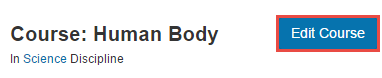
The edit screen lets you change the same fields as the create form, plus an Active checkbox under Information.
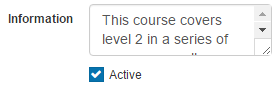
Uncheck Active to make the course inactive — it remains in the system but isn't available for linking to catalogue items.
Note
If you make it inactive when it's already linked to one or more catalogue items available in the catalogue, it's still available to users who enrol.
Select Save Course.
To delete, select Delete Course at the top right of the edit screen.
Search
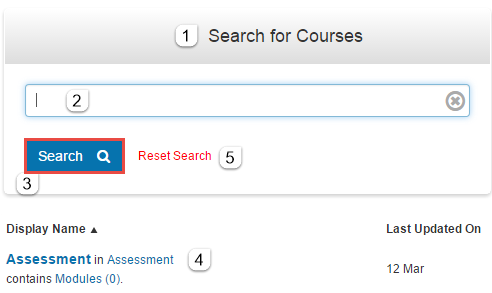
The search feature finds courses quickly. Select Design > Courses.
- Select Search for Courses.
- Enter your search term.
- Select Search.
- Results appear in the Display Name column.
-
Reset Search for another search.
Learner experience
A course is a learning asset accessed via a catalogue item.
When a user is enrolled in the catalogue item containing the course, they can launch it. Two distinct behaviours:
- A course with a single learning module opens directly into the module content.
- A course with multiple learning modules opens with a list of module tiles.
Other items influence presentation:
- The template used in the catalogue item.
- The Smart Dashboard or Social Learning plugin.
- CSS in settings.
Settings
Several platform settings affect courses.
Administrators can configure the following settings:
Catalogue Item Settings — the template used affects how the course presents.
Smart Dashboard / Social Learning plugins — affect how courses are launched and presented in the learner UI.
Styles and Images (Settings > Styles and Images) — control colours and other style values affecting course presentation.