Browse Learning
Browse Learning links to a catalogue of the learning assets available to learners. Learning assets are linked to catalogue items, which are listed on the Browse Learning page as tiles. It's accessed from the Browse Learning menu on the home page.
By default, learning assets are listed without categorisation.
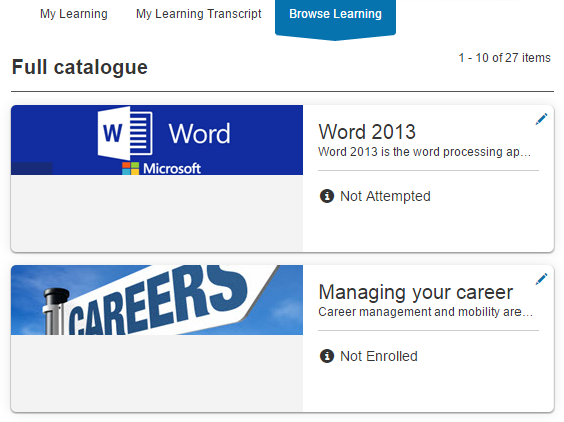
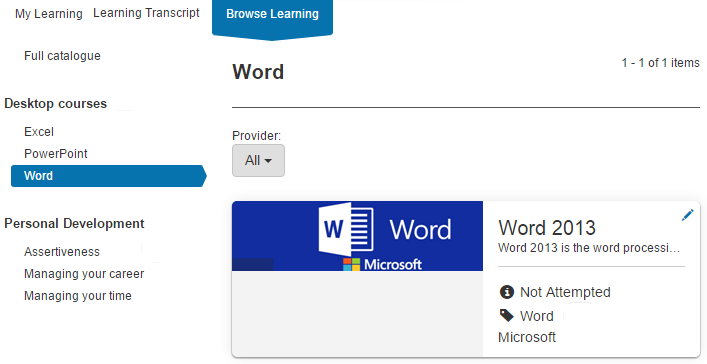
This is fine if only a few catalogue items exist. If there are many, group them into topics — see Browse Learning settings. The result is a left-hand menu structure.
Browse Learning settings
User experience of the catalogue can be improved using the settings available in Browse Learning Settings.
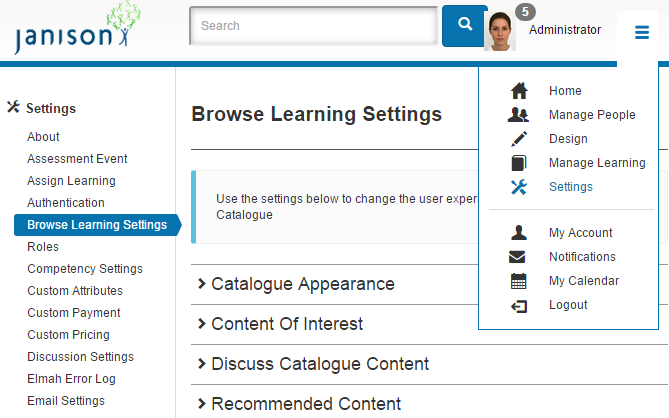
Navigate to Settings > Browse Learning Settings.
Catalogue appearance
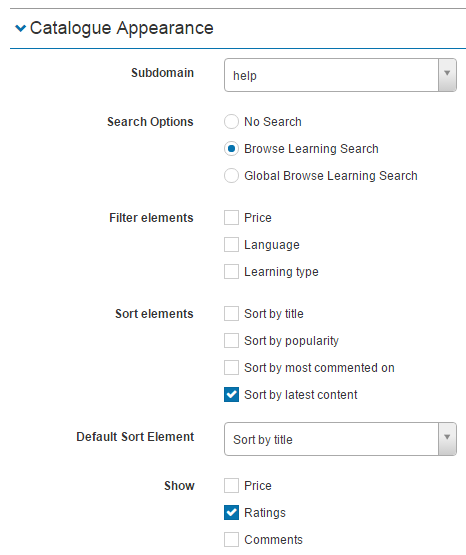
This section controls Search options, Filter elements, and Sort elements.
Subdomain
Browse Learning can be customised per subdomain. In the dropdown, select the subdomain you want to make changes to.
Note
If changes aren't appearing on your site, check you've selected the correct subdomain.

Search options
The search fields can be turned on or off.
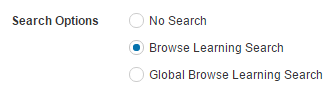
- No Search — removes the search field.
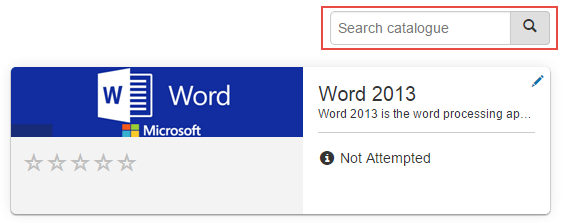
- Browse Learning Search — adds a Search Catalogue field to Browse Learning so learners can quickly find catalogue items.
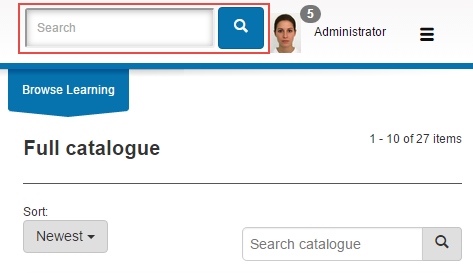
- Global Browse Learning Search — provides a search field for administrators to search the system (not limited to Browse Learning).
Filter elements
These settings control the top filters on the Browse Learning page. They're only relevant if the criteria exist in the system — for example, the Language filter is only meaningful if there's more than one language on the site.
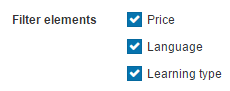
Learners see the filters when they access Browse Learning.
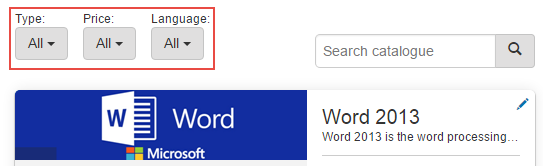
- Price — search for free or paid courses.
- Language — search for learning assets in different languages.
- Type — search for different learning asset types (Assignment, Course, Document, Program, Survey, Test).
Sort elements
This option adds a Sort filter to Browse Learning.
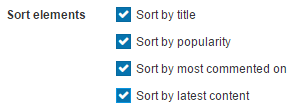
Each checked option is added to the Sort dropdown:
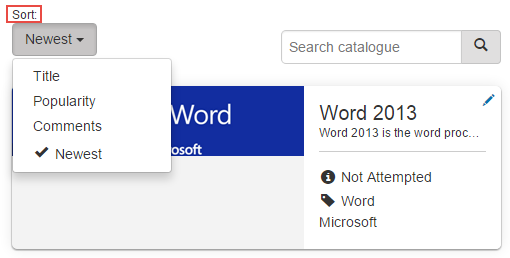
- Sort by title — adds a Title filter that sorts catalogue items alphabetically.
- Sort by popularity — adds a Popularity filter that ranks items by number of enrolments (most enrolments first).
- Sort by most commented on — adds a Comments filter that sorts by number of comments (only available for certain program templates).
- Sort by latest content — adds a Newest filter sorted by publish date.
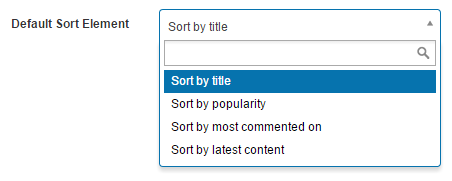
Default sort element
The option selected from the dropdown determines the element that's active when a learner first accesses Browse Learning. For example, setting Default Sort Element to Sort by latest content shows the newest content at the top.
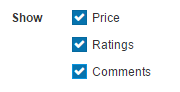
Show
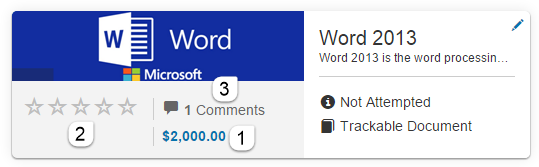
These options control what appears on each catalogue item tile.
Note
Ratings and Comments are only available if the catalogue item uses a program template supporting that functionality.
-
Price — the cost of the catalogue item, drawn from the Price field in the catalogue item. See Payment.
-
Ratings — can be added to catalogue items by learners. Appear on the tile as a mark of quality. See Discuss catalogue content below.
- Comments — appear on the tile and can be used by learners to gather information from others. See Discuss catalogue content below.
Show tabs
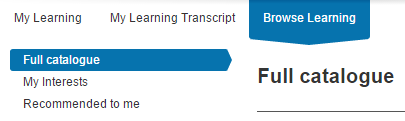
Show Tabs controls the left-hand menu items relating to the full catalogue, interests, and recommendations.
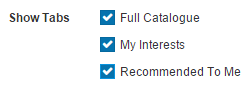
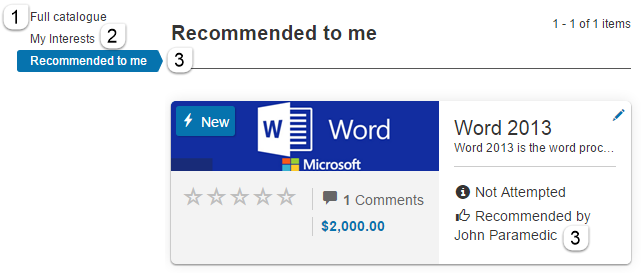
- Full Catalogue — links to all available catalogue items.
- My Interests — gives learners the option to set a list of items based on their interests (see Content of interest below).
-
Recommended to me — lists all catalogue items recommended to the learner by other users (see Recommended content below).
Default left-hand side filter
The selection in the dropdown determines which tab is selected when learners first access Browse Learning.

For example, if Full Catalogue is selected, it's the highlighted tab and learners see the full catalogue.
Custom menu
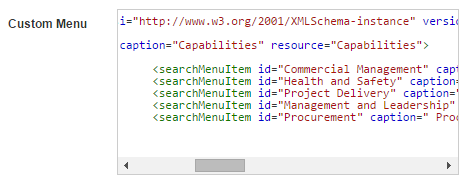
It's possible to manually set the filters using a custom menu. Contact your Janison account manager for more information.
Filters
You may require your own filters. This is possible by enabling the feature and setting up tags against your catalogue items.
To set custom filters, complete two steps first:
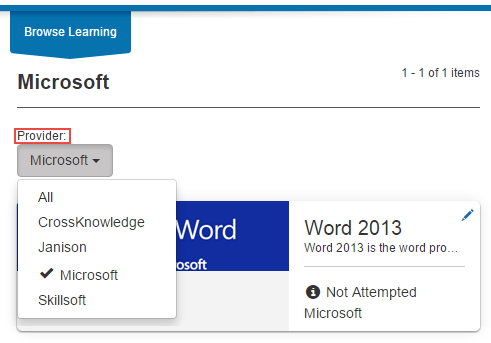
- Set up tag types and tags — see Tags and tag types. As an example, add a tag type of Provider containing 4 tags: Janison, CrossKnowledge, Skillsoft, Microsoft.
- Tag the catalogue items with the relevant tags — see Manage Catalogue.
Top filters
Top filters appear above the list of catalogue items.
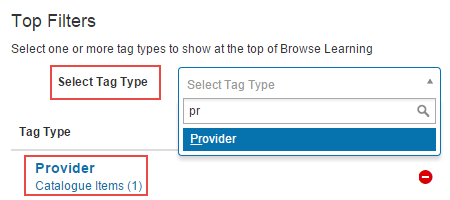
- Navigate to Settings > Browse Learning and locate the Top Filters section.
-
From the Select Tag Type dropdown, select a tag type. It's added to the tag type section below. Add as many tag types as required.
-
To remove a tag type, select the remove icon.
- Save the settings.
-
In Browse Learning, you'll see a Provider (tag type) filter listing all the providers (tags).
Side filters
Side filters appear to the left of the catalogue items.
-
From the Select Tag Type dropdown, select a tag type.
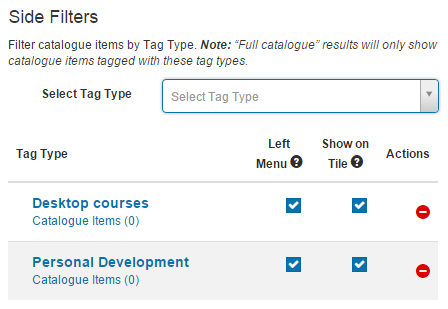
Four columns are available:
- Tag Type — lists the tag types selected.
- Left Menu — if checked, displays the tags and tag types in the left menu.
- Show on Tile — if checked, displays the tag on the catalogue item tile.
- Actions — remove the tag type.
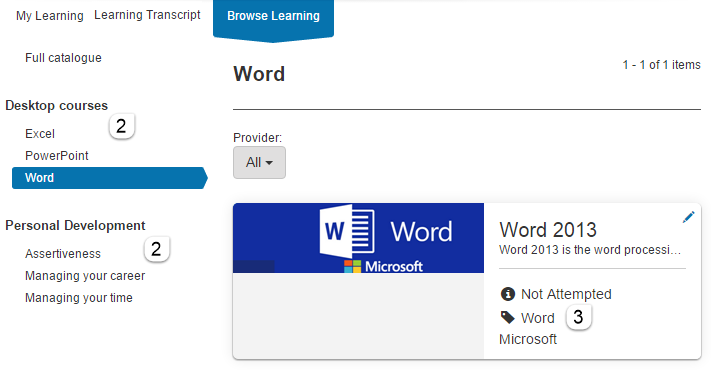
Navigate to Browse Learning to view the additional left-hand navigation filters. The tags associated with each tag type appear directly underneath.
Note
If a tag type is added to side filters but no catalogue items are tagged, the filter won't show in Browse Learning. This prevents empty filters from appearing.
Content of interest
Content of Interest gives the learner an option to set a link to topics they're interested in.
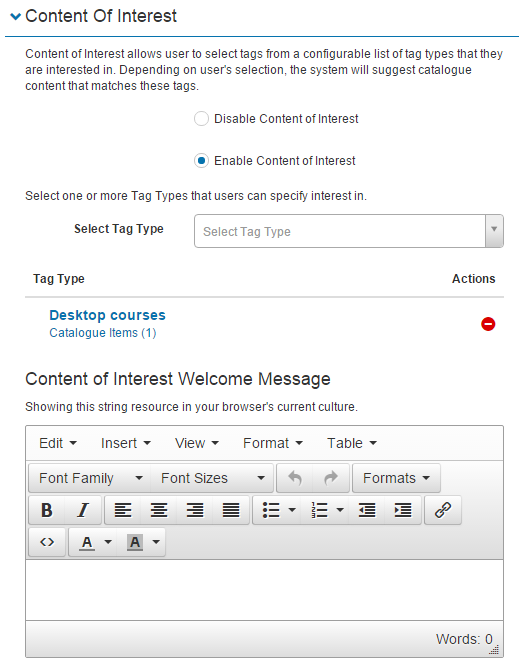
Enable Content of Interest
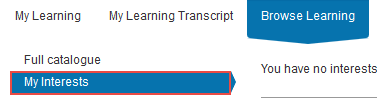
When Content of Interest is enabled, an additional link, My Interests, appears for learners on the left of the Browse Learning page.
Select tag types for interests
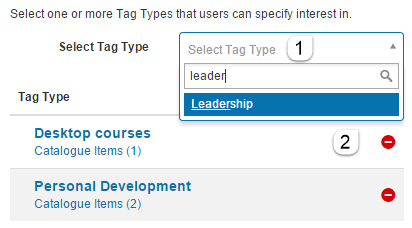
Tag types added here are available as selection options for learners.
- Select a tag type from the Select Tag Type dropdown — it's added to the Tag Type column.
-
To remove a tag type, select the remove icon.
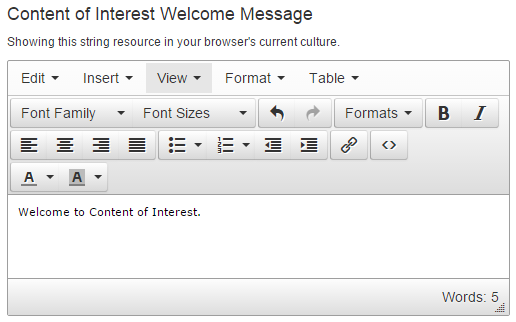
Content of Interest welcome message
A welcome message can be added — learners see it the first time they access the My Interests page.
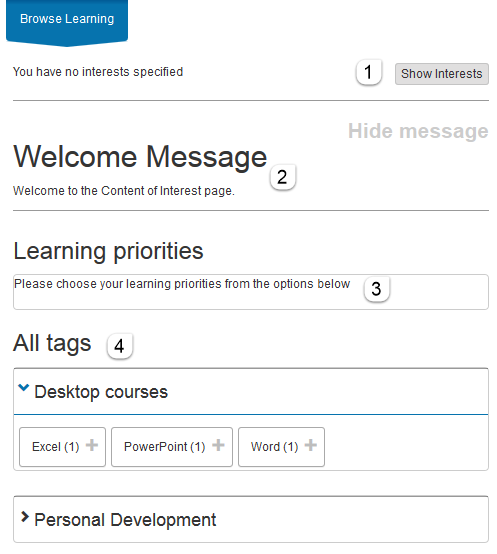
Learner experience
When learners first select My Interests:
- Show Interests — once interests are specified, they can be accessed by selecting Show Interests.
- Welcome Message — the welcome message specified in Browse Learning Settings appears here (first visit only).
- Learning priorities — the selected tags (topics of interest) appear in this field.
-
All Tags — the tags available for selection appear here.
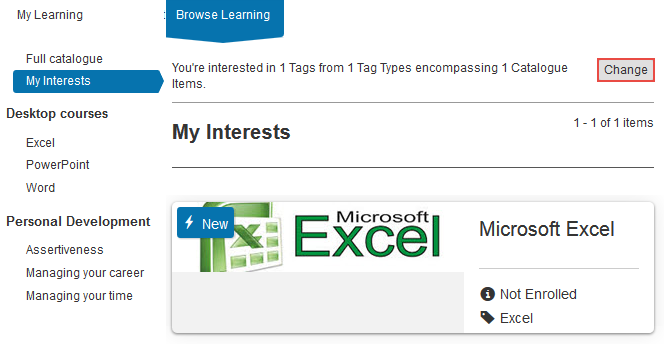
When a learner selects (for example) Excel as a learning priority:
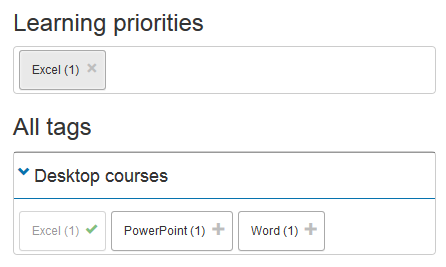
When they select My Interests, learning assets tagged Excel appear in the list. They can change interests with the Change button.
Discuss catalogue content
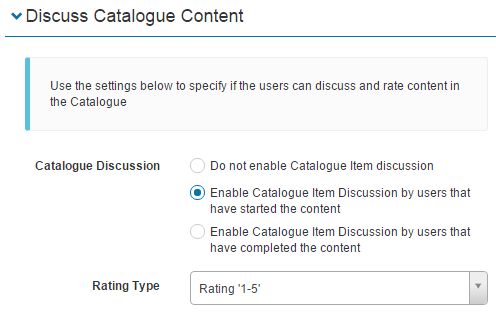
This feature gives learners the opportunity to rate and comment on catalogue items. It works with the Show setting in Catalogue Appearance.
Catalogue discussion
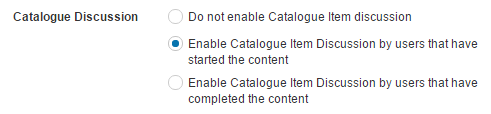
If enabled, learners can comment on catalogue items. You can enable commenting on enrolment, or restrict commenting until learners have completed the content.
Rating type
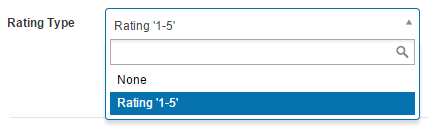
If Rating Type is set to Rating 1-5, learners can rate catalogue items.
Note
Comments and ratings are only available if the catalogue item uses a program template supporting these settings.
Learner experience
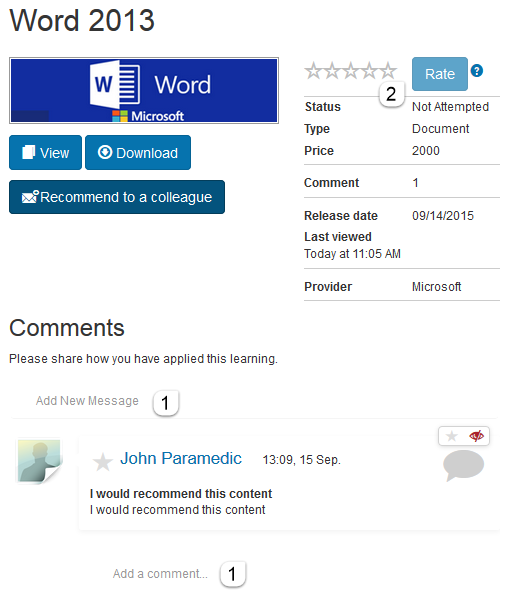
- If enabled, learners can access a Comments section to add new messages or comment on existing ones. Comments are visible to other learners.
- If enabled, learners can give the content a star rating using the Rate button.
Note
The example below uses the Singular Asset program template.
Recommended content
This feature lets learners recommend catalogue items to other learners.

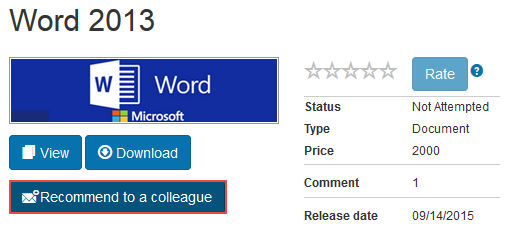
If enabled, learners have access to a Recommend to a colleague button. The feature works with the Show Tabs setting in Catalogue Appearance.
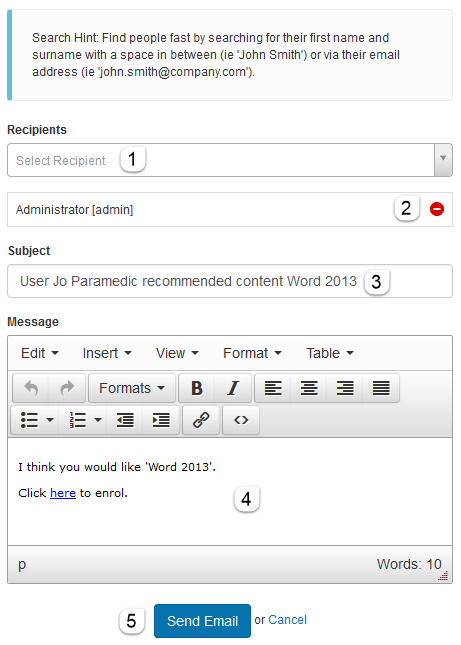
Selecting the button opens an email popup with:
- Recipients dropdown — select target learners.
- The selected recipients — remove with the remove icon.
- Subject — editable.
- Message — editable.
-
Send Email button.
Settings
This page documents the Browse Learning Settings group at Settings > Browse Learning Settings. All options described above are configured there.