Bulk Action
Bulk Actions let you apply the same actions you'd apply to an individual item to multiple items at once.
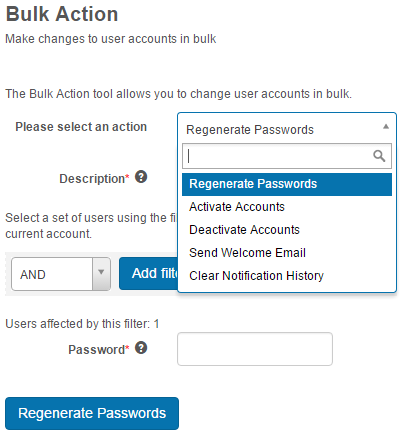
The available bulk actions are:
- Regenerate passwords
- Activate accounts
- Deactivate accounts
- Send welcome email
- Clear notification history
Important
If the actions described in this document are missing from your site, the plugin may not be active. Contact your account manager for assistance.
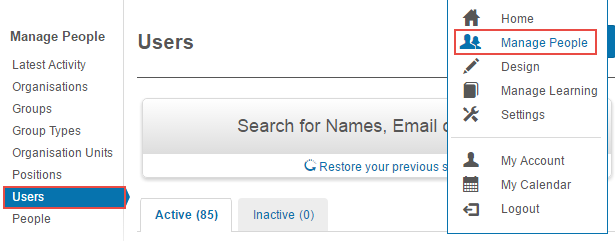
Browse to Manage people > Users.
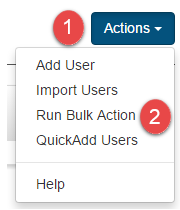
- Select Actions.
-
Select Run Bulk Action.
Regenerate passwords
Note
This option is only available if Generate Passwords is enabled in Settings > Password Settings > Password Generation.
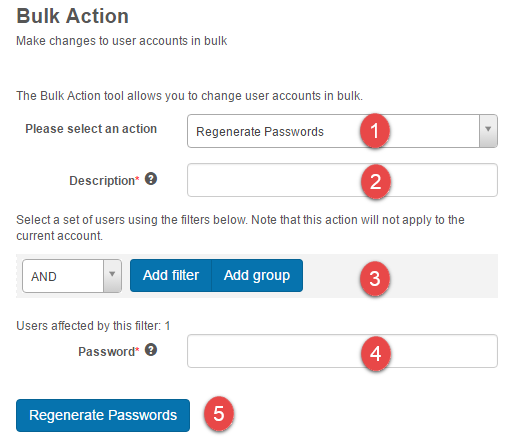
- Select Regenerate Passwords.
- Enter a Description. This identifies the bulk action when there are many being created.
- Set the filters to target the appropriate users. See the document on building filters for more information. A note shows how many users will be affected by the action.
- Enter your Password.
-
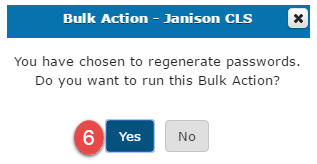
Select Regenerate Passwords. A confirmation popup is displayed.
-
Select Yes.
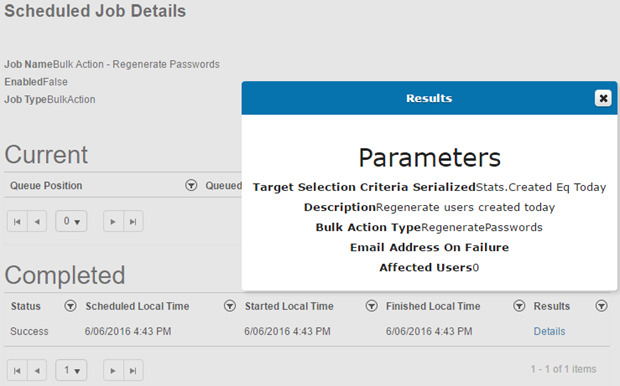
Once the action is performed, you're directed to the Scheduled Job Details page with information on the status of the action. Further details can be seen by selecting the Details link under Results.
Tip
Bulk password actions can also be scheduled in Settings > Scheduling > Schedule a Job.
Activate or deactivate accounts
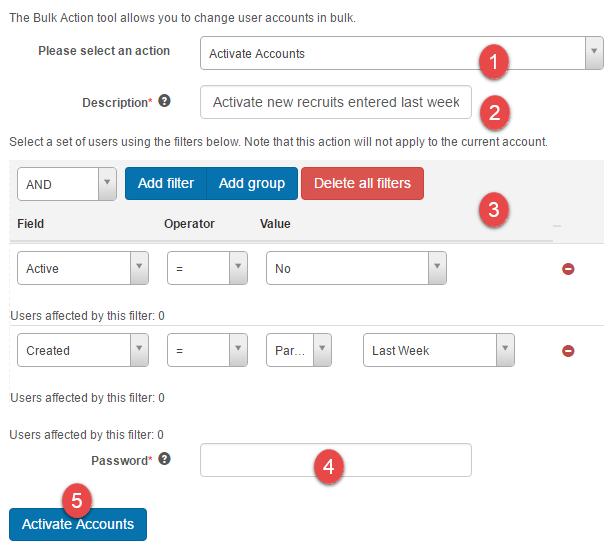
Individual accounts or groups of accounts can be set to active or inactive using the Deactivate Accounts or Activate Accounts features.
- Select Deactivate Accounts or Activate Accounts.
- Enter a Description. This identifies the bulk action when there are many being created.
- Set the filters to target the appropriate users. See the document on building filters for more information. A note shows how many users will be affected.
- Enter your Password.
-
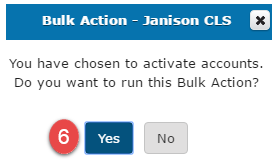
Select Deactivate Accounts or Activate Accounts. A confirmation popup is displayed.
-
Select Yes.
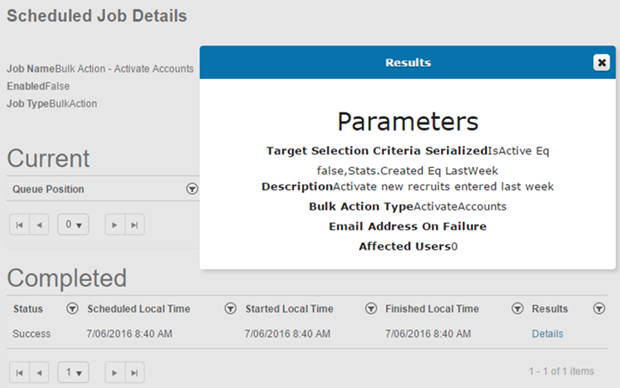
You're directed to the Scheduled Job Details page with information on the status of the action.
Send welcome email
Welcome emails can be triggered automatically when new accounts are created. The Send Welcome Email feature lets a user administrator send a welcome email when it needs to be sent at a later time.
The email can be found and edited in Message Templates. It's called System-FirstLogon and can be accessed from Settings > Message Templates.
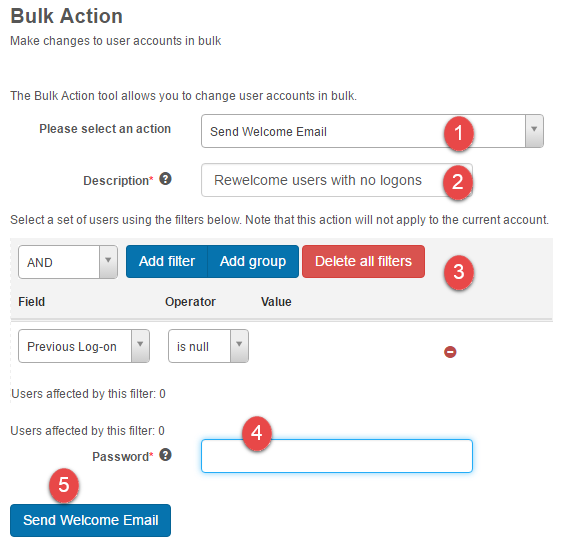
- Select Send Welcome Email.
- Enter a Description.
- Set the filters to target the appropriate users.
- Enter your Password.
-
Select Send Welcome Email. A confirmation popup appears.
-
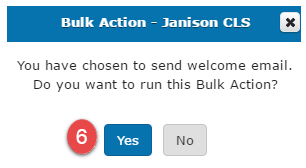
Select Yes.
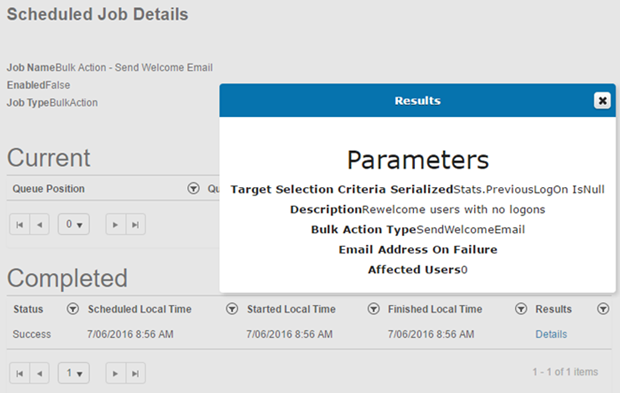
You're directed to the Scheduled Job Details page.
Clear notification history
This feature lets an administrator clear the notification history of users.
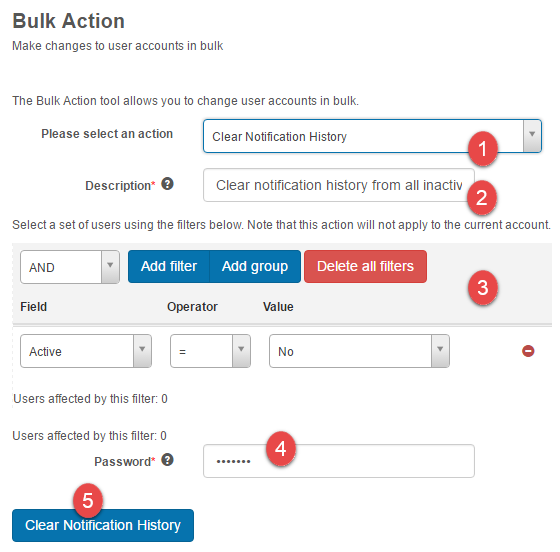
- Select Clear Notification History.
- Enter a Description.
- Set the filters to target the appropriate users.
- Enter your Password.
-
Select Clear Notification History. A confirmation popup is displayed.
-
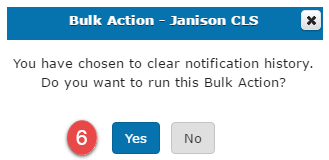
Select Yes.
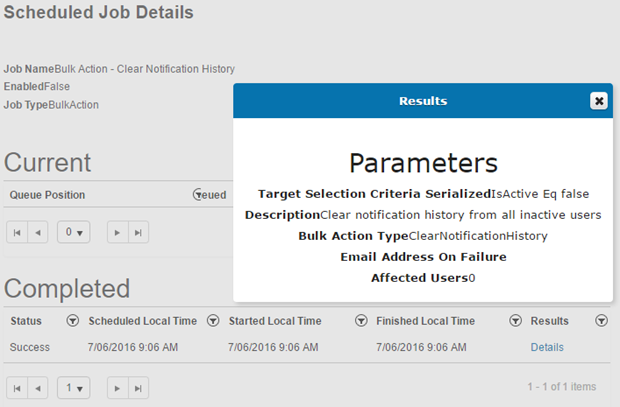
You're directed to the Scheduled Job Details page.
Settings
Several platform settings affect bulk actions.
Administrators can configure the following settings:
Password Settings (Settings > Password Settings) — controls whether Generate Passwords is enabled, which determines whether Regenerate Passwords is available as a bulk action.
Message Templates (Settings > Message Templates) — defines the System-FirstLogon welcome email sent by the Send Welcome Email action.
Scheduling (Settings > Scheduling) — lets you schedule bulk password actions to run automatically.