Approve Learning
Approve Learning relates closely to Self-enrolment Settings on catalogue items. Enrolment restrictions can be set so that learners require approval before they can access the catalogue item. Administrators or managers undertake these approvals in the Approve Learning screen.
See Manage Catalogue and the self-enrolment settings document for more.
Browse to Manage Learning > Approve Learning to access approval requests.
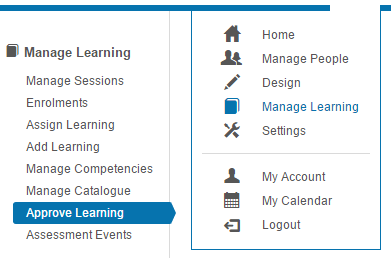
Approve enrolment requests
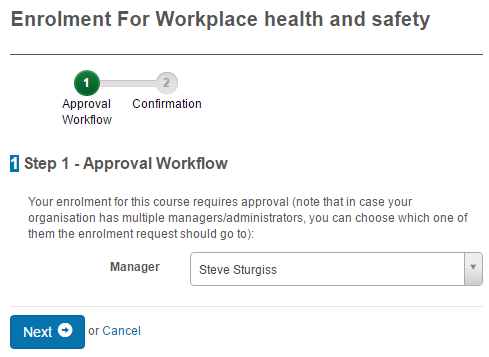
Learner experience
During enrolment into a catalogue item, the learner is guided through the process and notified of the approval requirements. The screen may differ depending on the self-enrolment set on the catalogue item.
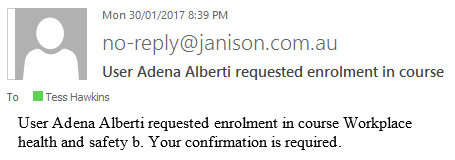
An approval request is triggered and an email sent to the relevant approver.
The approval request also appears in the Approve Learning screen.
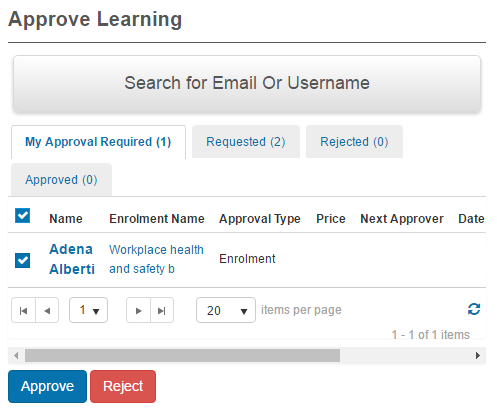
Approvals can be made on individual requests or in bulk.
Process approval requests in bulk
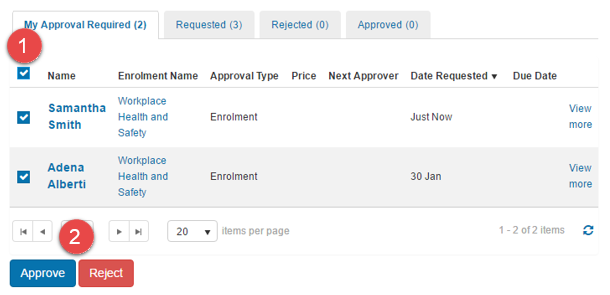
Browse to Manage Learning > Approve Learning.
- Select the checkbox next to the users you'd like to approve. Selecting the top checkbox selects all records.
-
Select Approve or Reject.
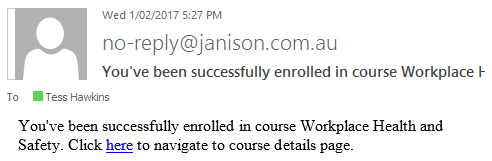
On approval, an email is triggered to the user notifying them that their enrolment has been approved (or rejected).
Process individual approval requests
-
Select View More for the user you'd like to approve.
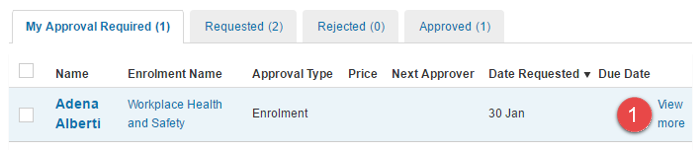
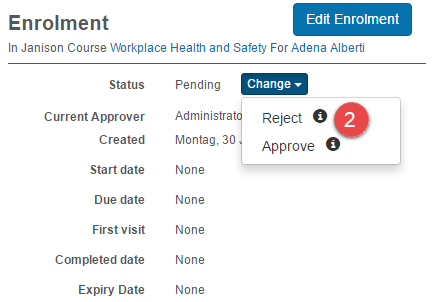
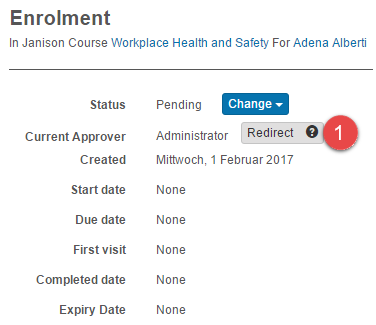
You're directed to the Enrolment screen.
-
Select Change followed by Reject or Approve.
You can also redirect the approval to another approver — useful when the current approver is unavailable.
-
Select Redirect.
A confirmation popup is displayed.
- Select an Available Approver from the dropdown.
-
Select Confirm.
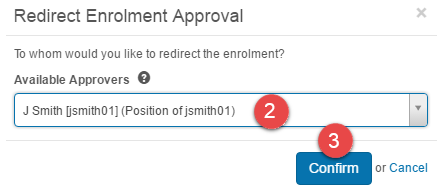
The next approver receives an email and becomes responsible for approving the enrolment.
Approval workflows
Workflow types
Self-enrol enabled catalogue items can be set to require approval.
- 1-step approval — requires one approver.
- 2-step approval — requires two levels of approvers.
See help content on self-enrolment restrictions for more.
During self-enrolment
When a learner self-enrols in a catalogue item assigned an approval workflow, they're guided by the workflow wizard. Depending on the settings, the learner either:
- Submits the learning request without choosing an approver (the workflow picks an approver automatically), or
- Selects an approver from the list of available approvers for each step and submits the request.
When the learner finishes the wizard, an approval request is triggered and an email is sent to the approver — or for a 2-step workflow, to the first approver.
Until the request is actioned, the learner sees an enrolment status of Pending for the catalogue item.
During the approval process
1-step approval — the approver receives an email and accesses the Approve Learning screen to action the request. There's no subsequent approver and no Next Approver is listed.
2-step approval — the first approver receives an email and actions the request. The Next Approver field shows who will be notified once the first approver has approved. If the first approver approves the request, intermediary approval is granted and the request is sent to the second approver for final approval. If the first approver rejects, the request is cancelled and the second approver isn't notified.
Settings
Several platform settings affect Approve Learning.
Administrators can configure the following settings:
Self-enrolment Settings (Settings > Self Enrolment Settings) — enable approval requirements for self-enrolment and configure 1-step or 2-step workflows.
Catalogue Item Settings — per catalogue item, configure the self-enrolment approval requirements that drive the Approve Learning queue.
Message Templates (Settings > Message Templates) — customise the approval-request and approval-confirmation emails.
Roles (Settings > Roles) — define the roles allowed to approve learning, and their scope.