Other Learning
Other Learning is a learning asset type that records learning a user has completed outside the system (such as external courses, qualifications, or certificates). Learners can submit evidence and have it verified.
As with most learning asset types there are two ways to add it:
- Via Manage Learning > Manage Learning Assets > New Other Learning
- Via the Manage Learning > Add Learning wizard
Add Other Learning via Manage Learning Assets
- Select Manage Learning > Manage Learning Assets > Add Learning Asset.
- Select New Other Learning.
-
Complete the form:
- Enter a Name.
- Identifier is auto-populated from the name.
- Select or Quick Add a Learning Type.
- Select a print template (if applicable).
- Include Description and Instructions.
-
Complete the Verification Settings section.
- Complete the Submit Button Options section.
- Complete the General Settings section.
- Complete the Contacts section.
- Select Save Other Learning.
Add Other Learning via the Add Learning wizard
-
Navigate to Manage Learning > Add Learning.
Step 1 — Learning Type
-
Select Other Learning.
-
Select Next.
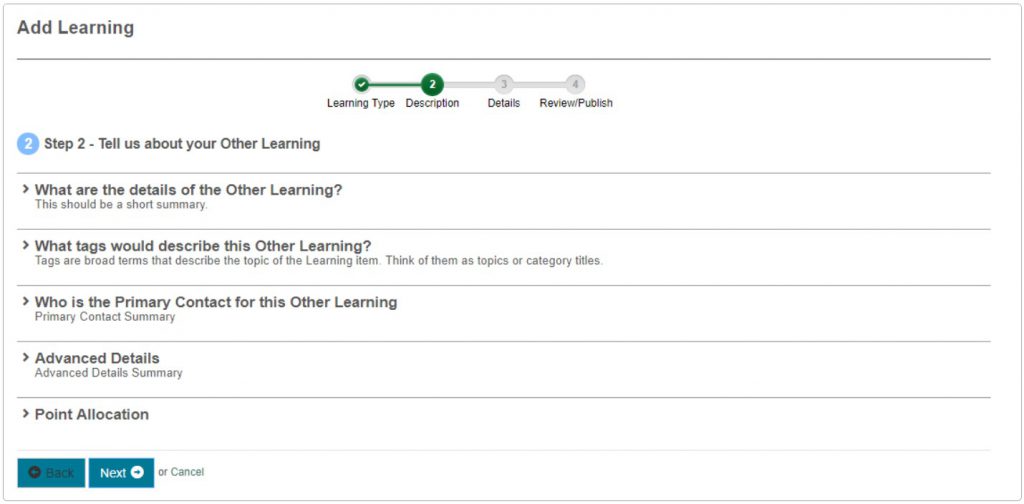
Step 2 — Tell us about your Other Learning
-
Complete the required sections:
- What are the details of the Other Learning?
- What tags would describe this Other Learning?
- Who is the Primary Contact for this Other Learning?
- Advanced Details
- Point Allocation
-
Select Next.
Step 3 — Details
- Type
- Description and instructions
- Verification Settings
- Submit Button Settings
- General Settings
- Contacts
-
Select Next.
Step 4 — Success
- Change the status as required.
-
Select Finish.
You're directed to the newly created catalogue item with the Other Learning linked.
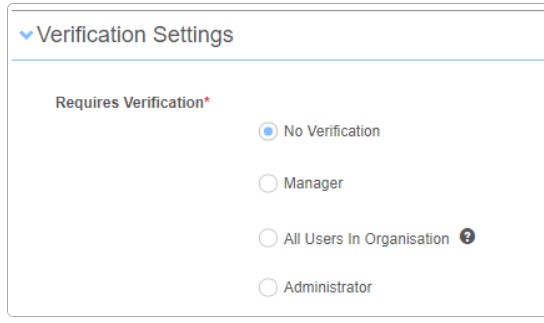
Verification Settings
This section lets administrators configure how the Other Learning type is verified.
| Option | Description |
|---|---|
| No Verification | The user doesn't have to seek verification of the learning. |
| Manager | When selected, three options are presented: Any Manager in Organisation (any active user who has one or more users reporting to them, regardless of those users' active state); Any Manager of user requesting approval in Organisation (direct or indirect managers, including the CEO); Only Immediate Managers (requires the Can approve any other learning permission on the Basic User role). With this option, a Stage 2 verification process appears with No Verification, All users in Organisation, or Administrator. |
| All users in Organisation | Any user in the organisation can verify this learning. Requires the Can approve any other learning permission on the Basic User role. A Stage 2 verification process appears with No Verification, All users in Organisation, or Administrator. |
| Administrator | Any administrator in the organisation can verify this learning. A Stage 2 verification process appears with No Verification, All users in Organisation, or Administrator. |
Submit Button Options
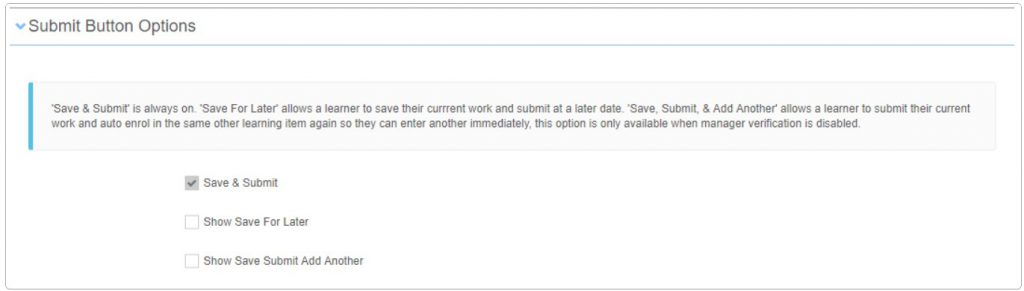
When a learner uploads their evidence they finalise and submit their learning. Three options are available:
| Option | Description |
|---|---|
| Save and Submit | Always enabled and can't be disabled. |
| Show 'Save for Later' | Lets a learner save their current work and submit later. |
| Show 'Save Submit Add Another' | Lets a learner submit their current work and auto-enrol in the same Other Learning item again. Only available when manager verification is disabled. |
General Settings
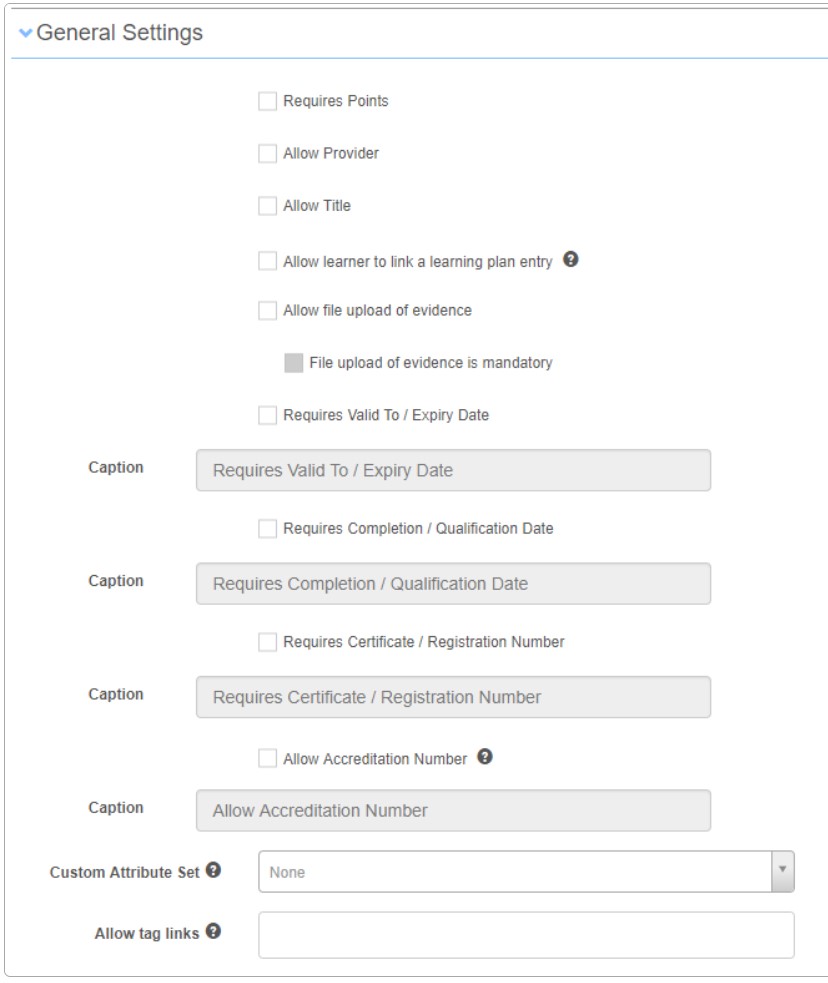
This section configures the type of Other Learning required (certificate, licence, qualification, etc.).
| Option | Description |
|---|---|
| Requires Points | Presents a tag selector to add required tags. If you don't want learners to see all tags in the designated points tag type, choose which tags to present. |
| Allow Provider | Lets the learner include a provider for the learning undertaken. |
| Allow Title | Lets the learner include a title for the learning undertaken. |
| Allow learner to link a learning plan entry | Lets learners log activities completed in support of a learning plan. |
| Allow file upload of evidence | Lets learners upload files as evidence (e.g. a certificate). Can be made mandatory. |
| Requires Valid to / Expiry Date | Presents the learner with options to include a valid-to date and expiry date. |
| Requires Completion / Qualification Date | Presents the learner with options to include a completion date and/or qualification date. |
| Requires Certificate / Registration Number | Presents the learner with options to include a certificate (file upload) and a registration number. |
| Allow Accreditation Number | Presents the learner with an option to include an accreditation number (not the same as a certificate number). |
| Custom Attribute Set | Adds custom questions or fields to the Other Learning submission form — see the document on custom attributes. |
| Allow tag links | Lets learners link tags they believe relate to their submission. The available tags are driven by the tag type(s) selected. |
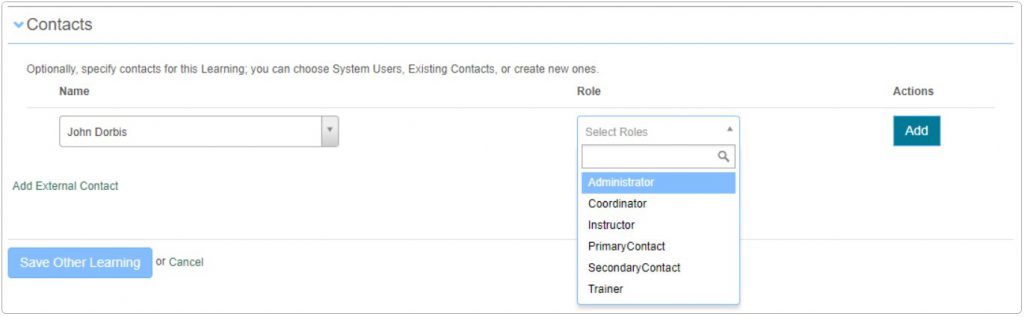
Contacts
This section lets administrators specify contacts for the learning. You can choose system users, existing contacts, or create new ones via the Add external contact link.
Settings
Several platform settings affect Other Learning.
Administrators can configure the following settings:
User Settings (Settings > User Settings) — control which fields appear on the Other Learning submission form via the user role.
Roles (Settings > Roles) — set the Can approve any other learning permission on the Basic User role to enable some verification options.
Tag Types (Settings > Tag Types) — define the points tag type used by Requires Points.
Custom Attributes (Settings > Custom Attributes) — define the custom attribute set for the Other Learning submission form.
Print Templates (Settings > Print Templates) — define optional print templates that can be selected when creating an Other Learning asset.