Question and Test Interoperability (QTI)
Question and Test Interoperability (QTI) v2.1 is a specification that allows the communication and exchange of content between assessment systems. QTI defines a standard XML language for representing questions, tests, and results — so question, test, and results data can move between authoring tools, item banks, test construction tools, learning systems, and delivery systems.
QTI was developed by the IMS Global Learning Consortium, an industry and academic consortium that develops specifications for interoperable learning technologies. The aim is to avoid people losing or having to re-create assessment materials when technology changes.
The Janison CLS can create, import, and export a number of QTI-compliant question types. Some QTI interactions have a different name in the CLS.
| QTI interaction | Janison question name |
|---|---|
| Inline Choice Interaction / Text Entry Interaction / Gap Match Interaction | Cloze |
| Text Entry Interaction | Keyword |
| Match Interaction | Match |
| Choice Interaction | Multiple Choice |
| Choice Interaction | Multiple Choices |
| Extended Text Interaction | Short Answer |
| Hot Text Interaction | Text Spot |
| Choice Interaction | Yes/No |
| Choice Interaction | True/False |
| Hot Spot Interaction | Hot Spot Interaction |
| Select Point Interaction | Select Point Interaction |
| Drawing Interaction | Drawing Interaction |
| Slider Interaction | Slider Interaction |
| Order Interaction | Order Interaction |
| Match Interaction | Match Interaction |
| Gap Match Interaction | Gap Match Interaction |
| Graphic Order Interaction | Graphic Order Interaction |
| Associate Interaction | Associate Interaction |
| Graphic Associate Interaction | Graphic Associate Interaction |
| Position Object Interaction | Position Object Interaction |
QTI questions in the CLS
Creating a QTI-compliant question is simply a matter of creating a new question and selecting an appropriate question type from the list above.
A QTI question can be exported alone or as part of a collection of questions. QTI questions can also be imported into the CLS from other sources.
Exporting QTI questions
When you export QTI-compliant questions in the CLS, each question is exported as an IMS Content Package consisting of four files and a subfolder inside a zipped folder. Although multiple questions can be contained within a single IMS Content Package, the CLS exports them individually to minimise the margin for error. When multiple questions are exported together, multiple IMS Content Packages are collected into another master folder, which is zipped and saved to disk.
There are three options for exporting QTI-compliant questions:
- Individually — start at the Questions page and export a QTI question from there.
- All questions in a filtered list — start at the Questions page, filter the questions using search, then export the filtered list.
-
Questions in an assessment module — start at the module's details page and export questions in the module.
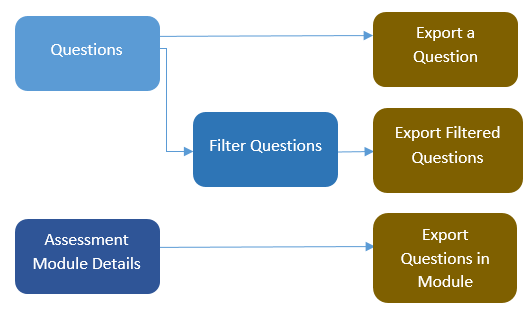
Export a single question
A QTI question is exported by selecting its download icon on the Questions screen. The file is saved to your downloads folder (depending on browser settings).
Navigate to Design > Questions and locate the question. Select the download icon — only QTI questions have this icon.


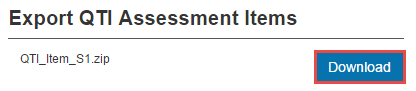
The name of the package is displayed. Select Download to save it as a zipped folder.
If there are issues with the compliance of the question, they're displayed as Warnings and Errors.
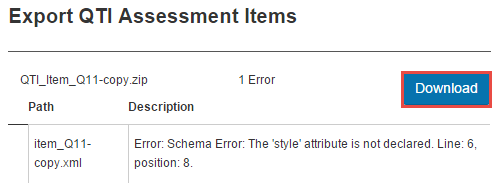
You can still proceed with exporting a question that has warnings, but the CLS won't accept it in a subsequent import if it has an error.
Export a filtered list of questions
You can export a number of QTI questions collected into a filtered list. Navigate to Design > Questions.
- Select Search for Questions.
- Filter the list by specifying search parameters and selecting Search.
-
Select Export QTI Items.
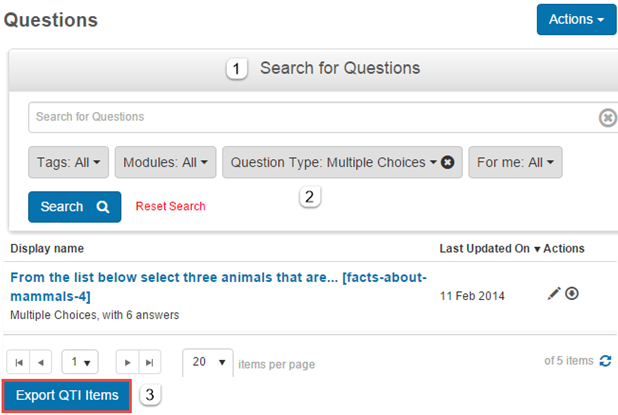
Export questions in an assessment module
All QTI-compliant questions in an assessment module can be exported from the module's details page.
- Navigate to Design > Modules and select the Assessment Modules tab.
- Select the module from the Display Name list.
-
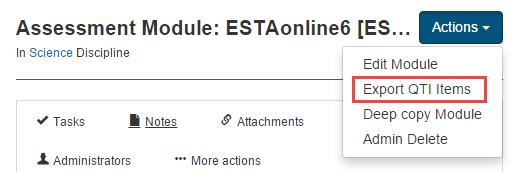
On the module's details page, select Export QTI Items from the Actions dropdown.
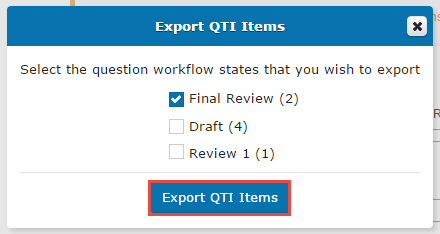
A popup lists the number of QTI questions in the module, divided by workflow state. Select the checkboxes for the questions in the desired states. The states checked by default are the same as the last QTI export.
Select Export QTI Items to continue.
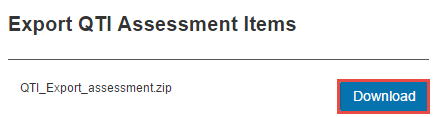
The next screen shows the name of the export package and any compliance errors. Select Download to download the file.
Importing QTI questions
You can import QTI questions into either Learning Modules or Assessment Modules. If your purpose is assessment, import into Assessment Modules.
The CLS makes sure imported questions adhere to the QTI standard and won't import those with errors. The accepted package formats are:
- An IMS Content Package zip file containing a single QTI assessment item.
- An IMS Content Package zip file containing multiple QTI assessment items.
- A zip file containing multiple IMS Content Package zip files (each of which can contain single or multiple QTI assessment items).
The following rules apply to import:
- The destination module must already exist.
- If any aspect of a single question package fails, the whole package fails and does not import.
- If a question with the same identifier already exists, you're warned that existing questions will be overwritten if you proceed.
- When Question Workflows is enabled:
- Imported questions get a status of Draft.
- If a question with the same identifier exists and is Draft, a warning is displayed — proceeding loses all CLS changes to that question (also applies to resources).
- If a question with the same identifier exists with a status other than Draft, an error is displayed and the question can't be re-imported (also applies to resources).
- Bulk QTI uploads skip packages with errors and continue with the rest. Errors are listed in a report you can use to fix the failing questions.
- The import supports full questions only, unless the Allow scoring not in package option is set in QTI settings or specified in the import.
- The CLS uses a task scheduler where possible so importing can run on another server.
- Feedback is provided for large file imports so you can track progress.
Import QTI questions
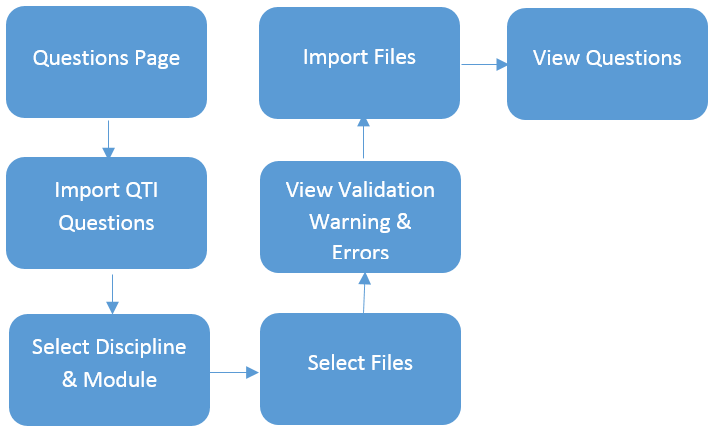
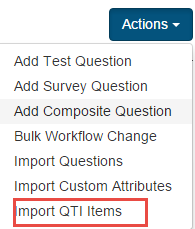
Navigate to Design > Questions and select Import QTI Items from the Actions dropdown.
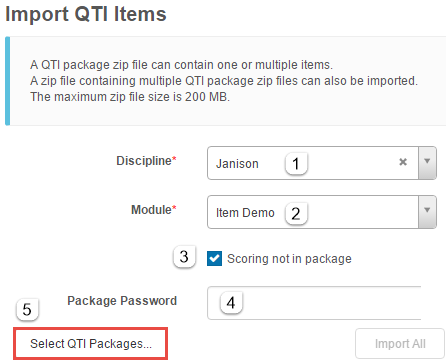
Complete the form:
- Discipline — select the discipline.
- Module — select the destination module. The dropdowns only show disciplines and modules where you have permission to create questions.
- Scoring not in package — check this to indicate that the QTI items' scoring isn't included.
- Package Password — if a password was set on export, enter it here.
-
Select QTI Packages — available once Discipline and Module are set. Select the files to import. You can do this more than once.
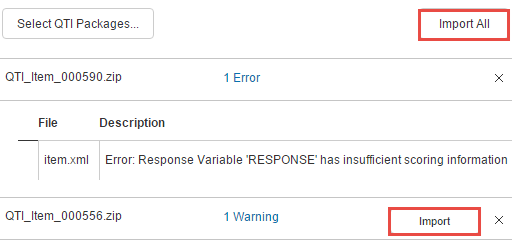
You're then shown validation results for each file:
- Success — no warnings or errors.
- Warnings — package has warnings but can be imported. Expand to see details.
- Errors — package has errors and can't be imported. Expand to see details.
You can import each package individually with Import, or use Import All for every error-free package.
Settings
Administrators can configure the following settings at Settings > QTI Settings.
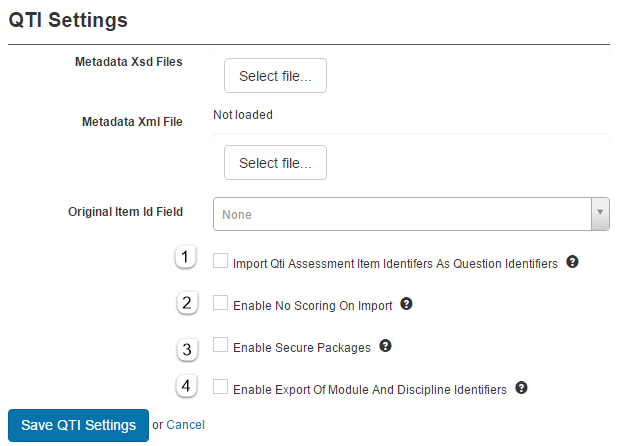
Use Assessment Item Identifier for CLS Question Identifier — when importing, the CLS uses the assessment item identifier as the CLS question identifier, bypassing auto-generation.
Allow scoring not in package — allows importing questions that don't include complete scoring information (a fully defined responseDeclaration element).
Encrypt packages — enables password protection on import and export.
Include owner module and discipline in metadata — adds owner module and discipline information to the exported resource metadata/QTIMetadata element.