Organisation Units
Organisation units provide further division within an organisation structure — for example schools within a school system, or departments within a hospital. An organisation unit must belong to one organisation.
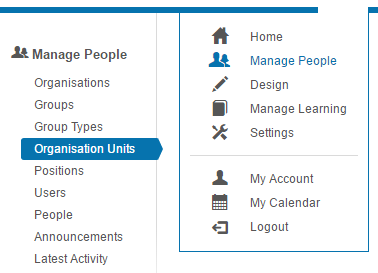
Organisation units can be accessed by selecting Manage People > Organisation Units.
There are two methods for creating an organisation unit:
- Add manually
- Import from a CSV
Add an organisation unit manually
-
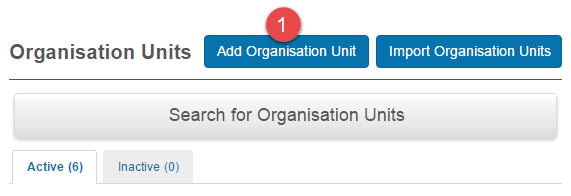
Select Add Organisation Unit.
-
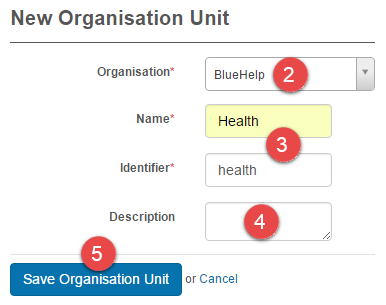
Select an Organisation.
- Enter a Name. The identifier populates automatically.
- Optionally enter a description.
-
Select Save Organisation Unit.
Import organisation units
Note
Create your CSV before starting the import.
-
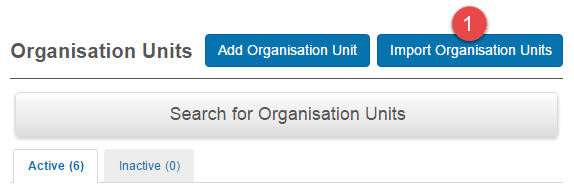
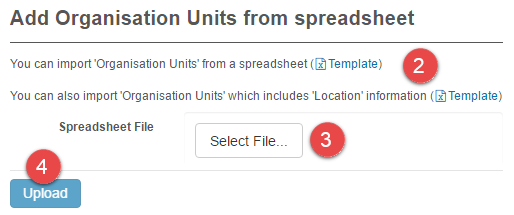
Select Import Organisation Units.
-
Download the sample template and populate it with your organisation units (and custom attributes if required).

-
Select your spreadsheet file.
-
Select Upload.
Inspect an organisation unit
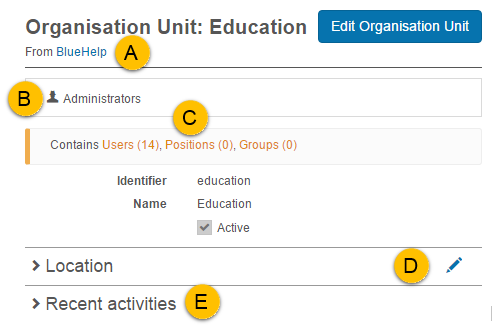
Inspecting an organisation unit gives you access to information about and relating to the org unit:
- A link to the organisation.
- A link to view and edit administrators.
- Links to Users, Positions, and Groups.
- A section to add and edit Locations.
-
Recent activities.
Add or edit an organisation unit's location
- Navigate to Manage People > Organisation Units.
- Select the name of the required organisation unit in the list. The screen for the selected unit is displayed (this screen also displays automatically after a unit is manually created).
- Select the edit icon to expand the Location panel and enable editing.
- Update the location details.
- Select Save to save the updates or Cancel to exit without saving.
- After saving, the details display and become locked until the edit icon is selected again.
Settings
There are no platform settings specific to organisation units. Custom attributes can be linked to the Organisation Unit entity via Settings > Custom Attributes, which adds fields to the add/edit forms.