Conditional release
You can use Conditional Release to set time or date based periods during which a program component is active for use. There are two ways to set Conditional Release:
- Set a time for when a component becomes active within a program enrolment.
- Set a time for when a component becomes inactive within a program enrolment.
Learners can see the details of both but can't access inactive content.
Conditional Release also works with prerequisites. An asset doesn't become available to a learner unless both the prerequisites are met and the asset is available for use under Conditional Release rules.
Initial settings
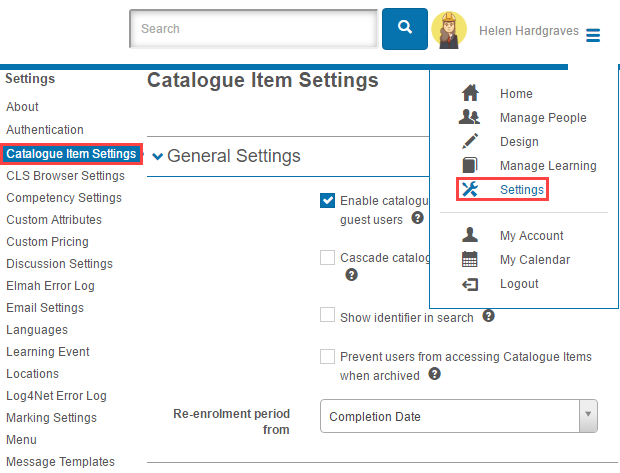
To enable Conditional Release, browse to Settings > Catalogue Item Settings.
In the Authoring Settings section:
-
Select the
 chevron.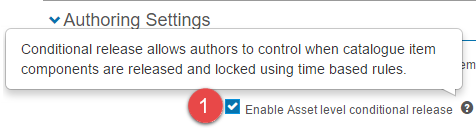
-
Select
 .
.
Configure Conditional Release
Conditional Release is applied within a program and directly to the components it affects.
Important
Before you set up Conditional Release on program components:
- It can't be applied to Assessment Events, Booked Assessment Events, Learning Events, Plans, or Subscriptions.
- Setting up Conditional Release on a program that already has active enrolments won't affect those enrolments.
- Conditional Release can't be set on components with Share Progress selected.
Setup
Browse to Manage Learning > Manage Catalogue.
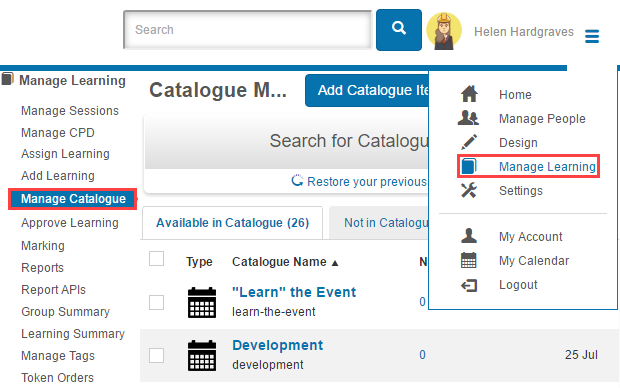
You can configure Conditional Release on an existing catalogue item by editing it, or on a new one. The example below creates a new catalogue item.
-
Select Add Catalogue Item.

-
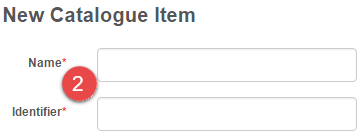
Enter a Name and Identifier.
-
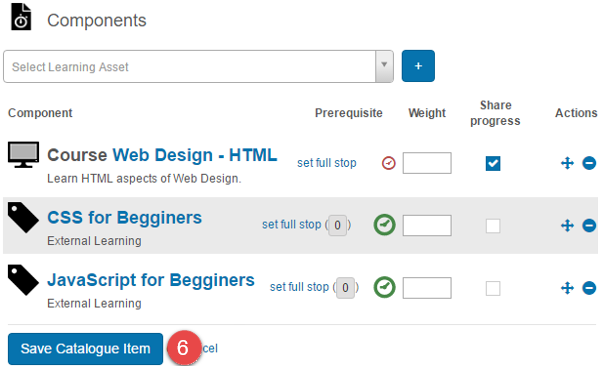
In the Components section, Select Learning Asset and Add Component.

Add at least two components to enable Conditional Release.
The icon next to each component shows its Conditional Release status:
 — Conditional Release isn't available on this component. Selecting the icon explains why.
 — Conditional Release is available but hasn't been set.
-
 — Conditional Release has been set.
 -
Select the
 icon to set Conditional Release on a component.
A dialog appears with several options:
-
Release Date options control when the component becomes available:
- Doesn't set a Conditional Release rule. The component is available on enrolment.
- Releases the component on the specified number of days, weeks, or months after the enrolment is received.
- Releases the component on the specified day of the year after enrolment.
-
Lock Date options control when the component becomes locked:
- Doesn't set a Conditional Lock rule. The component is always available after release.
- Locks the component on the specified number of days, weeks, or months after enrolment.
- Locks the component on the specified day of the year after enrolment.
-
Select Save to complete the action.
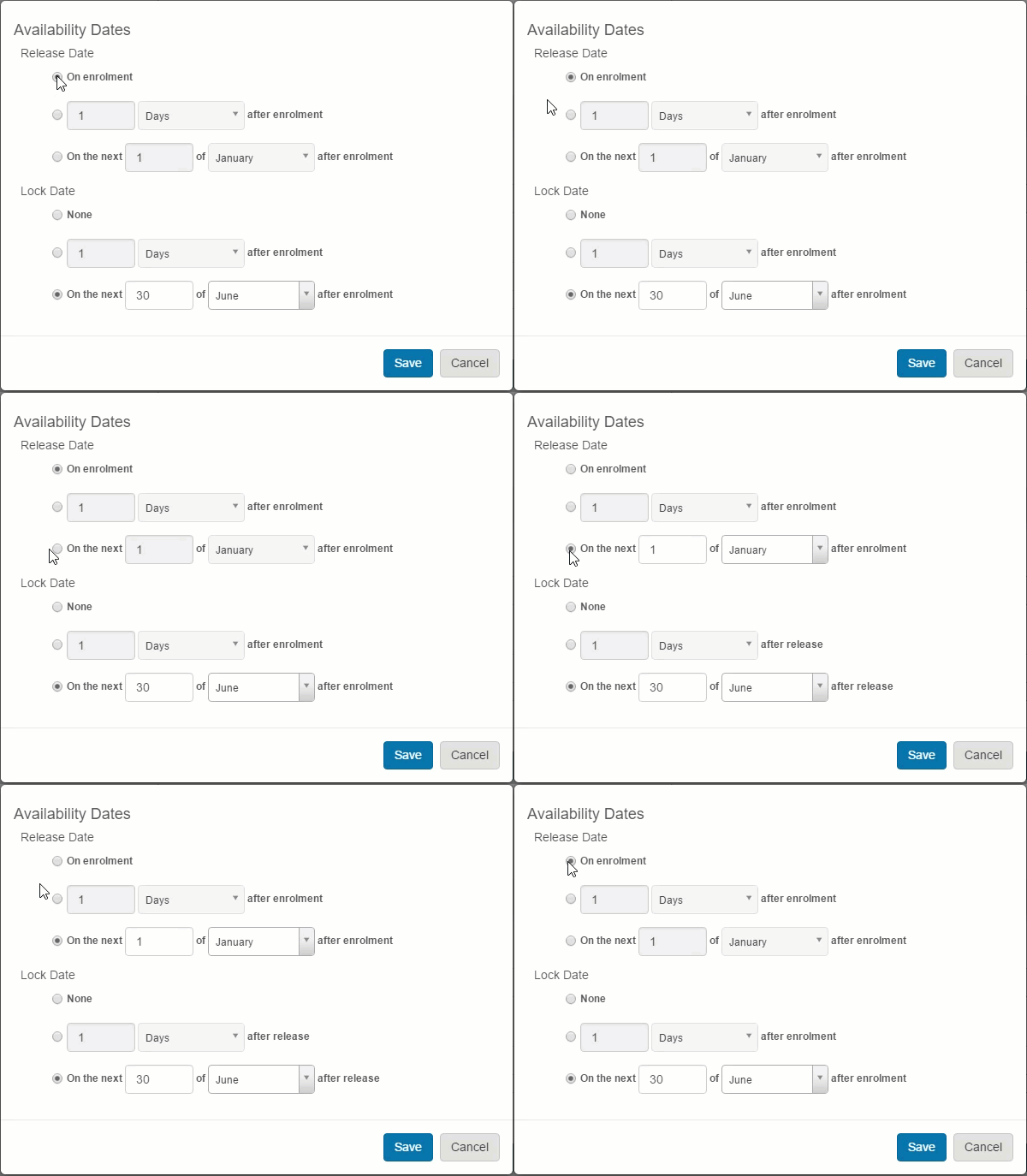
Note
The Lock Date settings react to the Release Date settings. If a Release Date is set, the Lock Date rules change from 'after enrolment' to 'after release'.
-
Select Save Catalogue Item.
Tip
You can edit Conditional Release on components by selecting the  icon while editing the catalogue item.
Learner experience
When a learner finds a program with Conditional Release applied, they see the conditions on the component from the enrolment screen. Each component lists the period in which the learner can gain access.
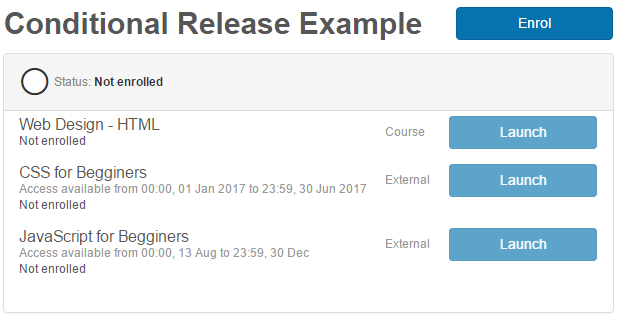
After a learner is enrolled, assets not yet released or assets locked are unavailable, shown by a dimmed Launch button.
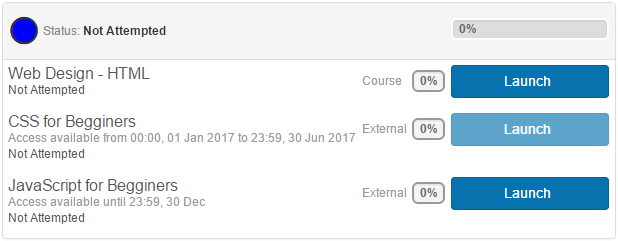
When an asset is within the Conditional Release period, it becomes active and the learner can launch it. If there's a Conditional Lock on the component, a message displays showing how long the asset is available.
Manage a user's Conditional Release
An administrator can change the release date or lock date for a learner's enrolment on a per-user basis.
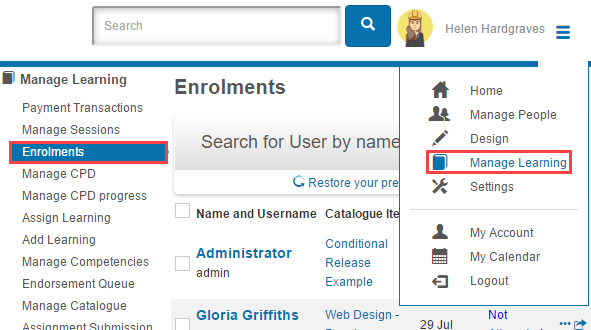
Browse to Manage Learning > Enrolments.
-
Select View More (
 ) to go to a learner's enrolment.
-
Select the Program Components section.
-
Select the
 icon for either the Release Date or the Lock Date to edit them.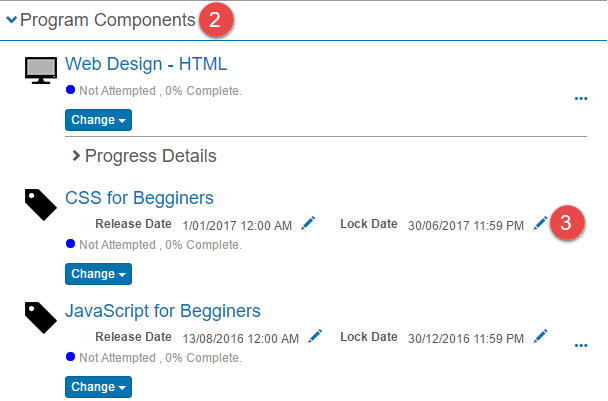
-
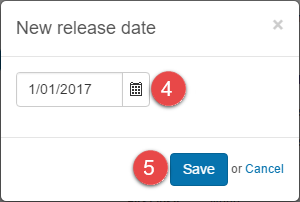
Enter a new release or lock date.
-
Select Save. A dialog appears.
-
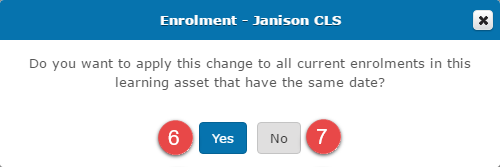
Select Yes to apply this change to all learner enrolments for this program that share the same enrolment date, or
-
Select No to only change the current learner's enrolment.
Settings
The following platform settings affect Conditional Release.
Administrators can configure the following settings:
Catalogue Item Settings (Settings > Catalogue Item Settings) — under Authoring Settings, enable Conditional Release to make the feature available on catalogue items.