Templates
Templates determine the layout of course pages, panels, and catalogue items.
- Content layout templates specify the layout of learning module pages.
- Content panel templates specify the types of panels in learning module pages. They let you create different kinds of pages without needing skills in HTML and CSS.
- Program templates are legacy templates that previously determined how a catalogue item displays when launched. Although they may still be active if added in the past, the CLS now uses a single default template for new catalogue items.
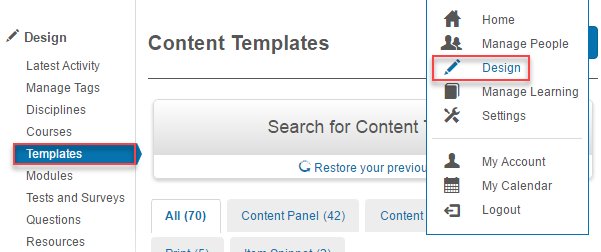
To access templates, select Design > Templates.
Add a content layout template
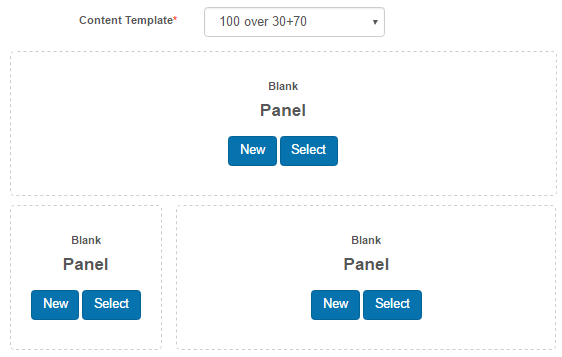
Content layout templates specify the layout of a learning module page. For example, 30 + 70 over 100 splits the page horizontally, then splits the top half vertically with a 30:70 ratio.

For more on how content layout templates are used in a module, see Learning Modules.
The available content layout templates are listed when adding a new page.
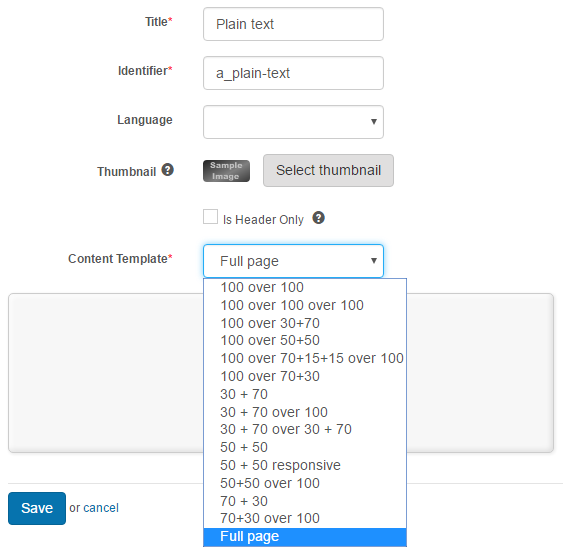
You can create your own content layout templates.
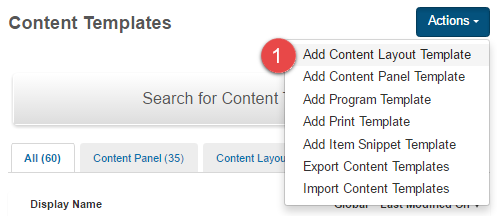
Navigate to Design > Templates and select Add Content Layout Template from the Actions dropdown.
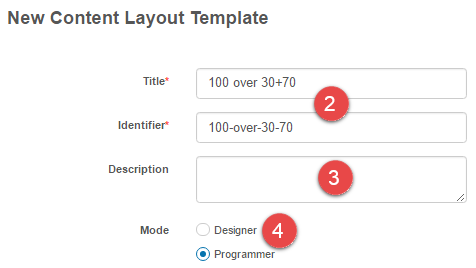
- Enter a Title — the Identifier is automatically populated.
- Enter an optional Description.
-
By default the Mode is Programmer. Change it to Designer.
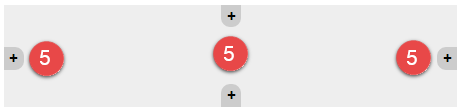
A rectangle with + icons appears.
-
To add one or more panels, select the + icon on the relevant side.
-
To change the proportion of a panel, select a number from the selector.
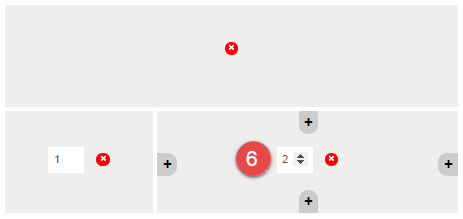
You can delete a panel using the cross icon.
-
Select Save Content Layout Panel.

Once saved, the template is available when creating a new page in a learning module.
Program templates
Note
Program templates changed in August 2016, release 1606. This section is only relevant for existing Janison clients who previously set these templates on their catalogue items. New catalogue items use a default template assigned automatically.
Program templates are linked to catalogue items and determine how a catalogue item displays. View the options by navigating to Design > Templates and selecting the Program tab.
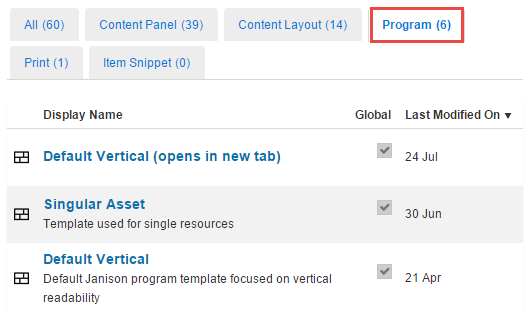
Three global options are available:
Singular Asset — use when there's only one learning asset (for example a learning event or a trackable document such as a video or image).
Default Vertical — use when multiple learning assets are linked to a catalogue item. The information is displayed in a list format.
Default Vertical (opens in new tab) — same as Default Vertical but launches the selected learning asset in a new tab.
Custom-designed program templates created for specific client needs are possible, but they need to be developed by the Janison team.
Settings required
Before selecting a program template, activate the relevant settings.
-
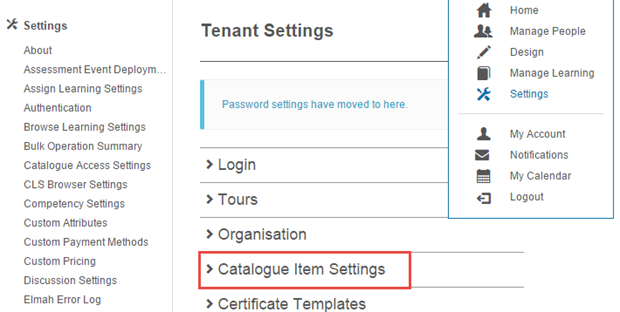
Navigate to Settings > Tenant Settings > Catalogue Item Settings.
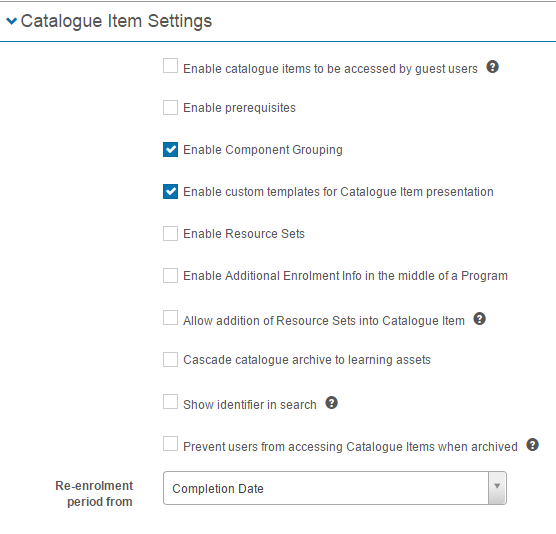
Check Enable custom templates for catalogue item presentation. When this is enabled, the three global program templates appear in the dropdown menu of the catalogue item edit page.
-
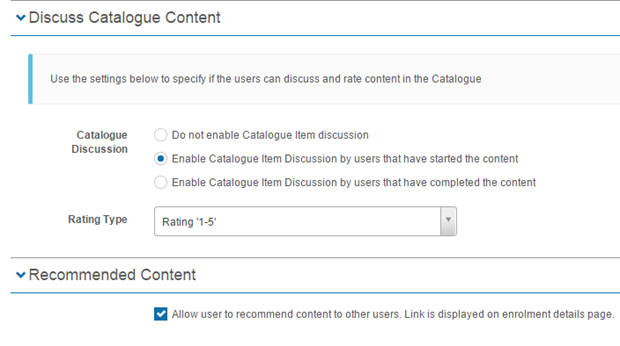
Navigate to Settings > Browse Learning Settings and check:
- Discuss catalogue content — second point: enable catalogue item discussion by users that have started the content.
- Recommended content — allow users to recommend content to other users. The link is displayed on the enrolment details page.
This enables ratings, comments, and the Recommend to a Colleague option on the Singular Asset program template.
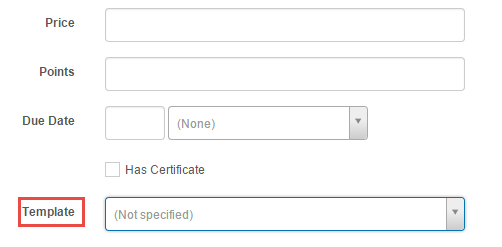
The template selector appears in the catalogue item edit page:
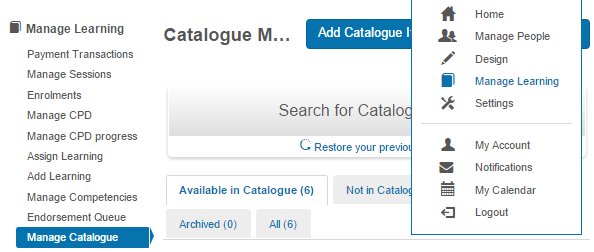
- Navigate to Manage Learning > Manage Catalogue.
- Search for and select the catalogue item.
-
Select Edit Catalogue Item from the Actions dropdown.
The Template field is in the middle of the edit page, selected via a dropdown.
Program template details
Singular Asset
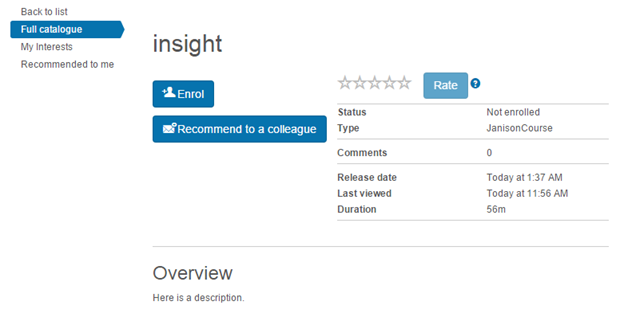
Features include:
- Enrol button.
- Star rating.
- Recommend to a colleague button.
- Comments.
- Overview — only displays if a description has been written.
- Basic information including enrolment status, asset type, release date, last viewed, and duration.
Note
If Singular Asset is chosen but more than one learning asset is in the catalogue item, the page still loads. It only displays the top learning asset — a list of assets isn't produced.
Default Vertical
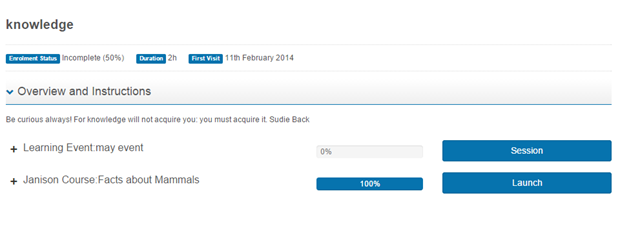
Features displayed:
- Enrol button.
- Enrolment status and duration.
- Overview — only shows if a description has been written.
- Course name.
- Basic information including enrolment status and duration.
- Select the + beside the learning asset for more details, including enrolment status.
Default Vertical (opens in new tab)
As above, but opens the learning asset in a new tab.
Export content templates
Navigate to Design > Templates and select Export Content Templates from the Actions dropdown.
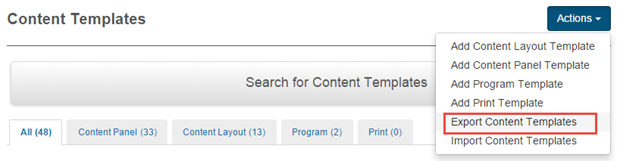
- By default all content templates are checked. Uncheck any you don't wish to export.
- Select the scope dropdown to choose local, global, or all.
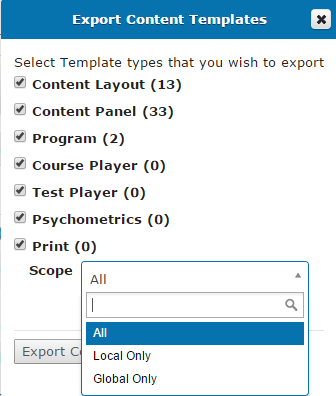
- Select Export Content Templates. The templates are saved to your local machine as a zip file.
Import content templates
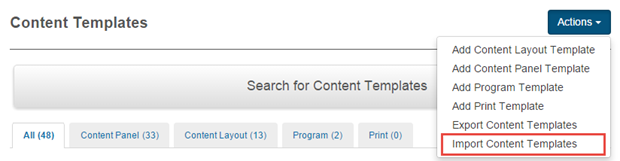
Navigate to Design > Templates and select Import Content Templates from the Actions dropdown.
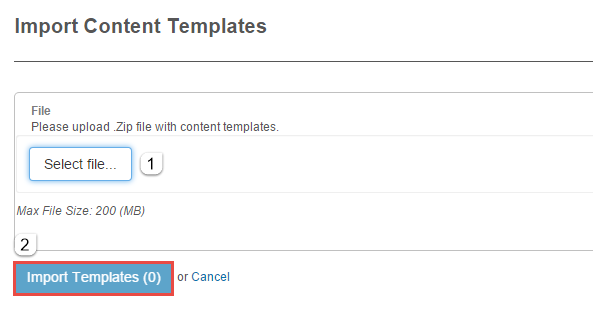
- Select Select file… to load content templates from your local browser.
-
Select Import Templates.
Settings
Administrators can configure the following settings.
Catalogue Item Settings (Settings > Tenant Settings > Catalogue Item Settings) — includes Enable custom templates for catalogue item presentation, which controls whether the legacy program templates are selectable on catalogue items.
Browse Learning Settings (Settings > Browse Learning Settings) — controls ratings, comments, and the Recommend to a Colleague option used by the Singular Asset program template.