Social learning settings
Social Learning Settings let administrators configure aspects of the functionality and UI options for social learning.
User Interests
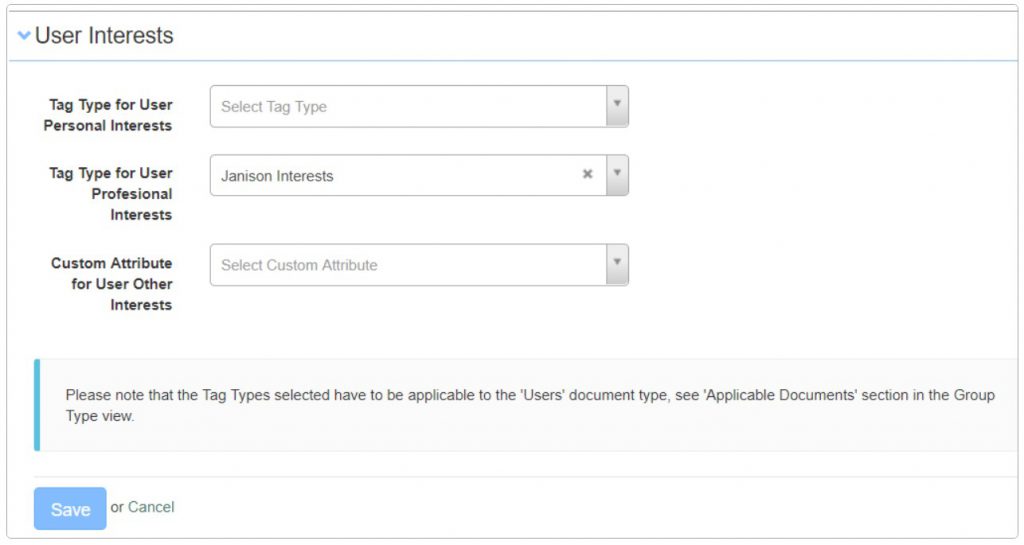
User Interests is where you enable the required tags for Professional and Personal Interests. Your tags and tag types need to be created before configuring this section.
To include Professional Interest tags:
- Navigate to Settings > Social Learning.
- Select the edit pencil next to the User Interests section.
- Select the required Tag Type in Tag Type for User Professional Interests.
- Select Save.
Once configured, learners can select their interests:
- Without the carousel enabled — accessed via the Learn tab.
- With the carousel enabled — accessed via the user profile.
Tags
Tag types entered here appear in the Learn menu under My Interests. This isn't available in carousel mode.
Tag types contain tags that are linked to catalogue items or programs.
To include tag types:
- Navigate to Settings > Social Learning.
- Select the edit pencil next to Tags.
-
Select a Tag Type from the dropdown.
- Enter an alternate name if required.
- Select filterable if required.
-
Repeat to add more than one tag type.
-
Select Save.

Other Settings
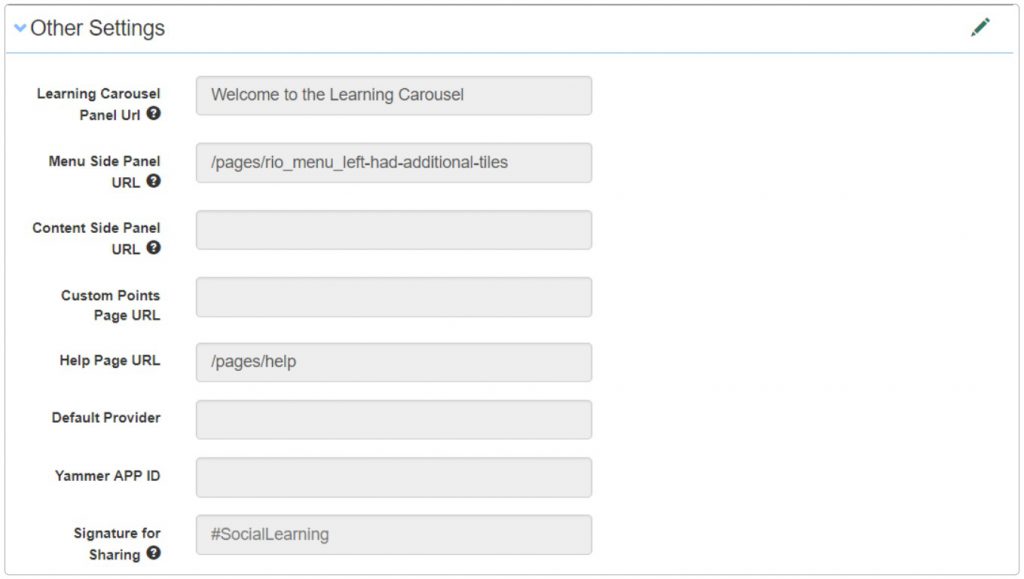
The Other Settings section lets you configure these options:
Learning Carousel Panel URL — text entered here appears at the top of the Learning Carousel page.
Menu Side Panel URL — requires a custom page. When mapped, creates a menu option on the right-hand side of the dashboard. Not available with carousels.
Content Side Panel URL — requires a custom page. When mapped, creates a menu option on the left-hand side of the dashboard. Available with carousels.
Custom Points Page URL — requires a custom page. Used to create a points page tailored to your requirements.
Help Page URL — requires a custom page. When mapped, includes a custom page with your help topics.
Default Provider — appends the value to all catalogue items and programs by default.
Yammer App ID — gives access to the organisation's Yammer.
Signature for Sharing — appends text to the end of a comment that the user can't see but is shown in Yammer.
Tag Type for Learning Item Filter — selects a tag type to include in the Learning Item filter. Only available when not using carousels.
Add and Share Catalogue Item Template — used when learners submit Add and Share content. If not set, notifications and auto-tag aren't supported.
Hide recommending person(s) details — in the Learn tab sections My Interests and Business Recommended, hides the recommending user's avatar next to the catalogue item details button.
Recommend content from recipient user's preferred — when enabled, the recommended content email links to the recipient's preferred sub-domain.
To configure other settings:
- Navigate to Settings > Social Learning Settings.
- Select the edit pencil next to Other Settings.
- Enter values as required. All custom page URLs commence with
/pages/. -
Select Save.
Activity Points Definition
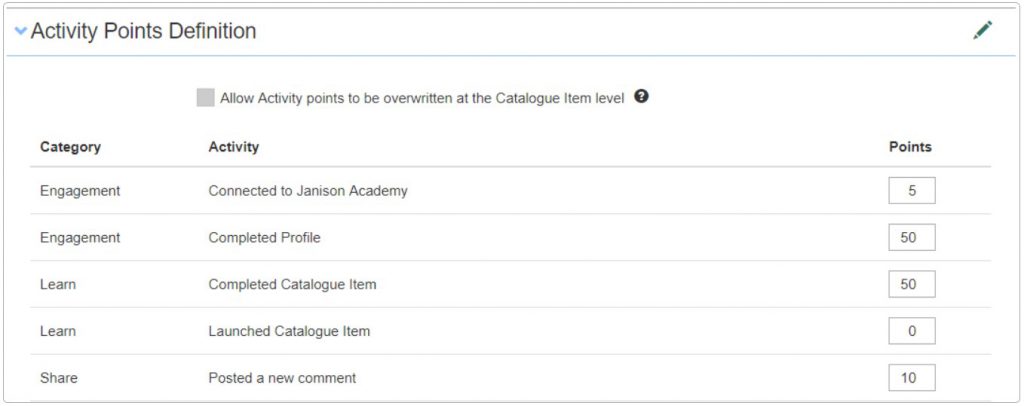
The Activity Points Definition page lets you configure the points allocated to users for performing certain actions (for example, completing content or submitting an Add and Share item).
An option at the top of the form allows points to be overwritten at the catalogue item level.
Note
To change the activity captions, use String Resources.
Default points definition:
| Category | Activity | Points |
|---|---|---|
| Engagement | Connected to the Janison Academy | 5 |
| Engagement | Completed Profile | 50 |
| Learn | Completed a Catalogue Item | 50 |
| Learning | Launched Catalogue Item | 0 |
| Share | Posted a new comment | 10 |
| Share | Liked a comment | 5 |
| Share | Rated a catalogue item | 5 |
| Share | Recommended catalogue item | 10 |
| Share | Shared a catalogue item | 10 |
| Teach | Contributed a catalogue item published via Add and Share | 30 |
| Teach | Has a published catalogue item completed by other learners | 10 |
| Teach | Has their item recommended | 10 |
| Teach | Has their item shared | 10 |
| Teach | Has their item rated | 10 |
To edit the points definition:
- Navigate to Settings > Social Learning.
- Select the edit pencil next to Activity Points Definition.
- Enter point values as required.
-
Select Save.
Challenge Settings
The Challenge Settings page lets you configure the reminder (in days) for the challenge. See Challenges for more on challenges.
Social Learning Comments
The Social Learning Comments section lets you:
- Allow multiple threads in social learning comments.
- Allow notifications in social learning comments.
Settings
This page is itself the Settings documentation for social learning. Administrators configure all options at Settings > Social Learning (or Settings > Social Learning Settings for the Other Settings group).