Self enrolment
Self-enrolment settings control how learners enrol into catalogue items. For example, catalogue items can be set to allow enrolments without restriction, or to require a payment.
Two steps make this feature active:
- Make enrolment methods available in Self Enrolment Settings (one-time setup).
- Set up the enrolment type in the catalogue item.
Navigate to Settings > Self Enrolment Settings.
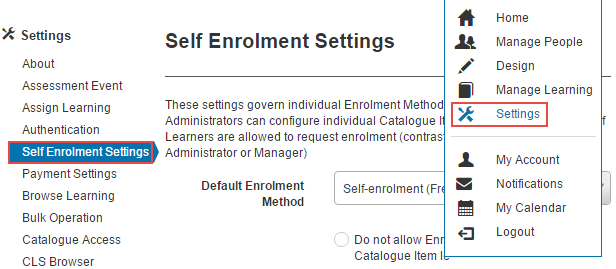
Self enrolment methods
Two options control how enrolments are set at the catalogue item level.
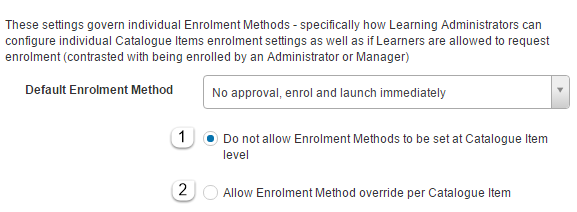
1. Do not allow enrolment methods to be set at catalogue item level
All catalogue items in the system function the same way, depending on the Default Enrolment Method selected. For example, if No approval, enrol and launch immediately is selected, learners aren't required to approve enrolment and are enrolled when they open the catalogue item.
There's no option for administrators to change the method per catalogue item.
2. Allow enrolment method override per catalogue item
If selected, an additional Self Enrolment Settings section becomes available in catalogue items, with an option to select any active enrolment type. The Default Enrolment Method is used when the catalogue item is created. Other options are available in the dropdown.
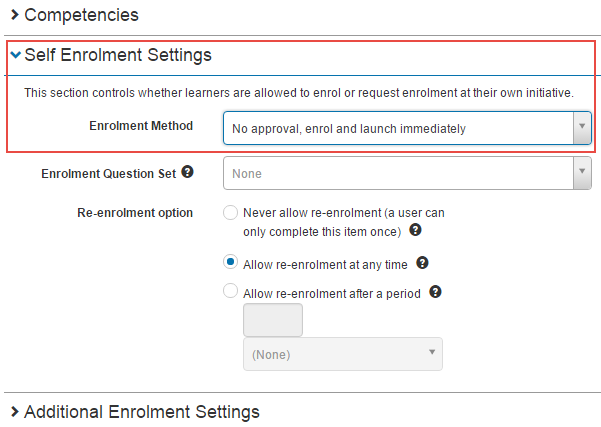
When override is allowed, the enrolment methods become selectable below.
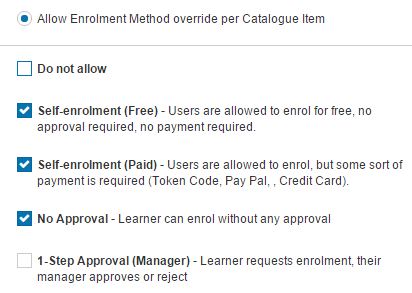
Only the selected options appear in the catalogue item Enrolment Method dropdown.
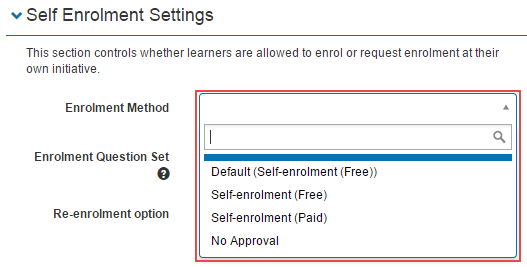
Types of self enrolment
Several enrolment types are available. You may only need a single type for all catalogue items, or different types for different items.
Do not allow
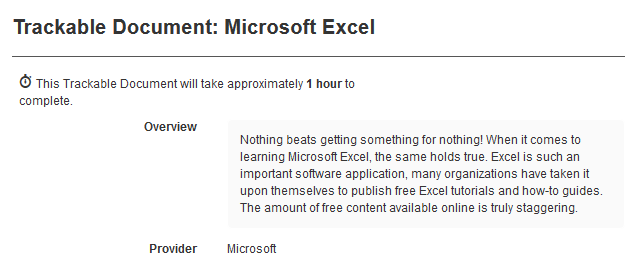
Learners can view the catalogue item details but can't enrol.

Learners see catalogue item information but no Enrol button.
Self-Enrolment (Free)
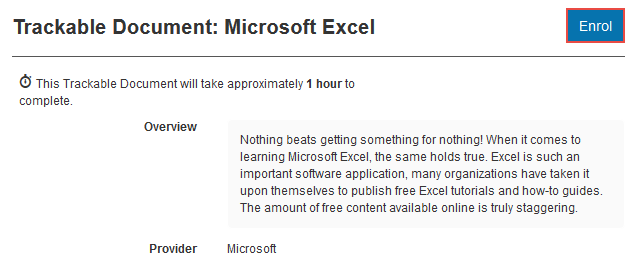
Learners can enrol themselves without approval.

Learners see the catalogue item with an Enrol button.
Self-Enrolment (Paid)
Users can enrol but a payment is required (token code, PayPal, credit card).

Learners are taken through a payment wizard when they select Enrol. See Payment.

No Approval
Learners can enrol without any approval.

This doesn't differ much from Self-Enrolment (Free) — we recommend using Self-Enrolment (Free) when no approval is needed.
1-Step Approval (Manager)
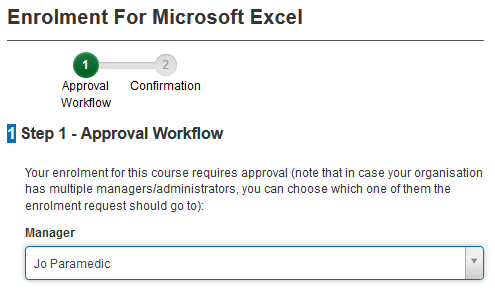
Learners request enrolment; their manager approves or rejects.

Only applicable if Positions are set up on your system.
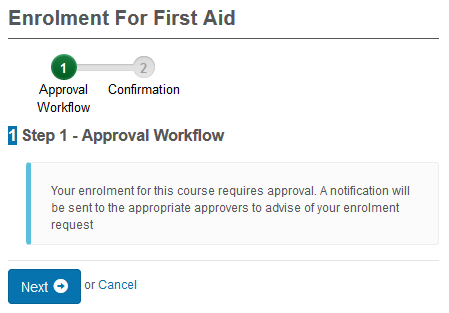
When learners select Enrol, they're taken through an Approval Workflow wizard.
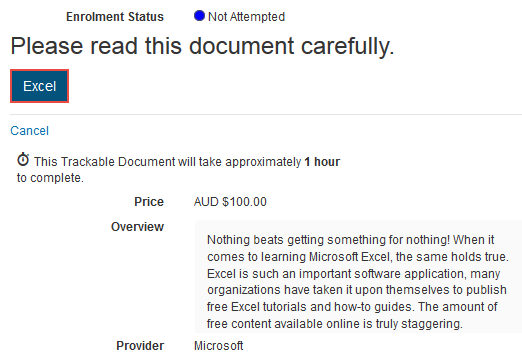
No approval, enrol and launch immediately
Learners are enrolled when they select a catalogue item on the Browse Learning page and are redirected to the enrolment details page.

There's no Enrol button — learners launch the learning from a link.
Approval restrictions
These settings apply to enrolment methods involving approval. They add an extra level of control by preventing users from selecting approvers from the Manager dropdown. They don't restrict the rights of an approver to approve.
Note
These settings can be overridden per catalogue item.
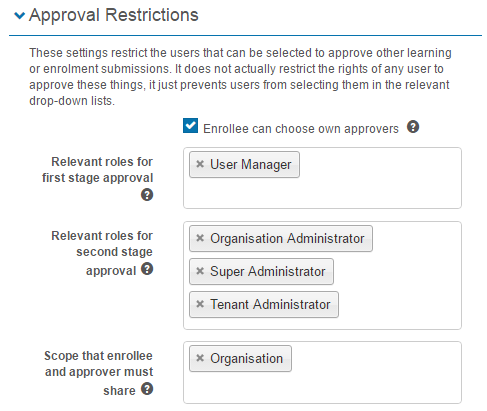
Enrollee can choose own approvers
Controls whether a user can select an approver or whether the system selects one.

If unchecked, learners see feedback that approval is required.
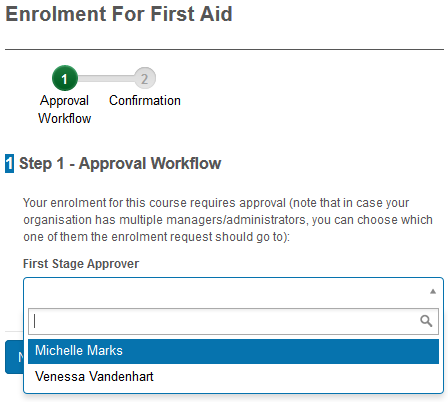
If checked, learners see a dropdown to select an approver (only if they have more than one).
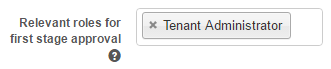
Relevant roles for first stage approval
Users with these roles, with scope over the applicant, are available as first-stage approvers. For example, adding Tenant Administrator lets tenant admins appear in the dropdown.
Relevant roles for second stage approval
Same as above but for the second stage.

Scope that enrollee and approver must share
Limits the scope an enrollee and approver must share for the approver to appear in the dropdown or receive notifications. For example, restricting to the same organisation.

Settings
This page is itself the Settings documentation for self enrolment. All options are configured at Settings > Self Enrolment Settings.
Related settings:
Payment Settings (Settings > Payment Settings) — required for the Self-Enrolment (Paid) method.
Positions (Settings > Positions) — required for the 1-Step Approval (Manager) method.