Surveys
Academy surveys are used to gather feedback from learners in the CLS. They can be added in two ways:
- Learning module surveys — simple surveys with limited question types added directly to a course. Best for feedback on individual courses.
- Assessment module surveys (Survey Player) — advanced surveys with sections, a wide range of question types, and reporting. Added directly to a catalogue item so they can be opened independently of a Janison course.
See Learning Modules and Assessment Modules for the difference between the two module types.
Part 1 — learning module surveys
Learning module surveys are created by selecting a learning module during the survey creation process.
Step 1 — create a survey
- Go to Author > Tests and Surveys.
- From Actions, select Add Survey.
-
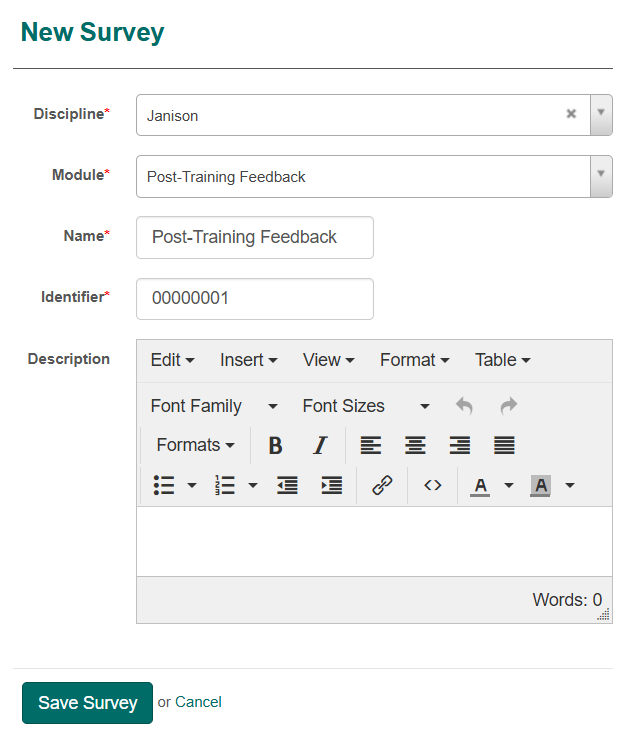
Complete the form:
- Discipline — select from list.
- Module — select a learning module.
- Name / Identifier — enter survey details.
- Optionally enter a Description.
- Select Save Survey.
Important
Learning module surveys don't support multiple sections — only assessment modules do.
Step 2 — add questions
Learning module surveys only support Multiple Choice, Multiple Choices, and Short Answer question types.
You can create new questions or add existing ones.
Option A — create new questions:
-
Choose either route:
- From the left nav: select Questions > Actions > Add Survey Question.
- From the Questions expandable in the survey: select the + icon.
-
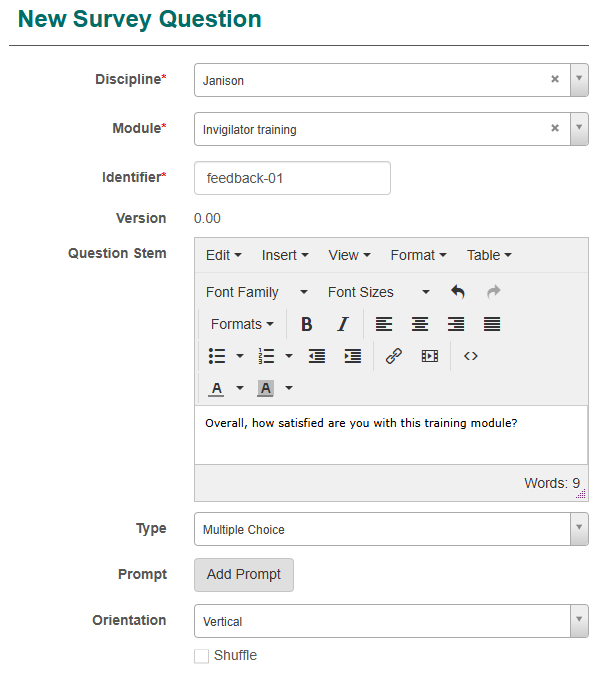
Complete the form:
- Identifier — unique ID (e.g.
LM_Survey_Q1). - Question Stem — the text.
- Type — Multiple Choice/Choices or Short Answer.
- Identifier — unique ID (e.g.
-
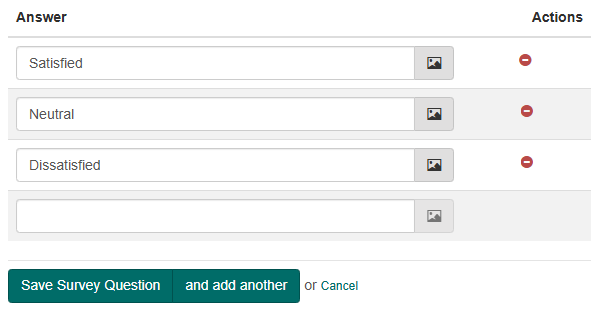
Select Save Survey Question or and add another.
Example of a multiple choice question:
Option B — add existing questions:
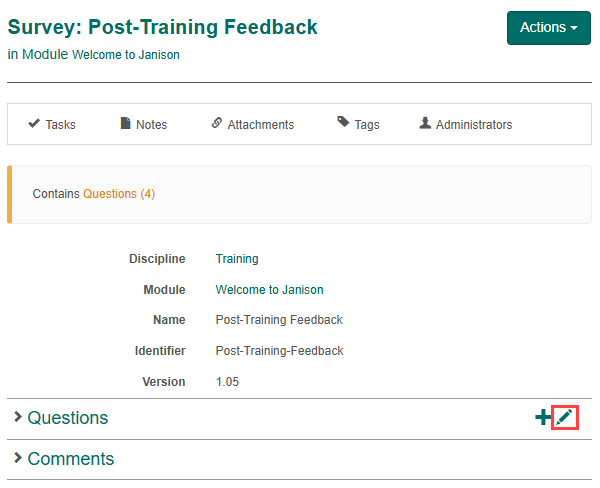
- Open the survey.
- In the Questions expandable, select the pencil icon.
- Search for and select previously created questions.
-
Select Save to link them.
Step 3 — add the survey to a learning module
See Learning Modules for detailed steps on adding panels to a page.
- Go to Author > Modules.
- Search for and select the module.
- Select Contains (0) pages to open edit mode.
-
Create a new page:
- Enter a panel title.
- Select Survey Quiz from the content template list.
- Select the survey from the Test dropdown.
-
Select Save.
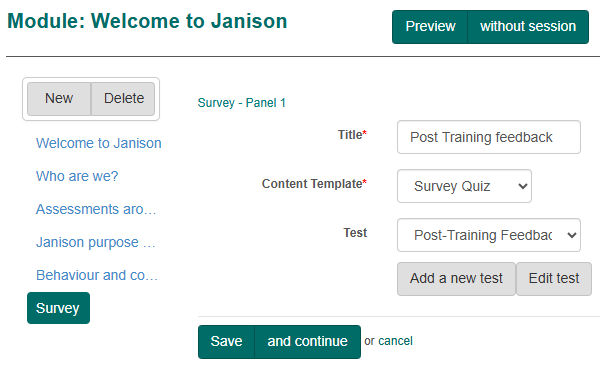
Use Edit or Unlink if needed.
Note
Learning module surveys must be linked to a course and then a catalogue item for learners to access them.
Part 2 — assessment module surveys (Survey Player)
Assessment module surveys are created by selecting an assessment module during the survey creation process.
Step 1 — create a survey
- Go to Design > Tests and Surveys.
- From Actions, select Add Survey.
-
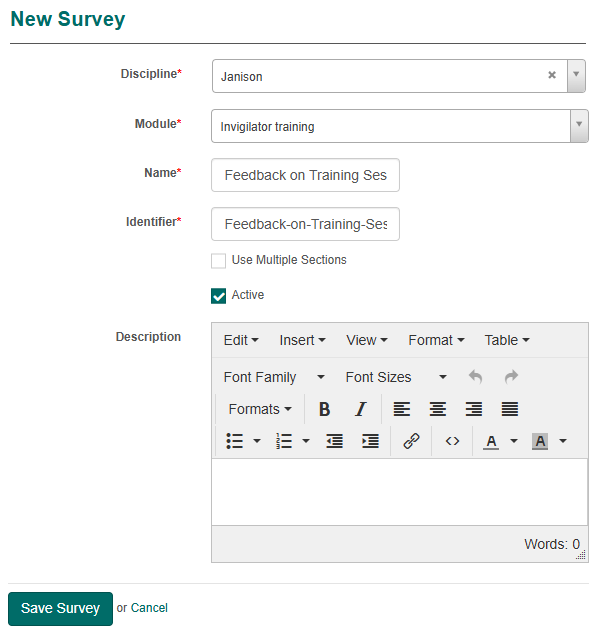
Complete the form:
- Discipline — select from list.
- Module — choose the assessment module.
- Name / Identifier — enter survey details.
- Use Multiple Sections — leave unchecked for single-section, check to allow multiple.
- Optionally enter a Description.
-
Select Save Survey.
Step 2 — add sections (for multi-section surveys)
Sections group related questions. To enable, check Use Multiple Sections when creating.
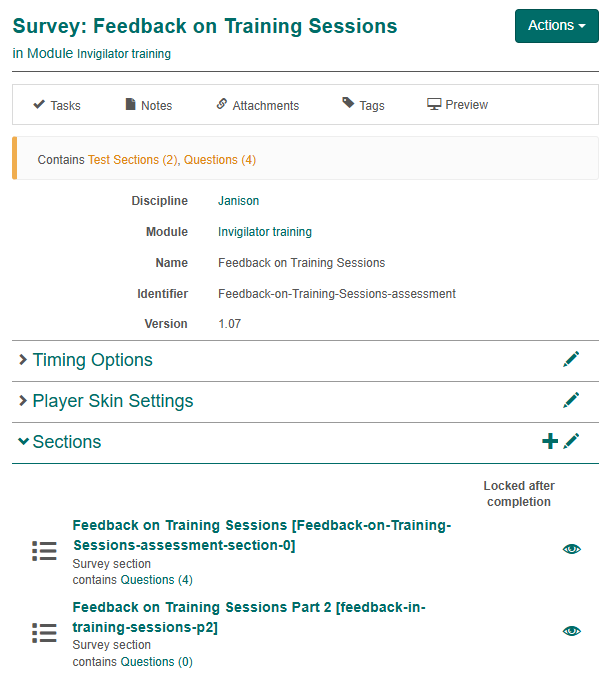
- Open the survey.
- Under Sections, select +.
-
Complete the form:
- Name — section name.
- Identifier — unique ID.
- Optionally add a description or thumbnail.
- Cannot Skip — makes the section mandatory.
-
Save the section. Repeat to add more.
Step 3 — add questions
Assessment surveys support a wide range of question types. First open the section, then create new questions or add existing ones.
Option A — create new questions:
-
Either:
- From the left nav: Questions > Actions > Add Survey Question.
- From inside the section: in the Questions expandable, select the + icon.
-
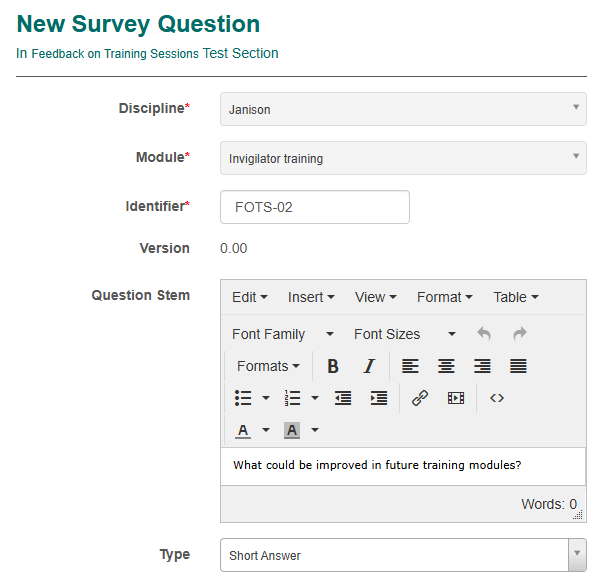
Complete the form:
- Identifier — unique ID.
- Question Stem — the text.
- Type — choose from the full range of survey question types.
- Select Save Survey Question.
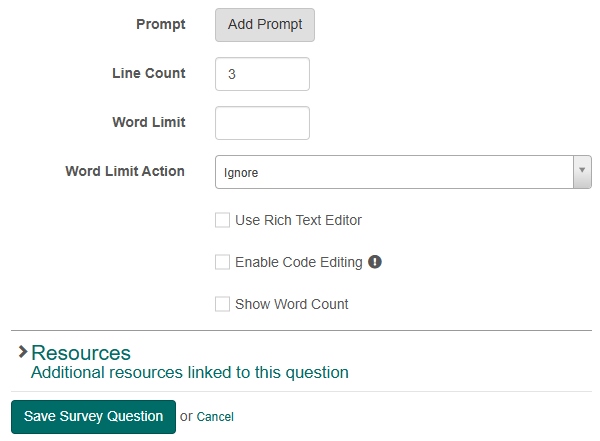
Example short answer:
Option B — add existing questions:
- Open the survey and go into the section.
- In the Questions expandable, select the pencil icon.
- Search for and select previously created questions.
- Select Save.
Note
Assessment module surveys must be linked to a catalogue item for learners to access them.
Settings
Several platform settings affect surveys.
Administrators can configure the following settings:
Test Designer Settings (Settings > Test Designer Settings) — control which authoring features and question types are available.
Catalogue Item Settings — affect how surveys are presented when linked to catalogue items.