Add & Share
Add & Share provides learners with an interface to submit course material they'd like to include in the library for other learners to access. A submission creates a catalogue item and generates an email to administrators who review and approve or decline it. Learners earn points for approved submissions.
Add & Share settings
In the settings area, options are available for linking templates to catalogue items and changing the points earned for various actions.
Link a catalogue item template
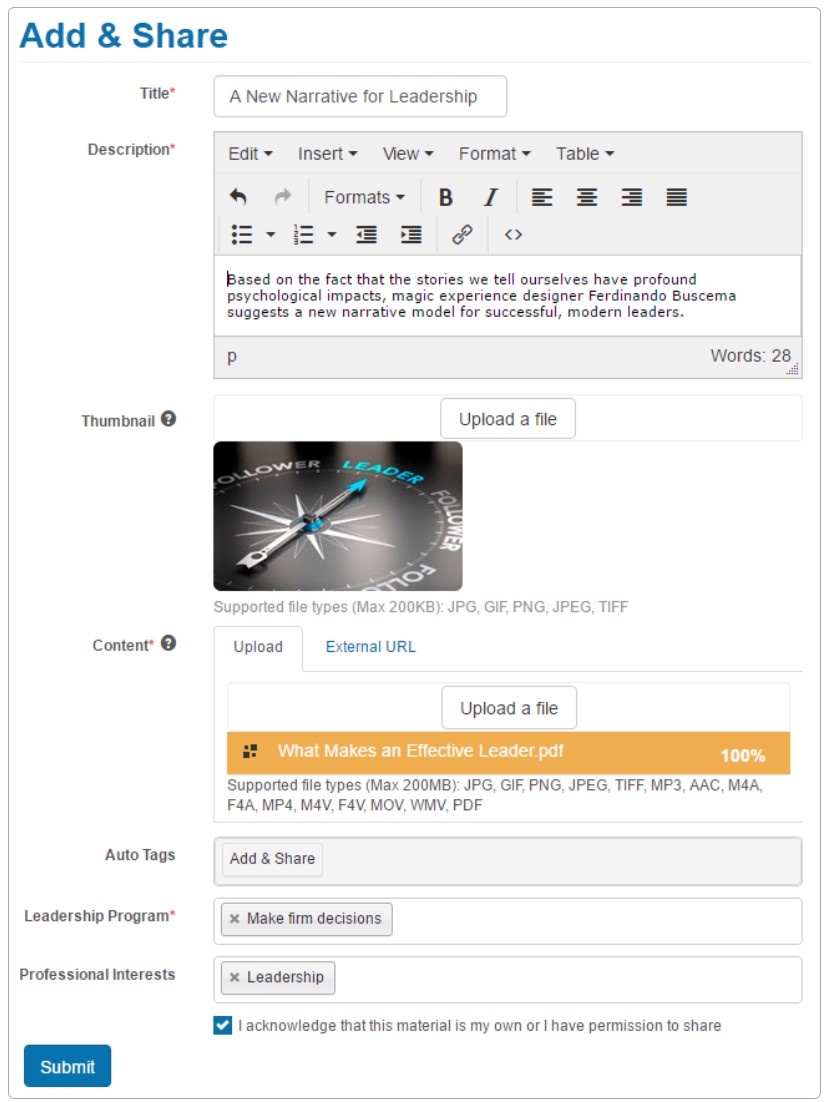
The catalogue item template linked in the settings area is used in the background when learners create content. Setting a catalogue item template is recommended — otherwise notifications and tagging aren't supported. See Catalogue Item Templates for more.
Navigate to Settings > Social Learning.
- Select the edit pencil icon.
-
Select an Add and Share Catalogue Item Template.
Defining activity points
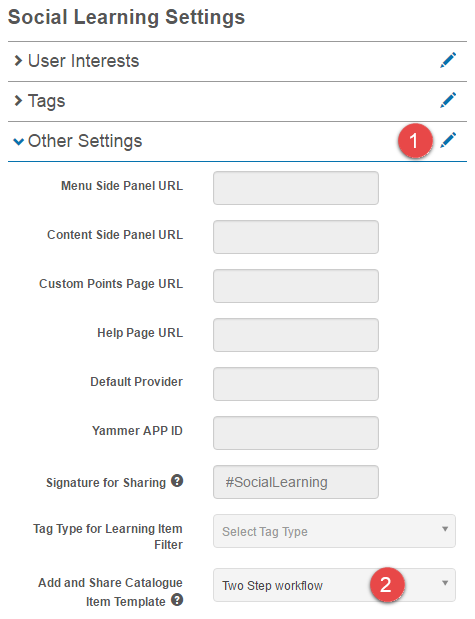
When learners add content, they're awarded points. They also earn points when:
- Other learners complete their content.
- A comment is liked.
- The content is recommended.
- The content is shared.
- The content is rated.
Points are assigned by default but administrators can change the values.
- Still in Social Learning settings, select the edit pencil on Activity Points Definition.
-
Make changes to the Points for the required Teach items.
Configure catalogue item template for tags
You can set how content is tagged on creation. See Catalogue Item Templates for more.
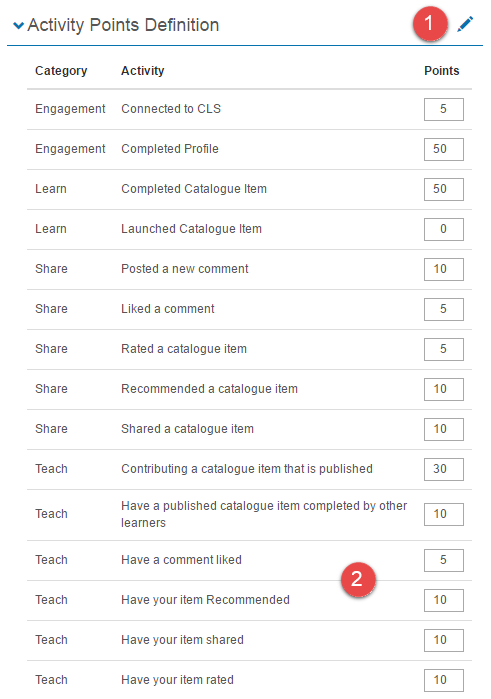
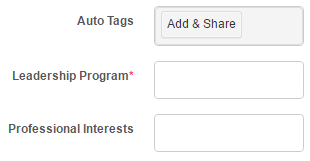
Auto-tag — on creation, new add & share items are automatically tagged with the tags added to this field.
Limit tags — limits the tags that can be associated with an add & share item. Selecting this activates the two fields below.
Allowable Tag Types — the tag types added here limit the tags available for selection in add & share items.
Mandatory Tag Types — at least one tag from each tag type added here is required.
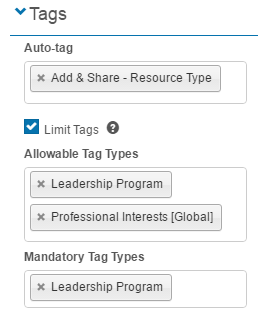
Tags set this way appear as fields on the new add & share item:
User experience
The Add & Share UI is designed so learners can populate the form without instructions. Tooltips are available by hovering over the info icons.
Steps to submit an Add & Share item
- Select Add & Share.
- Complete the form details.
- Select Save.
The Add & Share form explained
| Field | Description |
|---|---|
| Introduction text | Can be changed via String Resources. First paragraph: search for Janison.SocialLearning/UiElements.AddAndShareShareInformation. Second paragraph: search for Janison.SocialLearning/UiElements.AddAndShareShareItHere. |
| Title | Appears in the catalogue item. Mandatory. |
| Description | Appears in the catalogue. Mandatory. |
| Thumbnail | An image linked to the catalogue item. File size limit 200 KB. Supported types: JPG, GIF, PNG, TIFF. |
| Content | Supports uploads (JPG, GIF, JPEG, TIFF, MP3, AAC, M4A, M4V, F4V, MOV, WMV, PDF) and links to external websites and URLs. |
| Auto Tags | A system setting configured in Settings. Not editable by the user. |
| Professional Interests | Select one or more Professional Interest tags. Mandatory. |
| Acknowledgement | Mandatory checkbox acknowledging the user has permission to share the content. |
| Submit | Submits the content for approval. Submitted content is in a Pending state. |
Administrator approval
When a learner submits content, the item is placed in the Pending Approval filter of the catalogue manager. Administrators receive an email notification.
Navigate to Manage Learning > Manage Catalogue.
- Select Pending Approval.
-
Select the Catalogue Name.
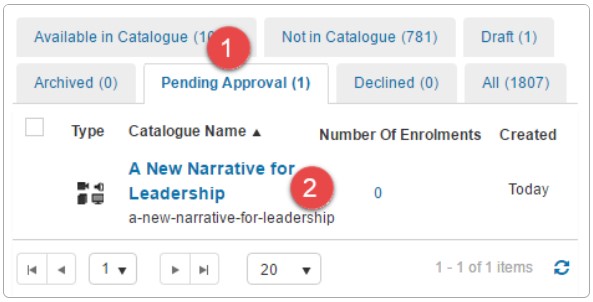
The catalogue item details screen is displayed.
- Select Change from the Status dropdown. The options depend on the workflow set on your catalogue item template — see Catalogue item workflows.
-
Select the required option. Hover over the info icon for details.
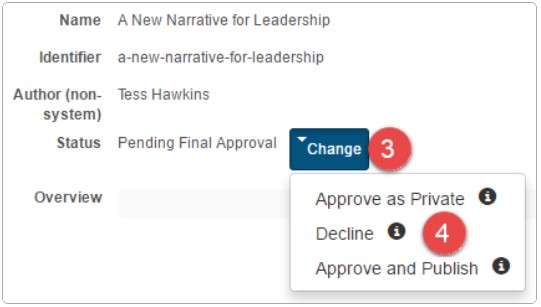
A popup is displayed.
- Enter a comment (optional).
-
Select Yes.
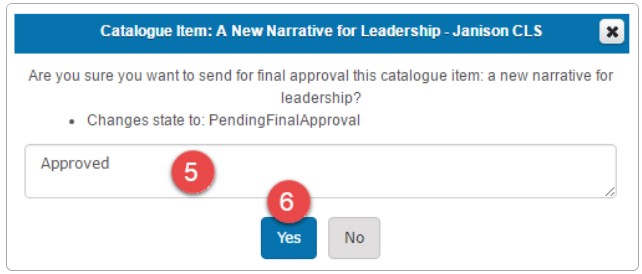
The learner who submitted the content receives a notification email. The approved catalogue item appears on the Learn dashboard for users to access.
Settings
Administrators can configure the following settings at Settings > Social Learning (and Settings > Social Learning Settings for the Other Settings group).
Add and Share Catalogue Item Template — sets which template is used in the background when learners create content. Without this, notifications and auto-tag aren't supported.
Activity Points Definition — controls points awarded for Teach activities (submitting, having content completed/recommended/shared/rated).
Catalogue item template — Auto-tag, Limit tags, Allowable Tag Types, Mandatory Tag Types — control how add & share items are tagged on creation. See Catalogue Item Templates.