Subscriptions
Subscriptions let you bundle catalogue items together at a discounted rate. Users enrol in a subscription to receive discounts on tagged catalogue items.
Like all learning assets, a subscription needs to be added to a catalogue item for users to access it. See Manage Catalogue for more.
Initial settings
Browse Learning
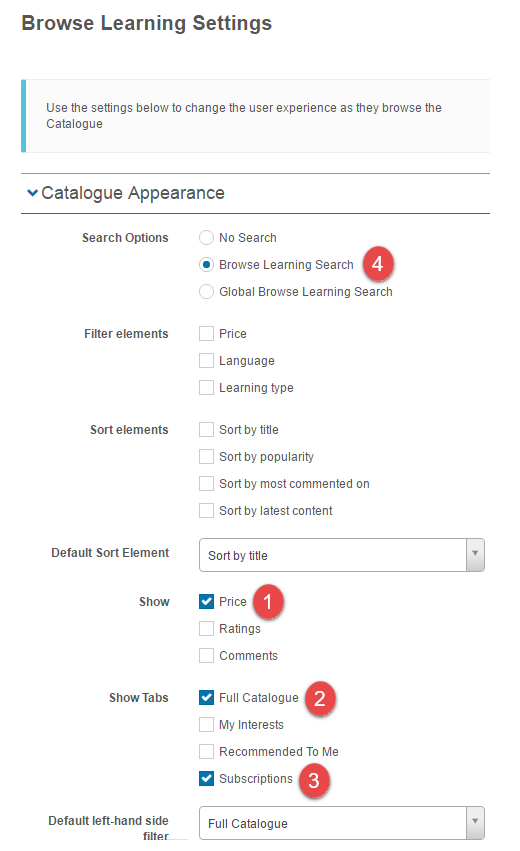
Browse to Settings > Browse Learning Settings. Select:
- Price.
- Full Catalogue.
- Subscriptions.
-
Recommended — Browse Learning Search.
-
Select Save Settings.
Self-enrolment
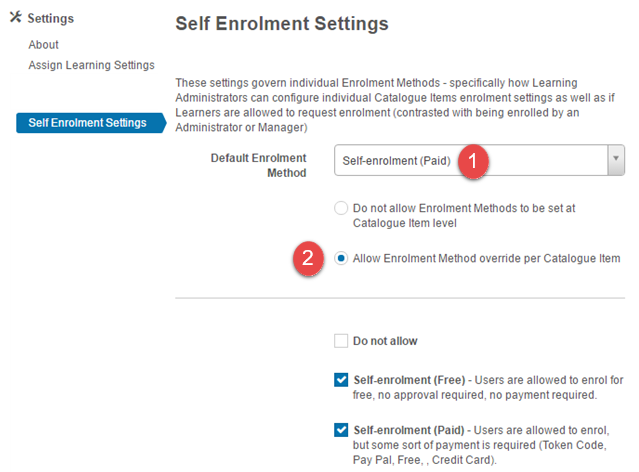
Browse to Settings > Self-enrolment Settings.
- Select Self-enrolment (Paid) for the Default Enrolment Method.
-
Optionally select Allow Enrolment Method override per Catalogue Item and specify the options relevant to your organisation.
Payment settings
Enable a payment gateway for users to pay for learning. See the document on payment settings for more.
Enable Tag Type
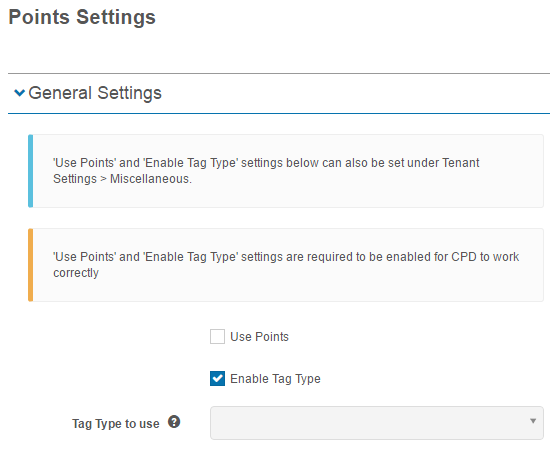
Browse to Settings > Points Settings. Check Enable Tag Type.
Create tags
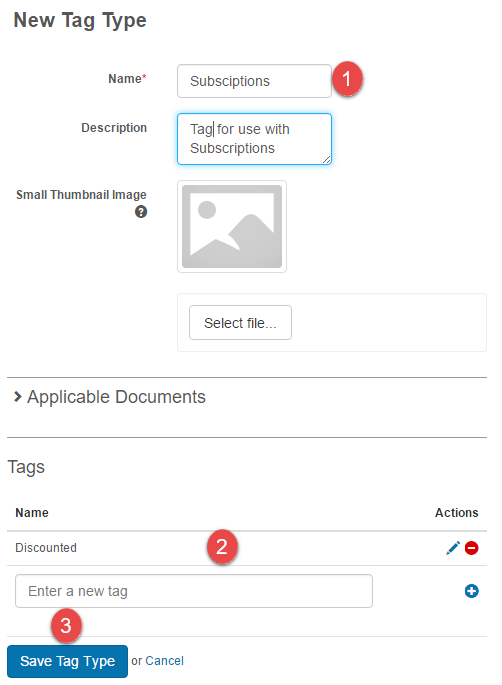
Browse to Design > Manage Tags > Manage Tag Types > Add Tag Type.

- Enter a Name and Description.
- Add the tags required for your subscriptions. At a minimum you only need one tag to apply a range of discounts. Examples: Discounted, 10%, 20%, 50%, or Bronze, Silver, Gold, Platinum.
-
Select Save Tag Type.
Create a subscription
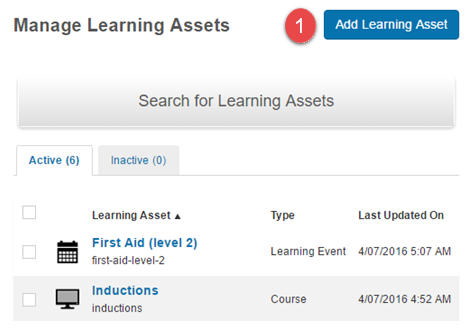
Browse to Manage Learning > Manage Learning Assets.
-
Select Add Learning Asset.
-
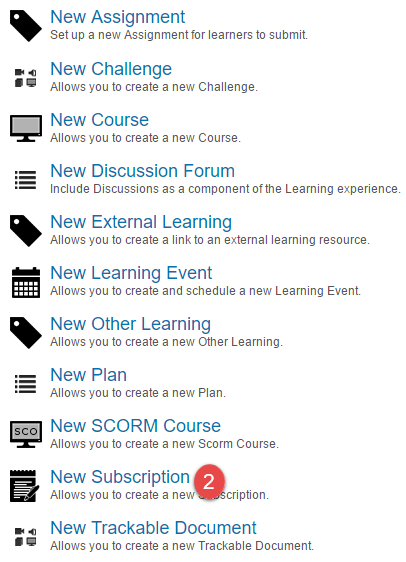
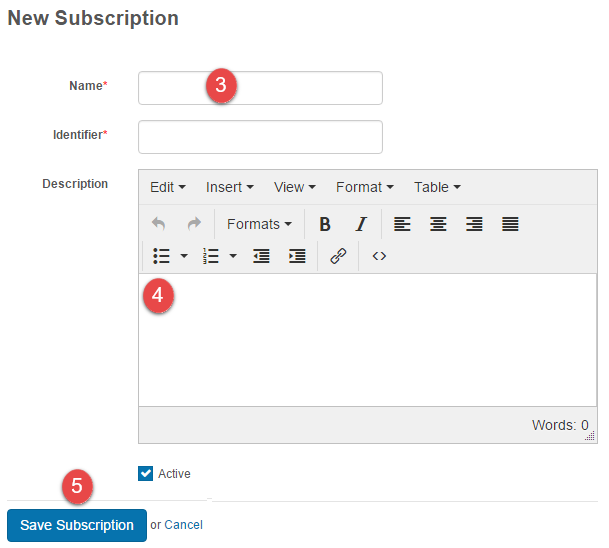
Select New Subscription.
-
Enter a Name.
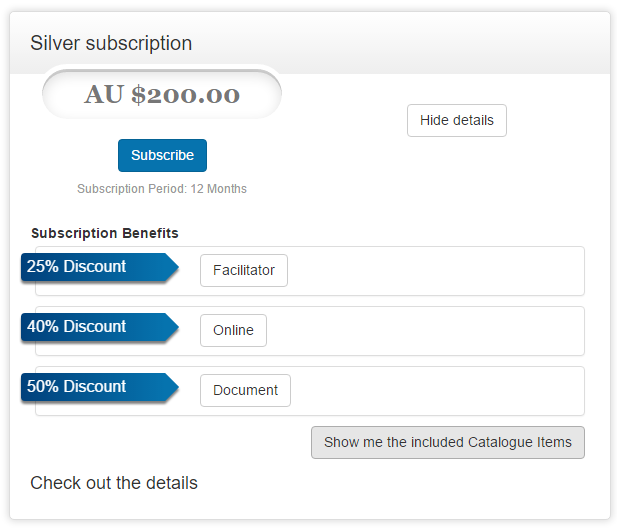
- Enter a Description. The description appears on the subscription tile under Check out the details.
-
Select Save Subscription.
Benefits
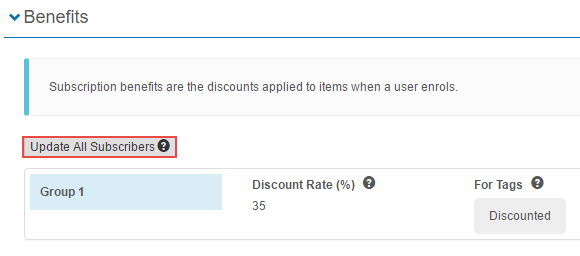
Benefits are the discounts applied to catalogue items when a user enrols.
-
Select the edit icon on the Benefits section.

-
Optionally select to apply the benefits to sessions of a learning event.
- Enter the required Discount Rate.
- Select the required For Tags (using Discounted in this example).
-
Select Save.
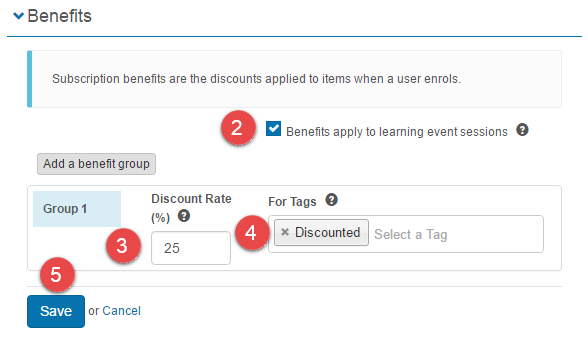
You can add several benefit groups, each with a different discount rate. The catalogue items tagged with the corresponding tags have the relevant discounts applied.
Note
You can have positive or negative benefits but not both in one subscription. You can create multiple subscriptions and apply both a negative and a positive subscription to the same catalogue item. Negative subscriptions aren't seen by the end user — they just affect the price displayed.
Subscription period
-
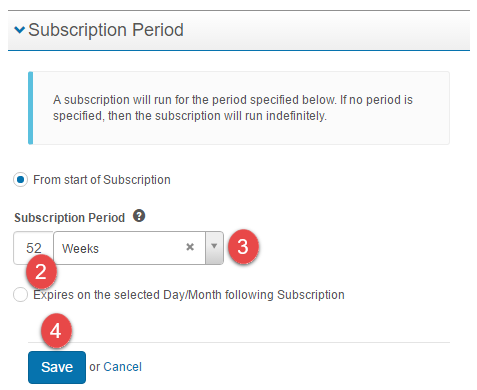
Select the edit icon on the Subscription Period section.

Note
If no subscription period is specified, the subscription runs indefinitely.
To set a subscription to run for a fixed amount of time:
- Enter the required period number.
- Select the period unit — Days, Weeks, or Months.
-
Select Save.
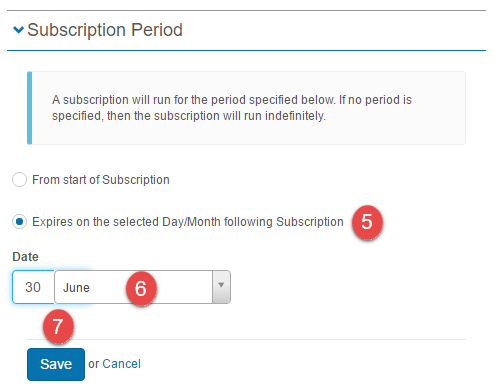
To set a subscription that ends on a specified date:
- Select Expires on the selected Day/Month following Subscription.
- Enter the Date.
-
Select Save.
Add to catalogue
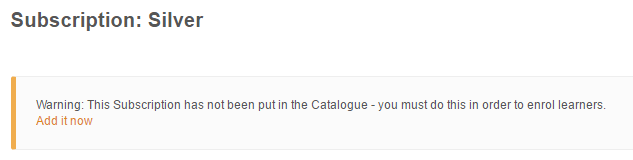
Add the subscription to a catalogue item. The easiest way is to select Add it now at the top of the subscription.
Tag catalogue items
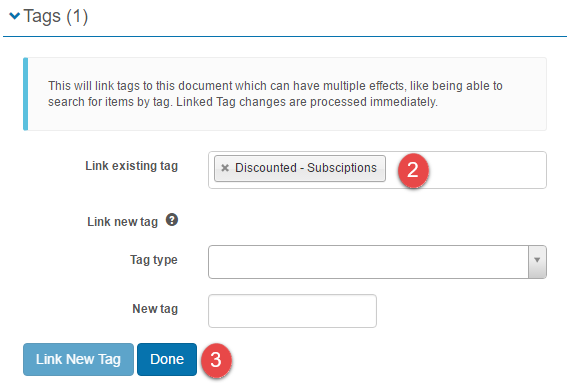
For catalogue items to be included in a subscription, they need to be tagged with the tags listed in the Benefits section.
-
Select the edit icon on the Tags section of the catalogue item.

-
Select the appropriate tag created earlier.
-
Select Done.
Important
Make sure the catalogue item has:
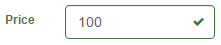
- A Price
- Enrolment Method set to Self-enrolment (Paid)
- A payment method set


User experience
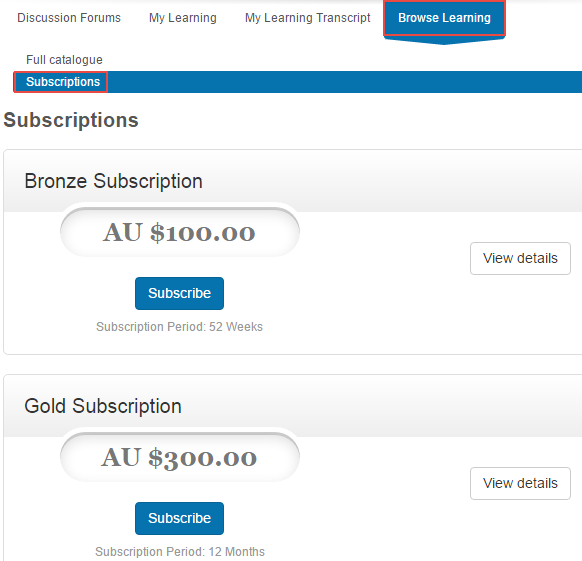
Users can view available subscriptions by selecting Browse Learning > Subscriptions.
Select the details icon to view subscription details.
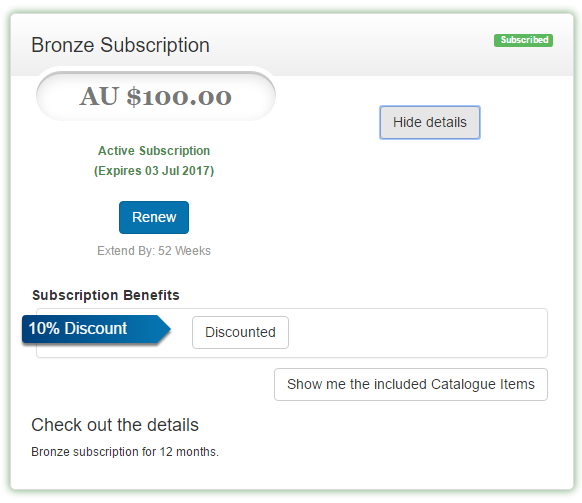
Select the list icon to view the catalogue items included in the subscription.
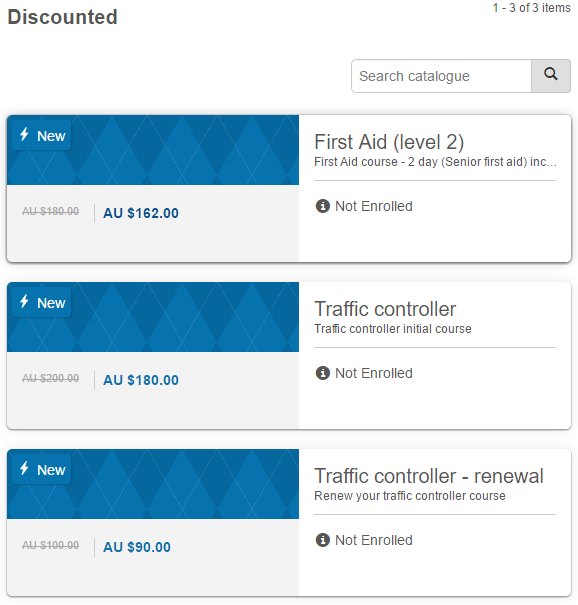
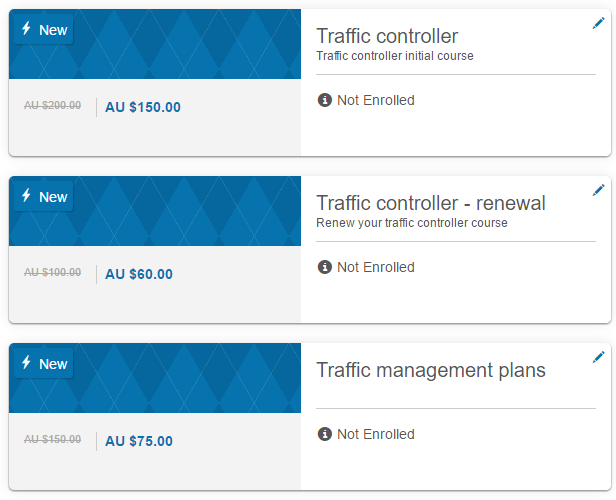
The original and discounted prices are displayed.
Updating benefits
Once users are enrolled in a subscription, if you change the subscription a popup is displayed with an option to update existing subscribers to the new benefit.
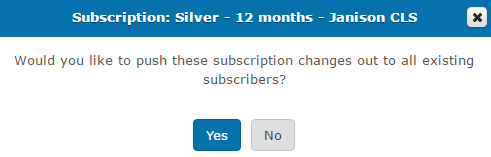
If you select No, a button to update all subscribers becomes available to push the changes to existing subscribers at any time.
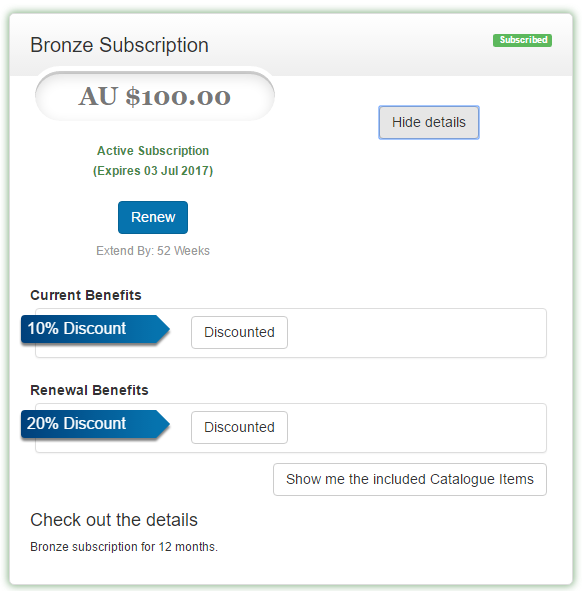
If you don't update all subscribers, different subscribers may end up on different versions of the same subscription. When a subscriber re-enrols, their renewal benefits may be different — this is displayed to the user during enrolment.
Alternate configuration example
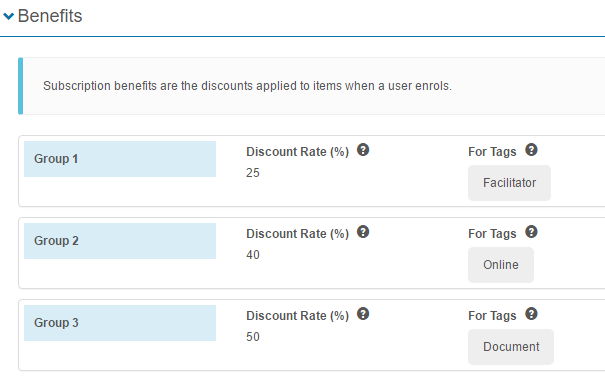
Three tags were created in the subscription tag type and applied to different courses:
| Tag | Course |
|---|---|
| Facilitator | Traffic controller |
| Online | Traffic controller — renewal |
| Document | Traffic management plans |
A Silver subscription was set up with the following rates.
A user viewing the subscription:
A user viewing the catalogue:
Settings
Several platform settings affect subscriptions.
Administrators can configure the following settings:
Browse Learning Settings (Settings > Browse Learning Settings) — enable Price, Full Catalogue, and Subscriptions to make subscriptions visible to learners.
Self-enrolment Settings (Settings > Self-enrolment Settings) — set the default enrolment method to Self-enrolment (Paid).
Points Settings (Settings > Points Settings) — enable Enable Tag Type to allow tag types to be used by the subscriptions benefit-discount logic.
Payment Settings (Settings > Payment Settings) — configure a payment gateway so users can pay.