Assignments
An assignment is a learning asset used to allocate work to learners. Assignments include functionality for learners to make submissions in the form of discussions and attachments. Markers and learners can interact by sending submissions back and forth for review and marking.
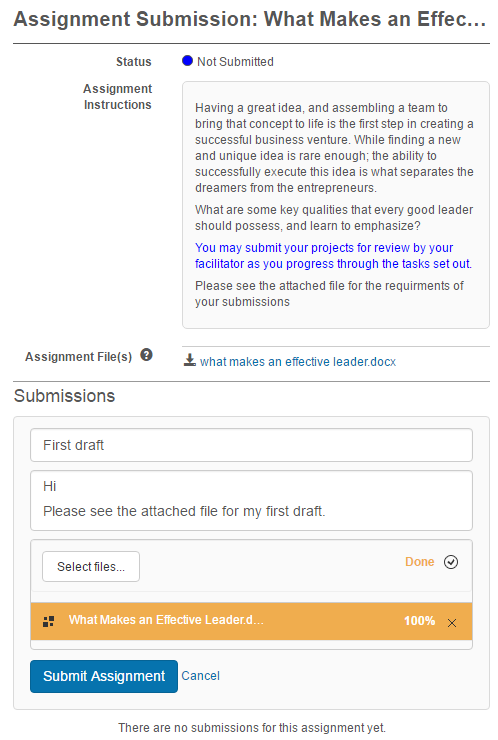
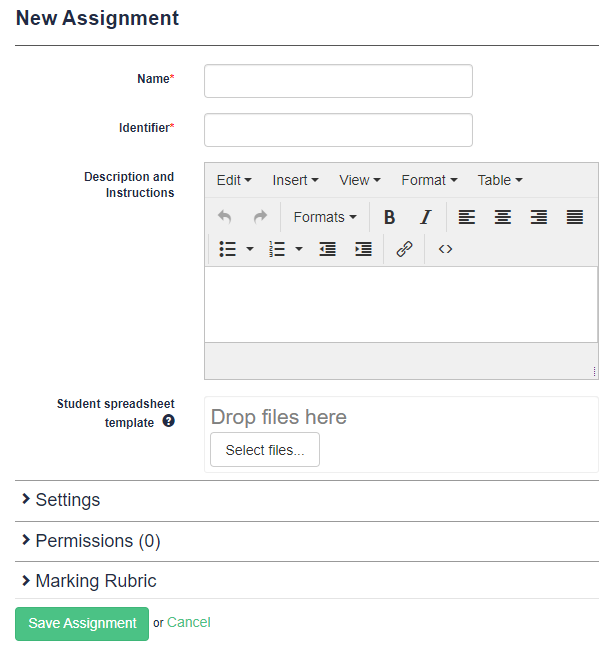
Add an assignment
- Browse to Manage Learning > Manage Learning Assets.
- Select Add Learning Asset.
- Select New Assignment.
-
Complete the form:
- Enter a Name. The identifier auto-populates.
- Enter a Description and Instructions.
- Optionally add Assignment files with additional instructions.
-
Complete the Settings, Permissions, Marking Rubric, and Competencies sections (below).
-
Select Save Assignment.
Note
The assignment learning asset must be linked to a catalogue item for users to access and complete it.
Settings section
The Settings section provides options to limit posts, attachments, submissions, and the release of assignment marks.
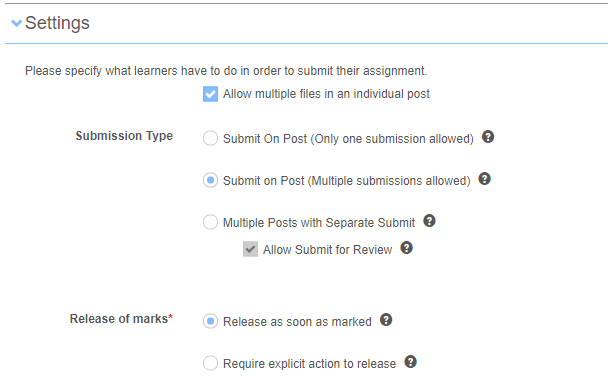
| Option | Description |
|---|---|
| Allow multiple files in an individual post | When enabled, a user can upload multiple files in a single assignment submission. |
| Submit on post (only one submission allowed) | Only one submission is allowed. When submitted, it's automatically included in the marking queue. |
| Submit on post (multiple submissions allowed) | Multiple submissions allowed. The assignment is automatically included in the marking queue after the first submission, but the user can continue making updates. |
| Multiple posts with separate submit | Multiple submissions allowed until submitted. Users must manually select a separate Submit button to include it in the marking queue. Once submitted, no further updates are allowed. |
| Allow submit for review | Assignments submitted for review appear in a review queue for markers to acknowledge. |
| Release as soon as marked | Marks are released to a user as soon as a submission is marked. |
| Require specific action to release | Marks aren't released until explicitly released by an administrator in the Assignment Submission management area. |
Permissions section
The Permissions section lets you include a marker or markers for the assignment.
- Expand the Permissions section.
- Select a user from the User dropdown.
- Select Marker from the Role dropdown.
-
Select Add.

Note
The securable area of the marker role may require configuration to provide access to the assignment submission queue. Contact your Janison account manager or support team for assistance.
Marking Rubric section
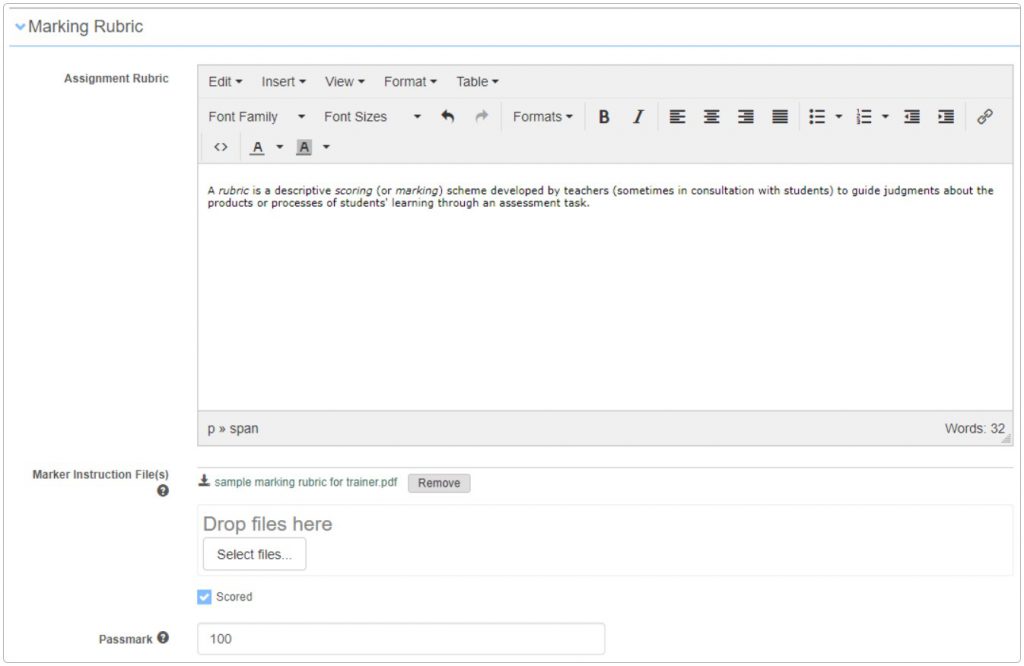
The Marking Rubric is optional. It provides space to add instructions on the marking criteria for the assignment, visible only to markers.
Three areas in the rubric section:
- Marking Rubric text box for entering information.
- Marker Instruction File(s) for uploading detailed instructions.
-
Scored option for entering a numerical passmark between 0 and 10.
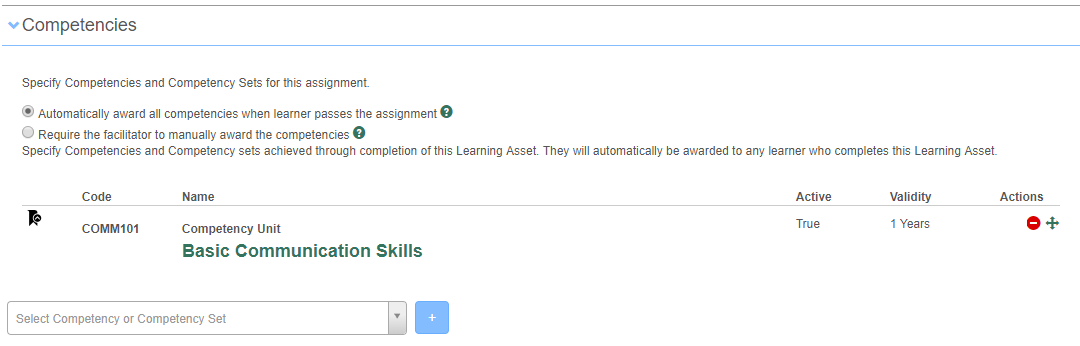
Competencies section
Competencies can optionally be added to assignments. They must be created separately — see Competencies.
Two options:
- Automatically award all competencies when learner passes the assignment
-
Require the facilitator (marker) to manually award the competencies
Note
The Competencies plugin must be enabled to use this feature. Contact your Janison account manager or support team.
Settings
Several platform settings affect assignments.
Administrators can configure the following settings:
Roles (Settings > Roles) — configure the securable area of the Marker role to give markers access to the assignment submission queue.
Competencies plugin — must be enabled to link competencies to assignments. Contact Janison.