Catalogue item scoping
Catalogue Item Scoping lets you restrict who can access a catalogue item in the library and in the Catalogue Manager. It supplements catalogue access rules (which restrict learners) by adding the ability to restrict authors.
Note
The user who created the catalogue item always has author and learner access. This can't be removed.
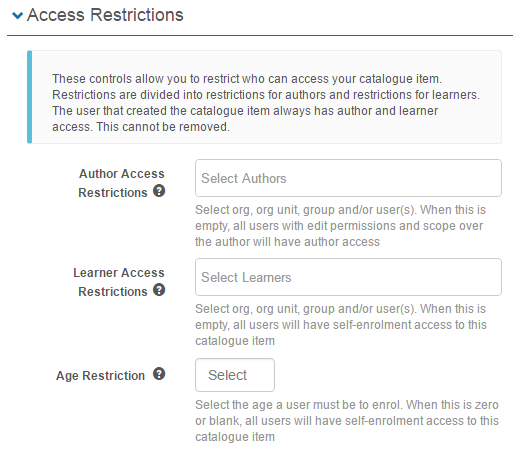
Restrictions can be based on the membership of an organisation, organisation unit, group, or user.
Three types of restriction are available:
Author access restrictions
Author restrictions limit who can:
- Access create forms, edit forms, and details in the Catalogue Manager
- Assign learning in the catalogue item
- Include the catalogue item in a user enrolment rule
- Access the catalogue item in customisable reports
Learner access restrictions
Learner restrictions limit who can self-enrol in catalogue items. They don't limit administrators with author access from assigning enrolment to a user.
Age restriction
Age restrictions are calculated based on the enrolling user's date of birth. If there's no date of birth on the user's record, they're assumed too young and enrolment is denied.
Settings
Two settings need to be active before you can use Catalogue Item Scoping:
- Activate Catalogue Item Scoping
- Make visible in Catalogue Item Templates
Activate Catalogue Item Scoping
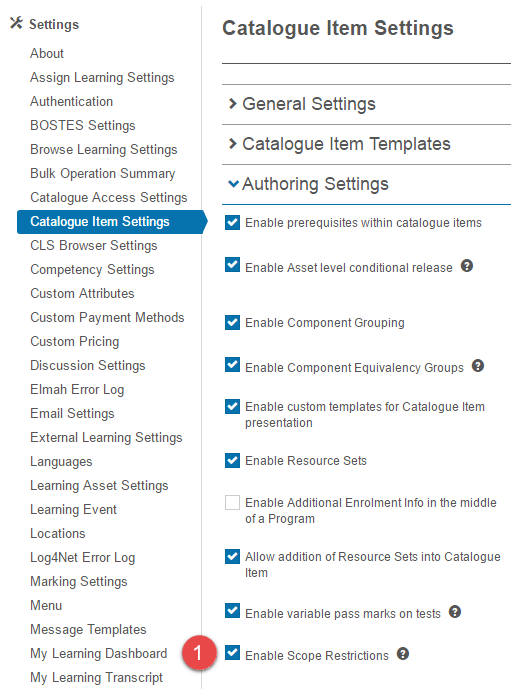
Browse to Settings > Catalogue Item Settings.
- Select Authoring Settings.
-
Select Enable Scope Restrictions.
-
Select Save Settings.

Make visible in Catalogue Item Templates
See the document on Catalogue Item Templates for more.
Browse to Settings > Catalogue Item Settings.
-
Select the edit
 icon for the required template.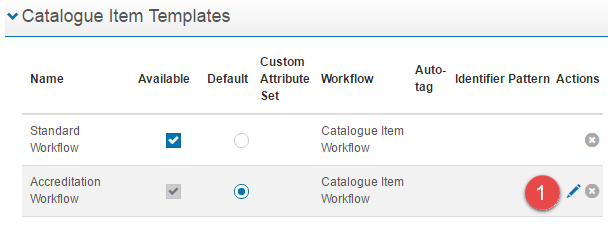
-
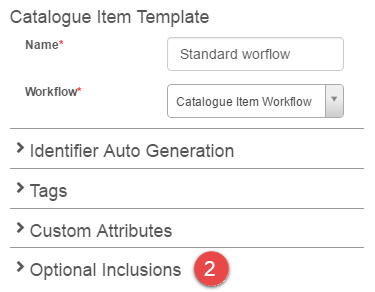
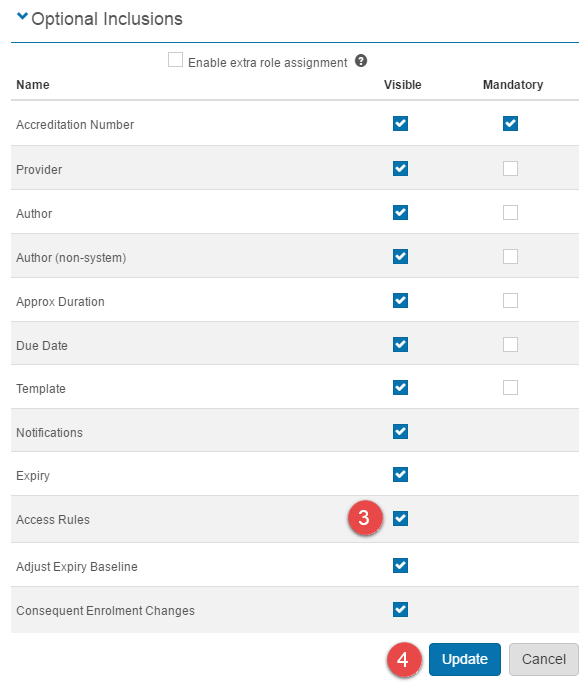
Expand Optional Inclusions.
-
Select Access Rules.
-
Select Update.
Restrict access on a catalogue item
Browse to Manage Learning > Manage Catalogue.
-
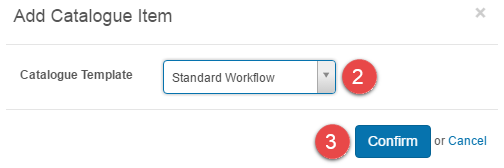
Select Add Catalogue Item.

-
Select the Catalogue Template with Access Rules activated.
-
Select Confirm.
The New Catalogue Item form is displayed. Complete it as required.
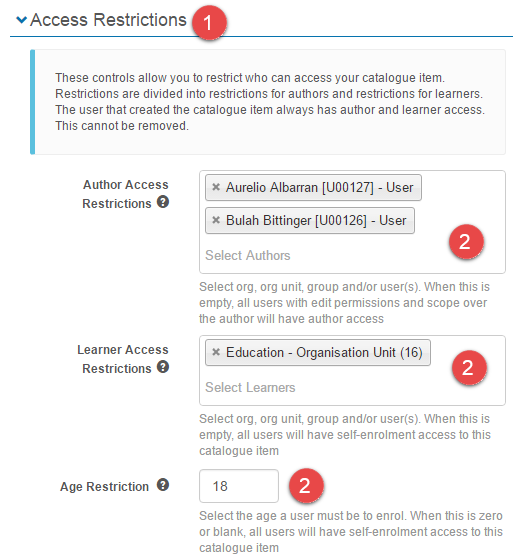
- Select Access Restrictions.
-
Select values for one or more fields.
Author access restrictions
Select the organisation, organisation unit, group, and/or user(s) you want to give author access.
Note
When this field is blank, all users with edit permissions and scope over the author have author access.
Learner access restrictions
Select the organisation, organisation unit, group, and/or user(s) you want to give self-enrolment access.
Note
When this field is blank, all users have self-enrolment access to this catalogue item.
Age restriction
Select the age a user must be to enrol. When this is zero or blank, all users have access. If a user has no date of birth recorded, they're restricted from enrolling.
See Manage Catalogue for full details on creating catalogue items.
-
Select Save Catalogue Item.

Settings
Several platform settings affect catalogue item scoping.
Administrators can configure the following settings:
Catalogue Item Settings (Settings > Catalogue Item Settings) — under Authoring Settings, enable Enable Scope Restrictions to make the feature available. Edit catalogue item templates to add Access Rules to Optional Inclusions, making the scoping fields visible on the catalogue item form.