Manage Learning Assets
Learning assets are the components of catalogue items — courses, events, forums, and so on.
To access learning assets, browse to Manage Learning > Manage Learning Assets. You're directed to the learning asset index.
Note
If this is a new tenant, no assets are listed.
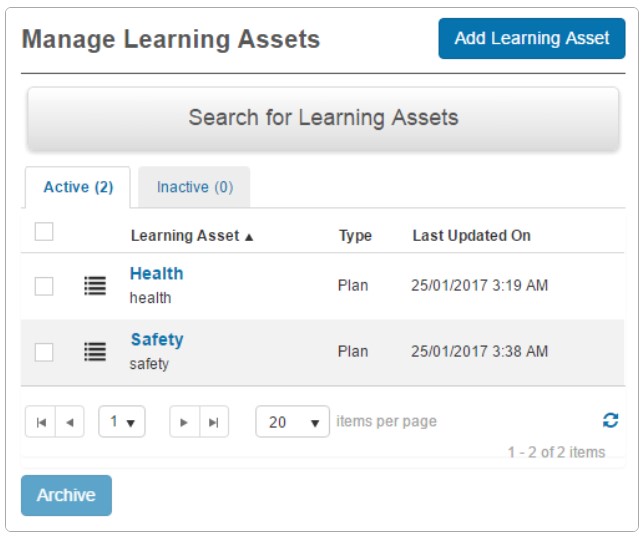
From this screen you can:
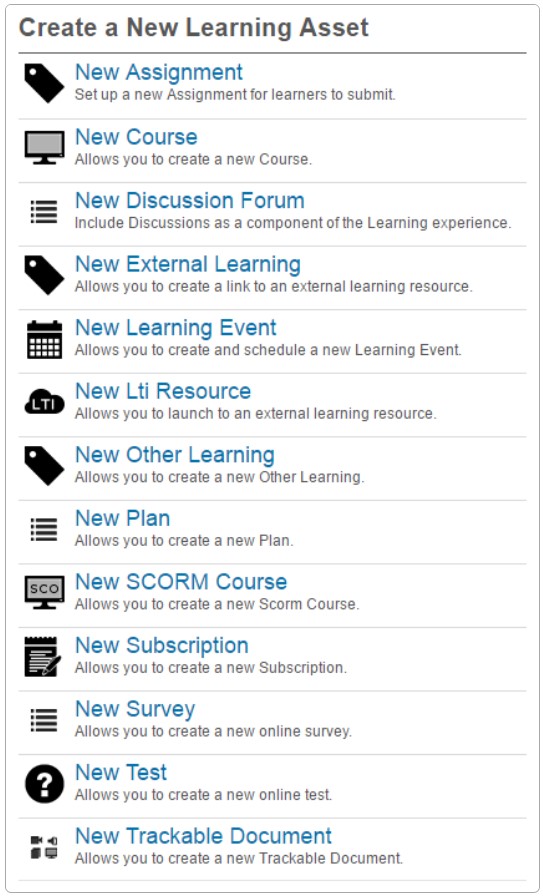
Create new learning assets
See the help guides for each learning asset type:
- Assignments
- Course (Janison Designer)
- Discussion Forum
- Learning Events
- Learning plans
- LTI Resource
- Other Learning
- SCORM Course
- Subscriptions
- Survey
- Tests
- Trackable Document
Search for an existing learning asset
The search feature has filters to help find the required learning asset.
Note
You can use one or all filter options.
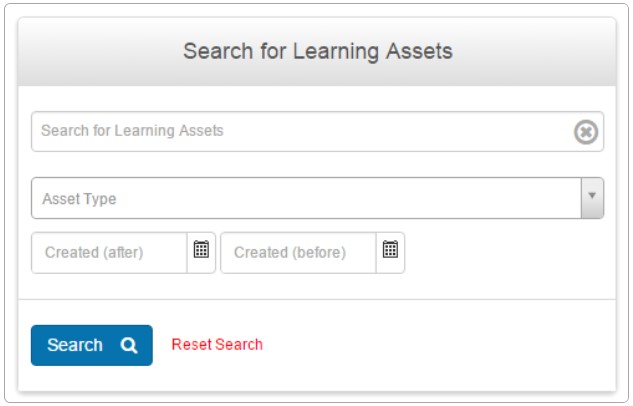
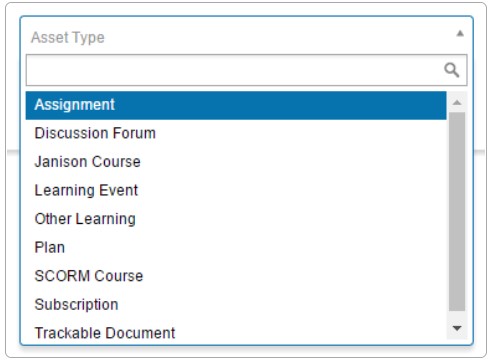
Filters include:
- Search for learning asset (name) — enter the name.
- Learning Asset Type — select the type from the dropdown.
- Date created — before or after — enter a date range.
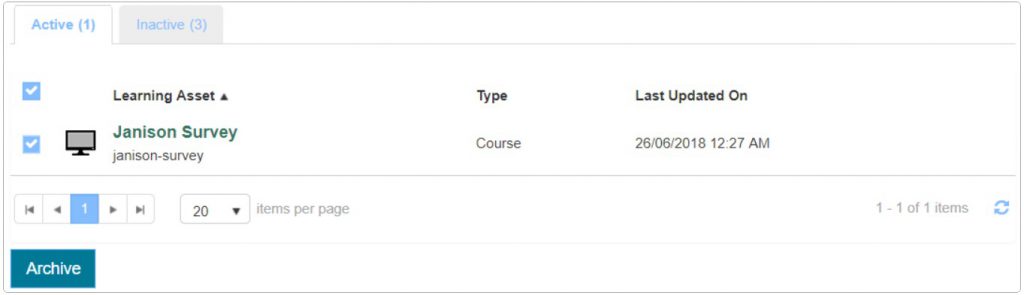
Archive one or more learning assets
Archiving prevents the asset from appearing in the catalogue item components dropdown.
Note
Unless configured to restrict access, users already enrolled can still access learning assets when archived.
- Go to Manage Learning > Manage Learning Assets.
- Search for the learning asset.
- Select the checkbox to the left. The top checkbox selects all on the page.
-
Select Archive.
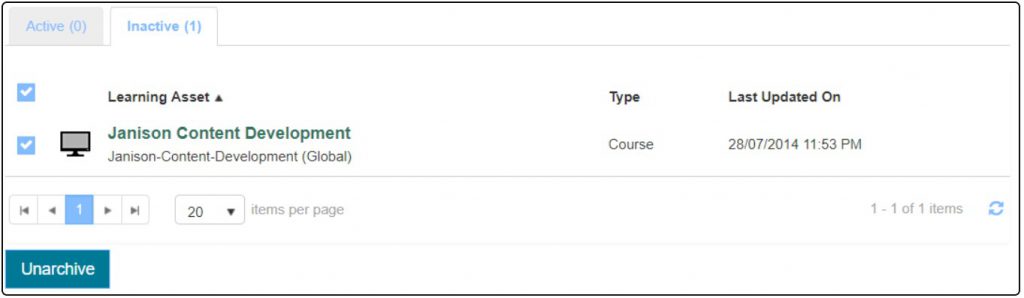
Archived items can be reinstated:
- Select the Inactive tab.
- Search for the archived asset.
- Select the checkbox.
-
Select Unarchive.
View a learning asset
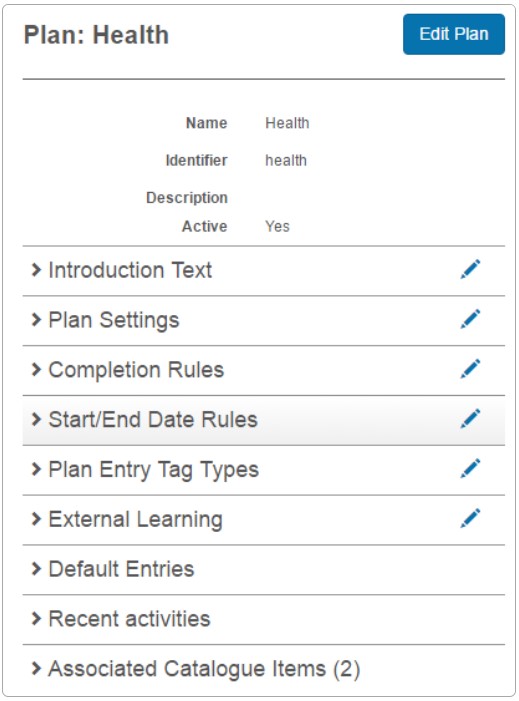
Select its name from the list. The details screen varies by type. The Associated Catalogue Items section provides links to catalogue items containing this asset.
Edit a learning asset
If the asset has progress records (enrolments), editing functionality may be restricted.
When viewing the asset, select Edit [learning asset name] (the name varies by type).


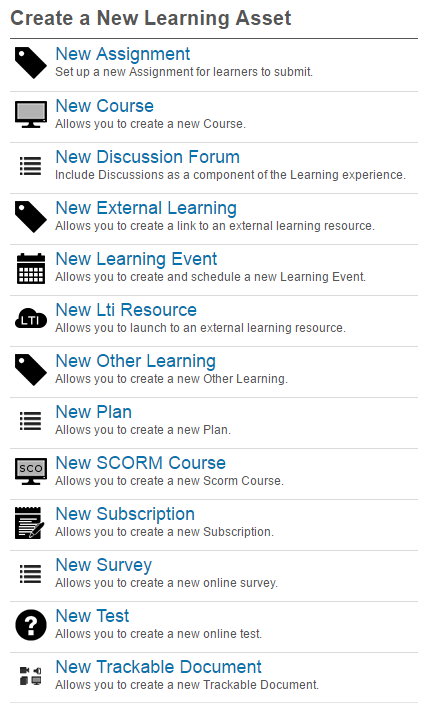
Learning asset types
The available types may vary depending on the plugins active on your site.
Add a learning asset
Adding a learning asset via this method doesn't create a catalogue item — you need to create one afterwards. See Manage Catalogue.
Browse to Manage Learning > Manage Learning Assets.
-
Select Add Learning Asset.

-
Select the required learning asset type from the list.
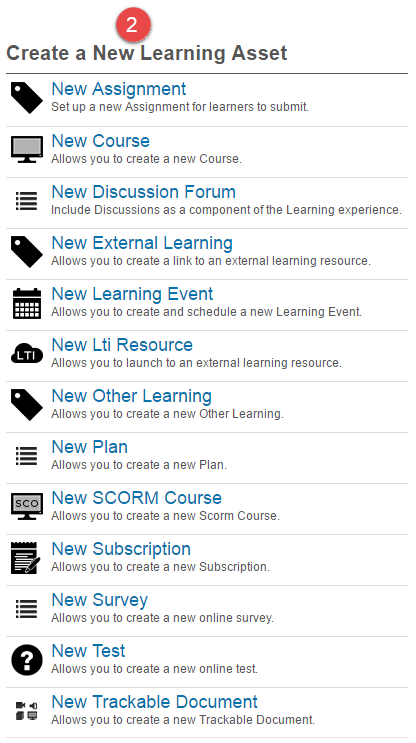
Subsequent screens depend on the type — see the document for the specific type.
Settings
Several platform settings affect learning assets.
Administrators can configure the following settings:
Catalogue Item Settings (Settings > Catalogue Item Settings) — control which catalogue item options and fields are visible when linking learning assets.
Plugins — many learning asset types (Assignment, Discussion Forum, Subscriptions, SCORM, LTI, etc.) require specific plugins to be activated. Contact your Janison account manager.