Learning Modules
There are three types of modules:
- Assessment Modules — containers for assessment entities (tests, surveys, questions, media resources). Their primary purpose is to assess knowledge.
- Learning Modules — containers for learning content. Can also contain quizzes and surveys, but the primary purpose is learning.
- Custom Pages Modules — very similar to learning modules but used in customised page layouts.
This document covers Learning Modules and Custom Pages Modules.
Assessment Modules
When candidates undergo assessment, they enrol in a catalogue item linked to one or more tests. Each test is linked to one or more questions. All tests and questions must belong to the same assessment module, which itself belongs to the same discipline as them. There are many assessment question types.
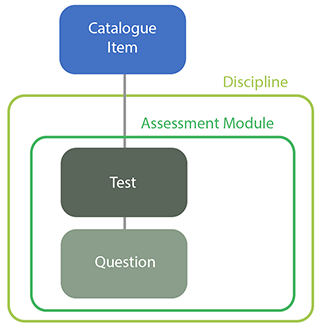
You create an assessment module as a kind of shell, with tests and questions that belong to it and various settings (such as the test player's skin). You don't link an assessment module to the catalogue item directly.
Learning Modules
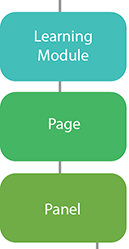
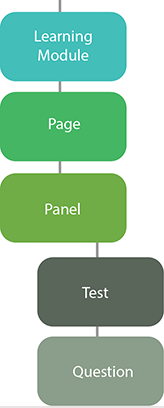
Learning modules are structured differently. A learner enrols in a catalogue item linked to one or more courses. Each course is linked to one or more learning modules. Each learning module contains one or more pages, with each page composed of one or more panels. All these entities belong to the same discipline.
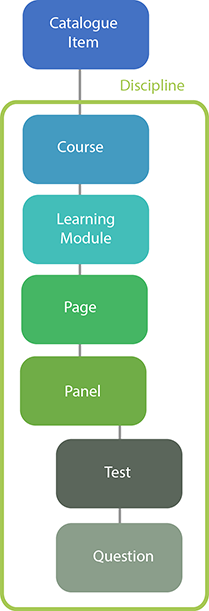
Pages, panels, tests, and questions are linked to the learning module and belong to it. Panels can also be linked to tests and questions to make learning more interactive — a number of specialised panels enable this and are linked to a smaller number of question types. See Learning module panels.
Custom Pages Modules
Custom Pages Modules are almost the same as learning modules — but aren't oriented towards inclusion in courses. Extra options for their pages mean they can be linked to the My Learning Dashboard and menus, and viewed outside the CLS.
Summary
- Assessment modules are specialised for assessment and can contain a large range of question types. Assessment tests and questions must be part of assessment modules.
- Learning modules are specialised for learning but may also contain learning tests and questions. The limited range of tests and questions integrated in panels enhance the learning experience.
Note
Tests and questions belong to only one module and can't be directly used in other modules. If the module is deleted, they're deleted too.
Modules can be managed by selecting Design > Modules.
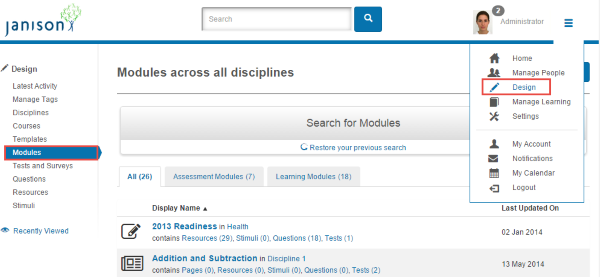
Manage modules
Select Design > Modules.
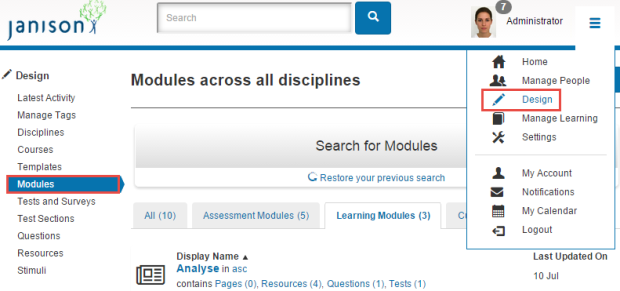
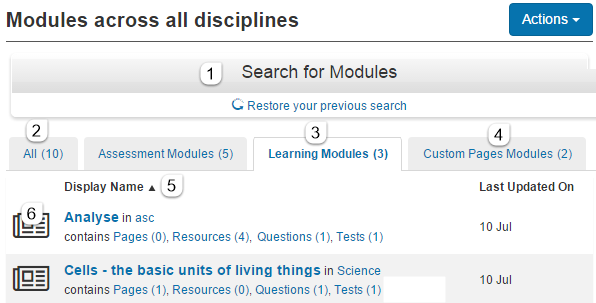
- Select Search for Modules to search the list.
- Select All for all modules.
- Select Learning Modules for learning modules only.
- Select Custom Pages Modules for custom pages modules only.
- Sort by selecting column headings.
-
Each module name links to its details. Linked entities (pages, resources, questions, tests) also link to further details.
Note
A user with authoring permission in the scope of one module can't see the full list.
Inspect module details
Navigate to Design > Modules and select the module name.
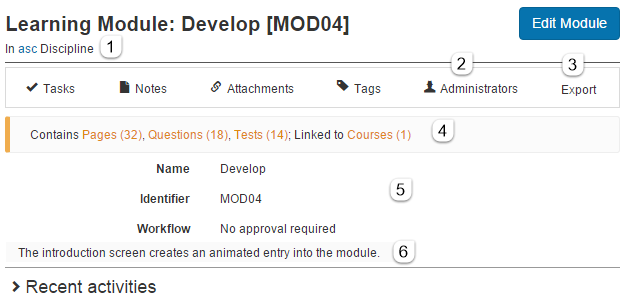
The name, type, and discipline (link) appear at the top left.
The widget bar:
- Tags — categorise and locate.
- Administrators — view and edit users with roles over the module.
- Select Export to export to a zip file.
- The next section lists entities linked to the module (Pages, Resources, Questions, Tests) — all clickable. Select Pages to view, add, and edit pages. Same for Questions and Tests.
The middle section shows the Name, Identifier, and Workflow status.
The Description is displayed underneath. This text is used in Introduction panel types.
Add a learning module
To create a learning module that learners can enrol in, first add the module, then go to a course in the same discipline and link it. The course itself must be linked to a catalogue item.
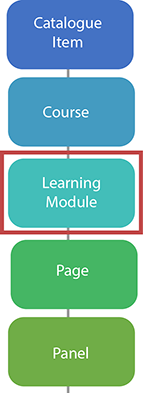
Once the learning module is created, add pages (which contain one or more panels).
Add a Learning Module
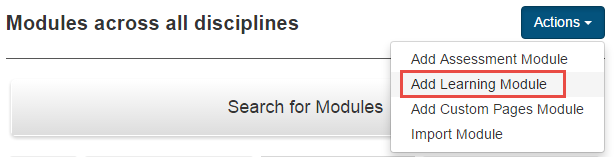
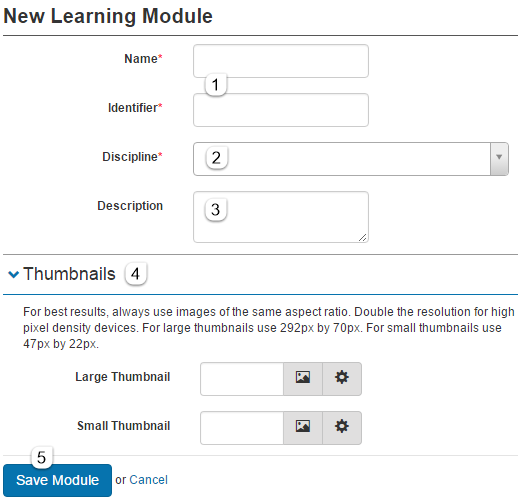
Select Design > Modules and select Add Learning Module from the Actions dropdown.
- Enter the Name and Identifier.
- Select a Discipline.
-
Optionally enter a Description.
Tip
When you place an Introduction panel type on a page, this description and the module name animate onto the page.
-
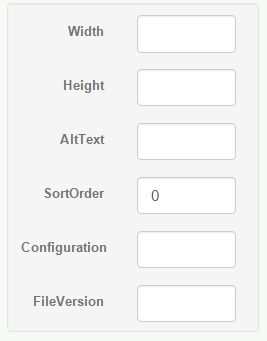
Optionally override the default module thumbnails. Select the picture icon to choose a resource. Select the settings icon for size and alt text.
-
Select Save Module.
The next step is to add pages.
Add a Custom Pages Module
Select Design > Modules > Add Custom Pages Module from the Actions dropdown.
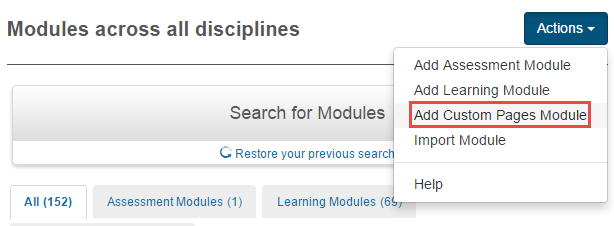
Follow the same steps as for a learning module.
Edit a learning module
Navigate to Design > Modules and select the module. Select Edit Module.
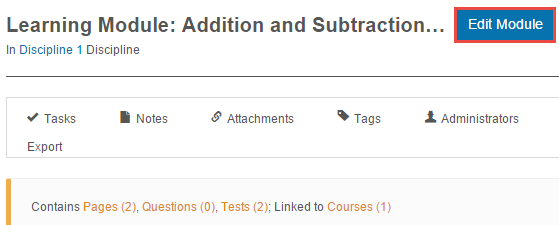
The edit screen lets you change the basic information.
Delete a learning module
In edit mode, select Delete Module. This also deletes everything that belongs to the module — you'll be asked to confirm. Deletion may be prevented if the module is referenced by other documents.
Import a module
You can import a learning module previously exported as a zip file.
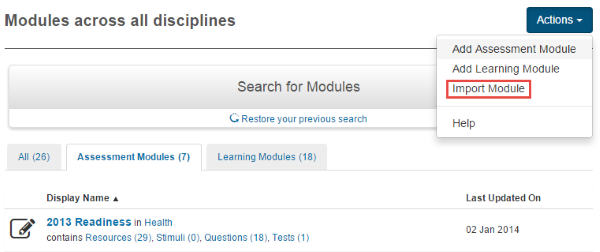
Navigate to Design > Modules > Import Module from the Actions dropdown.
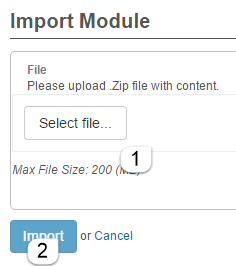
- Select Select file to browse to the zip on your hard drive. Discipline-related warnings can generally be ignored.
-
Select Import.
Export a module
Export via the module's inspect details screen.

The module is exported to a zip file saved to your computer.
Add a page
A learning module contains one or more pages. Each page is linked to one or more panels. When you create a page, set the number of panels and their layout by selecting a Content Template.
Select Design > Modules, locate the module, and select its Pages link.

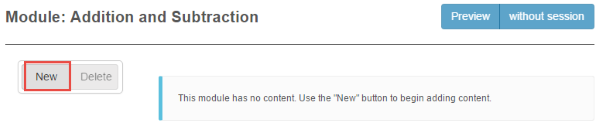
On the module's pages screen, select New.
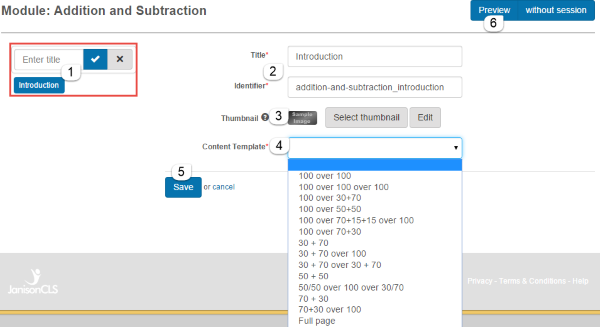
- Enter the page Title (appears at the top of the page in the Course Player) and select the tick.
- The Title and Identifier auto-fill on the right but can be edited.
- Select Select Thumbnail to insert an existing resource image (47×22 px ideal) for the page's thumbnail.
-
Select a Content Template from the dropdown to specify panel layout.
Templates are listed as percentages. 50+50 means split vertically into two equal panels.

30+70 over 100 means top half split 30:70, bottom is a single panel.

-
Save the page.
-
Select Preview at any time to see how the page will look in the Course Player.
As you create more pages, titles appear on the left. Drag titles up or down to reorder.
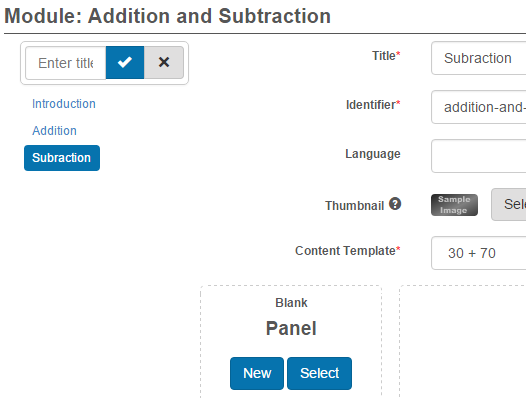
Select a page title at any time to view and edit details, including the content template.
Once pages are created they're ready for panels.
Tip
If the available content templates don't meet your needs, you can create your own — see Templates.
Add a panel to a page
A page is linked to one or more panels. Each panel has its own Content Template — including templates that let it link to a test (and hence questions). The template specifies the kind of content allowed in the panel.
Panels let you create different kinds of pages without HTML or CSS skills.
Note
Panels belong to the learning module itself and after creation can be linked to one or more pages.
You can create two kinds of panels in learning module pages: those for learning content (see Learning module panels) and those for tests and quizzes (see Test panels in learning modules).
To add a panel
- Select Design > Modules, select the module, and select Pages.
- Either create a new page and select a content template, or select an existing page from the left.
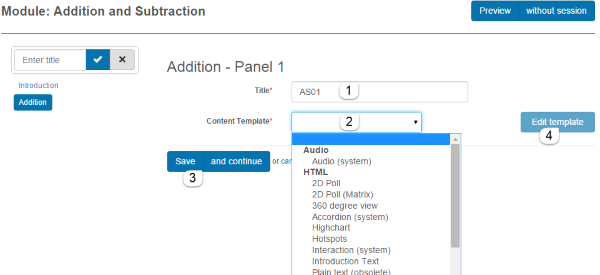
- Add a new panel by selecting New.
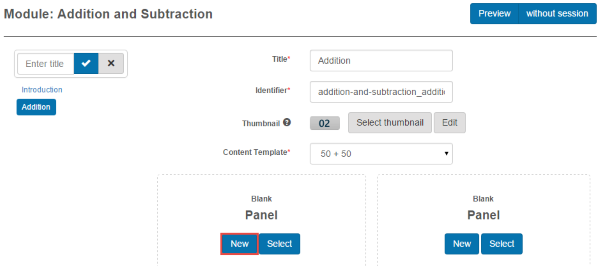
- Add a Title.
- Select a Content Template from the dropdown.
- Select Save and continue to stay on the panel screen, or Save to return to the page.
-
Select Edit Template to inspect the template details.
After saving and returning, you see the panel.
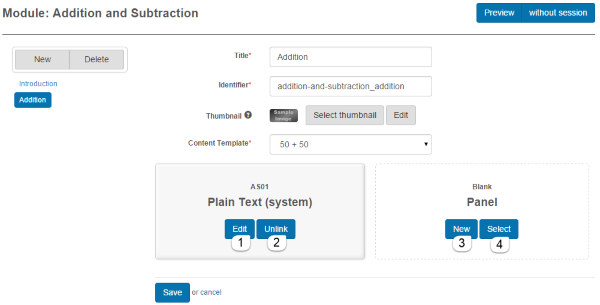
Other options:
- Edit the panel.
- Unlink the panel (it's not deleted; remains available for selection in the module).
- New to create another.
- Select to link to a panel already created in this module.
Settings
Several platform settings affect learning modules.
Administrators can configure the following settings:
Test Designer Settings (Settings > Test Designer Settings) — enable workflow and other authoring features.
Templates (Design > Templates) — define custom content templates for page and panel layouts.
Resources (Design > Resources) — manage images and media used in modules.