Portfolio
Note
ePortfolio is a newer feature. If you don't see it on your site, contact your customer support team for availability.
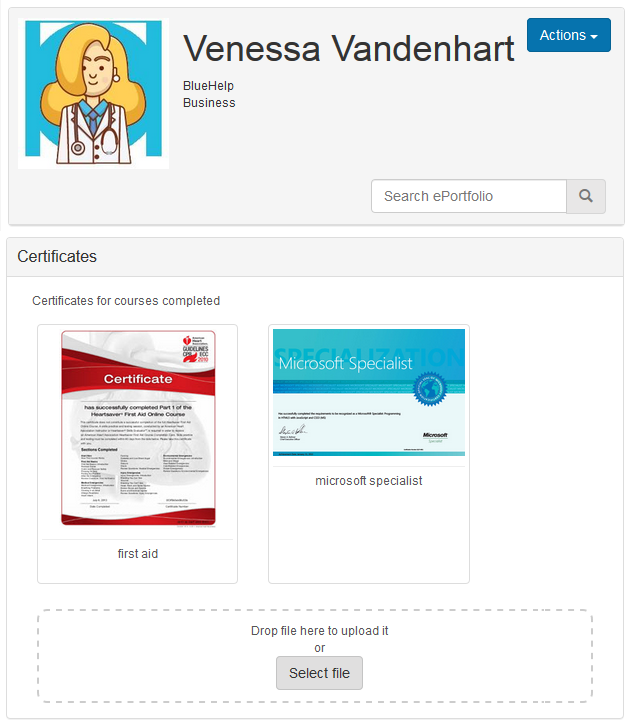
The electronic portfolio (ePortfolio) provides an interface for learners to store digital artefacts. These can be viewed and downloaded by the learner and by administrators.
Setup
Add menu
If you have a customised menu, you'll need to add the ePortfolio menu to your site.
Portfolio settings
The way the portfolio appears differs depending on configurations made in the settings.
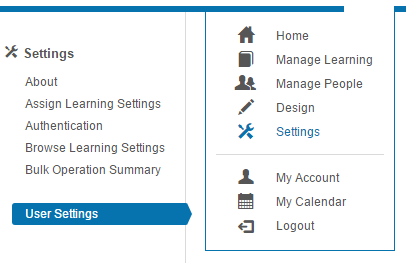
Navigate to Settings > User Settings.
-
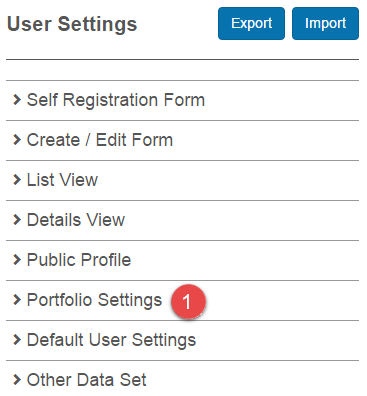
Select Portfolio Settings.
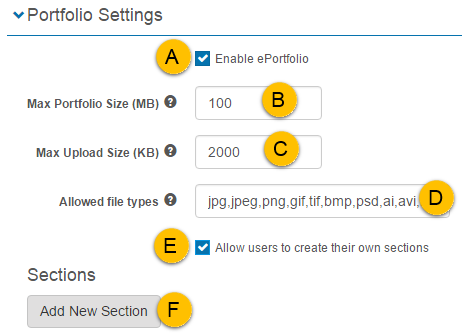
A — the portfolio can be enabled or disabled.
B — sets the maximum size for the user's ePortfolio across all sections and files. Range: 20 MB to 3 GB (3072 MB).
C — sets the maximum size for any single uploaded file.
D — only file types in the global tenant settings for allowed file types are permitted. You can limit further by listing required file types here. Possible types: jpg, jpeg, png, gif, tif, bmp, psd, ai, avi, mp4, m4v, f4v, mov, flv, webm, ogv, oga, ogg, pdf, doc, docx, xls, xlsx, zip, 7z, rar.
E — lets learners add additional sections.
F — adds sections (covered below).
Add a new section
Sections categorise portfolio items.
-
Select Add New Section.
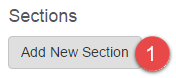
A new section is displayed.
-
Expand the section by selecting the chevron.
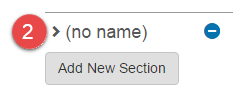
-
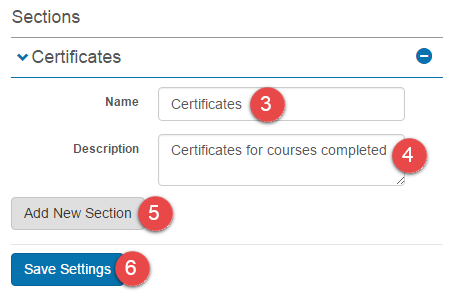
Enter a Name. The default (no name) changes to reflect the name.
- Optionally enter a Description. The description is visible to learners.
- Repeat to add more sections.
-
Select Save Settings.
Learner experience
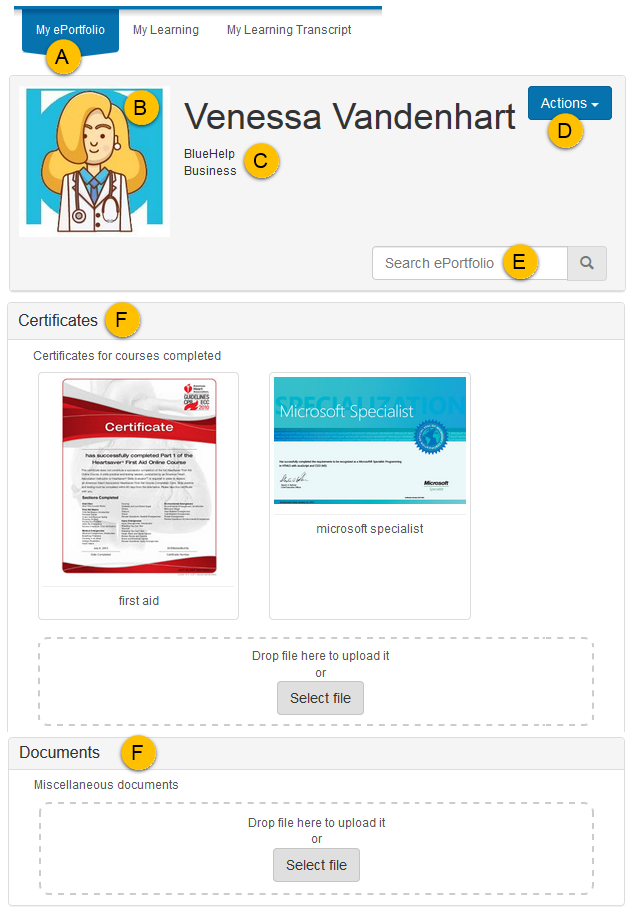
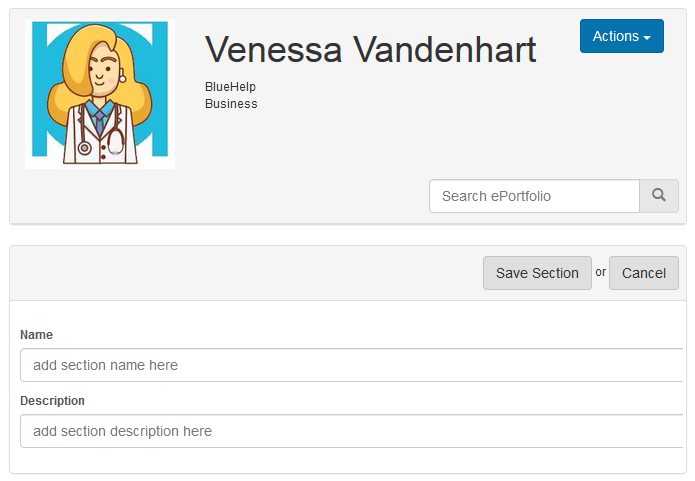
A — learners access their ePortfolios from the home page by selecting My ePortfolio.
B — learners can add and edit profile images.
C — the top field is the organisation; the bottom is the organisation unit.
D — the Actions menu options vary depending on role and settings.
E — files loaded to the portfolio can be located by searching by name.
F — sections appear in the order they were created.
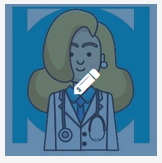
Editing profile images
Hovering over the image field shows an edit icon. Drag and drop is also supported.
Actions
Items in the Actions menu are determined by role and portfolio settings.
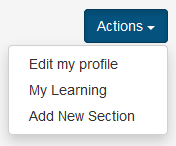
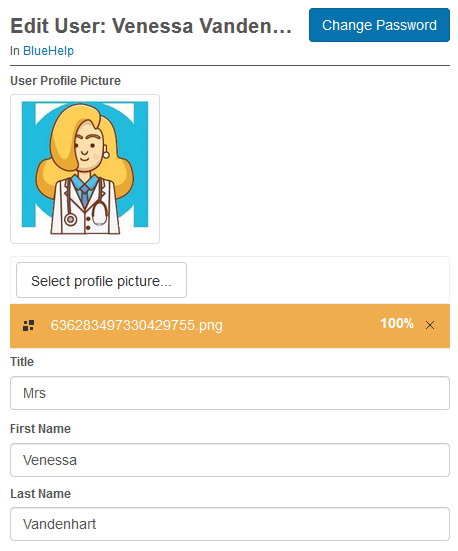
Edit my profile — links to the Edit User screen. Role configuration determines access.
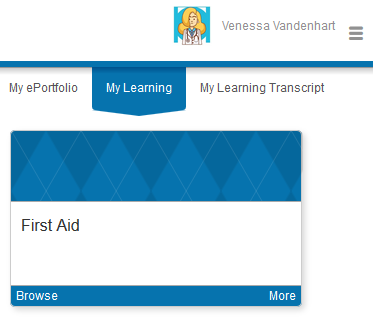
My Learning — links to the My Learning dashboard.
Add New Section — gives learners an option to add sections, only available if set in the portfolio settings. Same steps as for administrators.
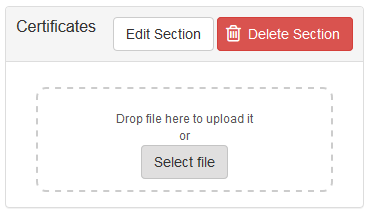
Once created, buttons let learners edit or delete sections. If a section containing files is deleted, the files aren't removed from the system but there's no interface to access them.
Adding, deleting, and editing items
-
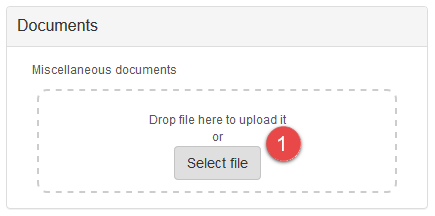
To add a file, either drag and drop or Select file.
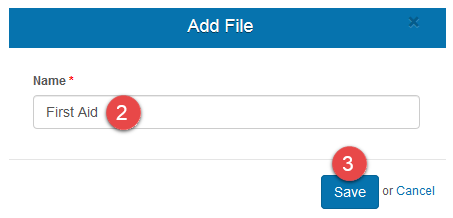
The Name defaults to the file name.
- Optionally adjust the name.
-
Select Save.
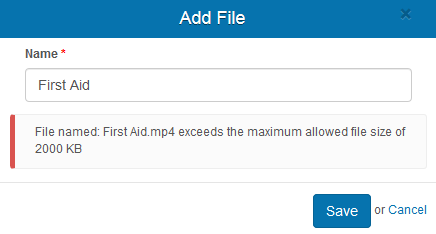
If the file exceeds the maximum upload size, feedback is shown:
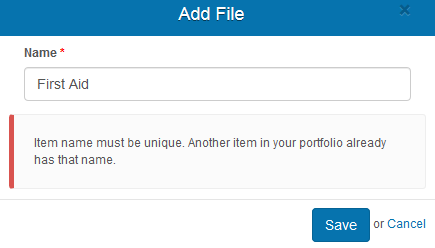
If the file name isn't unique:
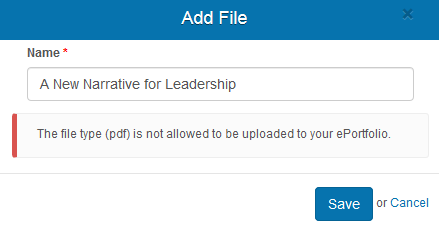
If the file type isn't allowed:
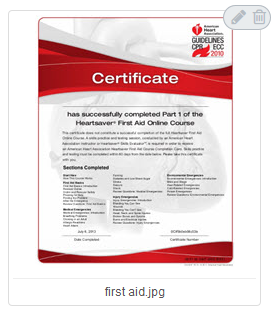
Hovering over a file shows edit and delete icons.
Accessing learner portfolios
Administrators can view and download files in learner portfolios but can't delete or edit them.
Navigate to Manage People > Users and select the learner.
-
Select View ePortfolio from the Actions menu.
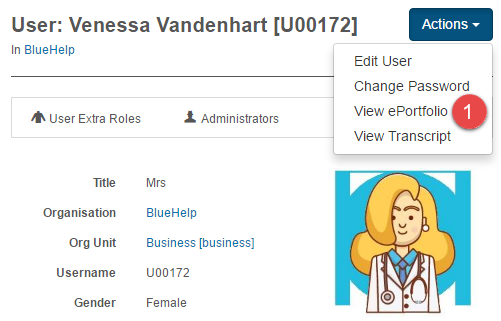
The ePortfolio is displayed.
Settings
This page is itself the Settings documentation for the portfolio. All options are configured at Settings > User Settings > Portfolio Settings.
Related settings:
Tenant Settings (Settings > Tenant Settings) — controls the global allowed file types that constrain portfolio uploads.