Payment
If you require the facility to apply payments to the learning you deliver, this is possible using the CLS Payment feature. Payments can be applied to one or more catalogue items once the settings are configured.
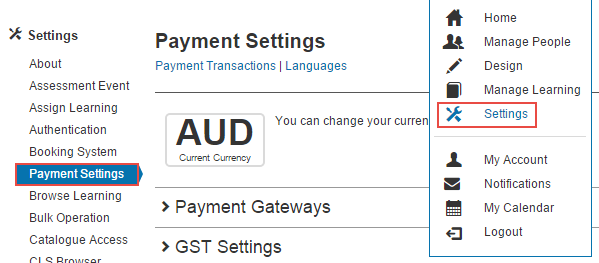
Navigate to Settings > Payment Settings.
Note
In the CLS, credit card numbers are sent encrypted to the payment provider. The CLS only stores the receipt number from the provider and the last 4 digits of the credit card number.
Merchant accounts
A merchant account is a type of bank account that lets businesses accept payments by payment cards (typically debit or credit cards).
Payment gateways
A payment gateway is a server dedicated to linking websites and banks so online credit card transactions can be completed. The payment gateway facilitates the transfer of information between the Janison CLS and the Front-End Processor or acquiring bank.
PayPal
The CLS supports PayPal as the third-party processor. For more on PayPal account types, see the PayPal website.
Changing currency
You can change the currency by selecting the Languages link. See Languages.
Add a payment gateway
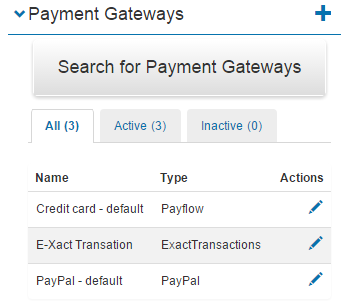
The Payment Gateways section lets you add new gateways or manage existing ones.
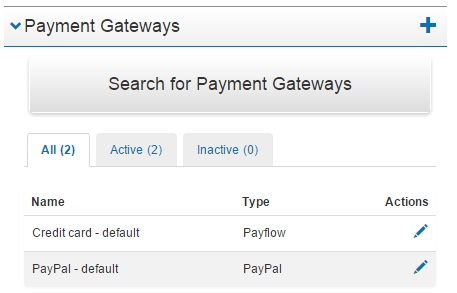
To add a payment gateway, select the + icon.

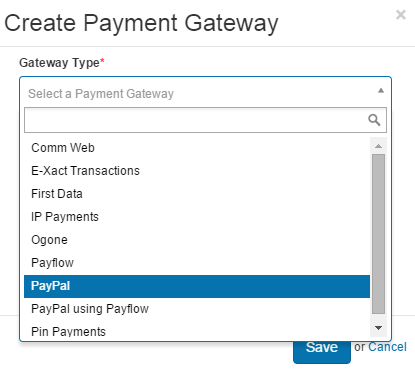
Select the required Payment Type.
Each gateway type has a form with fields relevant to it — your provider supplies the values. Below is an example for PayPal.
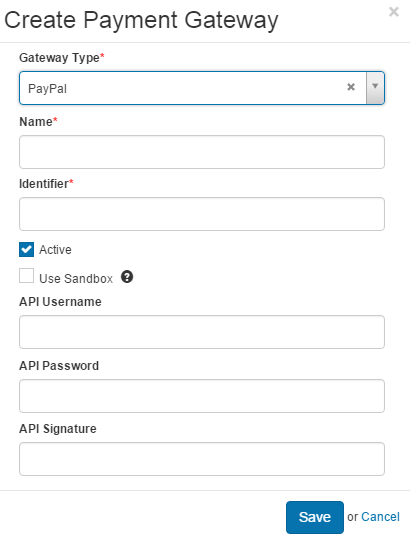
The new payment gateway is listed and can be edited using the edit icon.
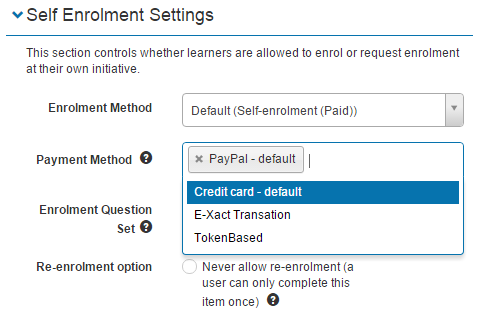
Payment gateways then appear as available Payment Methods in the catalogue item's Self Enrolment Settings. See Manage Catalogue.
GST settings
This section configures GST if it's included in costing.
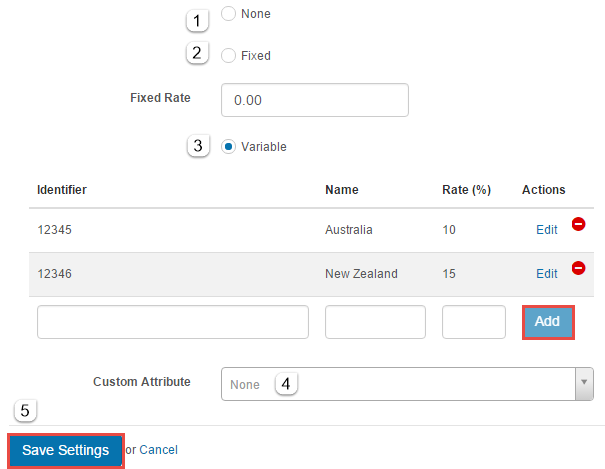
- None — no GST.
- Fixed — a fixed GST rate.
- Variable — different rates with identifiers. For example, Australia 10%, New Zealand 15%. Each rate requires an identifier. Use Add to save, Edit to change, or the remove icon to delete.
- Custom Attribute — selected from a dropdown. Custom attributes must be set up first — see Custom Attributes.
- Select Save Settings.
Catalogue item configurations
To apply a fee to a catalogue item, set 3 fields. See Manage Catalogue.
Note
Ensure that Self-enrolment (Paid) is active in Settings > Self Enrolment Settings — see Self enrolment.
- Price — enter the cost in the Price field.

- Enrolment Method — set to Self-Enrolment (Paid).
- Payment Method — choose from your available methods.
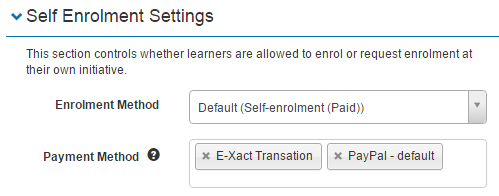
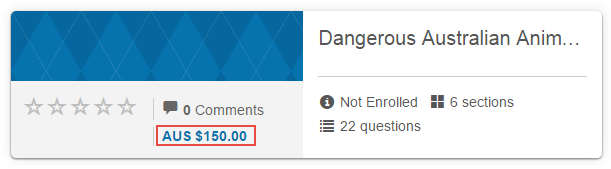
Setting the price makes it display on the catalogue item tile in Browse Learning.
Learner experience
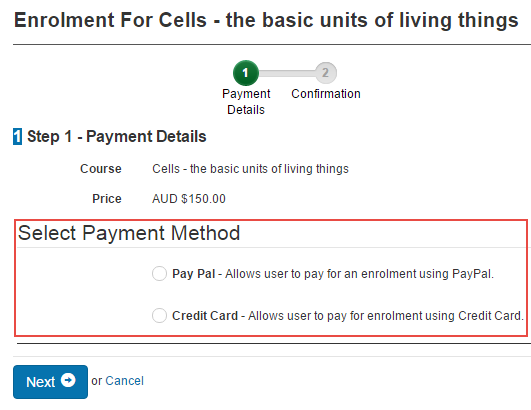
When learners enrol in the catalogue item, they're presented with a payment wizard where they select their preferred payment type.
View payment transactions
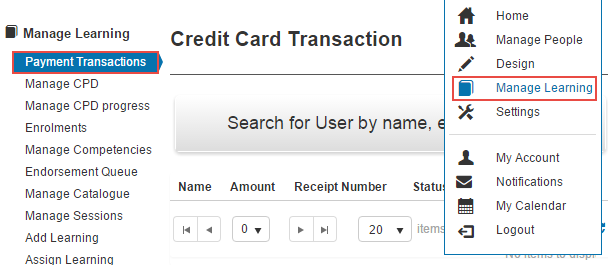
Transactions can be viewed at Manage Learning > Payment Transactions.
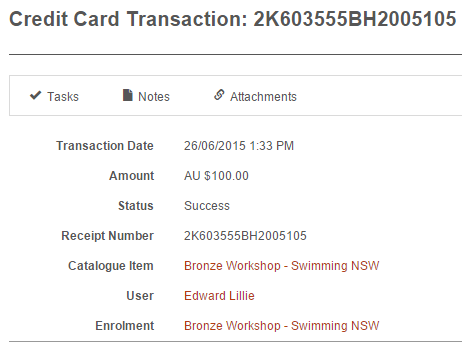
Payment transactions can be selected and viewed from the list.
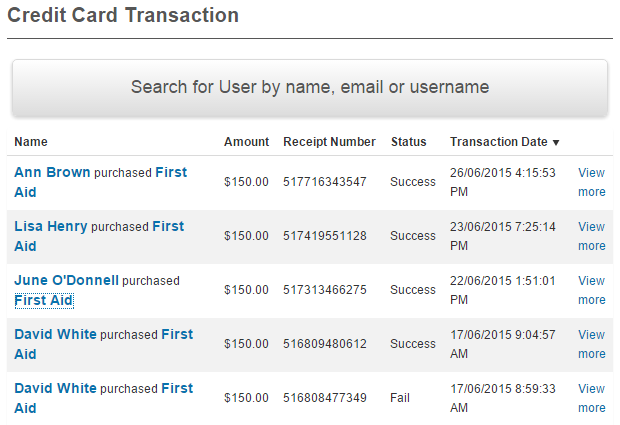
View more loads detailed information about the transaction.
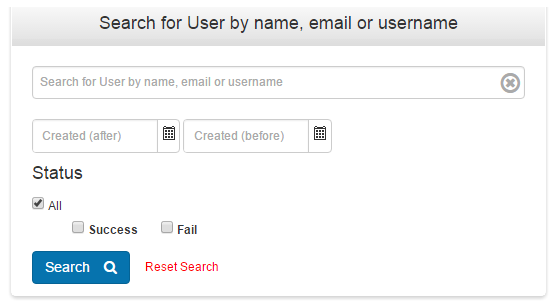
If the list is long, use the Search tool.
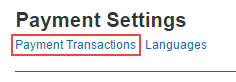
A link to Payment Transactions is also found on the Payment Settings page.
Settings
This page is itself the Settings documentation for payment. All payment configuration is at Settings > Payment Settings.
Related settings:
Languages (Settings > Languages) — controls the currency and format used.
Self Enrolment Settings (Settings > Self Enrolment Settings) — must include Self-Enrolment (Paid) for payment to apply to catalogue items.
Custom Attributes (Settings > Custom Attributes) — required if GST uses a custom attribute lookup.