Tenant settings
A range of settings is available to control the behaviour of a tenant.
Navigate to Settings > Tenant Settings.
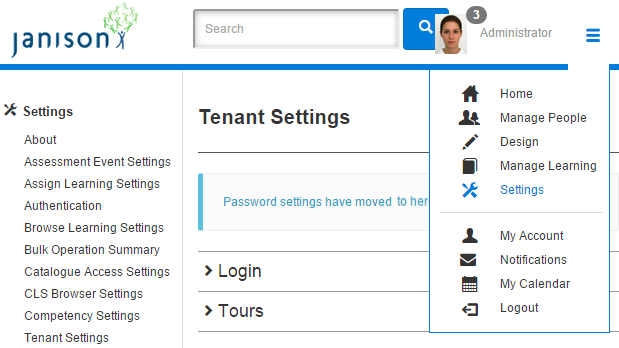
Login

Custom login URL
Provides the ability to have a custom login page with Janison CLS authentication embedded into it. Usually a page created using a custom page.
Contact the Janison Helpdesk for more.
Warning
Inserting a subdomain or URL in this field that doesn't have Janison CLS authentication can result in the site becoming inaccessible until the URL is removed from the database.
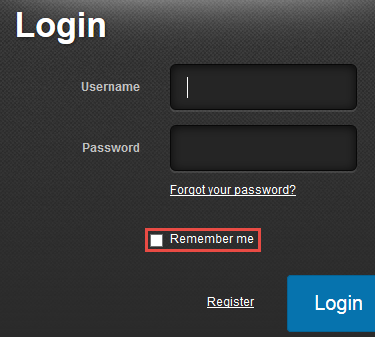
Display Remember Me checkbox
Activates a checkbox on the login page that lets the user save login details for future sessions.

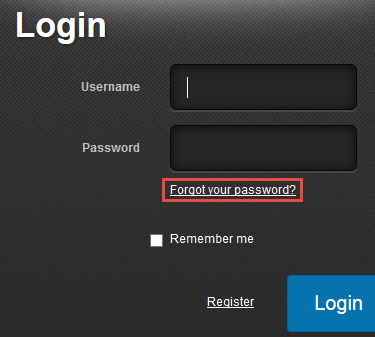
Hide Forgot my Password link
Removes the Forgot your password link from the login authentication box. Users no longer have the ability to trigger the password-reset email.

Note
If a user enters a Username that doesn't exist, for security the system returns a generic error regardless of whether the user ID or password is incorrect.
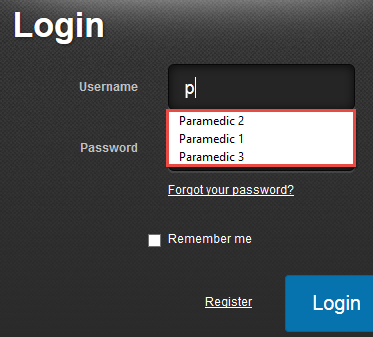
Disabling auto-complete for username and password
Works with the browser's cache to fill in username and password for returning users.

Reset password on first login
If enabled, users are prompted to reset their password on first logon.

Password reset emails if email address not found
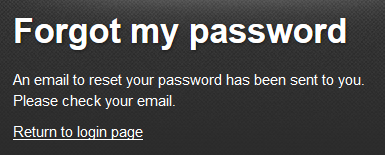
If a user selects Forgot your password and enters an email as the username that doesn't exist, an email is sent. Configurable at Message Templates.


Allow one logon session at a time
Limits a single account to one session at a time. If User A is logged in and User B logs in with the same account, User A is automatically logged out.

No locking, no message
The CLS will never lock a user out for entering the incorrect password — unlimited login attempts.

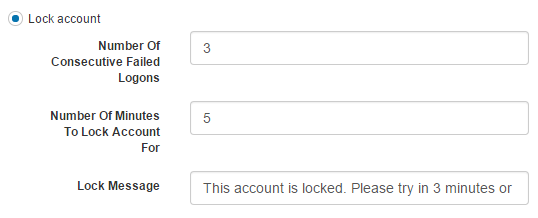
Lock account
Controls 3 aspects of account locking:
- Number of consecutive failed logons — failed attempts before the CLS locks the user out.
- Number of minutes to lock account for — duration of the lock.
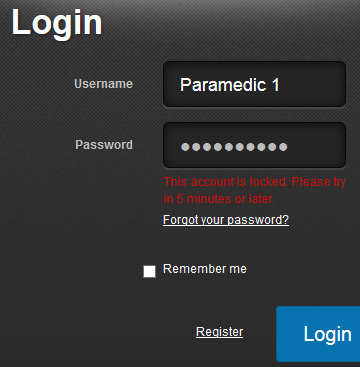
- Lock Message — message shown to the locked-out user.
Session timeout
Length of time a user can remain inactive before being logged out. Applies to all roles but can be configured differently per role.

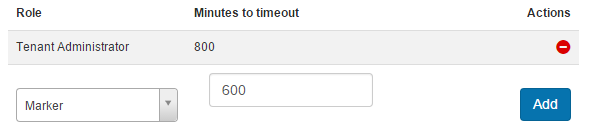
In the dropdown, select a role to adjust. Enter the minutes for timeout and Add.
Forgot password re-submit wait period (min)
Sets the time a user must wait before they can reset their password after a previous reset.

Welcome tours
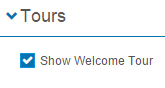
Show welcome tour
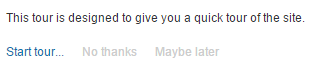
Gives a new user the opportunity to view a welcome tour the first time they log on.
- Start Tour… — takes the user on a CLS tour. The text and appearance of the popup can be customised using the System-WelcomeTour message template.
- No Thanks — closes the option.
- Maybe Later — forces the welcome tour into inactivity for 24 hours, then prompts once more.
- Closing the welcome tour makes it prompt every time the user refreshes a page.
Organisations
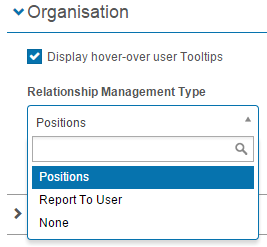
Display hover-over user tooltips
When enabled, links to users in the user list generate a popup with additional information.

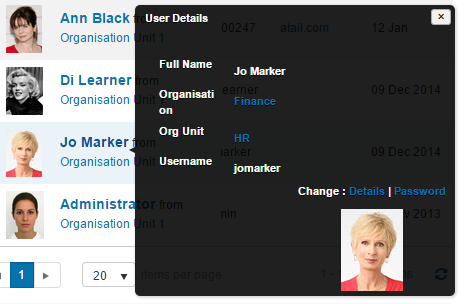
Relationship management type
Determines the management hierarchies. See Positions.
- Positions — entities in the hierarchy are positions (Factory Position reports to Factory Manager Position).
- Report to User — entities in the hierarchy are users (User B reports to User A).
Certificate templates
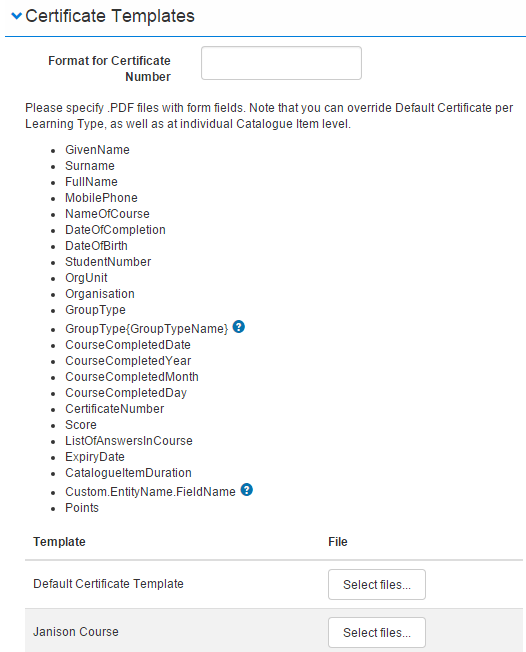
If certificates have been enabled for a catalogue item, they're generated whenever a user successfully completes it. A certificate is based on a PDF template, which the CLS populates with user-specific data. See Certificates.
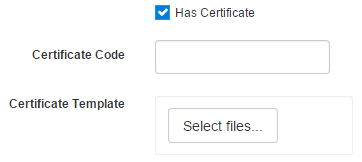
A Has Certificate field exists in the catalogue item — if checked, fields to configure the certificate appear.
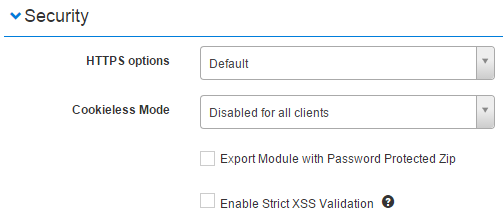
Security
HTTPS options let the administrator select whether the site is secured.
HTTPS options
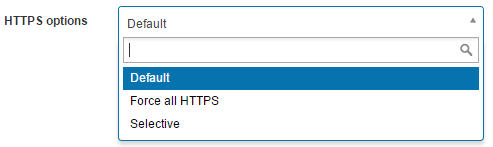
- Default — defaults to the option set on the global tenant.
- Force All HTTPS — forces all your subdomains into HTTPS.
- Selective — regular HTTP. If HTTPS is enabled on the global site, Selective disables it for your tenant.
Cookieless mode
Controls whether the CLS sends cookies to a browser.
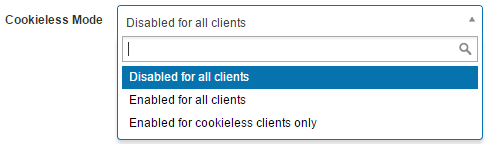
- Disabled for all clients — cookies are stored.
- Enabled for clients — cookies are not stored.
- Enabled for cookieless clients only — if a browser is configured not to store cookies, the CLS recognises this and doesn't send cookies.
Export module with password protected zip
Sets a password on exported modules.

Enable strict XSS validation
Prevents potentially harmful data from being processed by the CLS, reducing the chance of malicious scripts and cross-site scripting (XSS) attacks.
Warning
Enabling this renders many of the CLS's advanced authoring features unusable.

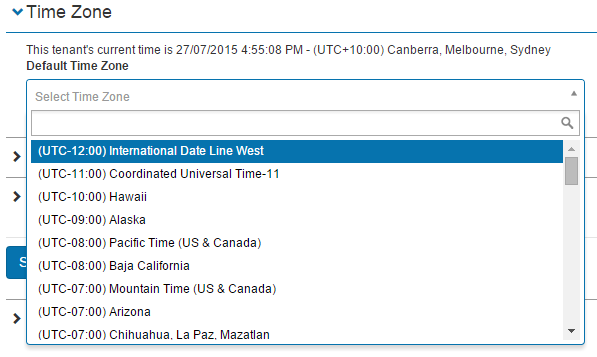
Time zone
The CLS can be set to different time zones to suit the country where your user base predominantly lives.
Block browser
Control whether older browsers can log on.
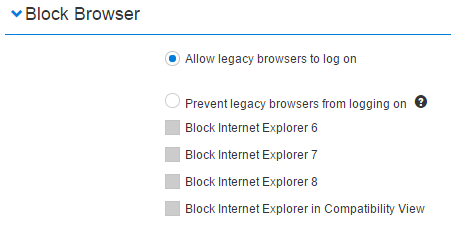
Allow legacy browsers to logon — no restrictions.
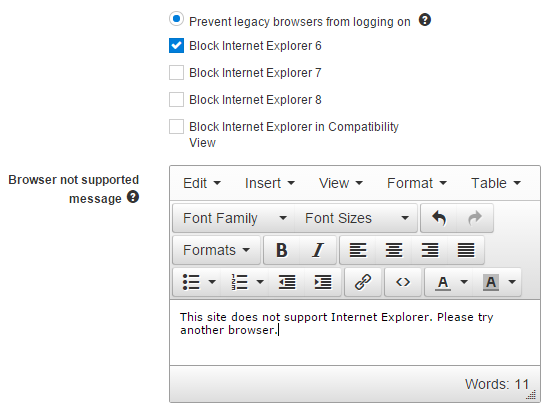
Prevent legacy browsers from logging on — prevents any or all of the listed browsers from logging on. An editor appears to enter a custom message shown to blocked users.
Miscellaneous
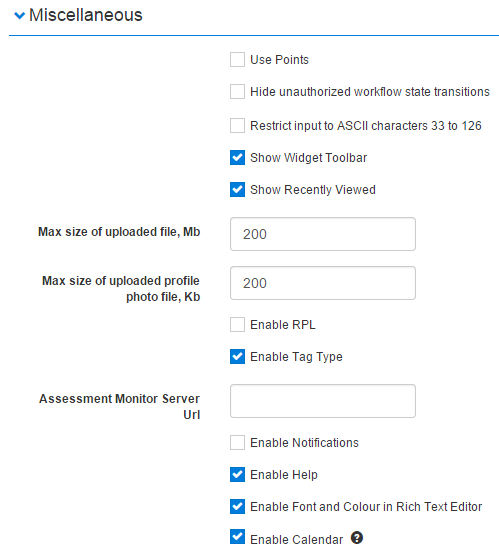
Use Points
Points can be used for continuing professional development (CPD) functionality or as a CLS value for catalogue items. See Continuing professional development.

Hide unauthorized workflow state transitions
Used when an area of the CLS is transitioning through a workflow (such as marking). If a user doesn't have rights to a transition point, it's hidden.

Restrict input ASCII characters to 33–126
Restricts input to ASCII 33–126. See http://ascii.cl.

Show widget toolbar
If checked, the Widget Toolbar appears (for example, on user details).

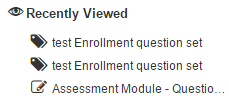
Show recently viewed
If checked, Recently Viewed appears under the left-hand menu. Lists items you've most recently viewed.

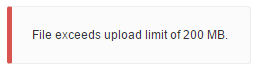
Max size of uploaded file (MB)
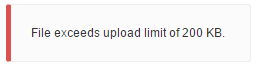
Limits the size of files users can upload. If exceeded, an error appears.
Note
The error message is a string resource — adjust if you change the value.

Max size of uploaded profile photo file (KB)
Limits the size of the user's profile picture upload.

Enable RPL
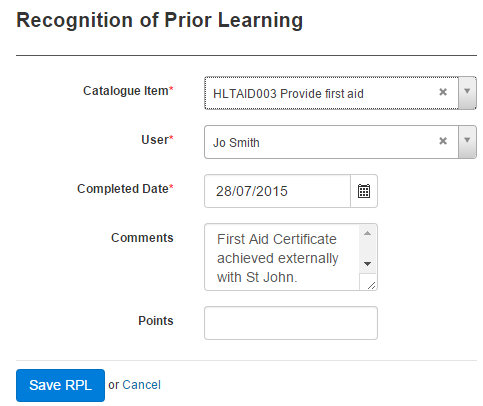
Enables the Recognition of Prior Learning (RPL) system, which lets a manager mark a user as complete if they've achieved training outside the CLS.
Enable Tag Type
Tags categorise items in the CLS (catalogue items, tests). With tag types enabled, Manage Tag Types appears in Manage Learning > Manage Tags.

Assessment Monitor Server URL
For the Assessment Event functionality — lets you create a custom monitoring screen. Contact Janison staff for details.

Enable notifications
Enables email notifications in several areas of the system (discussion forums, catalogue items).
In addition to enabling here, options exist at Settings > Email Settings — see Email Settings. Some are configured from the learning asset itself.

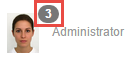
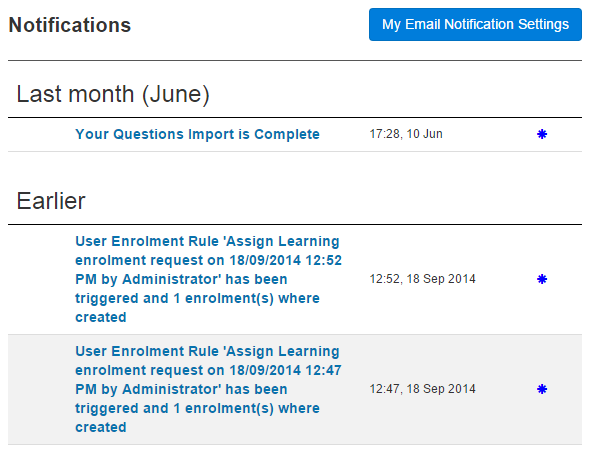
The Notifications icon appears on the user profile picture with the count. Notifications can also be accessed there.
Enable Help
When enabled, a Help link appears in selected Actions menus, pointing to CLS courses.

Enable font and colour in rich text editor
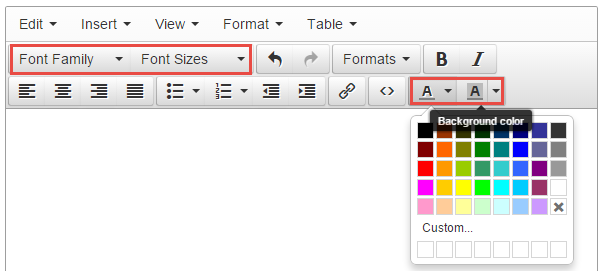
Adds 4 additional options to rich text editors: Font Family, Font Sizes, Text Colour, Text Background Colour.

Enable calendar
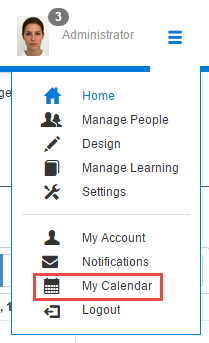
Adds a My Calendar link to the Home dropdown showing upcoming events and milestones.
Settings
This page is itself the Settings documentation for tenant-wide options. All settings are configured at Settings > Tenant Settings.