Financial delegations
Financial Delegations is a multi-step financial approval system that lets organisations set financial approval limits for different positions along a managerial hierarchy. When a user attempts to enrol in a course with Financial Delegations applied, the enrolment request is sent through a hierarchy of positions for approval. Enrolments can only be approved by a position whose Financial Delegation level meets the required price of the catalogue item.
The level of Financial Delegation a user has is assigned to their position. Usually positions lower in the managerial hierarchy have less Financial Delegation than positions higher up. Positions can be configured in any way that suits the organisation.
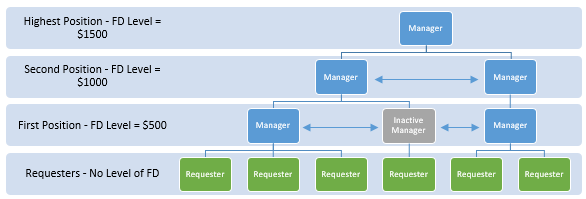
In the example below, there are four positions. Requesters have no Financial Delegation and report to First Position. Managers in First Position have a $500 level — they can approve Requesters' enrolments costing up to $500. If a First Position manager approves the enrolment but not the cost, the enrolment is sent further up.
Managers linked in the hierarchy or sharing the same position can redirect the approval process to different managers. If a Requester chooses an inactive manager as their approver, the system passes ownership to the next available manager higher in the hierarchy.
Important
If the items described in this document are missing from your site, the plugin may not be active. Contact your account manager for assistance.
Initial settings
Self-enrolment settings
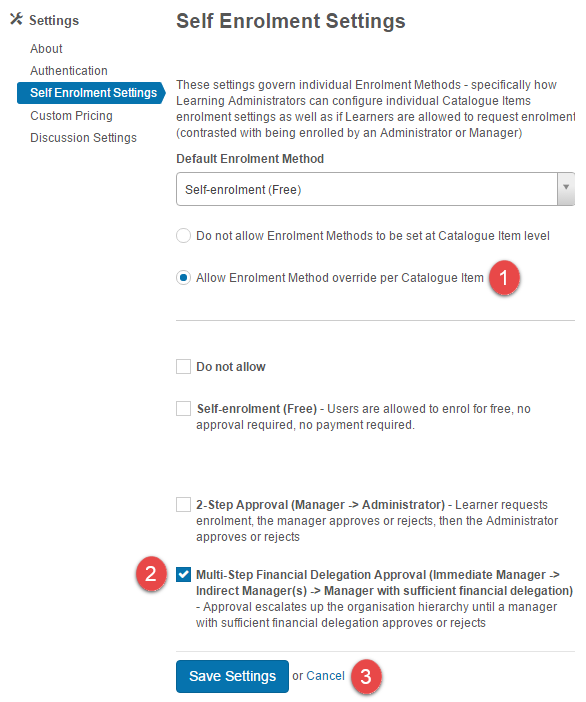
Browse to Settings > Self Enrolment Settings.
- Select Allow Enrolment Method override per Catalogue Item.
- Select Multi-Step Financial Delegation Approval.
-
Select Save Settings.
Note
You only need to configure this setting once for the site.
Catalogue item settings
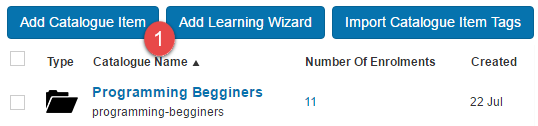
Browse to Manage Learning > Manage Catalogue.
-
Select Add Catalogue Item or edit an existing one.
-
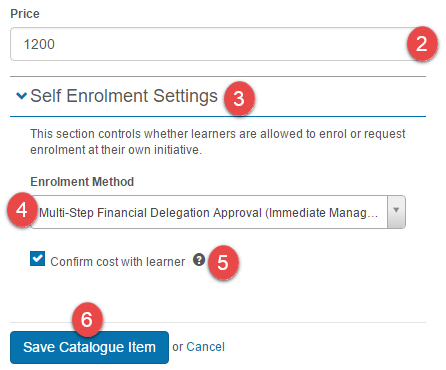
Enter the Price of the catalogue.
- Select the Self Enrolment Settings section.
- Select Multi-Step Financial Delegation Approval from the Enrolment Method dropdown.
- Optionally select Confirm cost with learner. This lets users set the price — useful if a user secured a discount.
-
Select Save Catalogue Item.
Note
Configure this setting for every catalogue item requiring Financial Delegations.
Position settings
Browse to Manage People > Positions.
-
Select Add Position or edit an existing position.

-
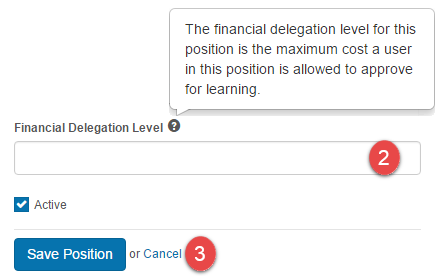
Set the position's Financial Delegation Level by entering a price.
-
Select Save Position.
Managing approvals
When a user requests enrolment into a course with Financial Delegation, the system sends the enrolment to their preferred manager for approval. A manager can approve with cost, approve without cost, or reject.
Approval with cost
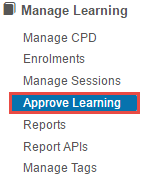
Browse to Manage Learning > Approve Learning.
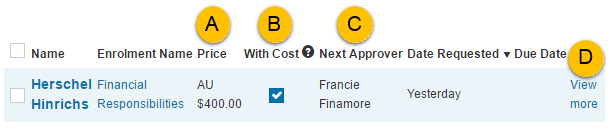
You see a list of all outstanding approval requests:
- The Price — reflects the learner's input if Confirm cost with learner is enabled.
- The With Cost checkbox shows whether you're approving with or without cost.
- The Next Approver column shows who this request goes to if approved without cost.
-
View more opens the enrolment details page.
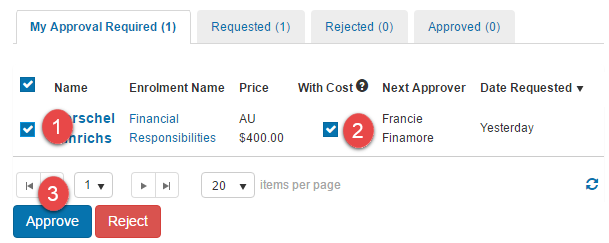
To approve with cost:
- Select the checkbox left of the user.
- Select With Cost.
-
Select Approve.
-
Select Yes to confirm.
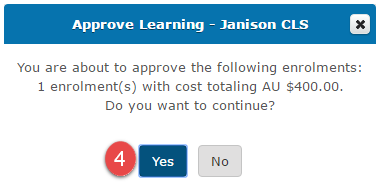
The enrolment is approved and the user has access to the learning.
Approval without cost
If the enrolment's price is above your level of Financial Delegation, you can only approve without cost. You may also choose to approve without cost even when within your level.
- Select the checkbox left of the user's name.
- Clear With Cost. If the enrolment is outside your level, With Cost is cleared and locked automatically.
-
Select Approve.
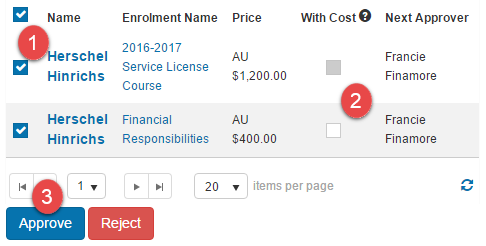
-
Select Yes to confirm.
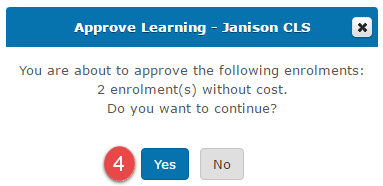
Approval without cost sends the enrolment to the next available approver. If the enrolment reaches the last manager or the last manager with sufficient Financial Delegation, With Cost is selected and locked automatically.
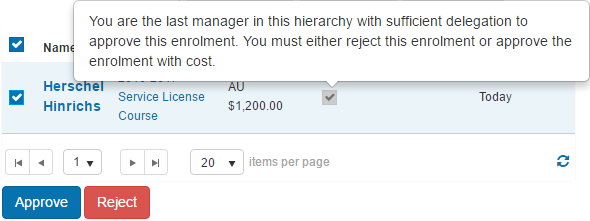
Rejecting enrolments
Enrolments can be rejected the same way. Select Reject and confirm. This cancels the enrolment against the requesting user.
Further managing enrolments
Enrolments can also be managed from the enrolment details page.
-
Select View more, or browse to Manage Learning > Enrolments and select the
 icon to the right of the user.
Approve or reject enrolment
-
Select Change.
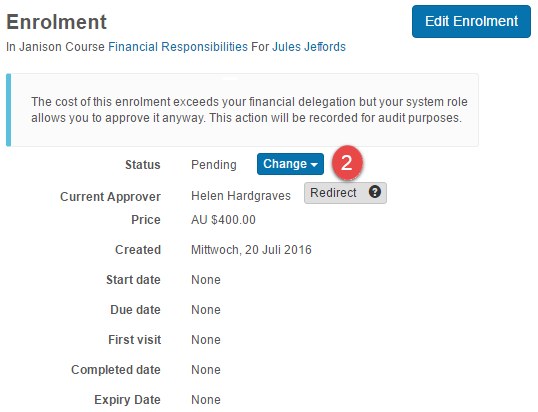
-
Select Approve with cost, Approve without cost, or Reject. Options appear or disappear based on the user's Financial Delegation level.
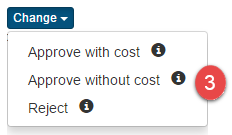
-
Select Yes.
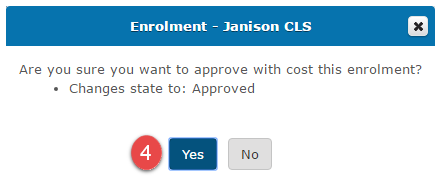
Redirect approval
This option changes who the next approver will be.
-
Select Redirect.

A popup is displayed.
- Select the next approver from Available Approvers (managers in your position or higher in the hierarchy).
-
Select Confirm.
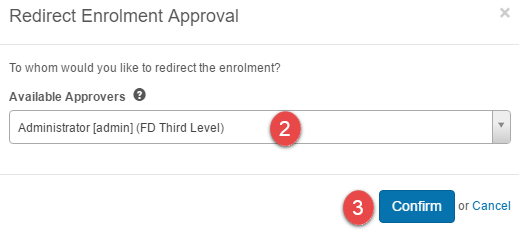
The new approver now has ownership of the approval process. You can no longer approve or redirect this enrolment.
End-user experience
Learners access catalogue items from Browse Learning.
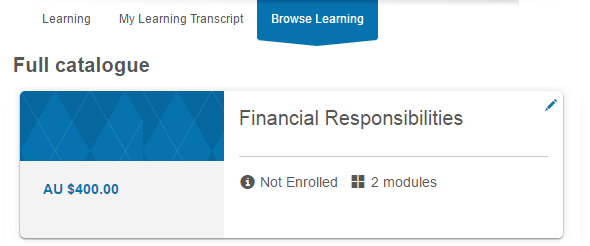
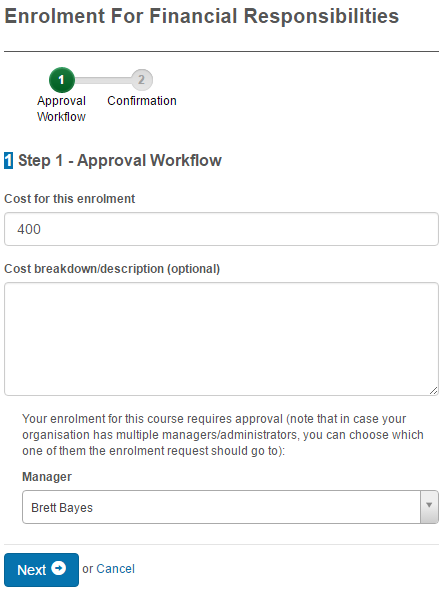
When a learner enrols in a catalogue item with Financial Delegations, the enrolment wizard takes them through these steps.
Step 1 — approval workflow
The learner may need to set the cost of the enrolment (only available when Confirm cost with learner is enabled).
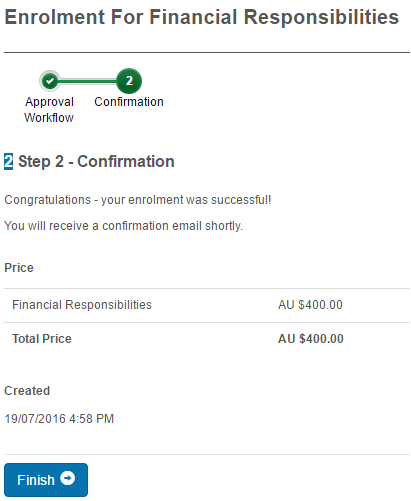
Step 2 — confirmation
After completing Step 1, an enrolment confirmation summary is displayed.
When the wizard completes, the enrolment appears in the learner's My Learning. Selecting Read More shows the enrolment details.
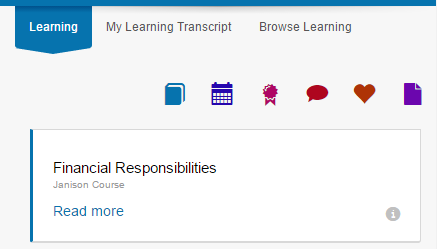
Until approved or rejected, the enrolment status remains Pending. The learner can't access the catalogue item until approval is granted.

Settings
Several platform settings affect Financial Delegations.
Administrators can configure the following settings:
Self-enrolment Settings (Settings > Self Enrolment Settings) — enable Allow Enrolment Method override per Catalogue Item and Multi-Step Financial Delegation Approval.
Catalogue Item Settings — per catalogue item, set Enrolment Method to Multi-Step Financial Delegation Approval and optionally enable Confirm cost with learner.
Positions (Manage People > Positions) — assign a Financial Delegation Level to each position.
Financial Delegations plugin — must be active for the feature to appear. Contact your account manager if it's missing.