Test panels in learning modules
A test panel type lets you add a test and questions to a learning module page — making learning more interactive and engaging while measuring a learner's progress.
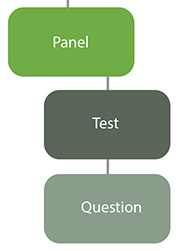
There are a number of test panel types. Each works with specific question types. Most require interaction before the page is considered complete (giving its thumbnail a green tick). Most also give feedback, with extra feedback optionally built into the question.
The Micro Quiz (system) and Free Text (assessable) panel types also require the learner to achieve a test pass mark before the page is considered complete.
Creating a test panel essentially involves:
- Creating a panel on a page in a learning module.
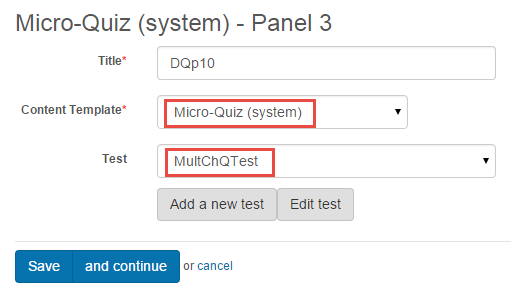
- Choosing a test panel type from the Content Template dropdown.
- Linking to a test (which adds its linked questions) using the Test dropdown.
Note
Tests in the dropdown must be in the same module as the page.
You can also add a new test or edit the selected test from this screen.
Five question types are available in a learning module:
- Match
- Multiple Choice
- Multiple Choices
- Sequence
- Short Answer
For more serious assessment, use an Assessment Module Test with its broader question types and infrastructure.
Creating questions for panels
When a question appears in a learning module, it can only do so as part of a test panel type (e.g. Micro-Quiz). The question appears on the learner's screen because it's linked to a test that functions with one of the test panel types.
The question preview is the stand-alone view — in the course player, it looks different depending on the panel layout.
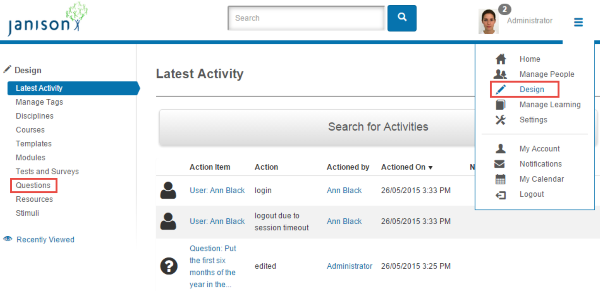
To create a new question, select Design > Questions.
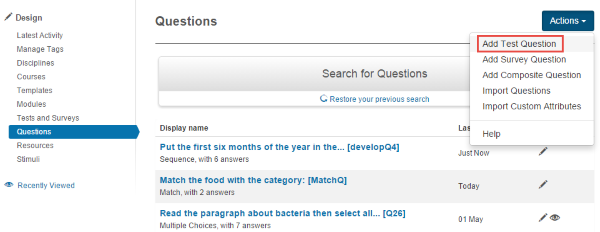
Select Add Test Question from the Actions dropdown.
Match
A Match question asks the candidate to select the correct match answer from a dropdown list — for one or more sets of word/statement plus possible answers.
Scoring: automatic.
Steps:
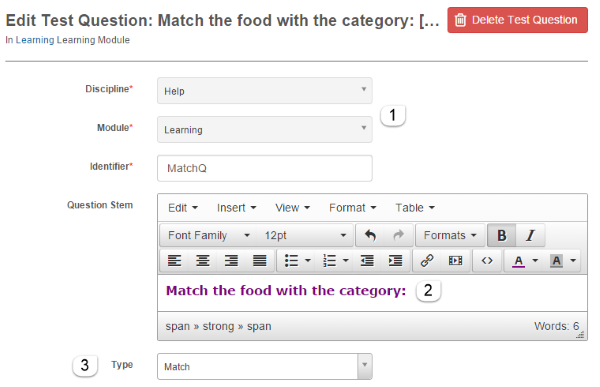
- Fill out the form details (Discipline, Module, Identifier).
- Enter the question into the Question Stem.
-
Select Match from the Type field.
-
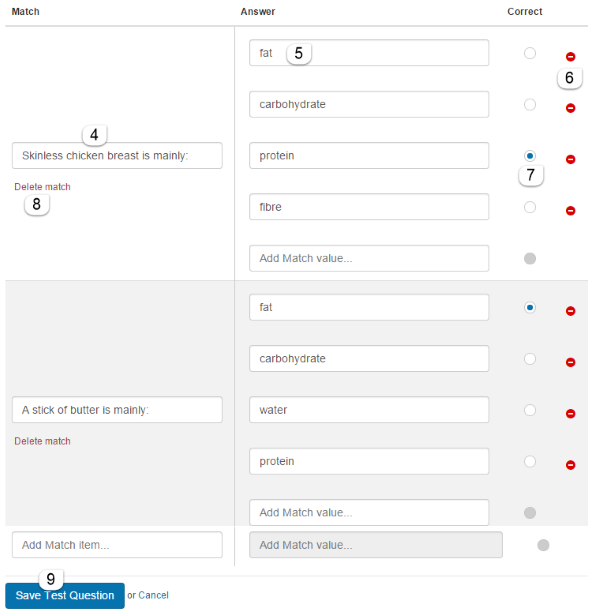
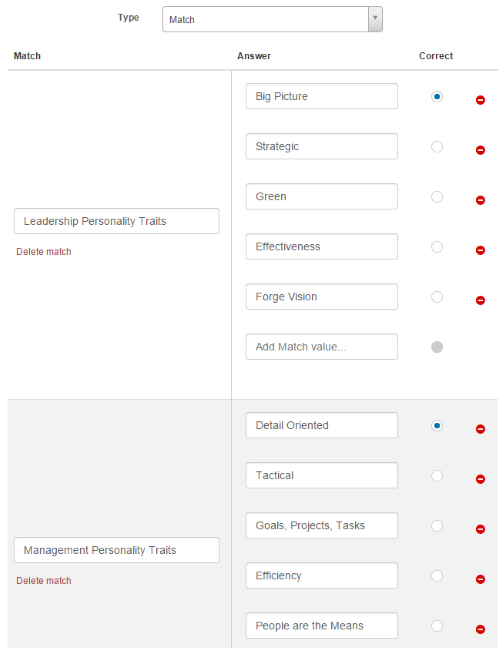
Enter a match word/sentence under Match.
- Enter possible answers under Answer.
- Delete a possible answer with the delete icon.
- Select the radio button next to the correct answer.
- Delete the match word/sentence with delete match.
-
Add more sets as needed, then select Save Test Question.
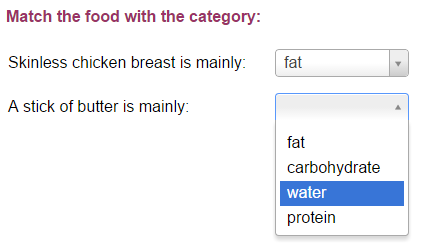
Preview by selecting Preview from the question header bar (you may need More actions first).


Multiple Choice
A candidate selects one answer from a list of options (text or pictures). Similar to Yes/No and True/False — only one option can be correct.
Scoring: automatic.
Steps:
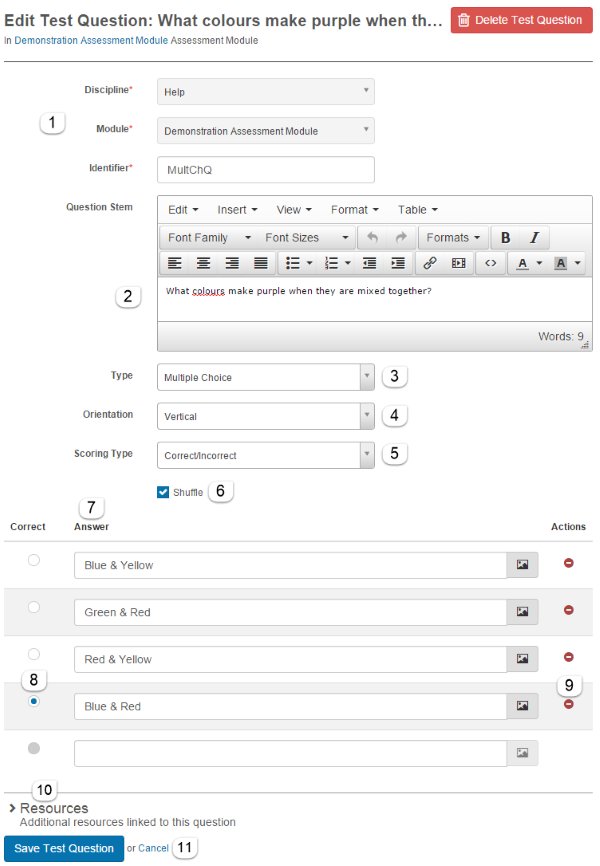
- Fill out the form details.
- Enter the question text in Question Stem.
- Select Multiple Choice from Type.
- Orientation isn't applicable in a learning module.
- Select Correct/Incorrect or Per Distractor from Scoring Type.
- Shuffle isn't applicable in a learning module.
- Enter answers. Answers can be text or pictures (use the resource icon).
- Select the radio button next to the correct answer.
- Remove an answer with the red minus.
- Optionally add resources.
-
Select Save Test Question.
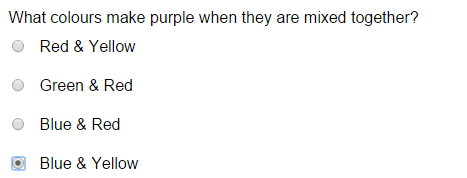
Multiple Choices
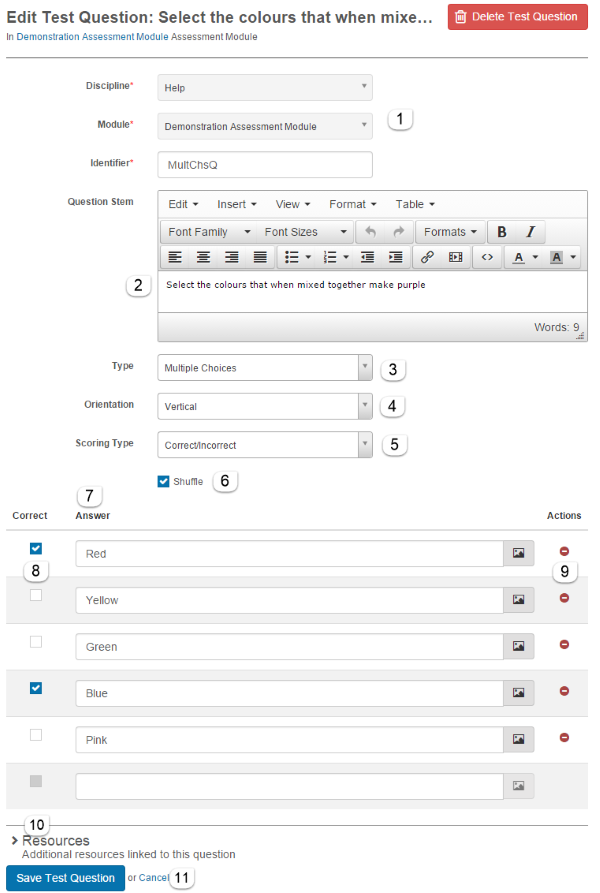
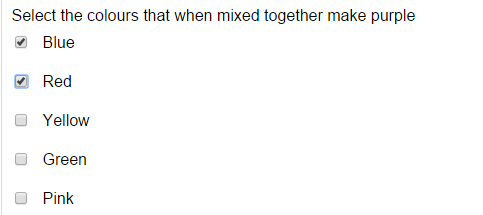
Multiple answers can be correct. Options can be text or pictures.
Scoring: automatic. Note: with Correct/Incorrect, the candidate must select all correct answers to be marked correct. Use Per Distractor if that's not desired.
Steps: as for Multiple Choice, but select Multiple Choices and check all correct answers.
Sequence
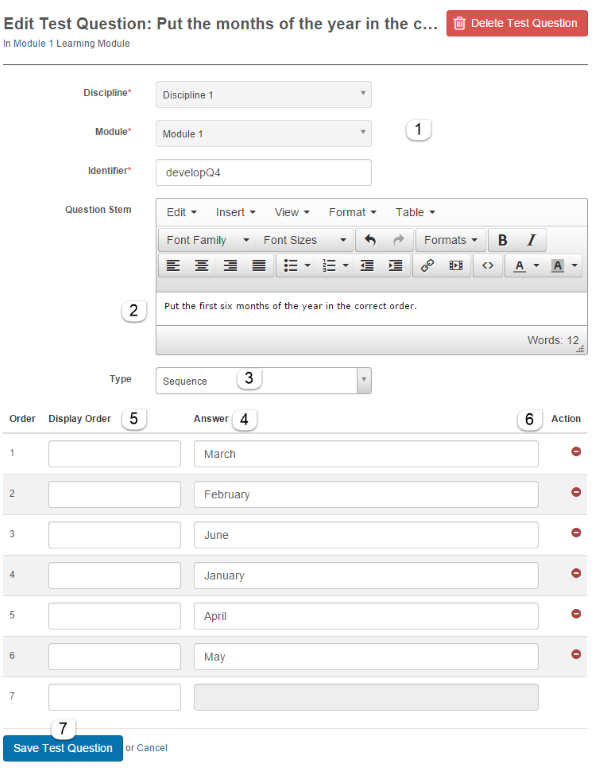
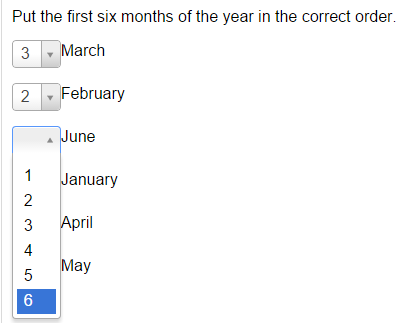
A Sequence question asks the candidate to put information in the correct order.
Scoring: automatic.
Steps:
- Fill out form details.
- Enter instructions in Question Stem.
- Select Sequence from Type.
- Enter information to be ordered in the Answer column.
- Enter Display Order values to change the order shown to the candidate (blank = use list order).
- Remove an answer with the minus icon.
-
Select Save Test Question.
Short Answer
A Short Answer question asks candidates to write text in a text box — from one sentence to a full essay. Word count can be specified.
Scoring: manual.
Steps:
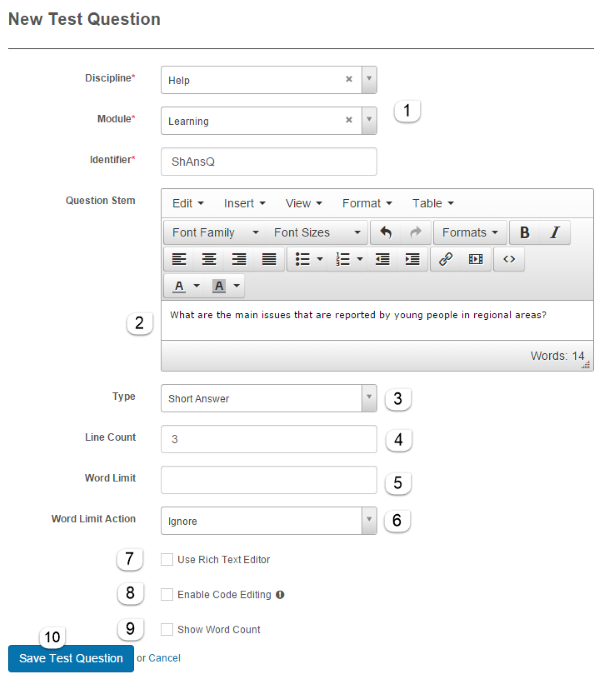
- Fill out form details.
- Enter the question text in Question Stem.
- Select Short Answer from Type.
- Enter the Line Count (initial text-box height).
- Optionally enter a Word Limit.
- Word Limit Action, Rich Text Editor, Code Editing, and Word Count are not applicable in a learning module.
-
Select Save Test Question.

Panel types
Micro-Quiz (system)
Works with Multiple Choice or Multiple Choices questions. Required settings:
- Marking Options set to Automatic.
- A pass mark must be entered or a completion won't register.
Feedback options:
- Single — same text for correct or incorrect.
- Correct And Incorrect — separate text for each.
- Per Distractor — feedback for each possible answer.
- None — default "Correct" or "Incorrect" text.
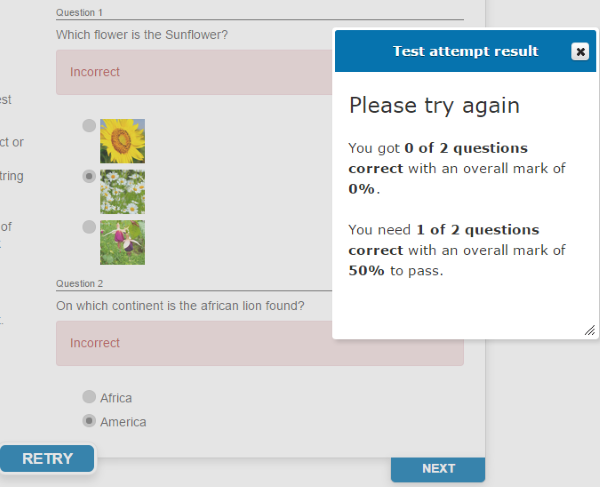
In the course player, learners select their answer and Submit. They receive feedback and the page is only marked complete once they've selected enough correct answers to meet the pass mark.
Free Text (assessable)
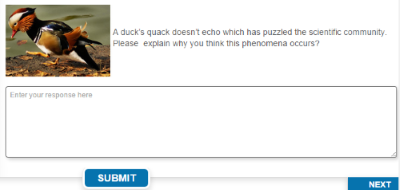
Works with Short Answer questions where learners write text that can't be automatically marked. Marking option must be Manual and a pass mark set.
Learners write text and Submit for marking. Once marked, the result is revealed and (if a pass) the green tick appears.
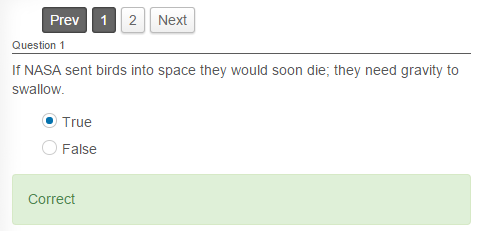
Quiz with Pagination
Works with Multiple Choice, Multiple Choices, or Short Answer questions. Marking options set to Automatic and a pass mark set. Supports all feedback types.
Learners see each question on a separate screen and receive feedback after submitting. The page is complete once all questions have been answered.
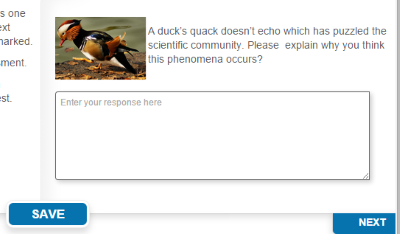
Free Text
Works with Short Answer questions. The purpose is self-reflection — not assessment.
Learners write text. There's a Save option but the question isn't submitted or marked. The page is complete once the learner has entered text.
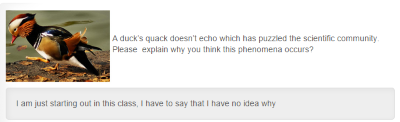
Free Text Review
Not assessable. Gives learners a read-only summary of the response previously entered for that question in a Free Text panel — for self-reflection.
Note
When selecting the test, choose a test linked to a previous Free Text panel.
The page is complete once the learner views it.
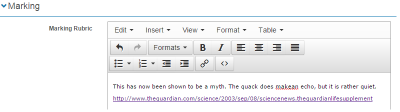
Model Answers
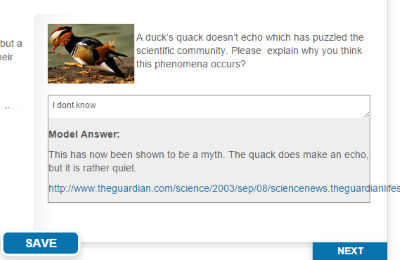
Like Free Text, but a model answer can be set per question to show learners the correct answer. Enter the model answer in the Marking Rubric field.
In the course player, the learner enters and saves a response. The model answer then displays under Model Answer. The page is complete once the learner has entered some text.
Match Drag-n-Drop
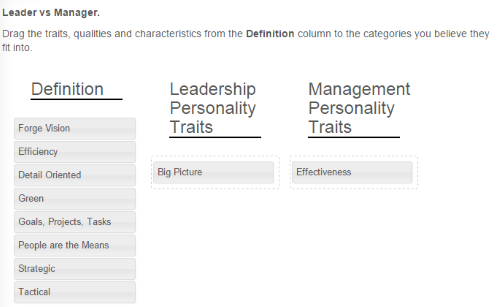
Works with a Match question. The learner drags items from a Definition column into the appropriate second and third columns. There's no correct/incorrect — the aim is reflection. The page is complete once the learner interacts with it.
In the course player:
SCORM
Displays simple SCORM courses within the course player. Useful for SCORM content enhancing the learning — keep them simple and don't store progress within tests or questions.
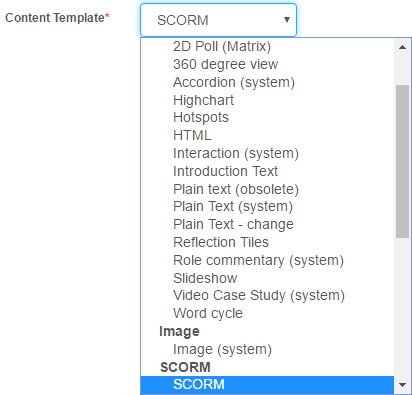
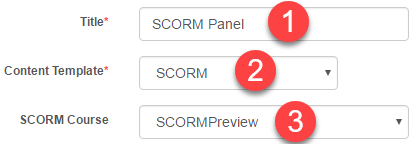
To apply SCORM to a panel:
- Enter a Title.
- Select SCORM from Content Template.
-
Select your SCORM Course.
-
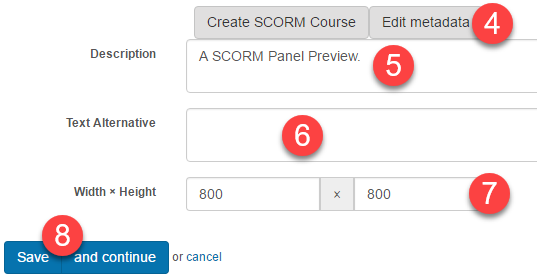
Select Edit metadata.
- Optionally enter Description, Text Alternative, Width, and Height.
-
Select Save.
Sortable Quiz
Works with a test that includes a Sequence question. Marking options set to Automatic and a pass mark entered.
In the Sequence question, set the Display Order to the order learners see in the panel.
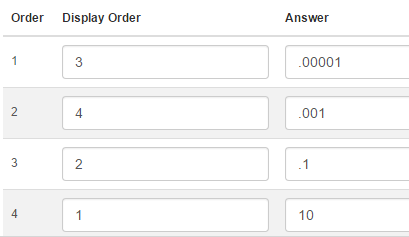
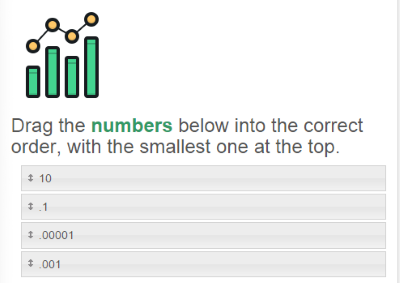
Learners drag boxes to create an order and Submit. They get feedback and can Retry until correct. The page is complete once they've submitted at least once.
Poll Quiz
For learner self-reflection — not survey gathering. Works with one or more Multiple Choice questions. The page is complete once the learner answers.
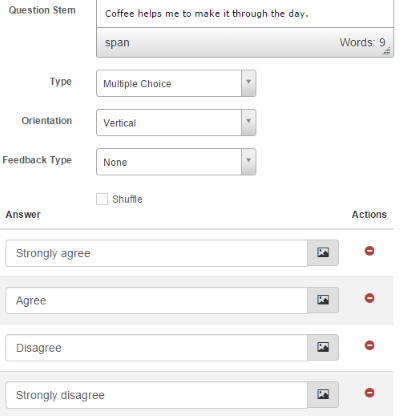
In the course player:

The learner selects a position on a slider.
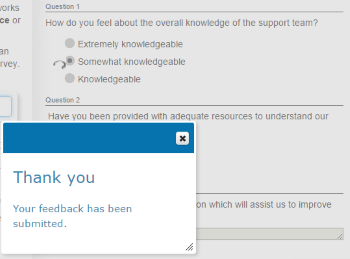
Survey Quiz
For collecting feedback from learners. Works with a survey containing Multiple Choice or Short Answer questions.
In the course player, learners enter answers and Submit. The page is then marked complete.
Settings
There are no platform settings specific to test panels — they're configured per-panel via the course designer. See Learning module tests for test-level settings.