Test designer
The CLS caters for a wide range of assessment activities — from large-scale question and test development with teams of authors, editors, and reviewers, through to a single learning manager putting together an automatically-marked quiz in 25 minutes.
Test Designer Settings let you tailor the level of assessment sophistication and functionality to your needs.
Navigate to Settings > Test Designer Settings.
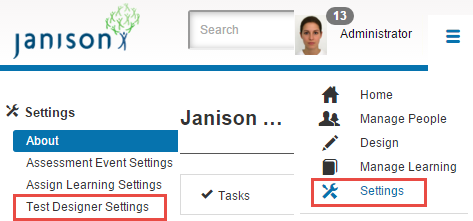
The settings are grouped into collapsible sections.
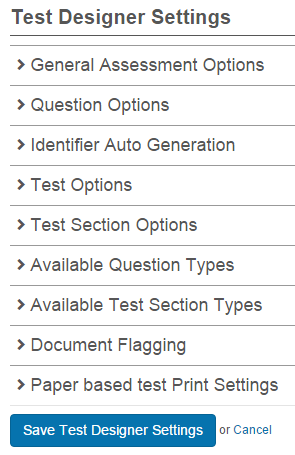
When you've completed all your changes, select Save Designer Settings.
Note
The CLS assessment functionality evolves rapidly. If you have queries, contact the Janison support team.
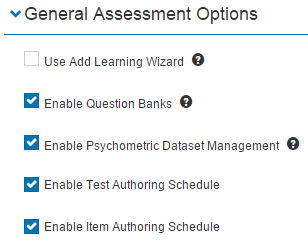
General assessment options
Use Add Learning Wizard
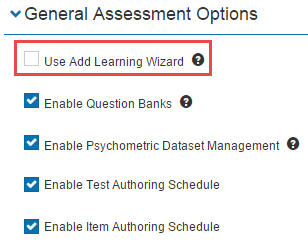
The usual method of creating a test is via Design > Tests and Surveys > Add Test.
If checked, the Add Learning Wizard can also be used to create a test. The wizard simplifies the process of creating an enrollable assessment test but limits the options:
- Question banking is disabled.
- It isn't possible to search for pre-existing questions to add to a test.
- Unlinking a question from a test also deletes the question.
When you turn this on, you're selecting a more basic implementation of assessment — a number of other test designer settings are disabled.
Question Banks
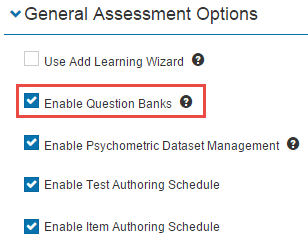
Questions are created as members of a module. By default, question banking is enabled — once a question is created, it can be linked to and unlinked from any tests and test sections in the same assessment module.
If you disable question banking, unlinking a question from a test/test section deletes it from the CLS. You're warned:
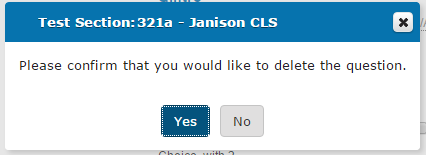
Disabling reduces complexity for users who don't want a managed question bank.
Psychometric Dataset Management
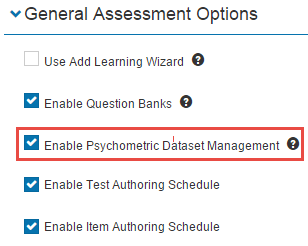
If checked, a Psychometric Data widget is available in the widget bar for a question details page. Psychometric data is a more complex form of metadata that measures the performance of a question.
A psychometric dataset is similar to a custom attribute set — it contains the definition of fields that apply to questions, applied at the discipline level.
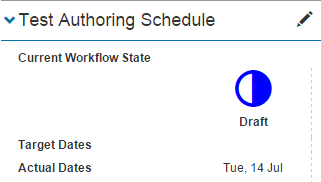
Test Authoring Schedule
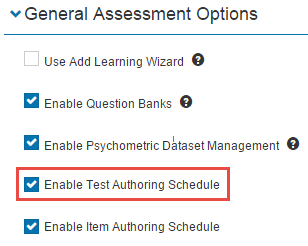
If checked, a Test Authoring Schedule section appears on the details page of a test or survey. Only applies if there's a linked workflow process.
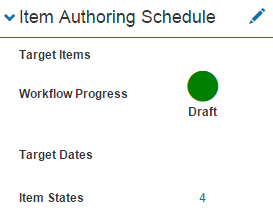
Item Authoring Schedule
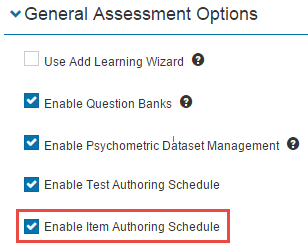
If checked, a section appears on the details page of a question. Only applies if there's a linked workflow process.
Question options
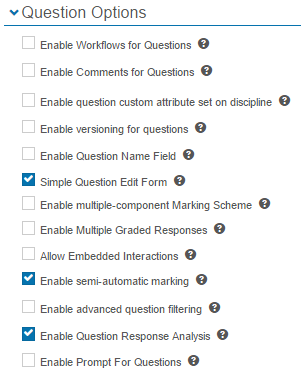
Workflows for Questions

If checked, questions can go through a set of workflow approval stages. Enables workflow definition selection for a module, workflow states in the question list, the workflow widget on the question details form, and workflow state security checks.
Comments for Questions

Adds a Comments collapsible window on the assessment question details screen. Useful when workflow is enabled and multiple users are involved in review.
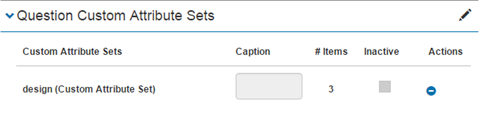
Question Custom Attribute Set on Discipline

Lets you add custom attribute sets to a question. Configured from the discipline details page.
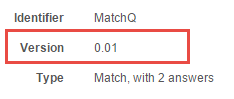
Versioning for Questions

Displays a version number for questions. Versions increment when changes are saved or workflows are enabled and the state changes.
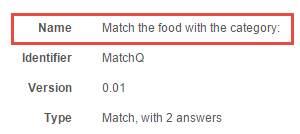
Question Name Field

If checked, questions must have a Name field as well as an Identifier.
Simple Question Edit Form

Limits the detail in the question edit form by removing Discipline, Module, Identifier, and Resources.
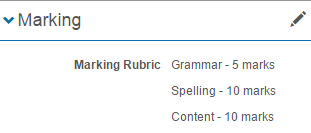
Multiple-component Marking Scheme

Lets you specify multiple components in a marking scheme for manually-marked question types (such as Short Answer).
Multiple Graded Responses

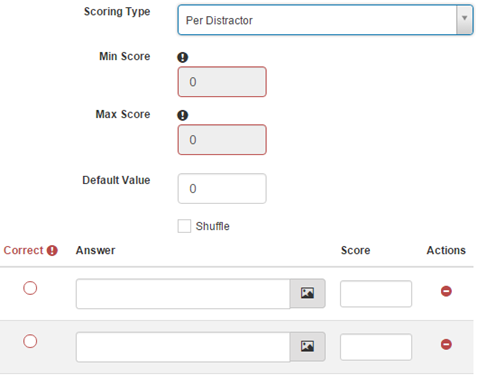
Enables more advanced scoring — for example, Per Distractor scoring on Multiple Choice questions, with min/max scores for each possible answer.
Embedded Interactions

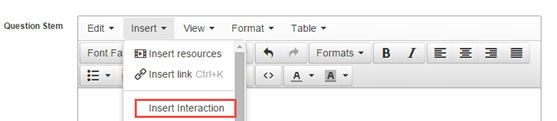
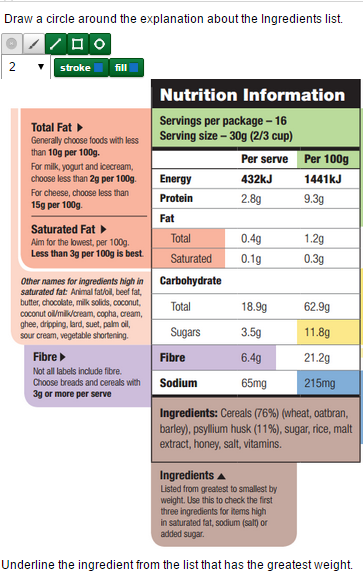
Allows the interactive part of a question (Slider, Position Object) to be included in the middle of the question stem.
To use: select Insert > Insert Interaction within the Question Stem.
Semi-automatic Marking

Advanced marking option for Keyword question types. Only works with the Janison Extended Marking Plugin.
Advanced Question Filtering

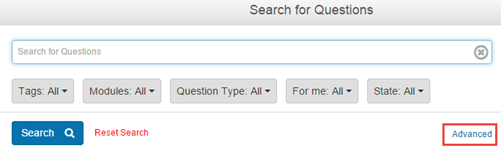
Lets users create a question search filter. The word Advanced appears in the search menu, linking to a search functionality based on Boolean filters. See Building filters.
Question Response Analysis

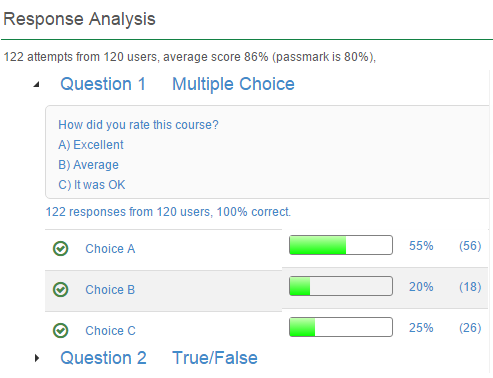
Adds a Response Analysis section on the question details screen, showing percentages per distractor and how many users have attempted the question. Requires test attempts to generate data.
Prompt for Question

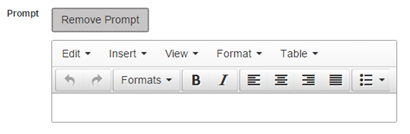
Adds a section to the question creation page for a prompt to help candidates answer.
Identifier auto generation
Specify automatically generated identifiers for questions, test sections, and tests. Identifiers follow a pattern you specify.
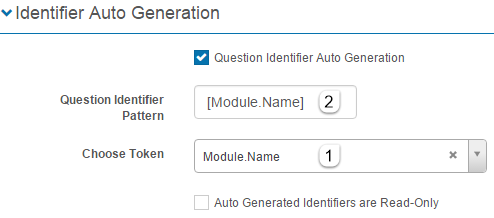
To open, expand the Identifier Auto Generation section. Check the auto generation checkbox and the options become active.
- Select a token from the Choose Token dropdown. It's added to the identifier pattern inside square brackets.
-
Select more tokens as needed (CLS entities, number sizes, year of creation).
Example — [Module.Name][yy] generates one unique identifier per module per year:
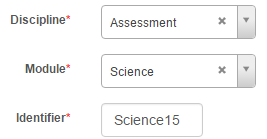
Adding Number (4 digits) gives [Module.Name][yy][nnnn] for uniqueness:

Note
Choose a number token large enough to accommodate the possible number of questions per module.
Check Auto Generated Identifiers are Read-Only to prevent users changing identifiers once generated.
Test options

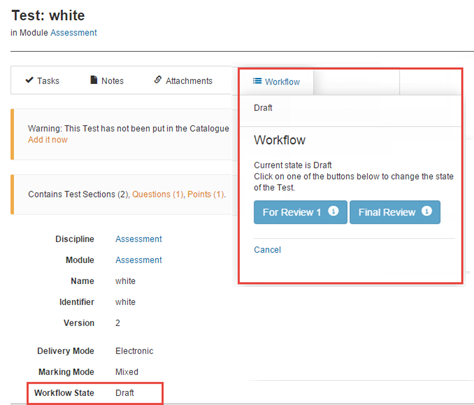
Workflows for Tests

Same as workflows for questions, applied to tests.
Skins
Allow Test Player Skin Settings Override — customise the skin for the test player.


Script Version
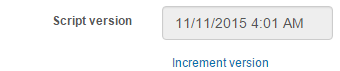
Selecting Increment version enters the current date in this field.

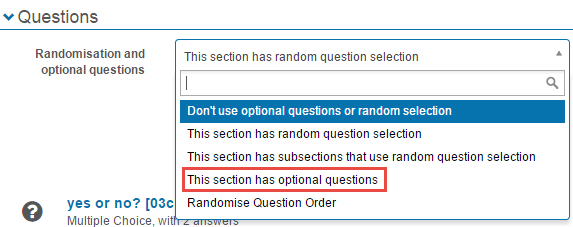
Optional Questions

Adds This section has optional questions in the Randomisation and optional question dropdown. Candidates choose a specified number of questions from those offered.
User Custom Attribute in Player Services

Contact Janison for more information.
Custom Attributes in Player

Contact Janison for more information.
Test Custom Attribute Set on Discipline

Lets you add custom attribute sets to a test, configured from the discipline details page.
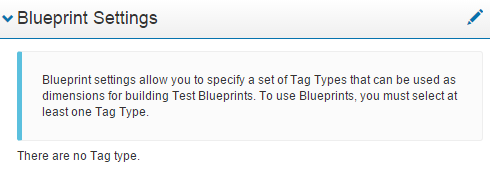
Test Blueprint

Adds a Blueprint Settings section on the test details page. Contact support for details.
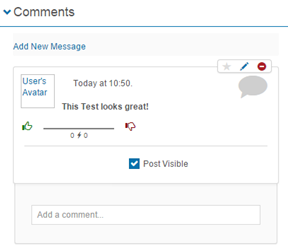
Comments for Tests

Adds a Comments section on the test details screen.
Versioning for Tests

Displays a version number for tests.
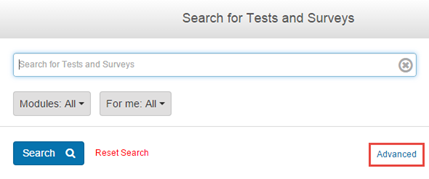
Advanced Test Filtering

Lets users create a test search filter using Boolean filters. See Building filters.
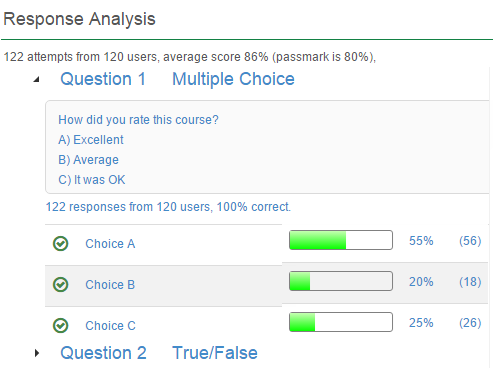
Test Response Analysis

Adds a Response Analysis section on the test details screen showing the number of test attempts, average score, and responses to questions.
Hide Warning when Tests are not in the Catalogue

Hides the warning message about adding a newly created test to a catalogue item. Suitable for authoring systems where authors aren't involved in delivery.

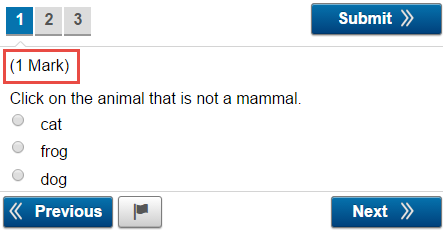
Show Available Mark on Each Question Inside the Test

Displays the mark for each question in the test player.
Auto Save Interval

Sets the seconds between auto-saves for Short Answer question types. Valid range: 20–600.
Enable Open Modules
Warning
Not recommended. Specifies that questions belonging to a module appear in search results for a test in a different module. Contact the Client Service Team.
Test section options
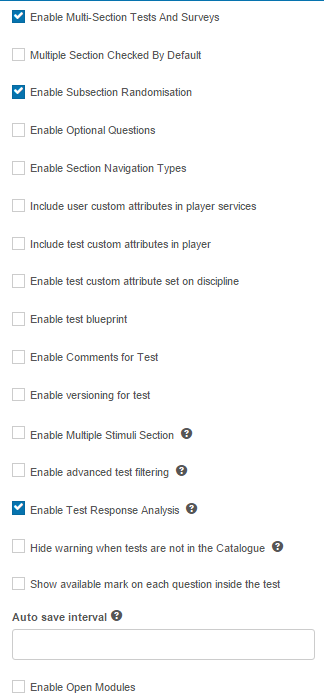
Multi Section Tests and Surveys

Adds the Use Multiple Sections checkbox on the test creation page.

Multiple Section Checked by Default

Automatically checks Use Multiple Sections on the test creation page.

Note
Multi Section Tests and Surveys must be enabled.
Test Section Banks

Lets test sections be reused across multiple tests in the same assessment module.
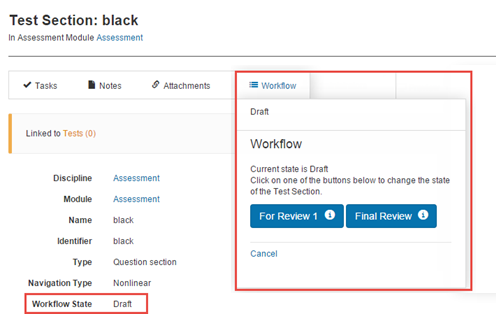
Workflows for Test Sections

Same workflow approach as questions and tests.
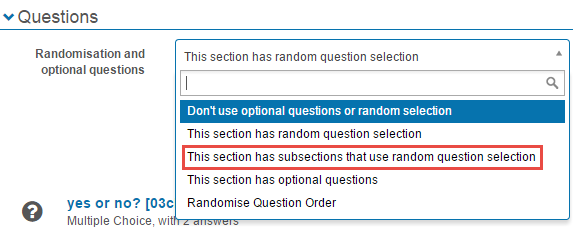
Subsection Randomisation

Specify random question selection at a sub-section level. Adds the This section has subsections that use random question selection option.
Section Navigation Types

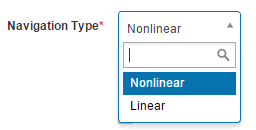
Test sections can be set to linear or nonlinear navigation through questions. Nonlinear is the default.
Cross Module Test Sections

Warning
Not recommended. Contact the Client Service Team.
Test Section Custom Attribute Set on Discipline

Lets you add custom attribute sets to a test section.
Comments for Test Section

Adds a Comments section on the test section details screen.
Advanced Test Section Filtering

Lets users create a test section search filter using Boolean filters.

Available question types
The CLS provides a smaller set of question types for Learning Modules (Match, Multiple Choice, Multiple Choices, Sequence, Short Answer) and a much larger set for assessment modules.
This section specifies which types are available, including where and how.
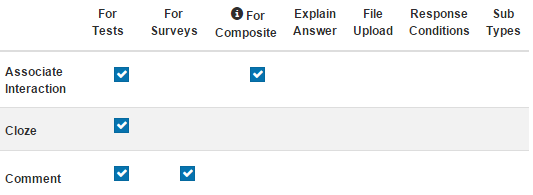
Columns (where relevant):
- For Tests — available in assessment tests.
- For Surveys — available in assessment surveys.
- For Composite Questions — available inside a Composite question type (which must itself be enabled).
- Explain answer — adds a box in the test player for learners to explain their answer.
- File upload — allows files to be attached to the question.
Available test section types
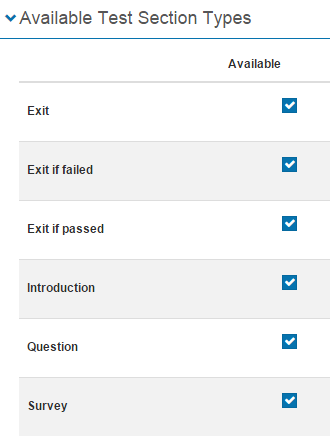
There's a row for each type of test section and a column where you check which ones are available. See Test panels in learning modules for descriptions.
Document flagging
Document flagging draws attention to assessment entities that need reviewing — especially useful with workflows.
Five entities can be flagged:
- Questions
- Resources
- Stimuli
- Test Sections
- Tests
Users with appropriate permissions select Flag This to flag the entity.

To set up flagging, expand the Document Flagging section.
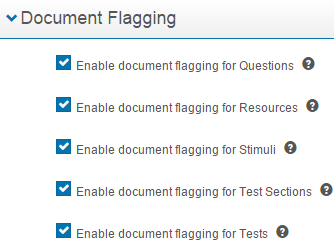
If you check Flags cleared by default on state transition, a Clear flags checkbox appears during workflow state transitions.

Paper based test print settings
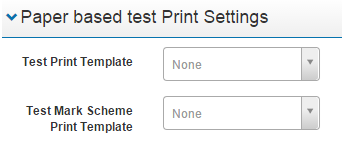
Two dropdowns let you select the print template for printable tests. Unlikely you'll need these — contact the Client Service Team.
Settings
This page is itself the Settings documentation for the test designer. All options are configured at Settings > Test Designer Settings.
Related settings:
Custom Attributes (Settings > Custom Attributes) — required for the Custom Attribute Set on Discipline options across questions / tests / test sections.
Roles (Settings > Roles) — controls who can edit flags and progress workflow transitions.