Challenges
A challenge is a managed learning campaign targeted at learner groups with specific outcomes. It's a set of engagement tasks learners must complete before a deadline to be eligible for rewards. Challenges consist of learning, teaching, and sharing criteria. Rewards can be bonus points, tangible items, or a combination.
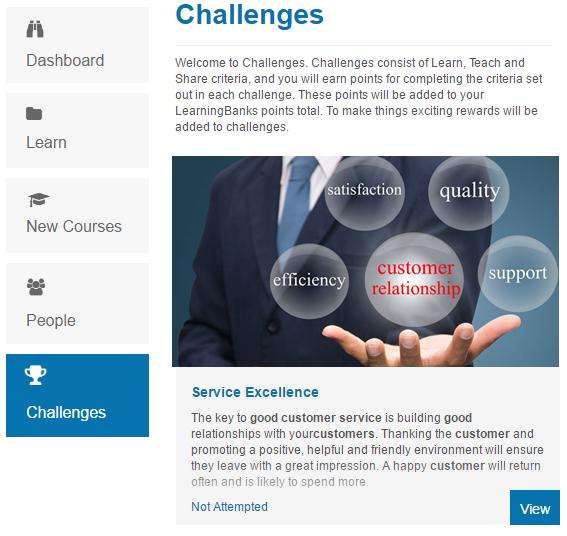
Workflow
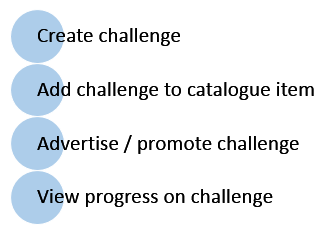
Learner experience
Learners access challenges from the left menu on the home page.
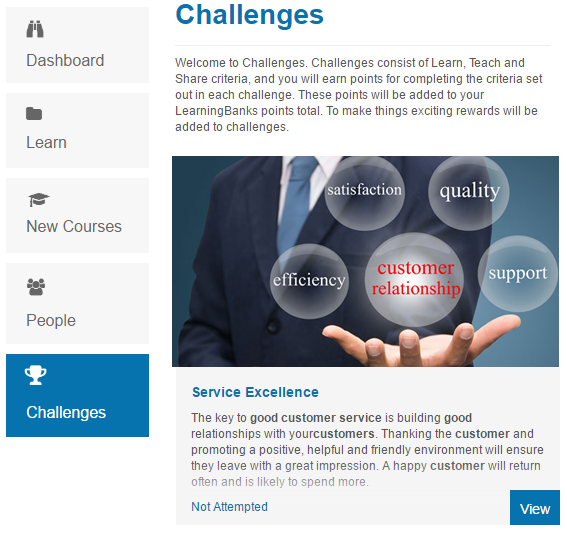
Selecting View directs learners to the challenge.
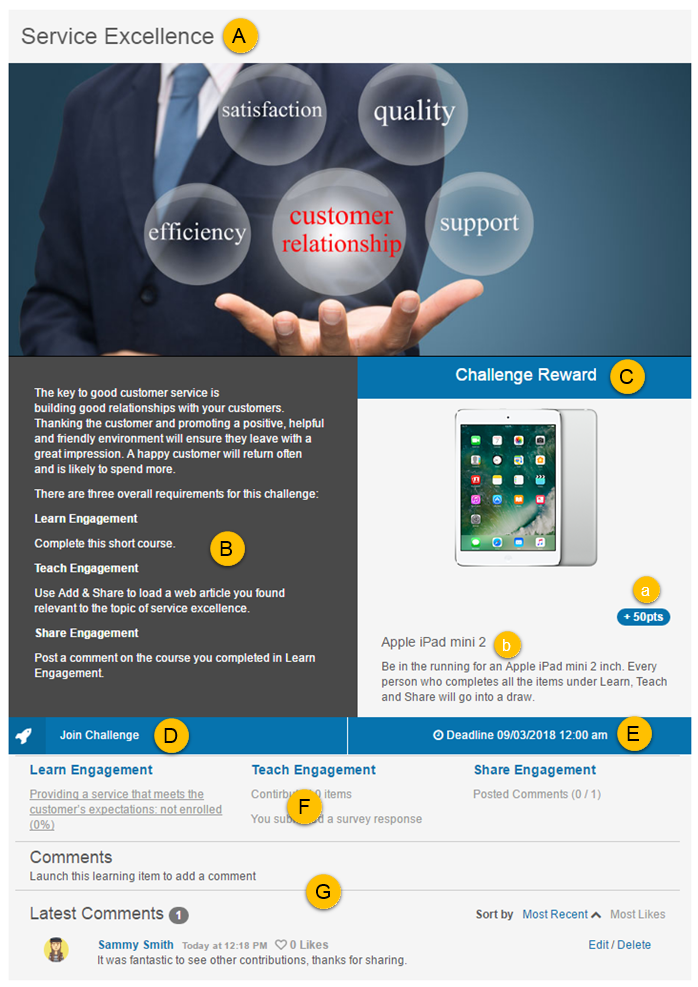
- Title of the challenge.
- Details of the challenge, populated from the overview section of the catalogue item.
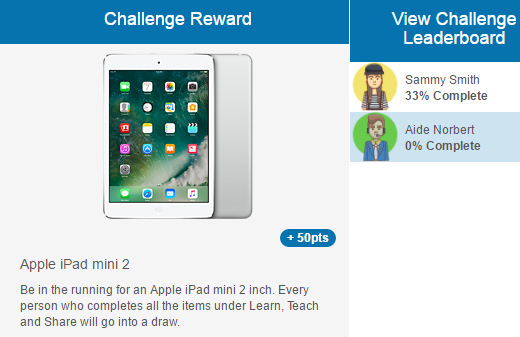
- Details of the reward (point reward, tangible reward).
- A link to Join the challenge. Once joined, this button changes to a joined-state indicator.
- The date and time the challenge must be completed by.
- A summary of the learner's progress for each criteria. Learn items can be accessed from here.
- The section to view and add comments.
Once a learner has joined, a leaderboard is displayed next to the challenge reward.
Comments
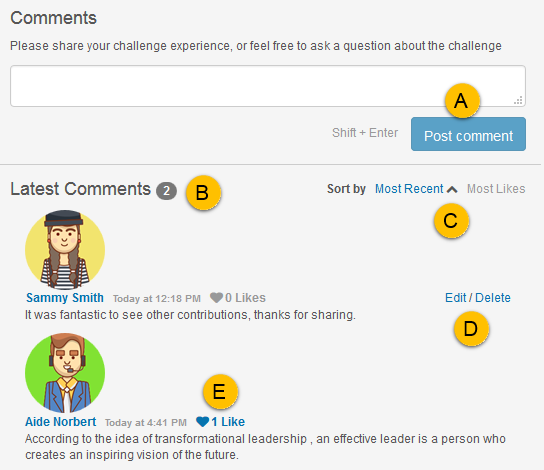
Users can discuss the challenge in the comments section.
- Post new comments.
- View the number of existing comments.
- Sort comments by Most Recent or Most Likes.
- Learners can only edit and delete their own comments. Administrators can edit or delete any user's comments.
-
Like comments by selecting the like icon.
Create a challenge
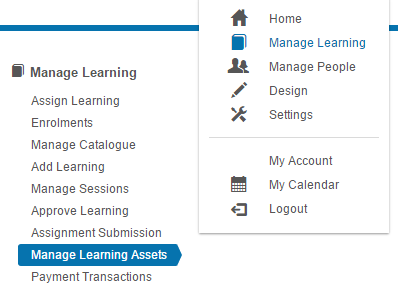
Navigate to Manage Learning > Manage Learning Assets.
-
Select Add Learning Asset.

-
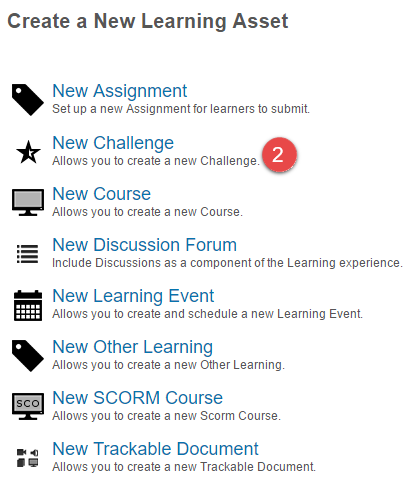
Select New Challenge.
-
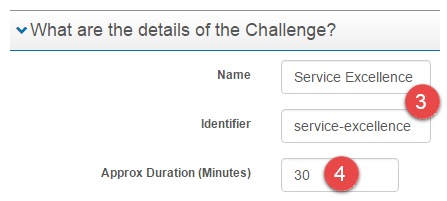
Enter a Name. The identifier auto-populates.
-
Enter an Approx Duration (Minutes) (optional).
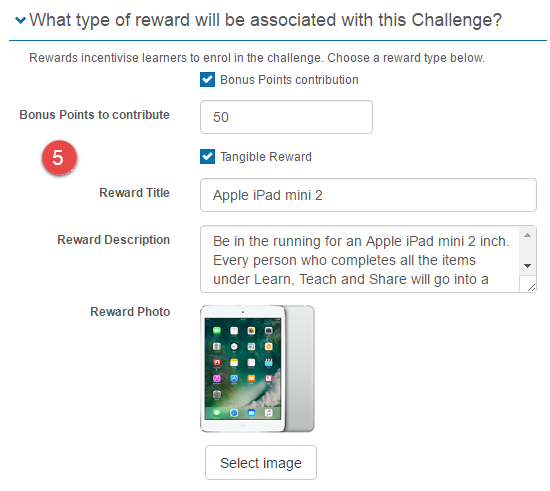
What type of reward will be associated with this challenge?
Two reward types are available when a learner completes a challenge:
- Points added to the learner's social learning profile.
- Tangible reward such as an iPad or a travel voucher.
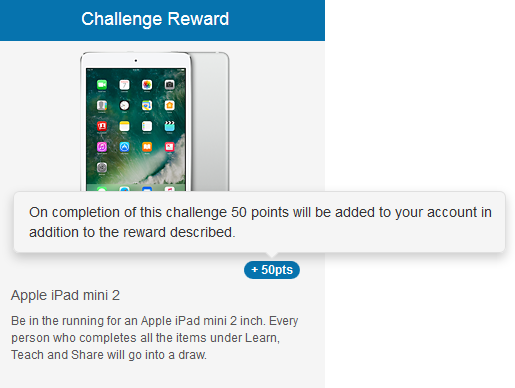
You can use either or both. Feedback is provided when hovering over the points.
-
Select the type of reward. Additional fields appear depending on the selection.
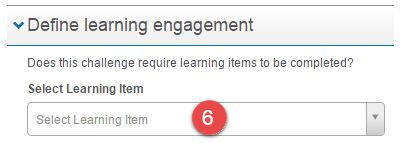
Define learning engagement
Include one or more learning assets for learners to complete to be eligible for the rewards. The items added here appear under the Learn Engagement heading.

-
Select the learning items.
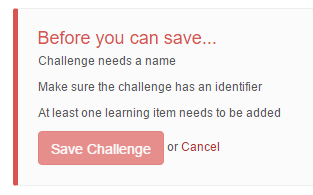
There are other optional settings below but this is enough information to save the challenge. The system provides feedback for any outstanding items.
-
Select Save Challenge.
Define teaching engagement
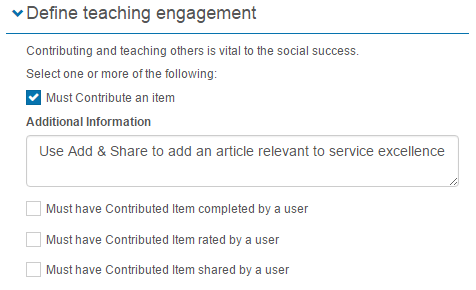
Teaching engagements are items added by learners using Add & Share. They appear under the Teach Engagement heading.

If you select Must Contribute an Item, an additional field appears for instructions. Setting this requirement means that to be eligible for rewards, a learner must add and share an item.
The three other options set requirements for other learners to complete, rate, and share the item for the contributor to be eligible.
Define sharing engagement
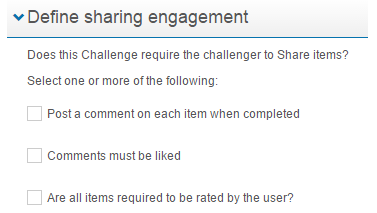
Sharing engagements set requirements for learners to comment on and like catalogue items. They appear under the Share Engagement heading.

- Post a comment on each item when completed — sets a requirement for the learner undertaking the challenge to comment on a catalogue item.
- Comments must be liked — sets a requirement for other learners to like the comment.
- Are all items required to be rated by the user? — sets a requirement for the learner to rate all catalogue items.
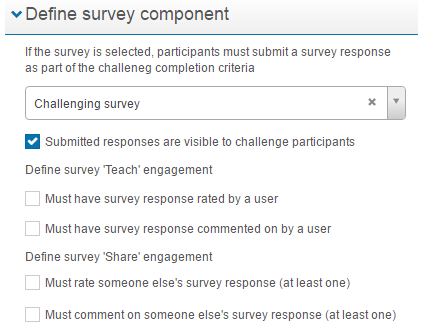
Define survey component
Surveys are optional. If you'd like users to complete a survey as part of a challenge, create the survey first — see Surveys.
If Submitted responses are visible to challenge participants is selected, additional options appear:
- Define survey 'Teach' engagement — sets a requirement for other learners to rate and comment on the response.
- Define survey 'Share' engagement — sets a requirement for the learner to rate and comment on another learner's response.
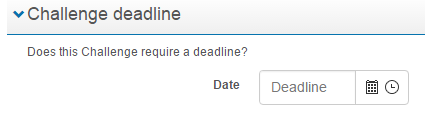
Challenge deadline
The date and time set here determine when learners must complete the challenge by to be eligible for the rewards.
Add the challenge to a catalogue item
Like all learning assets, challenges need to be added to catalogue items to be made available to learners. Enter a good overview that includes any criteria participants need to meet. See Manage Catalogue for more.
Note
Points set in the catalogue item are ignored in favour of the points set in the challenge.
View progress
A progress dashboard is available to view high-level stats and enrolments.
Access the dashboard from the challenge details
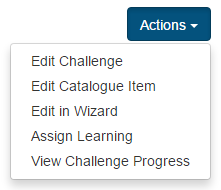
Navigate to Manage Learning > Manage Learning Assets and open the challenge. Select View Challenge Progress from the Actions menu.
Access the dashboard from the challenge
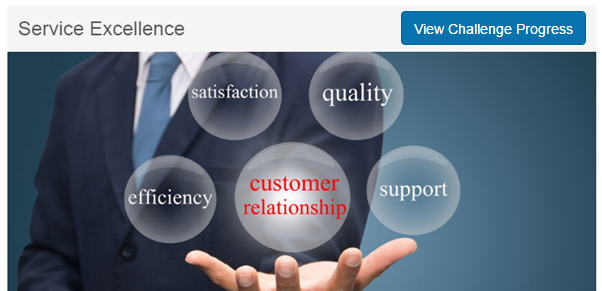
Open the challenge — a View Challenge Progress link is available at the top.
Challenge progress dashboard
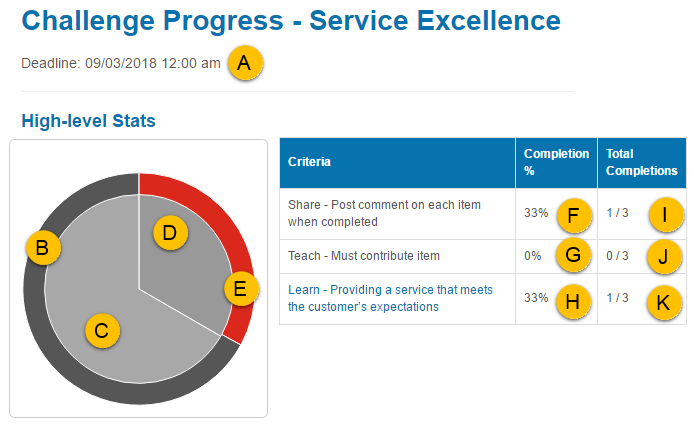
The top section contains high-level stats:
- The challenge deadline.
- The percentage of completed enrolments.
- The number of self enrolments.
- The number of admin-assigned enrolments.
- The percentage of completed enrolments (hovering over the graph shows details for items 2–4).
- The percentage of learners who have completed the share criteria.
- The percentage of learners who have completed the teach criteria.
- The percentage of learners who have completed the learn criteria.
- The number of learners who have completed the share criteria.
- The number of learners who have completed the teach criteria.
-
The number of learners who have completed the learn criteria.
The bottom section provides information on enrolments.
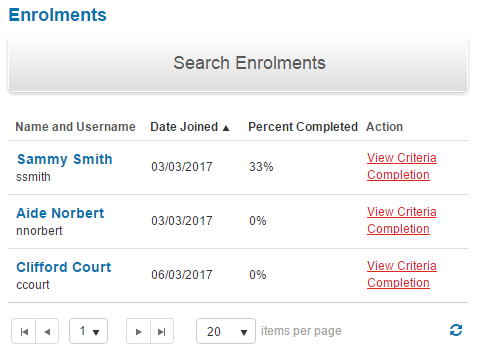
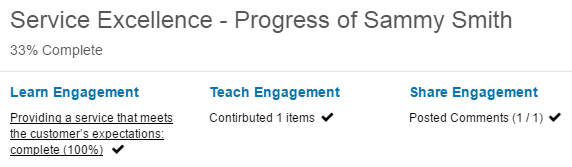
Selecting View Criteria Completion displays a popup with a summary of the learner's progress. The completion icon indicates a completion.
Settings
Administrators can configure the following setting at Settings > Social Learning.
Challenge Settings — set the number of days before the deadline that a reminder email is sent to the author of the challenge.