Competencies
Competency is the ability of an individual to do their job properly. Every organisation has its own collection of defined competencies. On a national or international level, a set of recognised competencies is called a qualification.
Competencies can be:
- Nationally recognised competencies (e.g. per TGA at http://training.gov.au/Home/Tga)
- In-house competencies that relate only to an organisation
In the CLS, Competencies are linked to catalogue items containing learning assets such as courses or training events. Competencies can also be linked directly to courses and assignments. A user acquires competencies through enrolment in and completion of these learning assets.
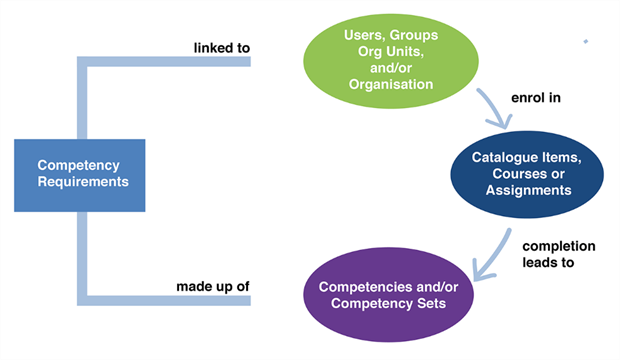
Competencies can be defined as permanent or as lasting for a defined period. They can also be collected into functional units called Competency Sets.
Competency Requirements are collections of competencies that users must acquire. Managers can run reports to determine compliance with specified competency requirements among staff.
Note
In a MOOC environment, Endorsements work alongside competencies and give learners the opportunity to recognise the skills of their peers.
Manage competencies
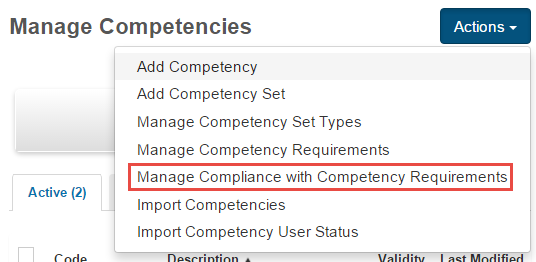
To manage competencies, select Manage Learning > Manage Competencies.
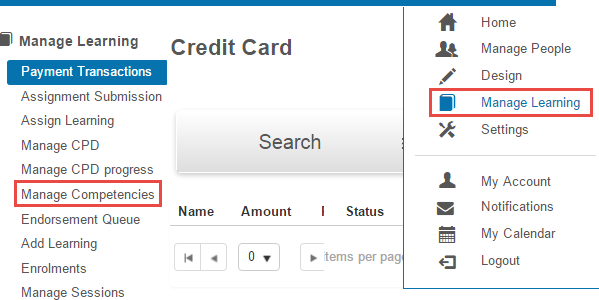
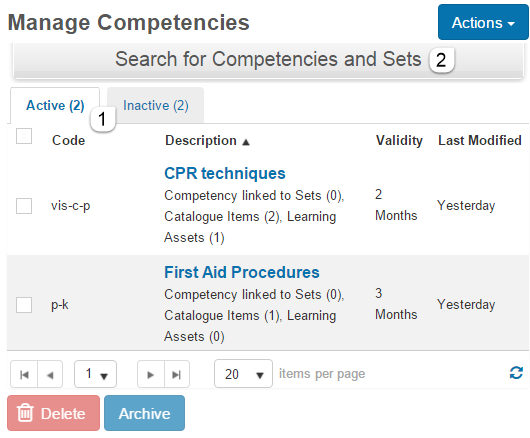
You're directed to the Manage Competencies screen.
- Existing competencies are divided by tabs into Active and Inactive.
-
Search for a particular competency or competency set by selecting Search for Competencies and Sets.
Add a competency
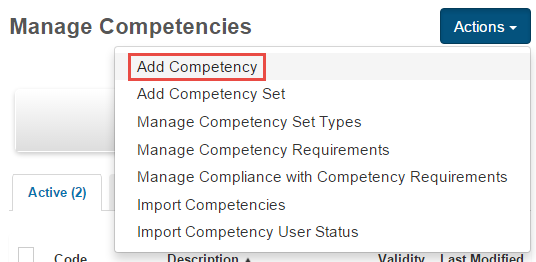
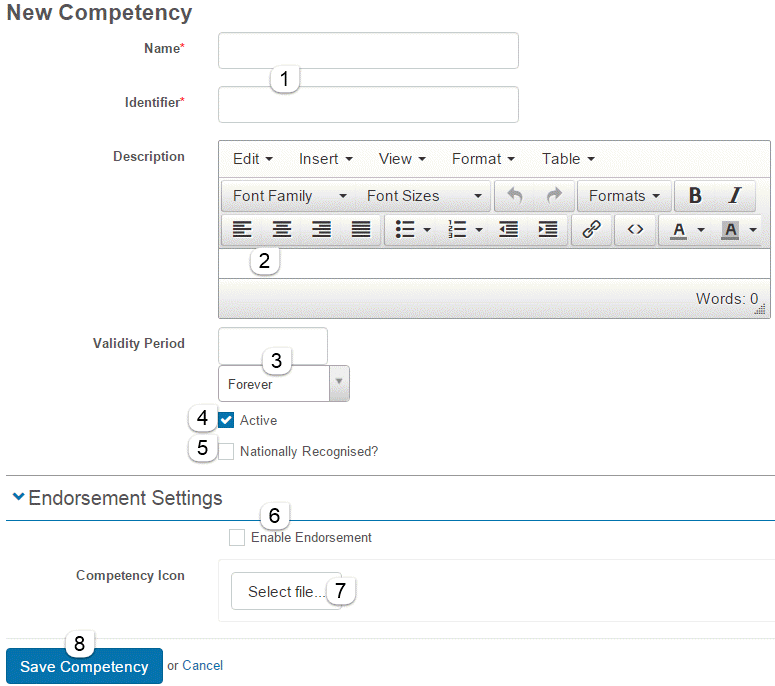
Select Manage Learning > Manage Competencies and select Add Competency from the Actions dropdown.
- Enter a Name — the Identifier is entered automatically.
- Optionally enter a Description.
- Set the Validity Period by selecting Forever or Days, Months, or Years (with a number).
- Check Active to create an active competency.
- Check Nationally Recognised if applicable.
- If Endorsements were previously enabled in Settings, an extra Endorsement Setting area appears.
- Optionally select an image for the Competency Icon (the badge users see if endorsements are set up).
-
Select Save Competency.
Note
If a competency is valid for a certain period, it expires after that period. The period is measured from the date the user completes the linked learning asset.
Archive, delete, or edit
Select Manage Learning > Manage Competencies. You see a list of existing competencies and competency sets.
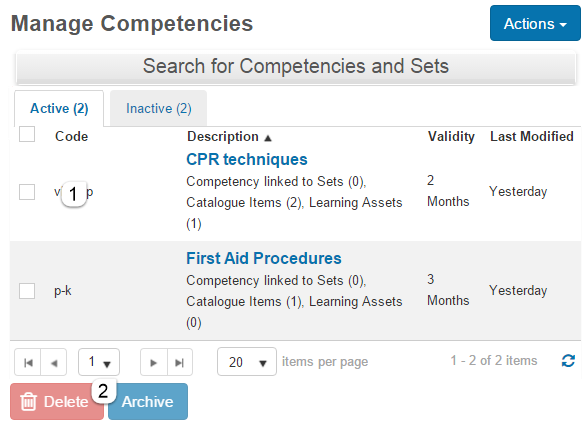
To delete or archive:
- Select the checkbox to the left.
- Select Delete or Archive.
To act on all, select the Code checkbox at the top.
Note
- Archiving takes the competency out of activity but doesn't delete it.
- You can't archive or delete a competency that is in use.
Edit a competency
Select the competency name. From its details page, select Edit Competency.
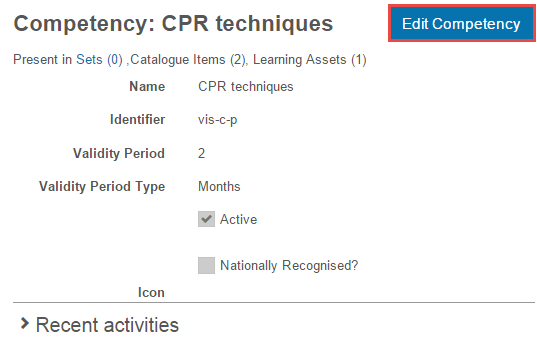
You can change any of the values entered when the competency was created.
Note
- You can change the name and identifier — all existing relationships are retained.
- If you update a competency after a user has acquired it, the changes affect that user's competency.
Link competencies to learning
You can link competencies to catalogue items, courses, and assignments. The first is the most common. A user acquires competencies when they complete the linked learning.
Link a competency to a catalogue item
Navigate to Manage Learning > Manage Catalogue, locate the item, and select Edit Catalogue Item from the Actions dropdown.
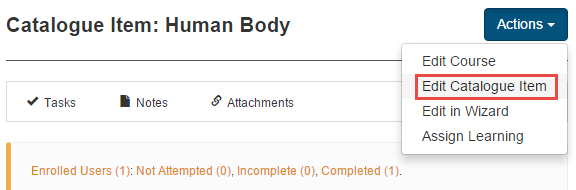
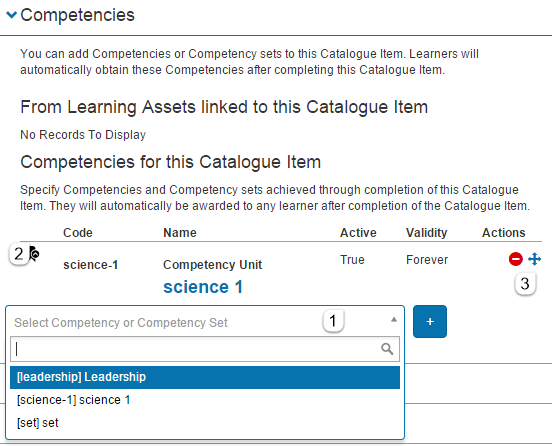
Open the Competencies collapsible window.
-
Select a competency or competency set from the dropdown and select the + icon.
Note
There's no indication of whether a list item is a competency or competency set.
-
The linked item appears under Competencies for this Catalogue Item.
- Unlink with the red minus icon. Reorder by dragging the crosshair icon.
Select Save Catalogue Item.
Note
If you link a competency to a catalogue item after a user has completed the enrolment, they don't receive the competency. To grant it, edit the enrolment to add the competency.
Link a competency to a course
Edit the course and open the Competencies collapsible window. Follow the same steps as for catalogue items.
Link a competency to an assignment
Edit the assignment and open the Competencies collapsible window.
You must additionally specify whether to automatically award competencies when the learner passes the assignment, or whether the facilitator manually awards them.
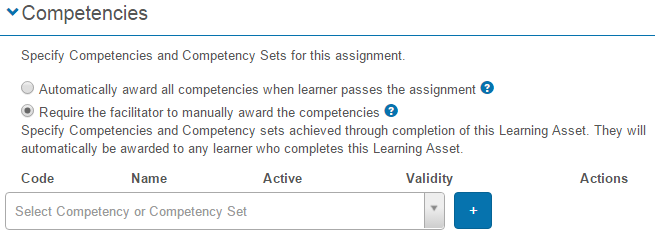
Save the assignment.
Renewing a competency
If you link learning to a competency that isn't valid forever, the competency needs to be renewed periodically. The catalogue item (or the catalogue item the learning asset is linked to) must allow re-enrolments.
Add a competency requirement
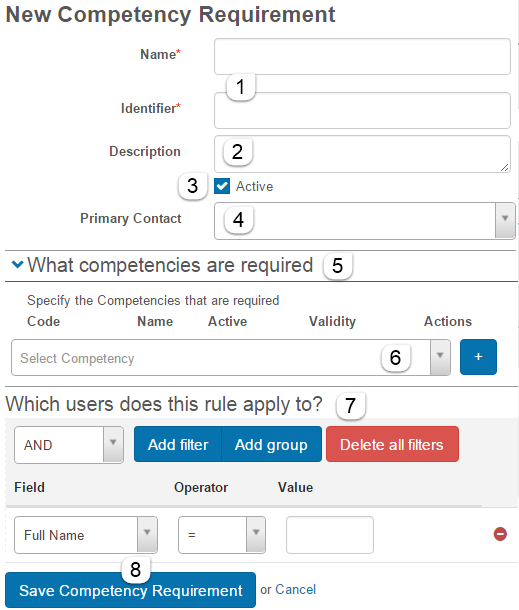
Competency requirements are collections of competencies that users must acquire.
Select Manage Learning > Manage Competencies and select Manage Competency Requirements from the Actions dropdown.
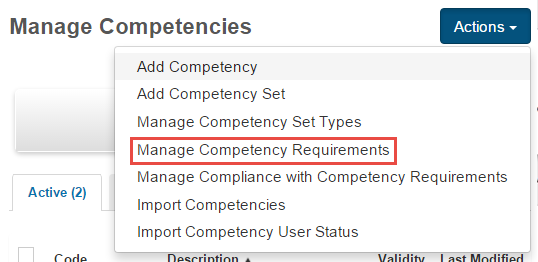
To add a competency requirement, select Add Competency Requirement.
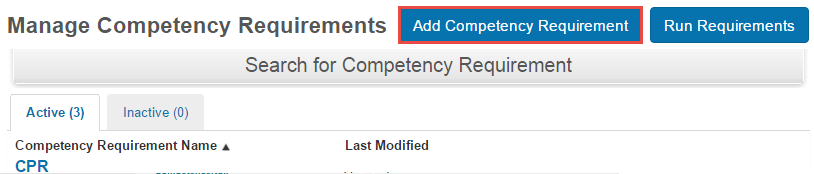
- Enter a Name. The identifier is auto-created.
- Optionally enter a Description.
- Check Active to create an active requirement.
- Select a user from the Primary Contact dropdown.
- Open the What competencies are required collapsible window.
- Select a competency from the dropdown and select the + icon (repeat as needed).
- Under Which users does this rule apply to?, create filters to specify the users. See the document on building filters for instructions.
-
Select Save Competency Requirement.
Important
The competency requirement isn't applied to the specified users until you Run Requirements.
Run requirements
A competency requirement isn't linked to its users until you Run Requirements.
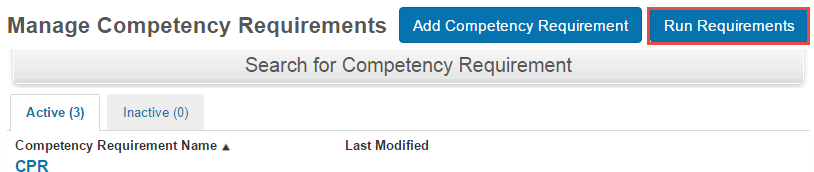
Select Manage Learning > Manage Competencies > Manage Competency Requirements, then Run Requirements. This processes all active competency requirements.
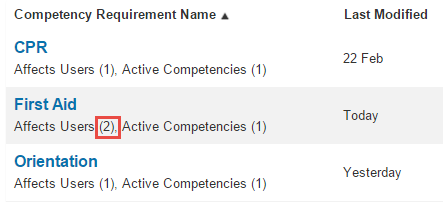
After running, the number next to Affects Users changes for new requirements.
Important
If you've edited a requirement so that previously selected users are no longer matched, running requirements detaches the requirement from those users. Run Requirements always starts from scratch.
Edit a requirement
Select the requirement name to view details, then Edit a Competency Requirement.
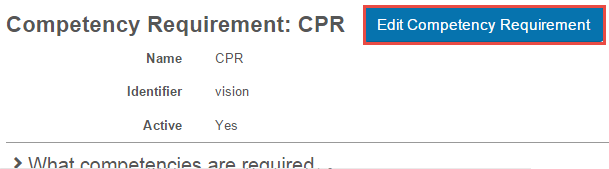
You can change any of the values entered when the requirement was created. Run Requirements again for changes to take effect.
Delete a requirement
From the edit screen, select Delete Competency Requirement.

Manage compliance with requirements
You can view user compliance with active competency requirements. The information is displayed as charts, lists, and numbers, and can be subdivided by user, organisation unit, organisation, group, and competency.
Select Manage Learning > Manage Competencies > Manage Compliance with Competency Requirements.
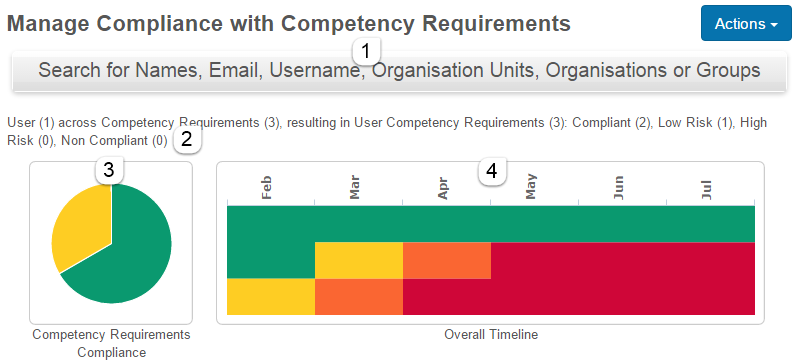
Compliance is divided into four categories, with risk levels applied as a competency nears expiry:
 Compliant
 Low Risk
 High Risk
 Non-Compliant
Data is collected as requirements for Competency (the number of different competencies involved) and User Competency requirements (the number of separate user-competency pairs).
Simple example
In this example, on Feb 29 one user has one competency requirement applied that contains three competencies — one valid forever and two with expiry dates. She acquired all three in February.
- The search bar narrows the screen to specific users, organisations, org units, or groups.
- Display description showing totals (Users 1, requirements for Competency 3, User Competency requirements 3) and their compliance breakdown.
- Pie chart visualising the four categories.
-
Timeline showing today's data over time, one row per User Competency requirement.
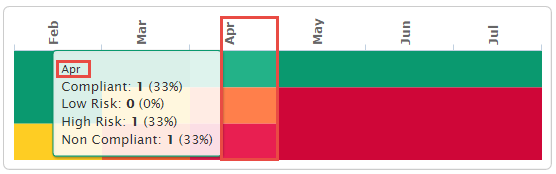
Moving the cursor over the timeline creates popups showing how data changes over time as competencies approach expiry.
- Open Details (by User) for more detail.
- The pie chart shows the user is Compliant in two requirements and Low Risk for the third.
-
View More shows details per competency.
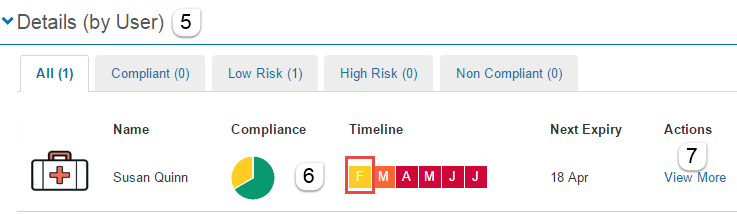
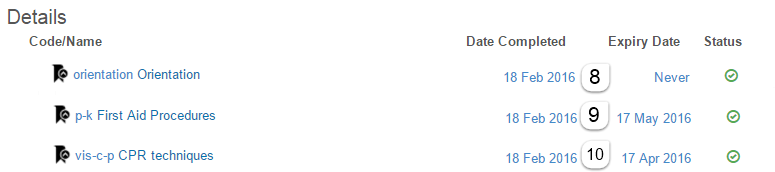
The Details area shows the date each competency was acquired and its expiry.
-
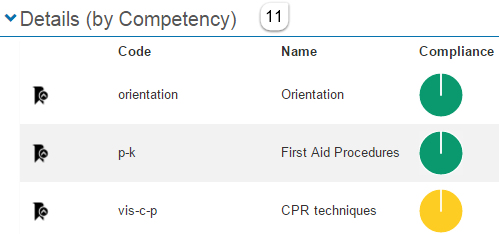
Open Details (by Competency) to see data per competency.
More complex example
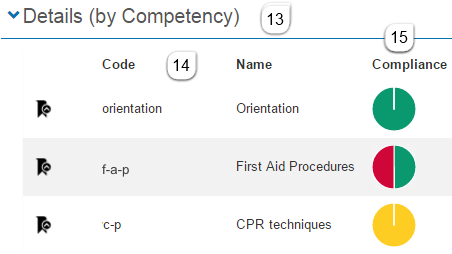
In this example, four users have competency requirements applied, with three different requirements and three competencies.
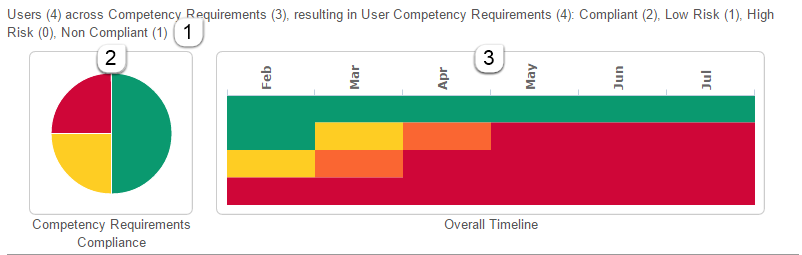
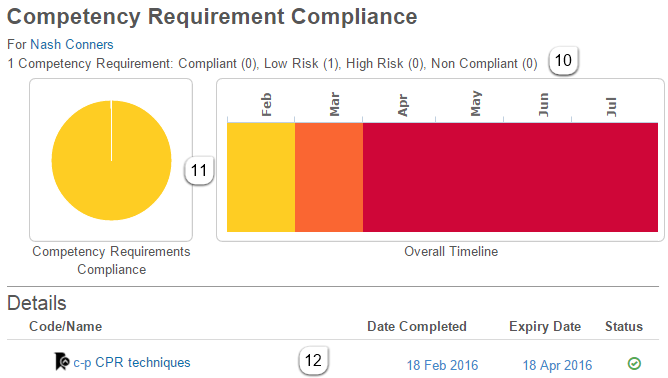
- Description shows Users 4, requirements for Competency 3, User Competency requirements 4.
-
Pie chart and timeline of the data.
-
The Details (by User) window shows individual user statuses.
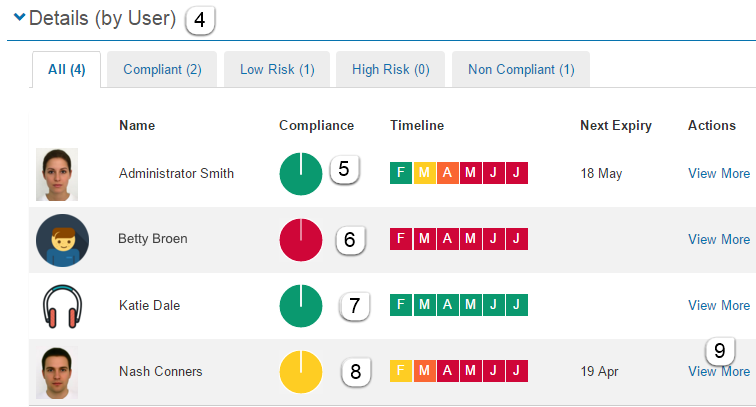
View More on Nash Connors shows his single competency requirement is currently Low Risk.
-
Open Details (by Competency) to see data about the competencies involved.
Tip
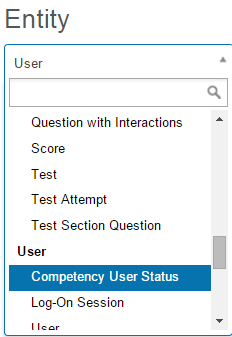
For reports about competencies only (not requirements), go to Manage Learning > Customisable Reports and create a custom report on the Competency User Status entity.
Compliance classifications
A user is compliant in relation to a competency at a point in time if they have a completed enrolment in the linked learning and either:
- The competency is valid forever, or
- The point in time is between the completion date and the expiry date.
The user is Compliant when compliant and this will be true for 2 months or more into the future.
- Low Risk — compliant now, true for 1–2 months into the future.
- High Risk — compliant now, true for less than 1 month into the future.
The user is Non Compliant when they don't have the competency or it has expired.
Add a competency set
A Competency Set is a collection of competencies (e.g. an in-house collection).
Note
- A competency must already exist before being added to a set.
- Competency sets have a defined Set Type — choose from defaults or create new ones (see Manage competency set types below).
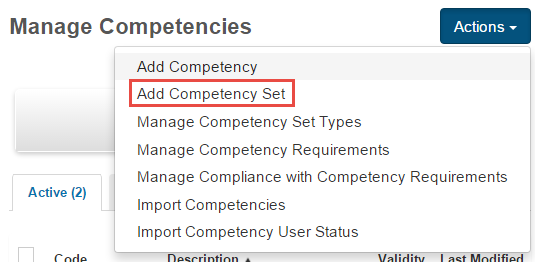
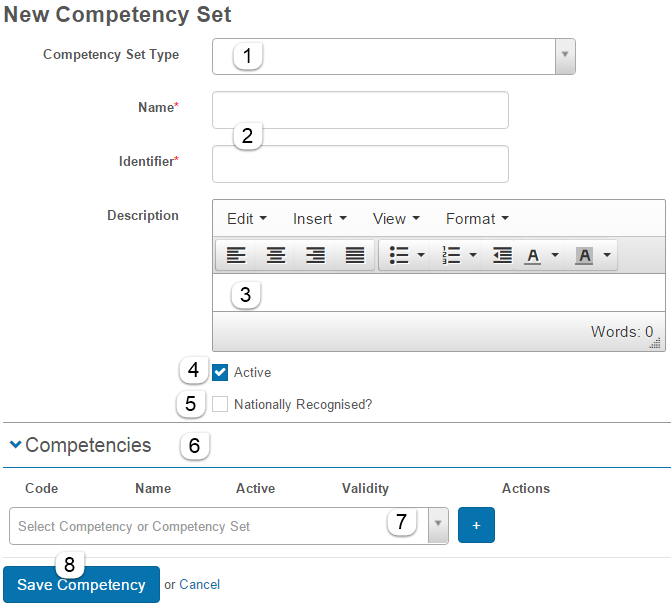
Select Manage Learning > Manage Competencies and select Add Competency Set from the Actions dropdown.
- Select a Competency Set Type.
- Enter a Name. The identifier is auto-created.
- Optionally enter a Description.
- Check Active.
- Check Nationally Recognised if applicable.
- Open the Competencies collapsible window.
- Select a competency from the dropdown and select the + icon. Repeat as needed.
-
Select Save Competency.
Manage competency set types
Add new set types beyond the defaults.
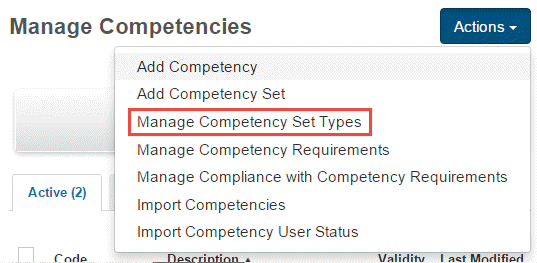
Select Manage Learning > Manage Competencies > Manage Competency Set Types.
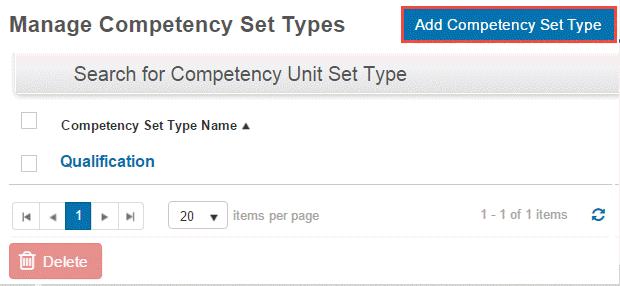
Select Add Competency Set Type.
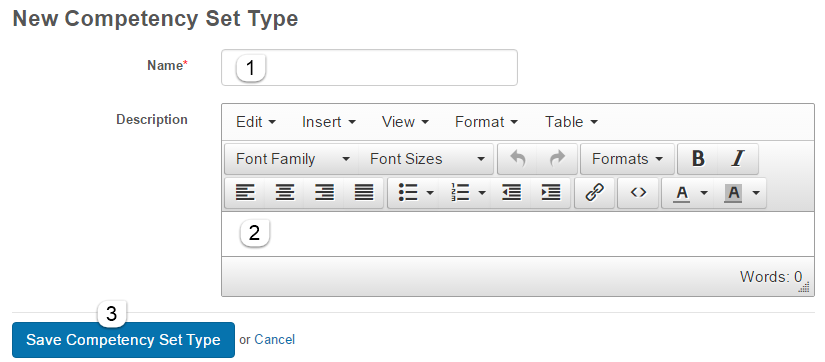
Enter a Name and Description, then select Save Competency Set Type.
Enable the Assign Competency Wizard
The Assign Competency Wizard must be enabled before use.
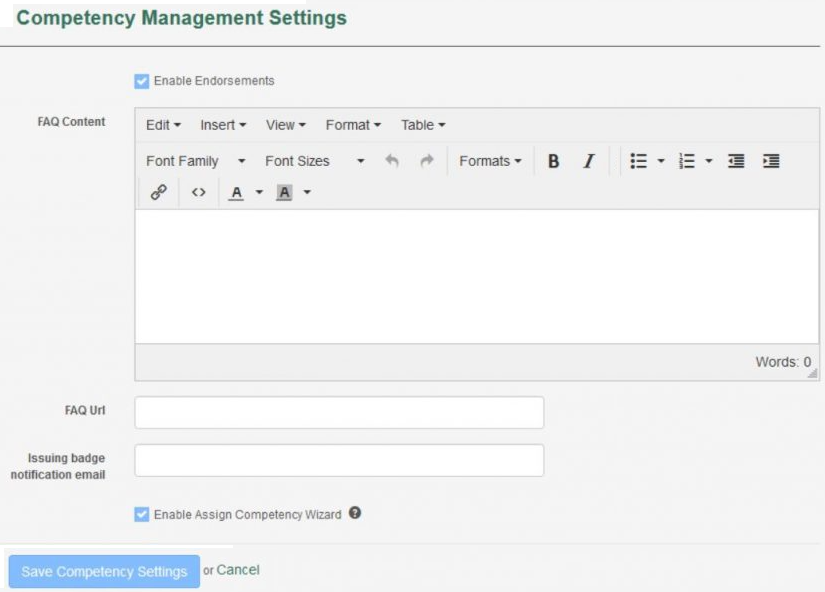
- Navigate to Settings > Competency Settings.
- Select Enable Assign Competency Wizard.
- Select Save Competency Settings.
The wizard is now accessible via Manage Learning > Manage Competencies.
Use the Assign Competency Wizard
The wizard assigns one or more competencies to one or more users.
Important
- Competencies and users must already exist.
- The wizard must be enabled.
Assign competencies
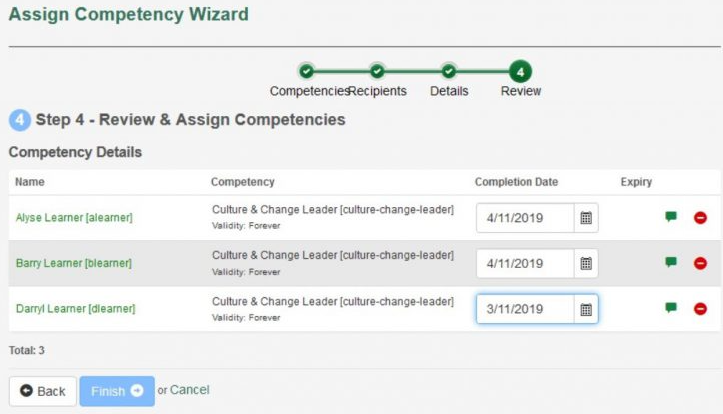
- Navigate to Manage Learning > Manage Competencies.
- Select Actions > Assign Competency Wizard.
The wizard guides through these steps.
Step 1 — What competencies are you assigning?
- Search for the competency.
- Select the add icon next to each required competency.
- Repeat as needed.
- Select Next.
Step 2 — Who are you assigning?
- Search for the user (only users you have scope over are returned; search is by user, not by org).
- Select the add icon to add the user.
- Repeat as needed.
- Select Next.
Step 3 — Details
- Optionally set a default Completion Date (must be current or past).
- Select Next.
Step 4 — Review and assign competencies
- Review the details. Edit completion dates, add comments, or remove specific competencies if needed.
- Select Finish to assign.
Step 5 — Finish
The assigned competencies are listed. No notifications are sent.
User experience
View competencies as a learner
To view competencies, a learner selects My Account.
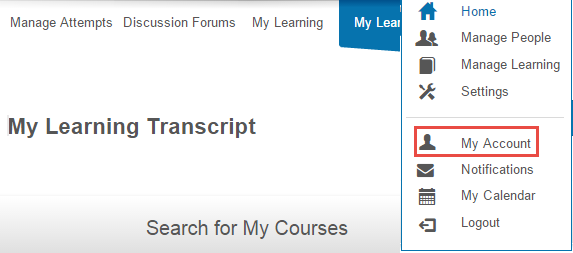
-
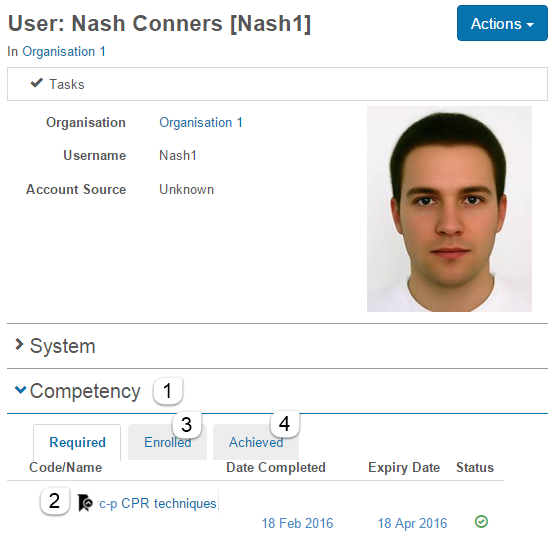
Open the Competency collapsible window. Three tabs appear:
- Required — competencies required through requirements. Acquired ones show completion and expiry dates with a tick; unmet ones show a red crossbar.
- Enrolled — competencies linked to catalogue items the learner is or has enrolled in.
- Achieved — competencies linked to catalogue items the learner has completed.
View competencies as a manager
A user can see the competency requirement status of their staff on My Learning if:
- They're established as a direct manager via a Position-to-Position management relationship.
- The Smart Tile setting is enabled at global level for the tenant.
A Competency Requirement tile then appears at the bottom of the screen.
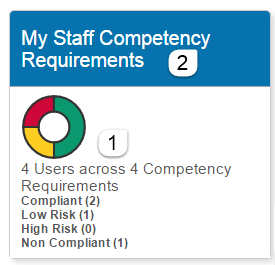
Selecting My Staff Competency Requirements links to the Manage Compliance with Competency screen.
Import competencies
Rather than adding competencies one at a time, you can import a batch via spreadsheet.
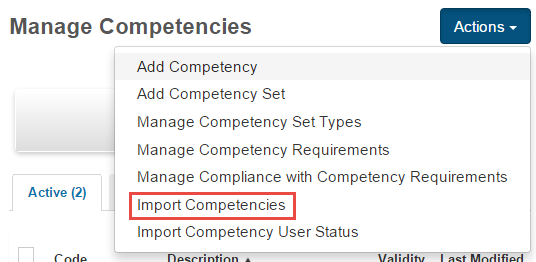
Select Manage Learning > Manage Competencies > Import Competencies.
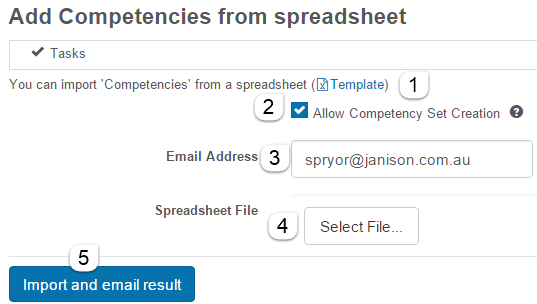
- Download the template, populate it, and save it.
- The default template has a Linked Set Id column. Check Add competency set requirement to create new sets for values not found in the system.
- Enter an email address for the summary.
- Select your spreadsheet.
-
Select Import and email result.
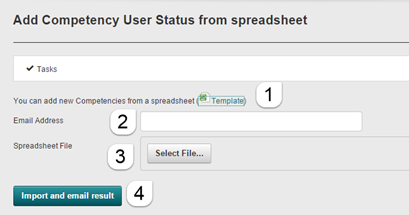
Import competency user status
You can import information about when users acquired competencies.
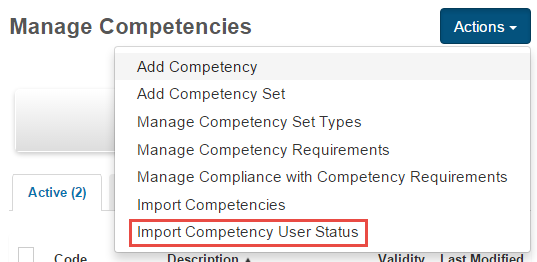
Select Manage Learning > Manage Competencies > Import Competency User Status.
- Download the template, populate, save.
- Enter an email address.
- Select your spreadsheet.
-
Select Import and email result.
Settings
Several platform settings affect competencies.
Administrators can configure the following settings:
Competency Settings (Settings > Competency Settings) — enable Endorsements, configure FAQs, badge notification email, and Enable Assign Competency Wizard.
Competency Management plugin — must be active. Contact your account manager.
Smart Tile (global tenant level) — must be enabled for the Competency Requirement manager tile to appear. Contact Janison support.
Tenant Settings — set up Position-to-Position management relationships for the manager-view tile.