String resources
String resources let administrators customise the text displayed throughout the platform. Whether you need to tailor messages to fit your brand's voice, accommodate different languages, or provide clearer instructions, string resources give you the flexibility to make changes.
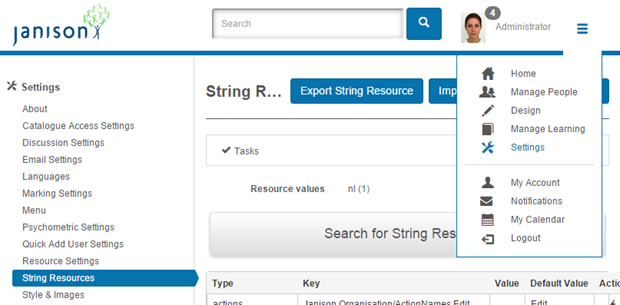
Navigate to Settings > String Resources.
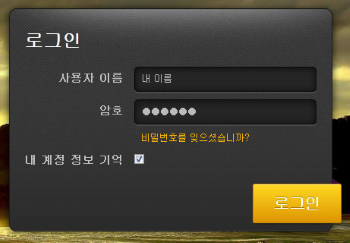
In the example below, string resources are used to change the language of the login screen.
There are five things you can do with string resources:
- Change particular labels and text. Change the actual terms used by the CLS so they match your organisation. Customise instructions, warnings, and messages.
- Translate all labels and text. Use a different language for all labels and text. The CLS can be presented in completely different languages depending on the user's browser language.
- Inject a custom page into My Learning Dashboard. Develop a custom page and use it to customise the My Learning dashboard. Only available with the Smart Dashboard plugin.
- Customise the links in the footer of screens. Link to custom pages or external sites.
- Hide text. Hide text that's not part of the menu.
The CLS has a default set of terminology. For example, the primary categories are:
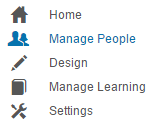
Using string resources you can:
- Rename Manage People to Staff Admin.
- Rename a Group to a Cohort.
- Translate error messages into terms your organisation is familiar with.
The CLS supports best-practice management of string resources — different instances of the same resource can be translated differently.
Edit string resources
Navigate to Settings > String Resources.
Important note about language settings
The CLS checks the user's browser language setting to determine the string resources delivered. Ensure browsers are set to the correct language (for example, en-AU).
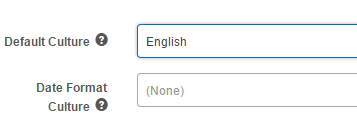
When you change string resources, the CLS notes its own language settings and links the updated string resources only to that language. Languages are set at Settings > Languages — see Languages.
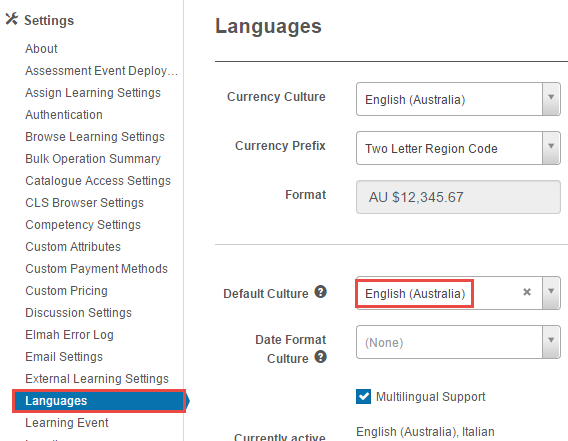
There's a difference between English and English (Australian). If your user base contains different English cultures (for example, English (Ireland) and English (Caribbean)) and you want changes to target all English cultures, set the CLS to the parent category English before making changes.
Inspect
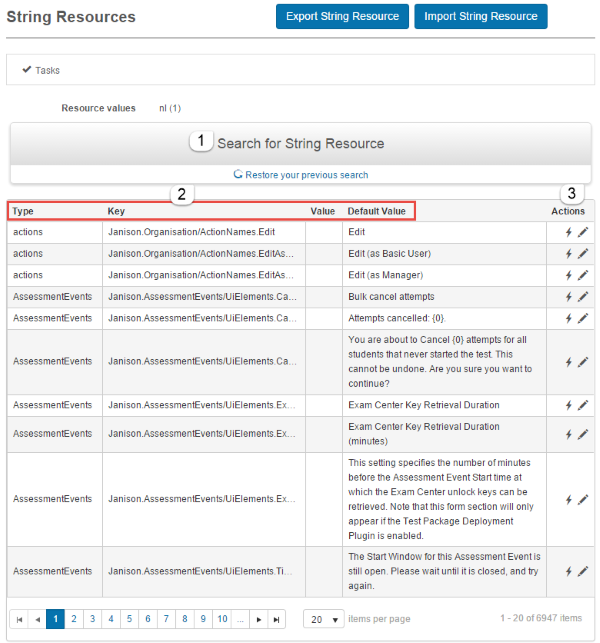
After selecting Settings > String Resources you see a list of all possible string resources that can be changed.
- Search for a particular string resource. Narrow by plugin (for example, Janison.CompetencyManagement) and/or language (for example,
en-AU). -
The list can be sorted by four headings:
- Type — type of string resource.
- Key — CLS internal name.
- Value — the new value of the string resource. Blank if you haven't made changes.
- Default Value — the default value.
-
The icons let you edit the string resource.
Edit a string resource
As an example, change the word Manage to Administer.
-
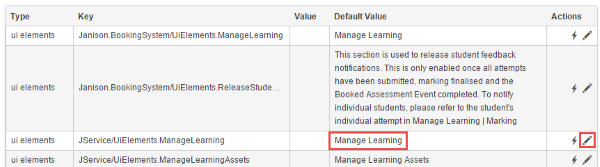
Find the default value to alter.
-
Select the pencil icon to edit.
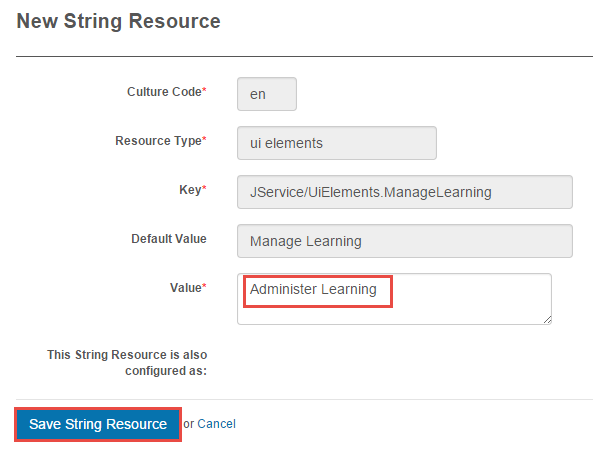
- Type Administer Learning into Value.
-
Select Save String Resource.
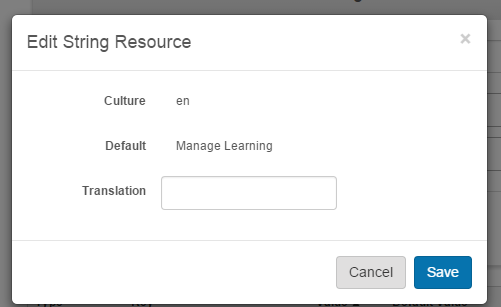
You can also select the lightning bolt to make the same change in the Quick edit screen:
-
The change appears on the list under Value.

-
A reset button is generated — use the cross icon to return the resource to its default value.
-
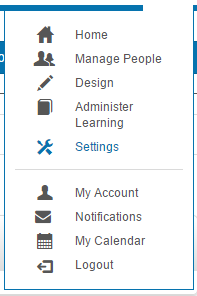
Manage Learning has been changed to Administer Learning.
Customise links
Four links appear by default in the footer of each page.

To customise — for example, change the Privacy link to a link to the Janison website — navigate to Settings > String Resources.
- Search for Privacy.
-
Select the pencil icon for the UI element
PrivacyFooterLink.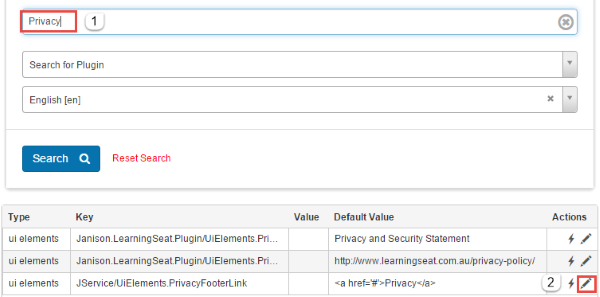
-
Enter the HTML code specifying the new link.
-
Select Save String Resource.
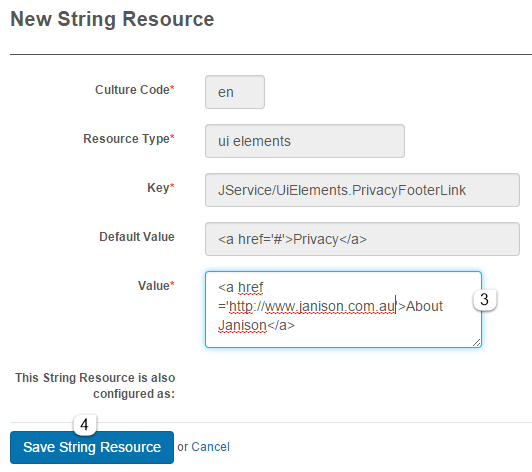
The footer is updated. Selecting About Janison takes users to the Janison website.

Link a custom page to My Learning Smart Dashboard
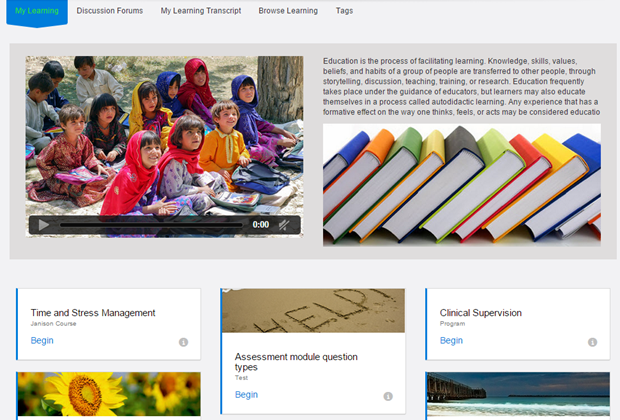
The My Learning dashboard is where learners access their catalogue enrolments. You can add a custom page to the top.
Locate and update the string resource with key JService/UiElements.DashboardIntro. A more detailed guide is in Custom Pages Modules.
Example with a custom page linked:
Hide text
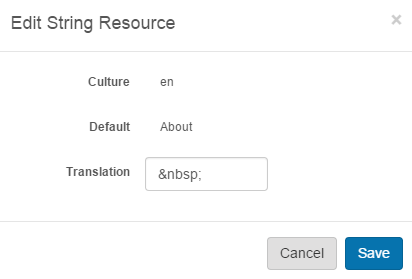
Inserting a non-breaking space ( ) into the Value field hides the text.
Note
Text in menus is hidden using a custom menu at Settings > Menu.
Settings
This page is itself the Settings documentation for string resources. All operations are at Settings > String Resources.
Related settings:
Languages (Settings > Languages) — controls the default culture, which in turn determines which string resources are displayed.