Catalogue Item Templates
Catalogue Item Templates let you specify default settings when creating new catalogue items. They're useful when the same set of configurations is required for multiple catalogue items.
Settings
Browse to Settings > Catalogue Item Settings.
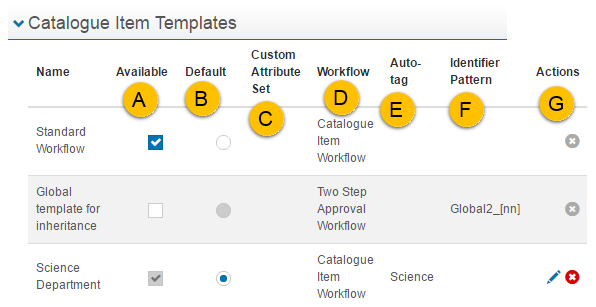
The Catalogue Item Templates section lists the available templates, each with a summary of configurations:
- Available — when selected, the template appears in the list when creating a catalogue item.
- Default — appears at the top of the catalogue template list during creation.
- Custom Attribute Set — link to a custom page from within a catalogue item. See the document on custom attributes.
- Workflow — see Catalogue item workflows.
- Auto-tag — catalogue items are automatically tagged with the listed tags.
- Identifier Pattern — defines the format of the catalogue item identifier.
- Actions — selecting the edit
 icon gives you edit access. If not displayed, the template was created at the global level and is locked.
Templates can only be deleted if they haven't been linked to a catalogue item — in which case an  icon is displayed.
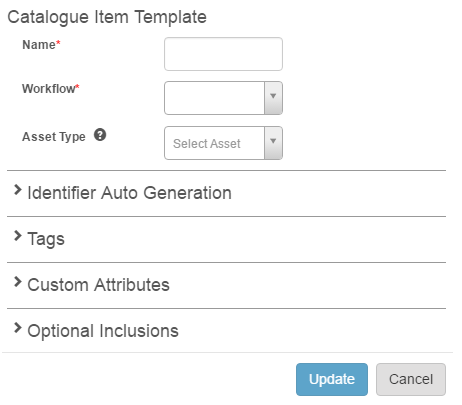
Add a new template
-
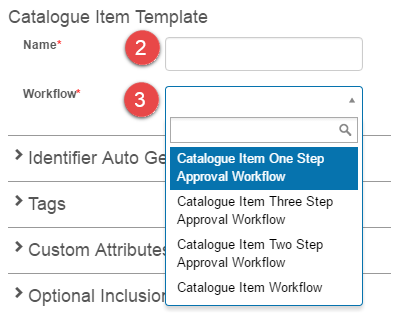
Select Add new template.

-
Enter a Name.
-
Select a Workflow. See Catalogue item workflows for more.
Identifier auto generation
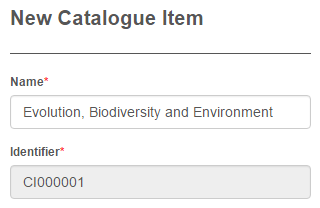
Specify a format for your catalogue item identifier. When items are created using this template, the identifier auto-populates.
- Enter an Identifier Pattern — the first letters or numbers.
-
Select a Token — determines the integers that follow.
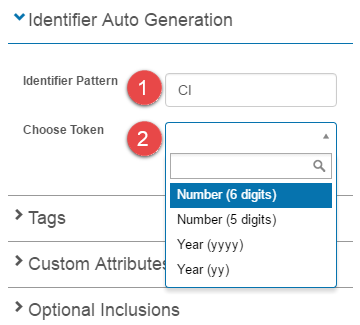
In the example below, with a pattern of CI and a token of Number (6 digits), the identifier auto-populates accordingly.
Tags
All tag fields are optional.
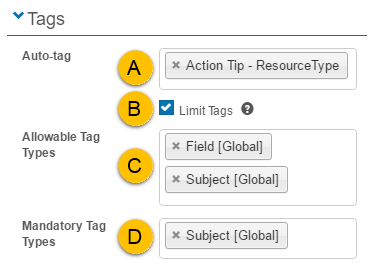
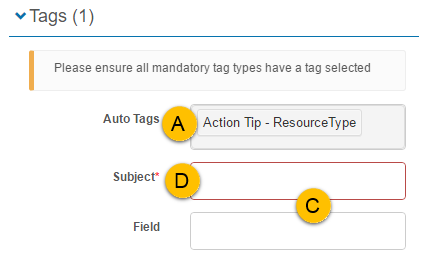
- Auto-tag — new catalogue items are automatically tagged with these tags.
- Limit tags — limits the tags that can be associated with a catalogue item. Activates the two fields below.
-
Allowable Tag Types — limits the tags available for selection. Super admins, tenant admins, and org admins aren't limited — they see an Other Tags field.

-
Mandatory Tag Types — enforce at least one tag from this category.
When editing the catalogue item Tags section based on these settings, it appears like this:
Custom attributes
This section lets you add custom attributes that work with catalogue item workflows. For example, an approver may need to check a box confirming permission to use content — the item won't be approved without this.
Create a custom attribute set with custom attributes first — see the document on custom attributes.
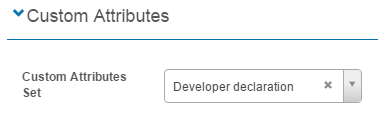
When a custom attribute is selected, a new section, Information to support workflow approval, appears in the catalogue item's metadata section.
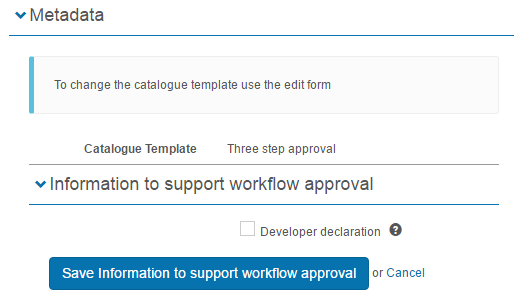
Hovering over the  icon shows the text behind the declaration.

The developer checks the box and selects Save Information to support workflow approval.
Optional inclusions
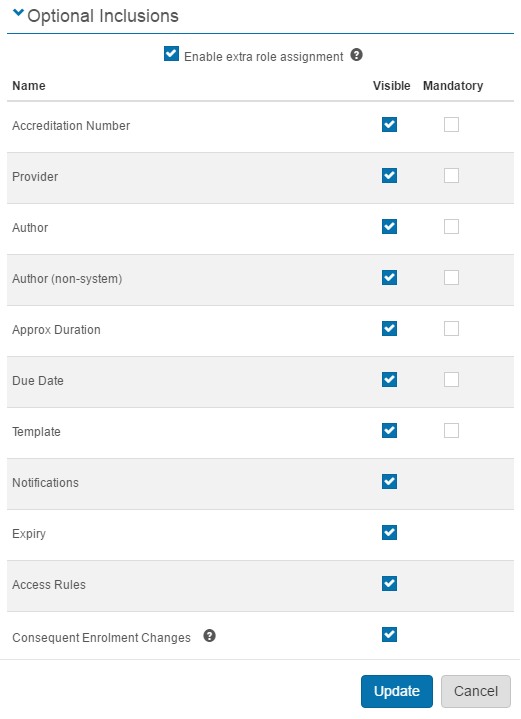
Enable extra role assignment — adds a section to the catalogue item allowing extra roles to be granted, giving users scope over the catalogue item.

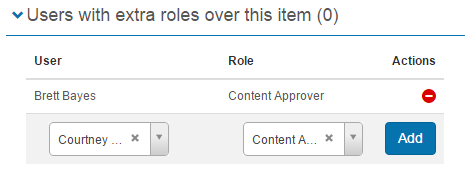
Other items in this section let you hide or show fields on the catalogue item. Some have a Mandatory checkbox — when ticked, the author can't save the catalogue item without populating them.
Catalogue item creation
When a new catalogue item is created, a window appears where you select the required template.
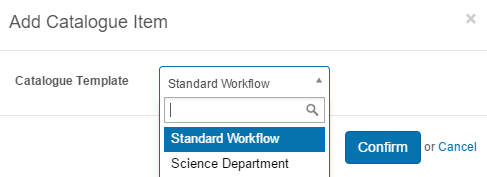
When selected, the template's settings are applied to the new catalogue item.
Settings
Several platform settings affect catalogue item templates.
Administrators can configure the following settings:
Catalogue Item Settings (Settings > Catalogue Item Settings > Catalogue Item Templates) — manage templates, set defaults, configure identifier patterns, tags, custom attributes, and optional inclusions.
Custom Attribute Sets (Settings > Custom Attributes) — define the custom attribute sets that can be linked to templates for workflow approval support.